Closed Days on the Calendar
A closed day and a quiet day look identical on a calendar: nothing booked on either. Closed days shades the days you are shut, so you can tell them apart at a glance.
It is off until you turn it on, and it is yours alone - turning it on does not change what anyone else on your team sees.
Turning it on
- Click Calendar in the left sidebar.
- Click the gear at the end of the filter row.
- Turn Closed days on and press Save.
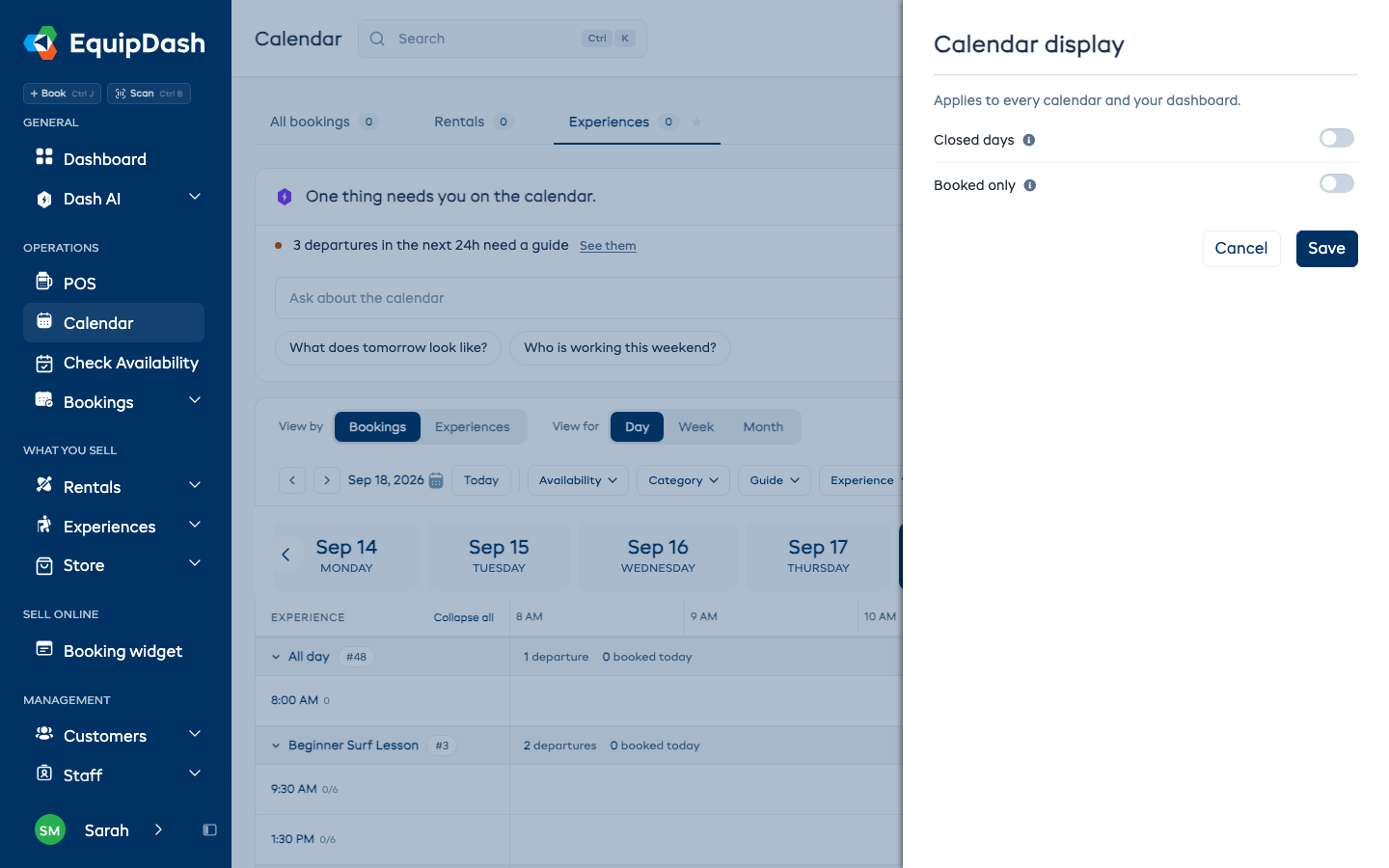
What you save applies to every calendar tab, to your dashboard and to your phone - you set it once. See Display settings for the rest of that drawer.
What you see
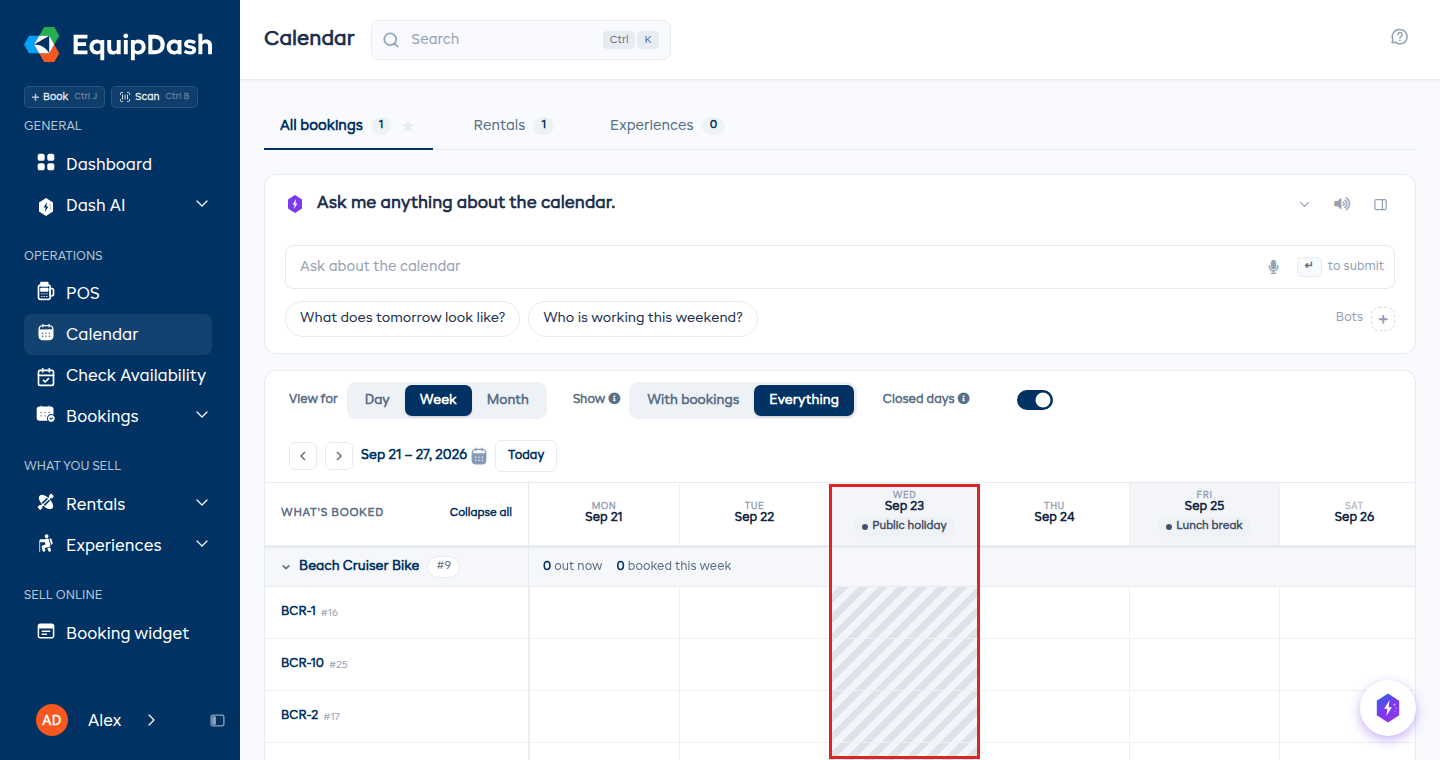
A day you are shut is shaded, and the date says why - the name you gave the closure, or Closed when you did not name one.
- On Week and Month, a day you are shut for the whole day is shaded top to bottom, and the date carries its name.
- A closure of a few hours does not claim the whole day. It shades only those hours, and the date says nothing - a day you are shut from 10 to 1 is open either side of it, and a Closed on the date would be untrue. Hover the date to read the closure and its times.
- On Day, the hours you are shut are banded down the timeline, level with the times they cover, with Closed in the time column beside them.
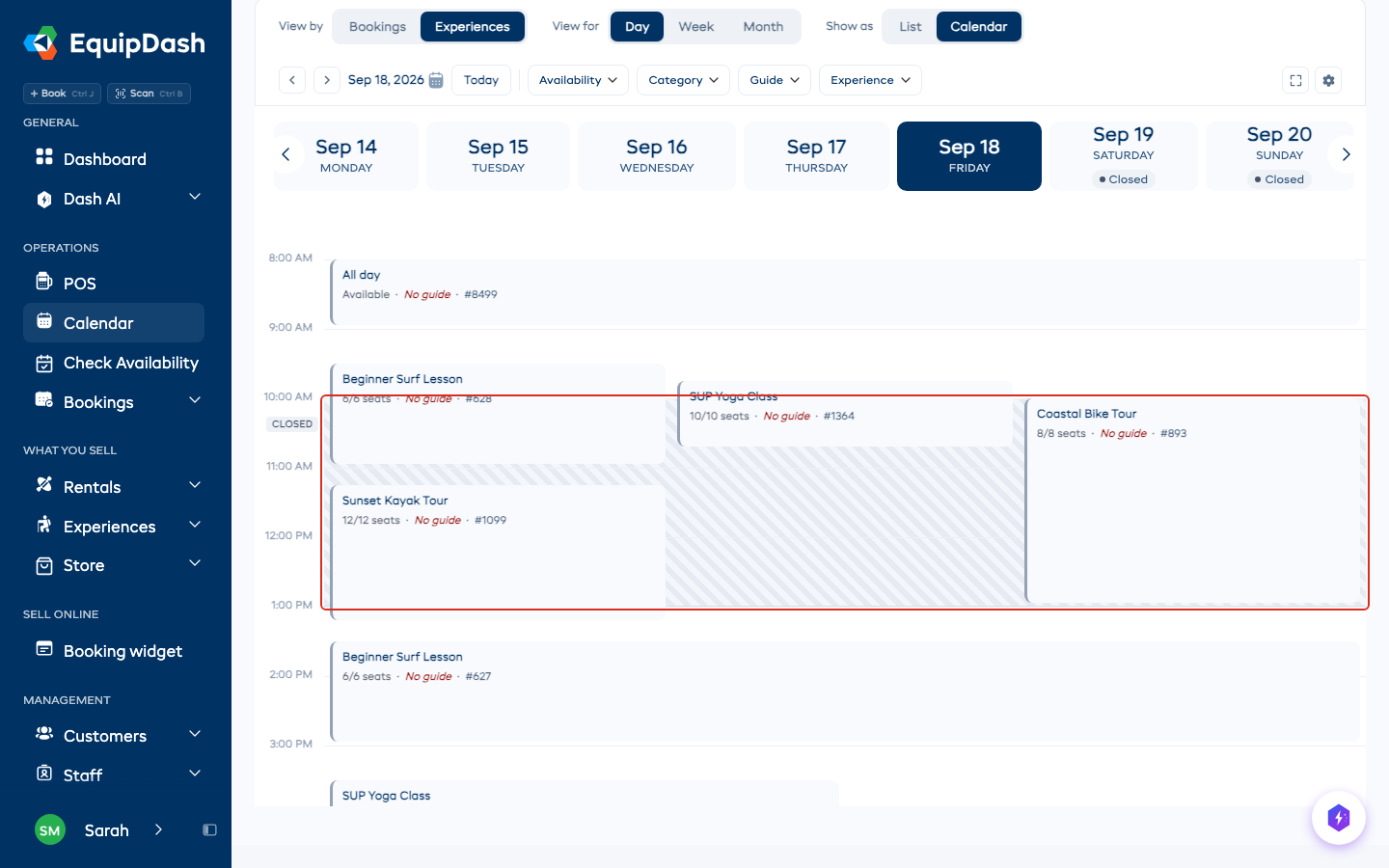
Bookings still draw on top, so a booking that landed on a day you are now closed is easy to spot rather than hidden.
What counts as closed
Three things shut a day, and all three are shaded:
| What | Where you set it |
|---|---|
| A closure, one-off or weekly | Settings → Closures |
| A date outside your open dates | Settings → Closures → Open dates |
| A day your special hours mark as Closed | Settings → Closures → Special hours |
Your normal weekly opening hours are not shaded. They are your usual week rather than an exception, and shading them would grey out half the calendar.
Changing a closure from the calendar
Click the name on a closed day and you land on the closure, ready to edit. If a team member cannot open Settings, the name is just text for them.
More than one location
With a location filter set, you see that site's closures. With All Locations, only closures that shut the whole business are shaded - a closure at one site shows its name on the date without shading it, because the business is still open.
On your phone
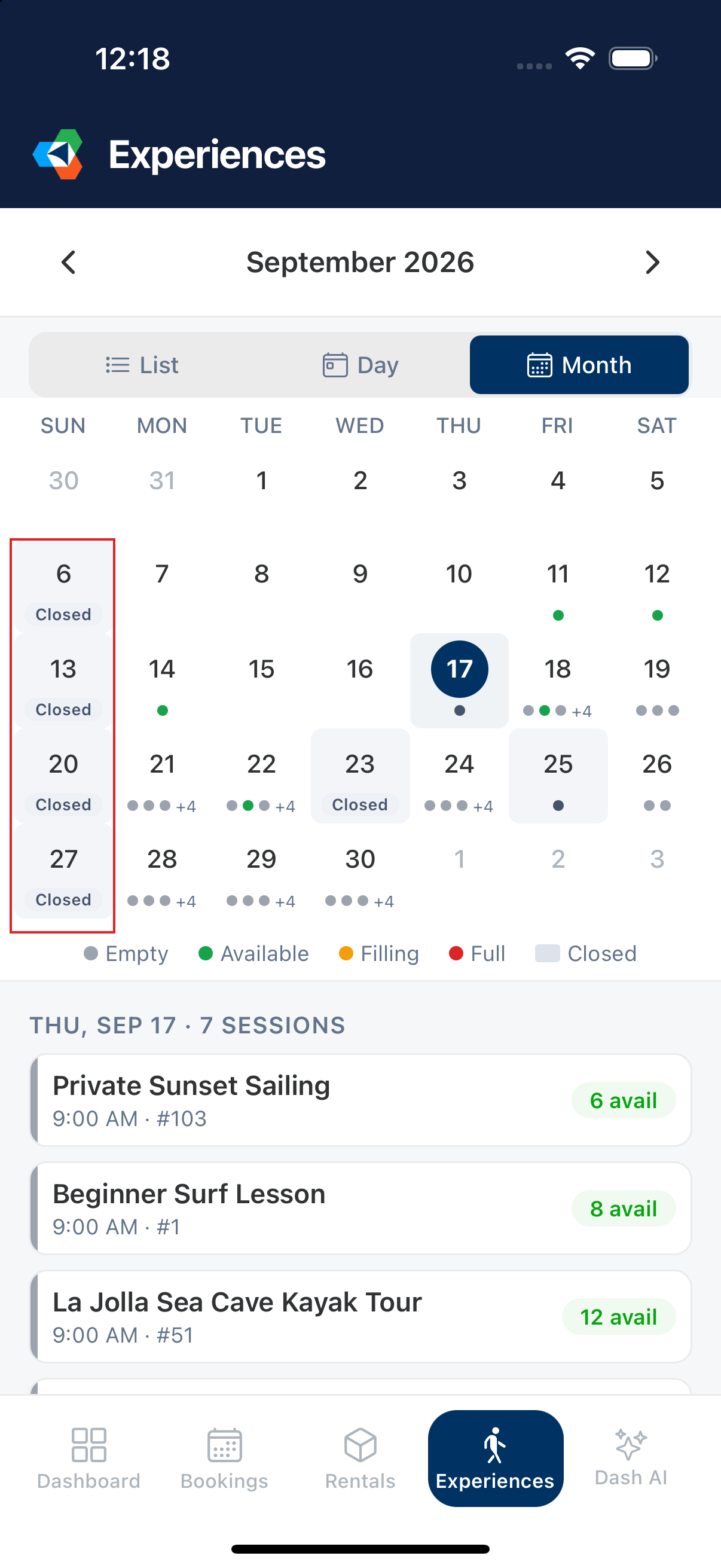
The app uses the same switch. Turn it on at your computer and the phone shows closed days too; turn it off and they stop showing in both places.
On the month grid a closed day says Closed instead of showing what is on sale. Open the day and the closure is named above the sessions, with the hours when you are shut for only part of it.
Closed days is about what you can see. It changes nothing about what customers can book - a closure already stops bookings on every channel, whether or not you shade it here.