Custom Fields on the Widget Checkout
Custom fields let you collect any structured data at checkout — helmet size, emergency contact, event preferences, pickup location. They render in the widget, save with the booking, and show up on your booking detail and manifest.
Two Scopes
| Scope | When to use |
|---|---|
| Booking | One value for the whole booking — e.g. "How did you hear about us?" |
| Booking participant (new) | One value per participant — e.g. "Helmet size" (each rider picks their own) |
Participant-scope fields are new in Phase 1 of the widget updates. They render inside each participant card in checkout, so every participant answers separately.
Field Types Available
| Type | Renders as |
|---|---|
| Text | Single-line input |
| Textarea | Multi-line input |
| Number | Numeric input |
| Date | Date picker |
| Datetime | Date + time picker |
| Select (new) | Single-choice dropdown |
| MultiSelect (new) | Multi-choice checkboxes |
| Checkbox (new) | Single checkbox (yes/no) |
| Phone (new) | Phone-formatted input |
| Email (new) | Email-formatted input |
| YesNo (new) | Yes / No radio buttons |
The five new types (Select, MultiSelect, Checkbox, Phone, Email, YesNo) match what most operators need for per-participant data — no more shoe-horning a list of sizes into a free-text field.
Creating a Custom Field for Checkout
- Go to Settings → Business → Custom fields.
- Click Add field.
- Choose a Model —
Booking(once per booking) orBooking Participant(once per participant). - Pick a Type (see table above).
- Enter a Label — the text shown to the customer.
- For Select / MultiSelect: add the available Options.
- Tick Required if the field must be filled in.
- Save.
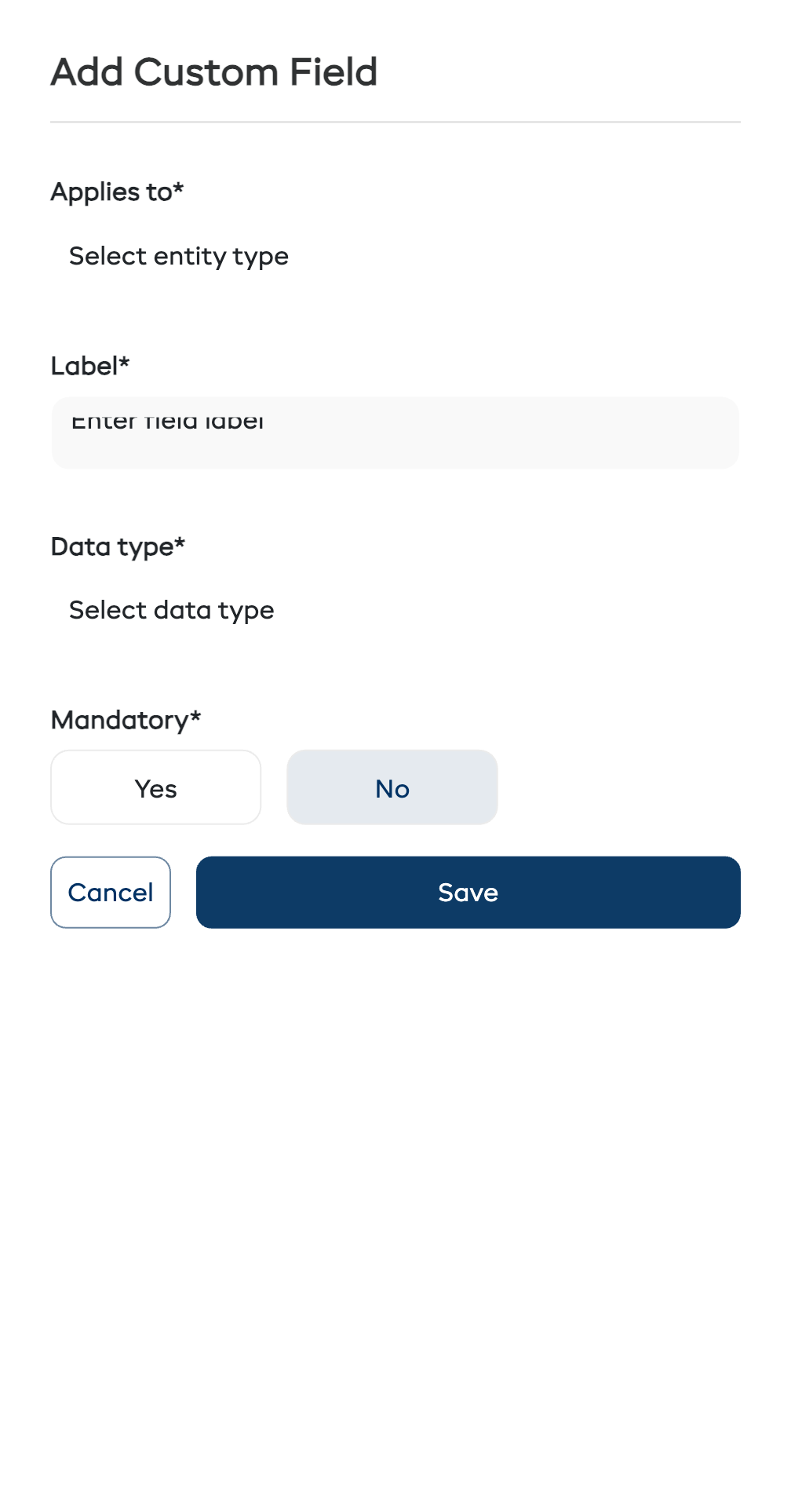
Any active custom field scoped to Booking or Booking Participant renders automatically in widget checkout from that moment on.
How Customers See It
Booking-scope fields
Rendered once, after the customer's contact details, before waivers and payment.
Participant-scope fields
Rendered on every participant card in checkout — each person answers their own.
Where the Responses Appear
- Booking detail — all booking-scope fields in a table; participant-scope fields on the participants table.
- Manifest / day-sheet — one column per field on every export.
- Reports — filter bookings by field value.
- API — responses are returned on the booking payload.
Tips
- Use a Select (dropdown), not free text, whenever the answer is constrained. "Small / Medium / Large" as a dropdown beats asking people to type their size.
- Only require what you genuinely need. Every required field on mobile drops conversion a couple of percent.
- Put phone numbers on booking-scope, not participant-scope — you only need one number per booking unless every participant is actually travelling independently.
- Audit quarterly. Every couple of months, look at each field — if the answers are garbage or unused, delete it.