Assigning Guides
Guides are staff members who lead or assist with an experience session. Assigning guides helps you keep track of who is responsible for each session, avoid double-booking your team, and give customers confidence that their session is staffed.
How Guide Assignment Works
There are two places to set guides, and most shops only need the first.
On the schedule, in Manage schedule. Pick the usual guides for a date range. Its sessions inherit that list, including future sessions the schedule creates.
On a single session, when one is different. Pick guides there and they win for that session; the rest of the range carries on as it was.
You can pick more than one person in either place. When a session needs one guide, any one of the selected people being available can let it sell. When it needs several guides, enough selected people must be available to meet that requirement. Extra names give you alternatives without choosing a lead for every date.
Setting Guides for a Schedule
- Open the experience and go to the Availability tab.
- Click Manage schedule.
- Pick the date range you want on the list at the top.
- Under Guides for this schedule (optional), below the days, choose the staff who normally run it.
- Click Save Availability.
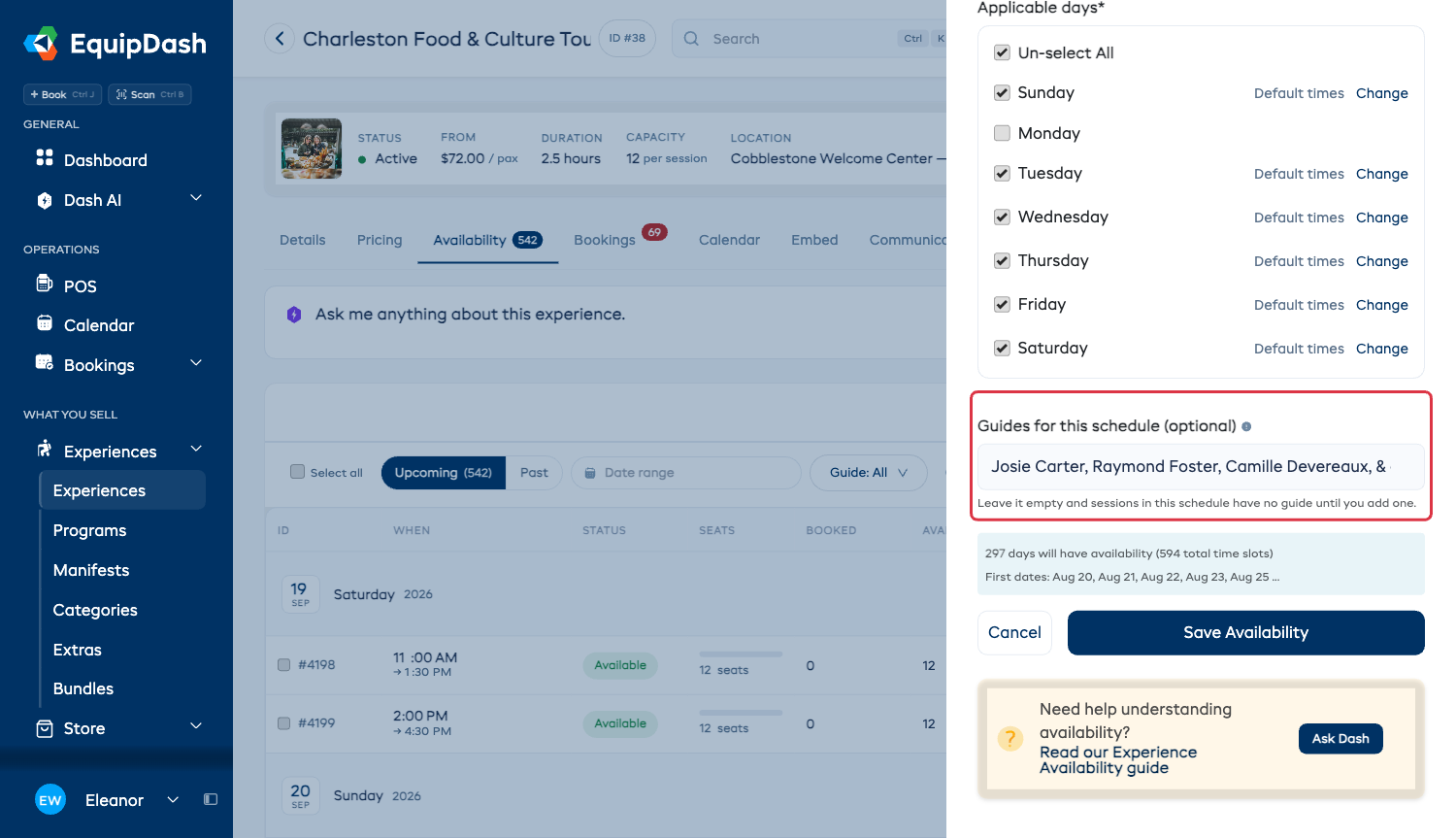
If that field is not there, this experience is not set to need a guide yet. The sidebar says so in its place, with a link straight to the Details tab where you switch it on.
Every session in that range now shows those people, marked From the schedule so you can tell at a glance that nobody was picked by hand. Change the list later and future sessions still following the schedule use the new list. A session with its own guide selection keeps that selection.
When you pick more than the session needs, the row draws them as circles of initials. Hover a circle to read that person's name, or hover the last one to list everybody else on the schedule.
Once a booking comes in we put one of them on it: somebody who is free, preferring whoever is on shift, then whoever is leading the fewest departures that day. The row then shows that one name with a star.
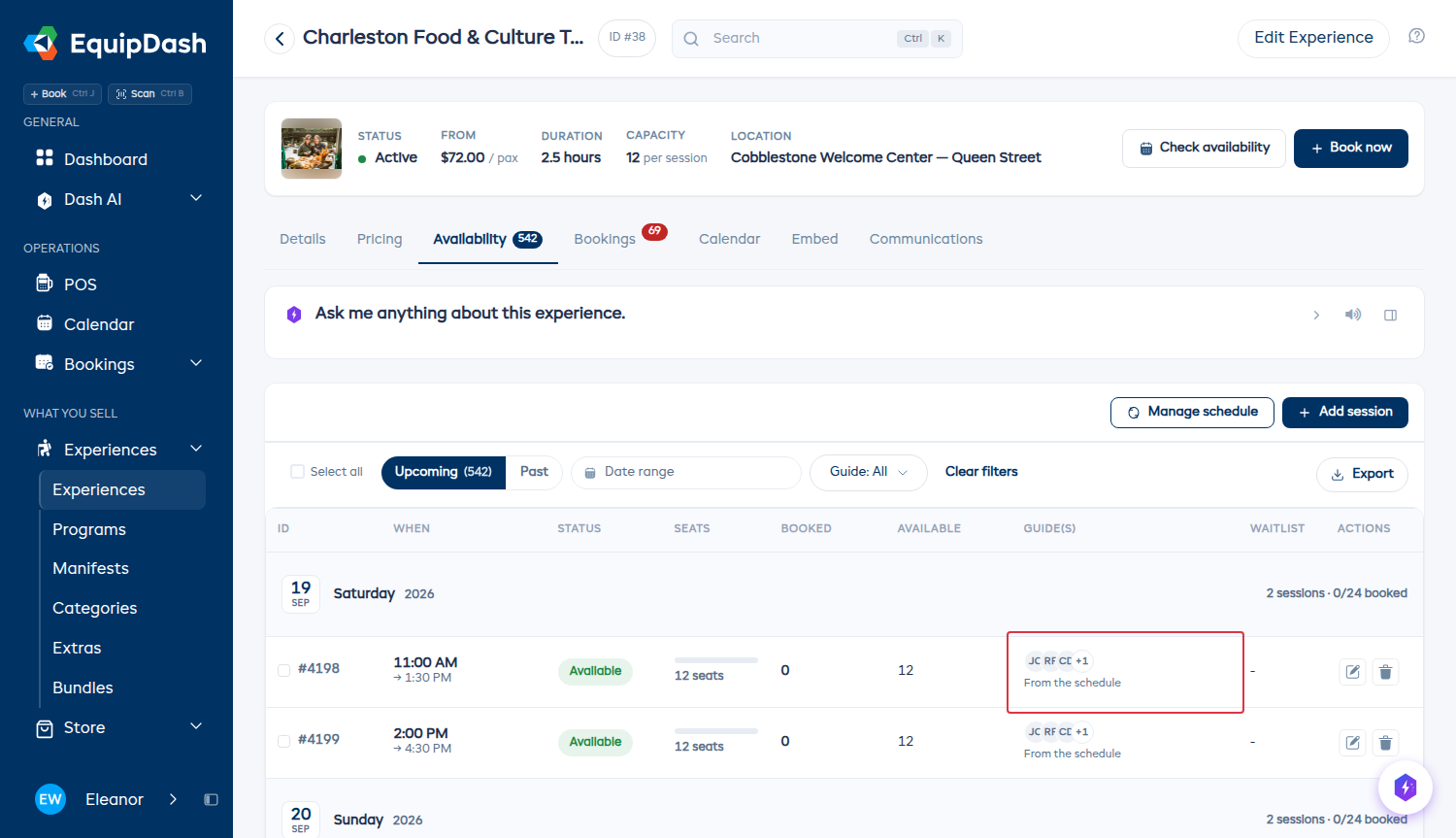
If you drop somebody a booking has already put on a departure, we tell you which departures before saving. They stay on those; everything else uses your new list.
Prerequisites
Before you can assign guides, you need staff members with the Guide role added to your account. The guide picker only lists staff who hold the Guide role - if it shows "No guides found", give the relevant staff member the Guide role first. See Adding Staff and Roles & Access for details.
Assigning Guides to a New Session
When you add a one-time session from the Availability tab:
- Click + Add session at the top-right of the Availability tab.
- In the Add availability sidebar, fill in the Date, Start time, and Capacity.
- If the experience has Need a guide to run? switched on, you'll also see a Guides needed (optional) field - leave it blank to use the experience's default, or set how many guides this particular session takes.
- Click the Guide(s) (optional) search field to open the smart picker, then tick one or more staff members.
- Click Save.
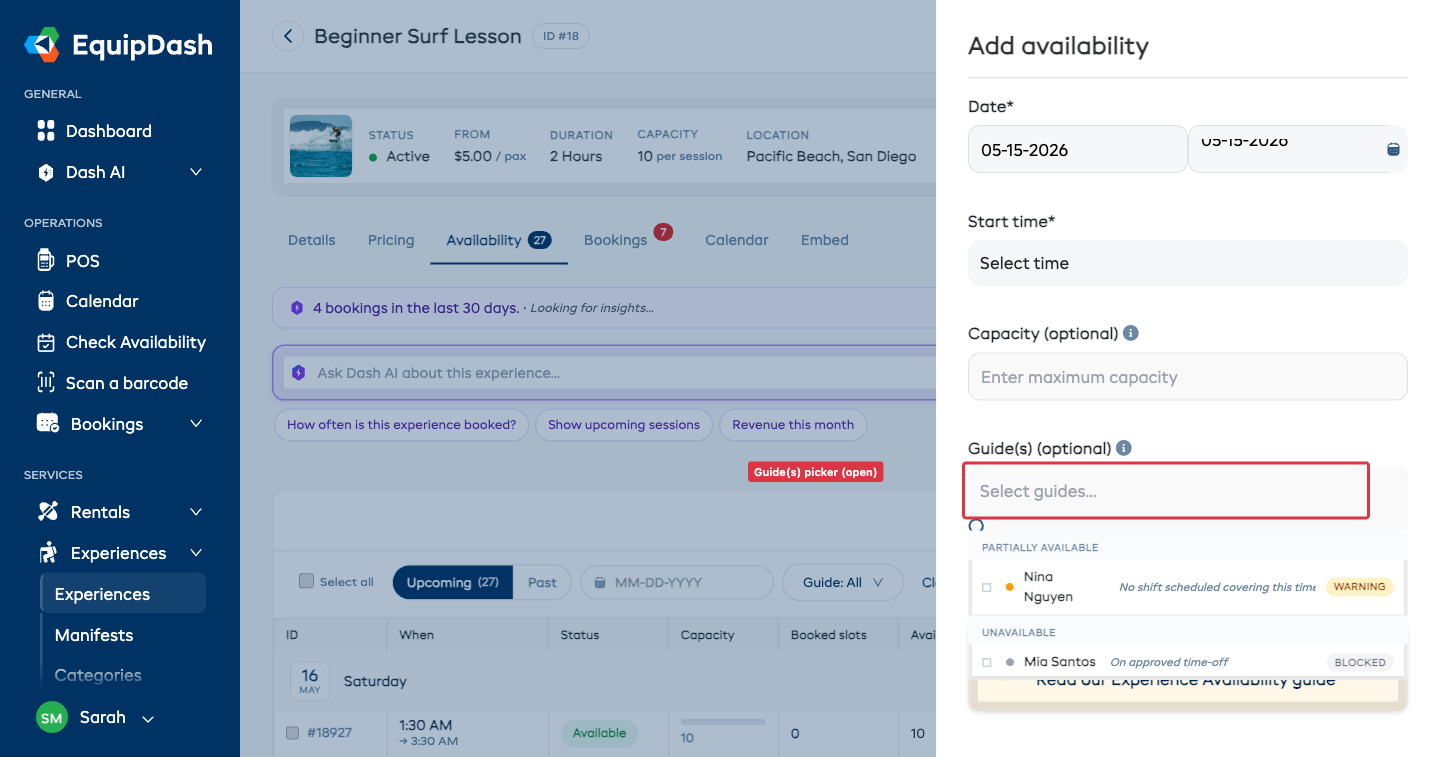
For sessions that already have a guide assigned, you'll see circular guide-initial chips on the row in the Availability table. Sessions with no guides show a + Assign call-to-action - click it to jump straight into the edit sidebar with the guide picker open.
Putting One Person on a Single Session
Say the schedule is run by any of five, and on Saturday you want Sam on it.
- Go to the Availability tab on the experience detail page.
- Click the Edit icon on that session - or the + Assign chip if nobody is on it yet.
- The Guides field opens already holding the five from the schedule. Take the other four out and leave Sam.
- Click Save.
That session now shows Sam on his own, with no From the schedule under it. Every other session in the range still follows the schedule, and changing the schedule's list later leaves this one alone.
If the selected guide has no shift covering the session, EquipDash may offer to create one after saving. Choose Skip to keep the guide assignment without adding a shift, or review the offer before creating the shift.
Open the session, change nothing and save, and it keeps following the schedule - you only break a session away from the range by actually changing who is on it.
Guides Are Notified When You Assign Them
When you save a new direct assignment on a session, EquipDash emails that guide the details - the experience name, date, and time - so they know right away. If you assign someone to several sessions in one go (for example with bulk editing), they get one email listing every session, not a separate email for each one.
The schedule's guide list is a pool of alternatives. Adding names there does not email everyone as if they had each been selected to lead.
A few things to know:
- Assigning the same person to the same session twice doesn't send a second email.
- The email can be customized or turned off under Email Templates (the Guide Assignment staff template).
- Staff can also see their upcoming sessions in the mobile app under My Roster, alongside their shifts - leading assignments are marked with a Leading badge.
Guide Requirements
You can tell an experience which certifications and languages its guides should have. EquipDash uses this to flag - but never block - guides who don't meet the requirements when you assign them.
- Open the experience and go to the Details tab.
- Find the Guide requirements card and click Edit.
- Choose the required certifications and languages.
- Your selection saves automatically.
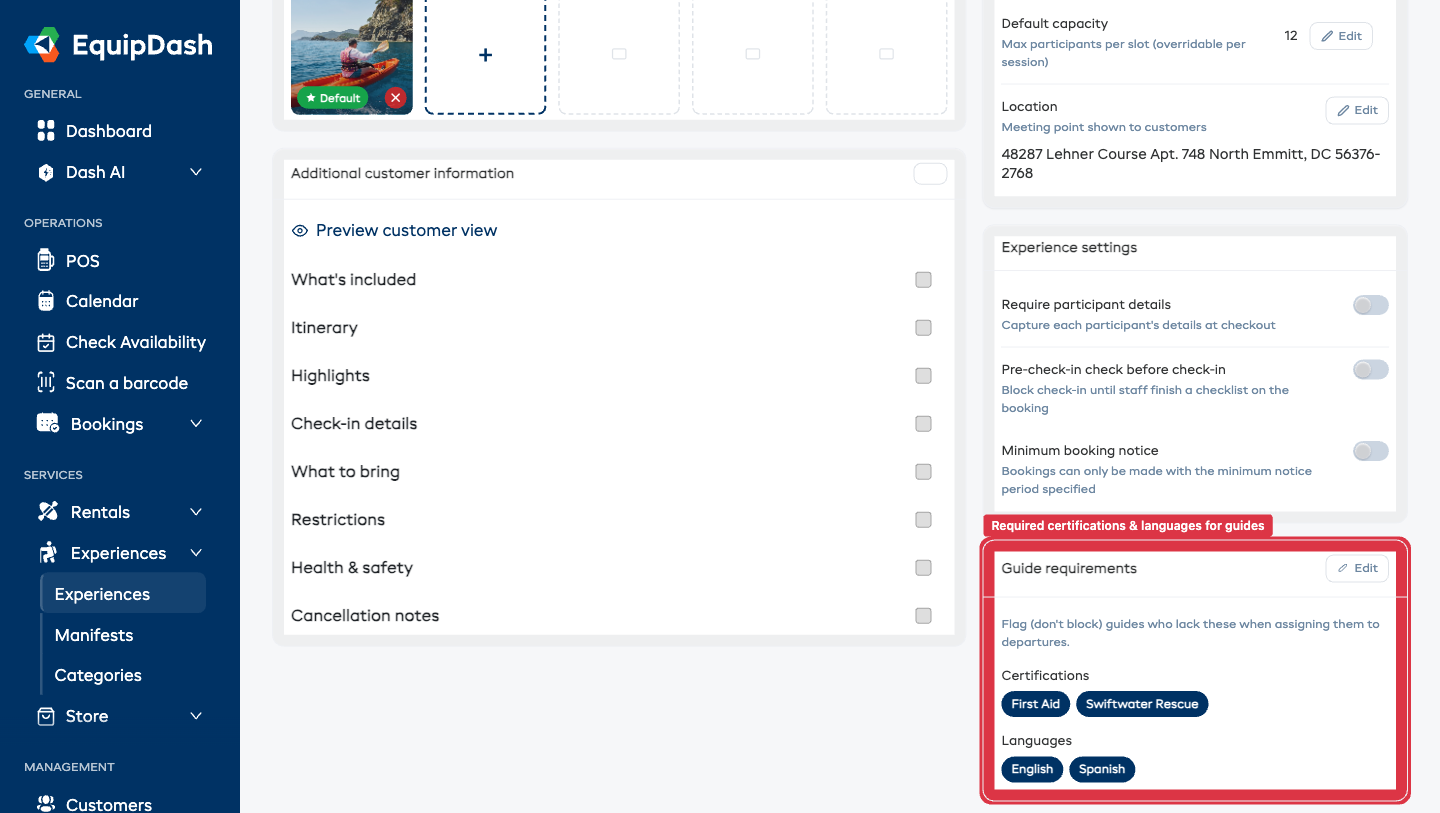
The card is clearly labeled "Flag (don't block)" - these requirements are advisory. They drive the warnings in the guide picker (below) but never stop you assigning the guide you need.
Requirements draw on the data you record against each staff member - see Certifications & Languages.
Guide Qualification Matching
When you open the guide picker (in either the Add availability or Edit availability sidebar), EquipDash groups your team into three buckets:
- Available - rostered for the time and fully qualified.
- Partially available - assignable, but with a heads-up. This is where a guide lands if they have a scheduling conflict or are missing a certification or language the experience requires (including a certification that has expired).
- Unavailable - a hard conflict: approved time off, or (on an experience with Need a guide to run? switched on) the guide is already leading another booked departure at that time.
Each flagged guide shows a small chip explaining exactly why - for example Swiftwater Rescue expired or No shift scheduled covering this time. Once you select a flagged guide, the same reasons are repeated below the picker as a clear heads-up summary.
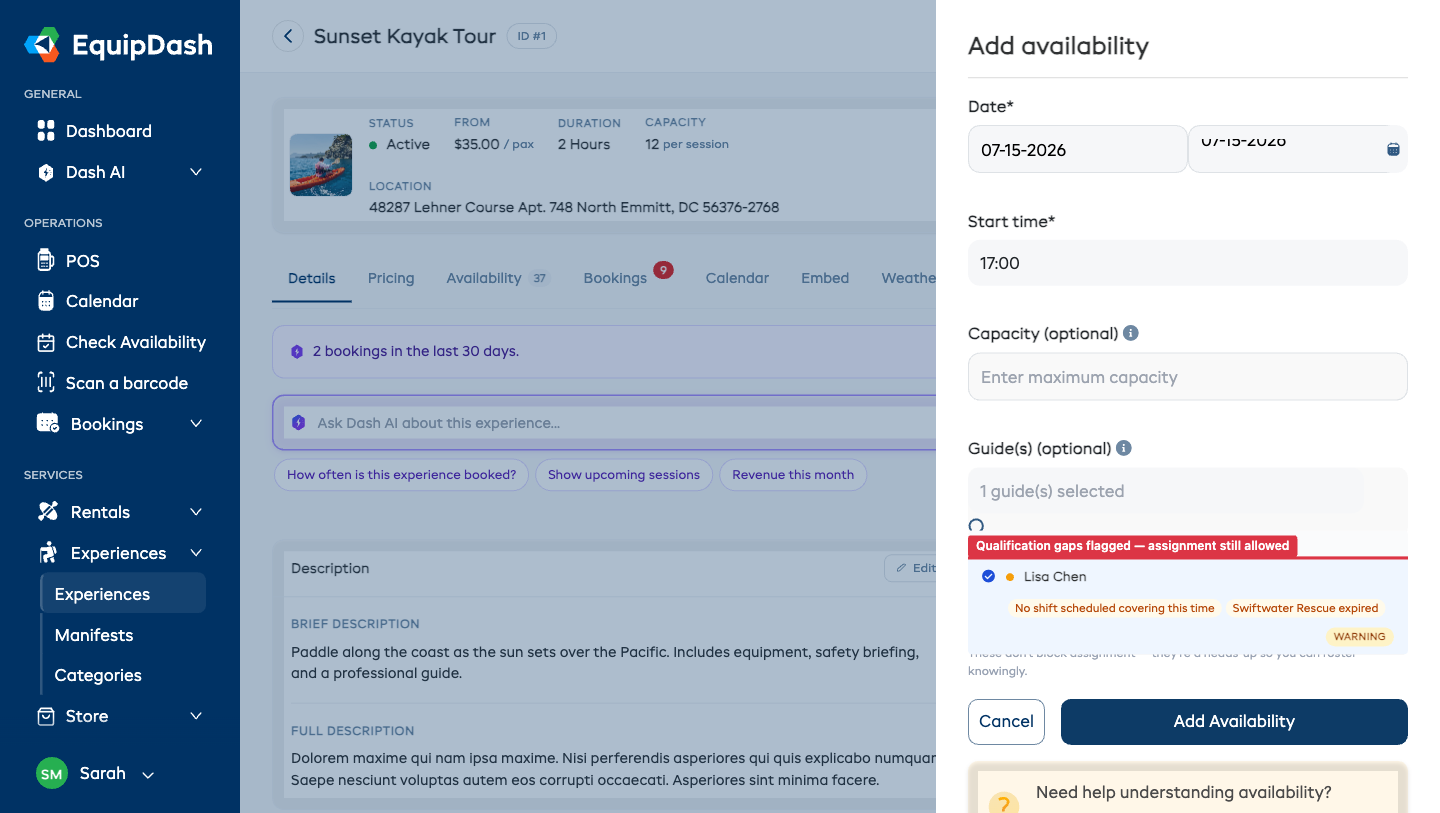
These flags are advisory only. You can always assign a guide who's missing a qualification - EquipDash just makes the gap visible so you can roster knowingly. To clear a warning, record the missing certification or language on the staff member's profile (see Certifications & Languages), or update the experience's Guide requirements.
The one exception: on an experience with Need a guide to run? switched on, availability becomes real - a guide locked onto another booked departure can't also cover this one, so they appear as unavailable for the overlapping time.
Viewing Assigned Guides
In the Availability Table
The Guides column in the Availability table shows who is on each session - names when a few are, circles of initials when it is the schedule's whole list. A session with nobody on it shows + Assign.
On an experience with Need a guide to run? switched on, a ★ on a guide's chip means a booking has locked them onto that departure - click a chip to hand the lead to a different assigned guide. If a session doesn't have enough guides assigned to cover what it needs, the row warns you (for example, "Needs 2 guides - 1 assigned") so you can fix it before customers hit an unavailable time.
On the Calendar
The Experience Calendar also shows guide names on each session, so you can see at a glance who is working each day.
Removing a Guide from a Session
- Click the Edit icon on the session in the Availability table.
- In the Guides selector, remove the guide you want to unassign.
- Click Save.
Tips for Guide Management
- Assign guides early. This helps your team plan ahead and gives you time to find replacements if someone is unavailable.
- Check the calendar view. The Experience Calendar gives you a visual overview of who is assigned where, making it easy to spot scheduling conflicts.
- Use staff availability. If you have set up Staff Availability, check your team's availability before assigning them to sessions.
- Multiple guides per session. For larger groups or activities that require extra supervision, assign more than one guide.