Timezone Display Style
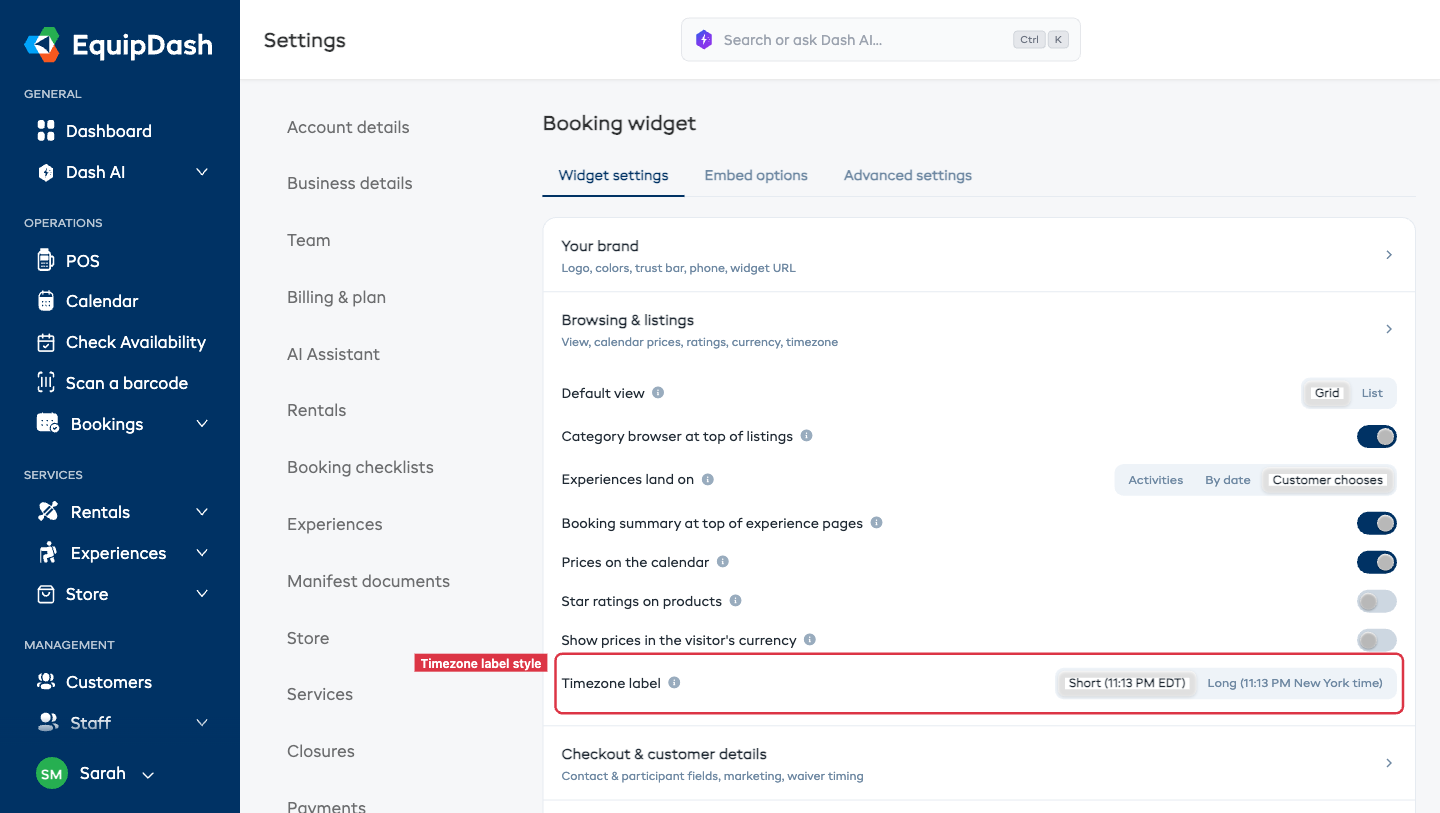
Every time your widget displays a date and time — slots, checkout summary, booking confirmation email — it attaches your business's timezone. You choose whether it reads as a short abbreviation (PDT) or a long, spelled-out label (Pacific Daylight Time).
The Two Styles
| Style | Example | When to use it |
|---|---|---|
| Short abbreviation | Apr 24, 09:00 PDT | Local audience that recognises the abbreviation |
| Long name | Apr 24, 09:00 Pacific Daylight Time | International or out-of-town audience |
Changing the Style
- Go to Settings → Booking widget → Widget settings tab.
- Scroll down to the Browsing & listings section and find Timezone label style.
- Choose Short abbreviation or Long name. The preview updates in place, and your change saves automatically.
Where the Label Appears
- Every slot time on experience and rental detail pages
- The cart summary — per-item start times
- The checkout confirmation page
- The booking confirmation email
- The booking reminder email — sent 24 hours before
- The cancellation email — if the refund window has passed
Picking the right style once here saves you from re-writing it into every email template.
Why This Exists
Most FareHarbor / competitor widgets show times with no timezone at all — which silently causes customer confusion when someone in New York books a tour that starts at 09:00 in Cape Town. EquipDash always shows the timezone, so the customer never has to guess.
"Powered by EquipDash"
Below the timezone setting there's a small "Powered by EquipDash" line in the widget footer. It's on by default and can't be turned off on any plan tier. It's a single small link — it doesn't affect your branding anywhere else on the widget.