Per-Participant Comments
A simple Comments textarea on every participant card in checkout. Customers type whatever they want — allergies, mobility notes, pickup requests. You see it on the booking detail and on the manifest.
It's the "FareHarbor Any additional notes or requests? field" — a low-friction way to collect per-person information without setting up custom fields.
Turning It On
- Go to Settings → Booking widget → Widget settings tab → Checkout & customer details section.
- Scroll down past the participant field settings.
- Tick Show a Comments textarea on every participant card. The change saves automatically — there's no Save button.
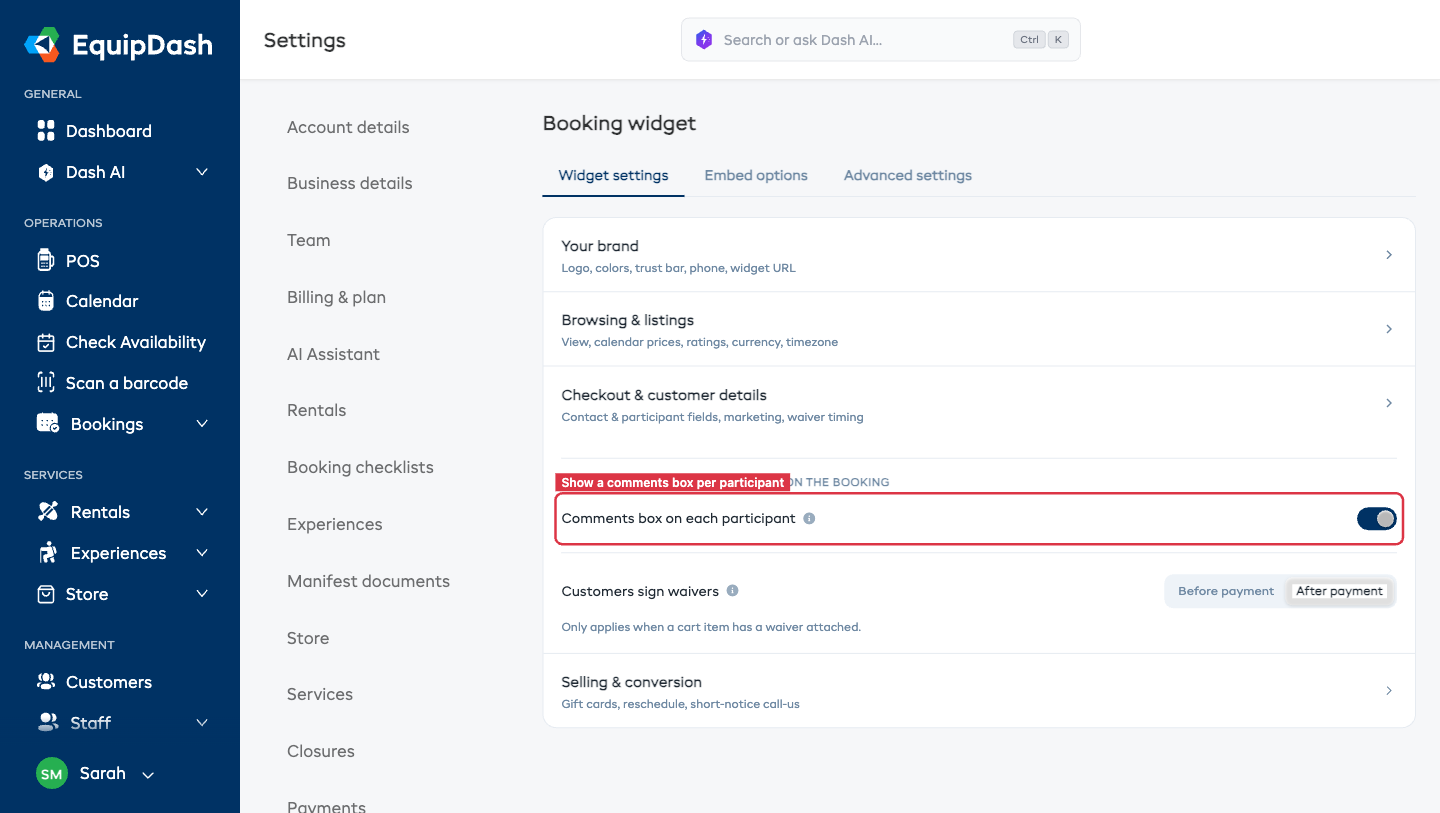
What Customers See
Each participant card in checkout gets a Comments textarea. Customers can leave it blank or fill in as much as they want.
Where the Comments Show Up
| Surface | How it appears |
|---|---|
| Booking detail | A Comments column on the participants table |
| Manifest / day-sheet | A Comments column on every export |
| Booking notes | Unchanged — comments live on the participant record, not in notes |
When to Use Comments vs. Custom Fields
Use participant Comments when you just want open-ended notes. No structure, no dropdowns, no validation.
Use custom fields when you need structured data — e.g. "Helmet size: S/M/L", "Pickup location: North Shore / South Shore". Custom fields are queryable, exportable as separate columns, and can be made required. See Custom fields on the widget.
Tip: many suppliers run with both — custom fields for the things they always need structured, and a Comments box for the rest.
Tips
- Label it on the participant card, not on the booking as a whole. Per-participant notes avoid the "customer said they had peanut allergy — which one?" problem.
- Pair it with staff notifications. Manifest notifications to guides ensure someone actually reads the comments before the event.
- Leave it off if nobody reads it. An unread free-text field is worse than nothing — the customer thinks they communicated.