Roles Explained
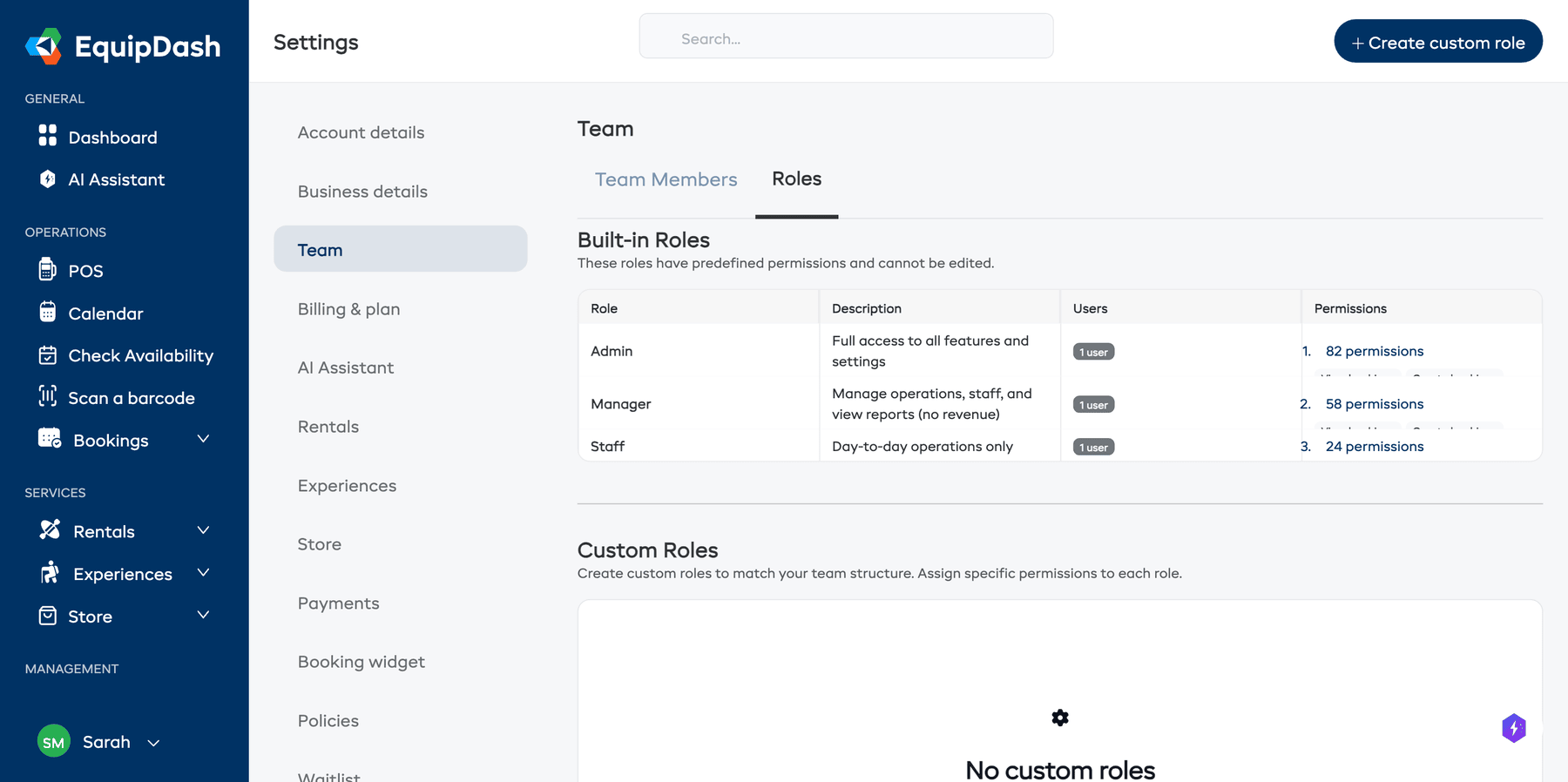
Every team member in EquipDash is assigned a role that determines what they can see and do. There are three built-in roles and the option to create custom roles for more granular control.
Built-In Roles at a Glance
| Capability | Admin | Manager | Staff |
|---|---|---|---|
| View bookings | Yes | Yes | Yes |
| Create bookings | Yes | Yes | Yes |
| Edit bookings | Yes | Yes | Yes |
| Cancel bookings | Yes | Yes | No |
| Delete bookings | Yes | No | No |
| Archive bookings | Yes | Yes | No |
| Record payments | Yes | Yes | Yes |
| Process refunds | Yes | Yes | No |
| Fulfillment (check-in/out) | Yes | Yes | Yes |
| View products | Yes | Yes | Yes |
| Create/edit products | Yes | Yes | No |
| Delete products | Yes | No | No |
| Manage inventory | Yes | Yes | Yes |
| Access workshop | Yes | Yes | Yes |
| View experiences | Yes | Yes | Yes |
| Create/edit experiences | Yes | Yes | No |
| Delete experiences | Yes | No | No |
| View customers | Yes | Yes | Yes |
| Create/edit customers | Yes | Yes | Yes |
| Delete customers | Yes | Yes | No |
| Export customers | Yes | Yes | No |
| View staff | Yes | Yes | No |
| Manage staff | Yes | Yes | No |
| Manage schedules | Yes | Yes | No |
| Manage waivers & forms | Yes | Yes | No |
| Manage surveys | Yes | Yes | No |
| Manage promotions | Yes | Yes | No |
| View campaigns | Yes | Yes | No |
| Manage campaigns | Yes | Yes | No |
| View revenue reports | Yes | No | No |
| View other reports | Yes | Yes | Inventory only |
| Export reports | Yes | Yes | No |
| View calendar | Yes | Yes | Yes |
| All settings | Yes | No | No |
| Billing & plan | Yes | No | No |
| Team management | Yes | No | No |
| Manage booking tags | Yes | Yes | No |
| AI Assistant | Yes | Yes | Yes |
Role Descriptions
Admin
Admins have full access to everything in EquipDash. They can manage billing, team members, all settings, and see revenue data. This role is typically for business owners and senior managers.
Manager
Managers have broad operational access but cannot see revenue reports, manage billing, or change most settings. They can handle day-to-day operations including bookings, products, customers, staff, and promotions.
Staff
Staff have limited access focused on day-to-day tasks -- creating and editing bookings, checking customers in and out, managing inventory, and scanning barcodes. They cannot cancel bookings, process refunds, manage products, or access most settings.
Custom
Custom roles let you pick and choose exactly which permissions a team member has. See Custom Roles for details.
Choosing the Right Role
| Scenario | Recommended Role |
|---|---|
| Business owner or co-owner | Admin |
| Shop manager who runs daily operations | Manager |
| Front-desk staff who checks customers in | Staff |
| Seasonal worker who only processes bookings | Staff |
| Bookkeeper who only needs reports access | Custom (with Reports permissions only) |
| Guide who only needs calendar and experience access | Custom (with Calendar and Experience view permissions) |
Things to Keep in Mind
- There must always be at least one Admin on the account.
- A team member cannot change their own role to prevent privilege escalation.
- Permission changes take effect immediately -- the team member does not need to log out and back in.
- If none of the built-in roles fit, use a Custom Role to tailor permissions precisely.