Printing Barcode Labels Growth+This feature requires the Growth+ plan or higher
Once you have generated barcodes for your products and inventory items, you can print physical labels to attach to your equipment. Printed labels make scanning fast and reliable in your shop or rental facility.
Opening the Print Labels Page
You can access the print labels page from several places:
- From the Inventory tab -- Click the Print Barcodes button above the inventory table to print labels for all items with barcodes.
- From the Product Detail page -- Click the print icon next to a barcode in the Barcodes section.
Choosing a Label Size
On the print labels page, use the Label Size dropdown to choose from different sizes:
| Size | Dimensions | Best for |
|---|---|---|
| Small | 25×15 mm | Small items, accessories, tight spaces |
| Medium | 50×25 mm | Most rental equipment, general use |
| Large | 100×50 mm | Large items, warehouse environments, easy scanning from a distance |
Check the selected size before printing and choose the size that matches your label paper.
Label Contents
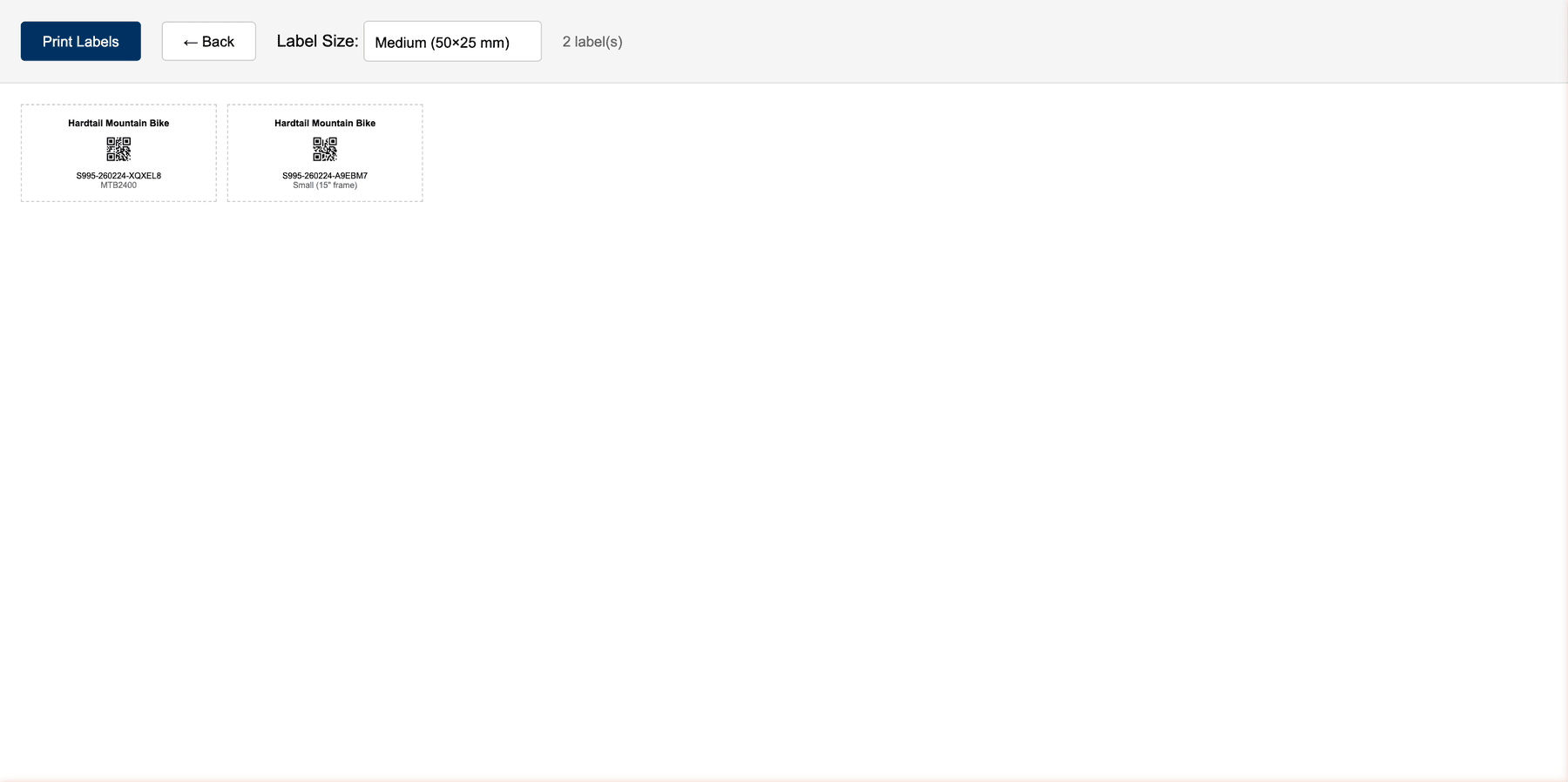
All sizes include the barcode image and barcode value. Medium and Large also include the product name and item identifier:
- Product name -- The name of the product the barcode belongs to.
- Barcode image -- The scannable barcode or QR code graphic.
- Barcode value -- The text representation of the barcode (printed below the graphic for manual reference).
- Identifier -- The product or variation SKU, or the identifier of the numbered inventory item.
Printing Your Labels
- Check the label count, codes, and item identifiers.
- Click Print Labels to open your browser's print preview.
- Check the printer, paper size, and scale before printing. You can cancel the preview to return without printing.
Printing Tips
- Use adhesive label paper for easy application. Standard Avery-style label sheets work well.
- Laminate outdoor labels if your equipment is used in wet or rough conditions.
- Test scan after printing to make sure the printed barcode scans correctly before applying to all items.
- Place labels consistently on the same spot on each item type (e.g., always on the frame near the handlebars for bikes) so staff know where to look.
- Avoid placing over curved surfaces where the barcode might warp and become hard to scan.
Reprinting Labels
If a label gets damaged or falls off, you can reprint it at any time. The barcode value stays the same -- you do not need to generate a new one. Simply navigate back to the product or inventory page and click Print Barcodes again.
Related Guides
- Setting Up Barcodes -- Configuring barcode settings and generating barcodes.
- Scanning Barcodes -- Using the scanner to identify items.