Connect Calendar Sync Growth+This feature requires the Growth+ plan or higher
Open Settings → API & Integrations → Integrations and scroll to the Calendar section. There are two cards:
- Google Calendar — live two-way sync with your Google account.
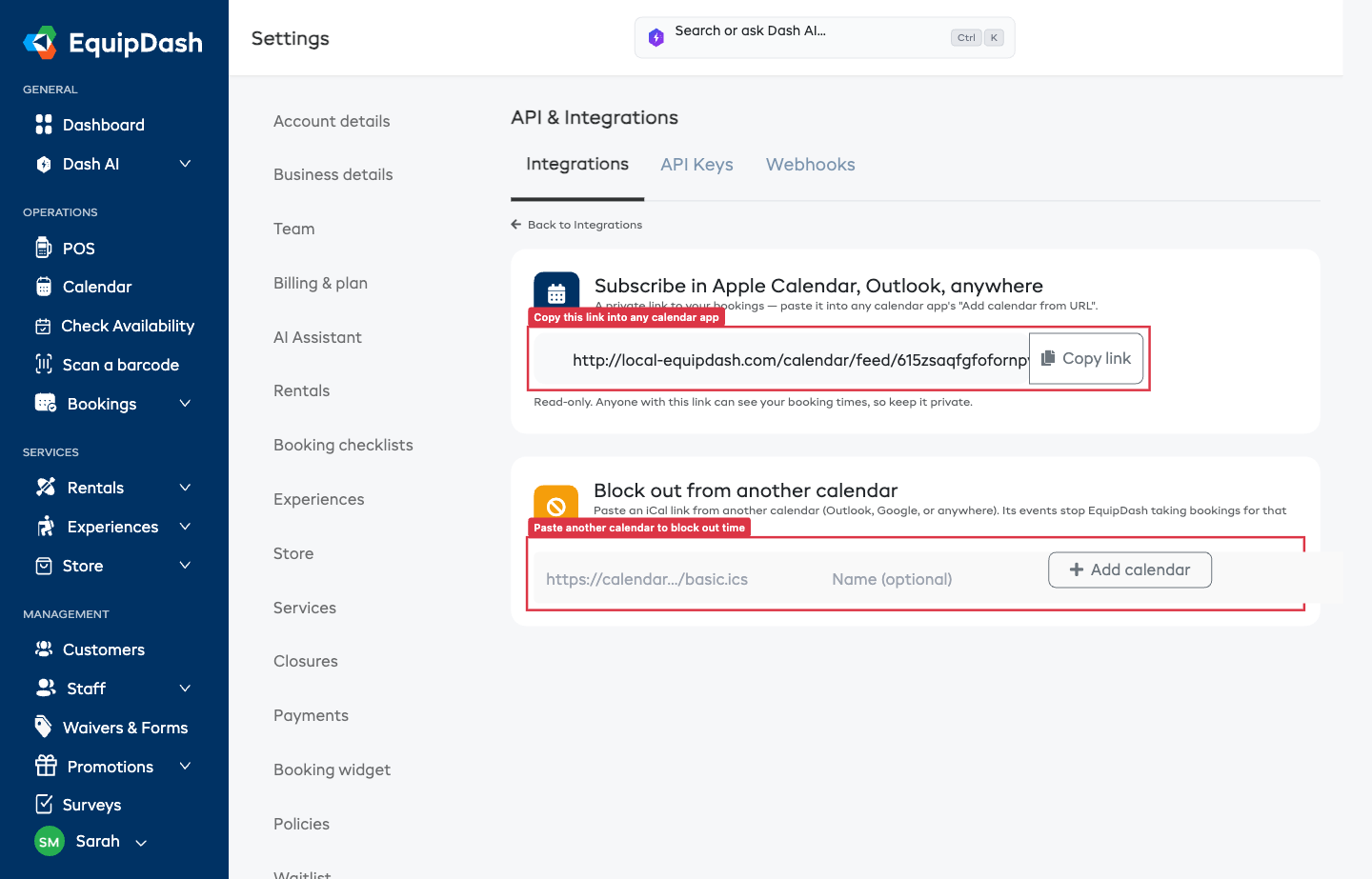
- iCal & Custom — subscribe in any calendar app, or block out time from an iCal link (no sign-in).
Pick either or both.
Option 1: Connect Google Calendar
This gives you live, two-way sync in one step.
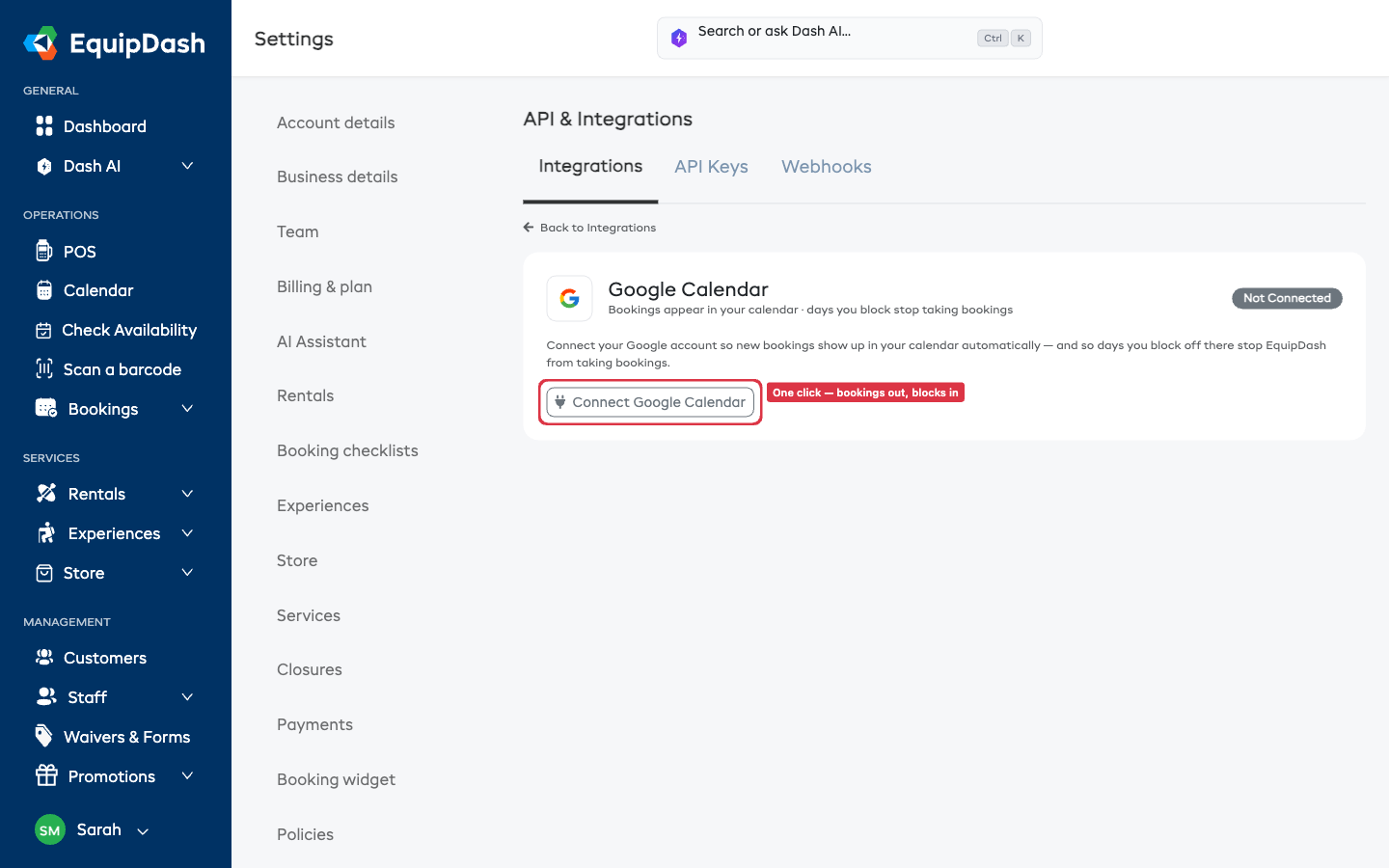
- On the Google Calendar card, click Connect Google Calendar.
- Sign in to Google and allow EquipDash to manage your calendars.
- You're back in EquipDash, now connected:
- Show my bookings in Google Calendar — on by default. Bookings appear in a new "EquipDash Bookings" calendar.
- Block out time from my calendar — off by default. Turn it on only if you want events on your calendar to stop EquipDash taking bookings. This keeps private appointments on your personal calendar from accidentally blocking your availability.
Choose which calendar blocks your availability
When you turn on Block out time from my calendar, pick the calendar EquipDash should watch. We recommend creating a separate Google calendar just for closures (for example "Closed") and choosing it here — then only events on that calendar affect EquipDash, and your personal appointments are never touched. (Event titles are never shown to your customers — the booking widget just says you're closed for that time.)
Turn a direction off
Each direction has its own switch. Turn off Show my bookings if you only want blocking, or turn off Block out time if you only want your bookings to appear. Changes save instantly.
Sync now
EquipDash syncs automatically, but if you've just made changes and want them reflected immediately, click Sync now.
Option 2: Subscribe in Apple Calendar, Outlook, or anywhere
No sign-in needed — this is a private, read-only link to your bookings. Open the iCal & Custom card to find it.
- On the Subscribe in Apple Calendar, Outlook, anywhere card, click Copy link.
- In your calendar app, choose Add calendar from URL (Apple Calendar: File → New Calendar Subscription; Google: Other calendars → From URL; Outlook: Add calendar → Subscribe from web).
- Paste the link. Your bookings appear and refresh automatically every few hours.
Anyone with this link can see your booking times. Don't share it publicly.
Option 3: Block out from another calendar (iCal)
Use this to block EquipDash from any calendar that gives you an iCal link — Outlook, Airbnb, Booking.com, or a Google calendar's secret iCal address.
- Get the iCal link from the other calendar (look for "iCal", "ICS", or "Subscribe" in its sharing settings).
- On the Block out from another calendar card, paste the link, give it a name (e.g. "Airbnb"), and click Add calendar.
- EquipDash imports its events as closures straight away and keeps them in sync. Remove an event upstream and the closure disappears on the next check.
To stop blocking from a calendar, click Remove next to it — the closures it created are removed too.
Disconnecting
On the Google Calendar card, click Disconnect. EquipDash stops showing your bookings and stops reading blocks. Any closures already imported stay in place — clear them in Settings → Closures if you no longer want them. You can reconnect at any time.
Troubleshooting
| Problem | Fix |
|---|---|
| Bookings aren't appearing in Google | Check Show my bookings in Google Calendar is on, then click Sync now. |
| A blocked day still takes bookings | Confirm Block out time is on and the right calendar is selected, then Sync now. |
| An iCal calendar shows an error | The link may be wrong or private — re-copy it from the source app and re-add it. |
| Times look off by a few hours | Check your time zone in Settings → Business details. |