Customizing Email Templates
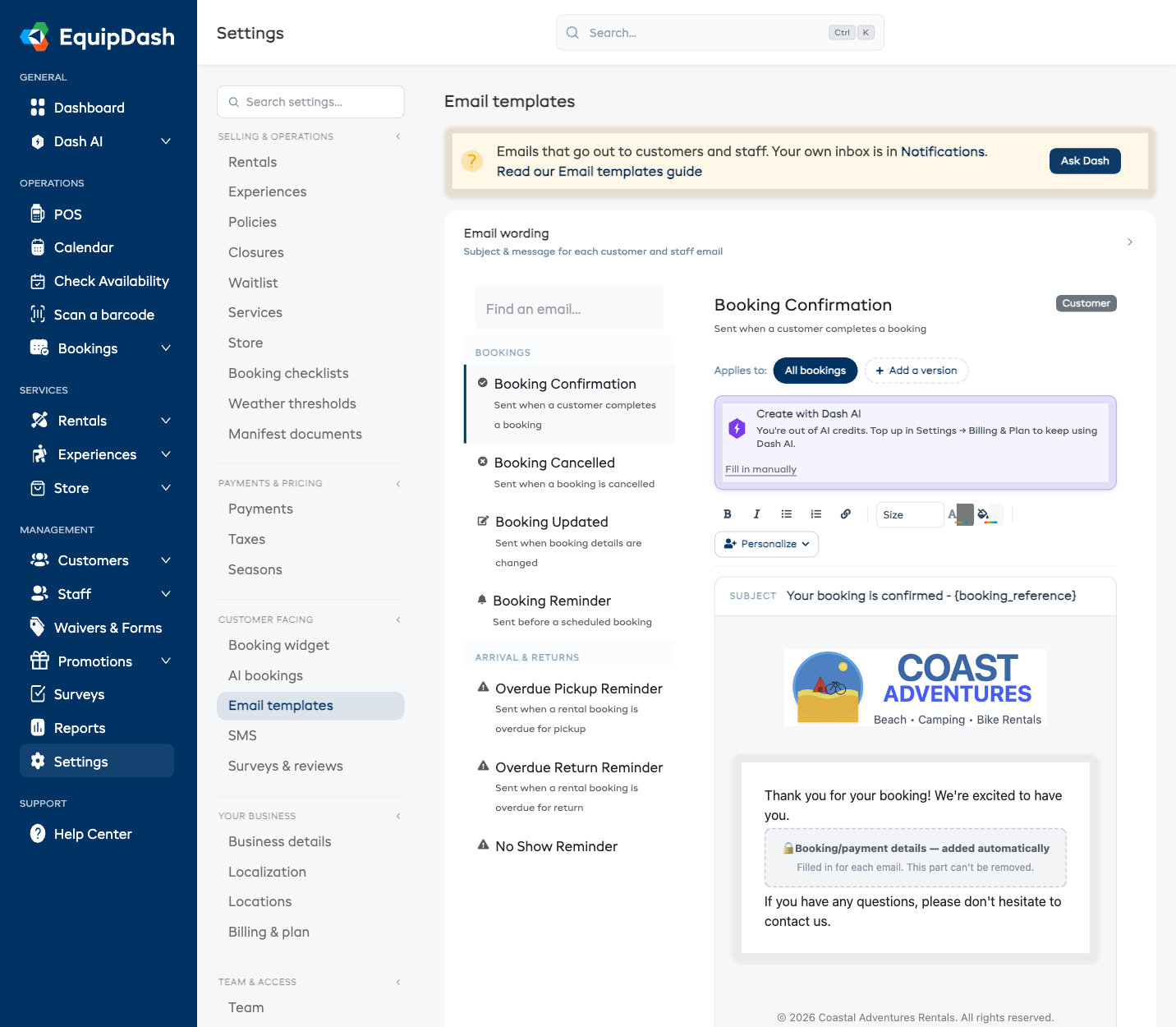
EquipDash sends automated emails to your customers and staff at key moments -- booking confirmations, payment receipts, reminders, and more. You edit each one right on the email itself: click the text and type, add buttons or images, and everything saves as you go.
Finding an email
- Click Settings in the sidebar.
- Select Email templates from the settings menu.
- The list on the left is grouped by what each email is about:
- Bookings -- confirmation, updates, cancellations, reminders
- Arrival & returns -- pre-arrival messages and overdue reminders
- Payments & money -- receipts, damage charges, vouchers, gift cards
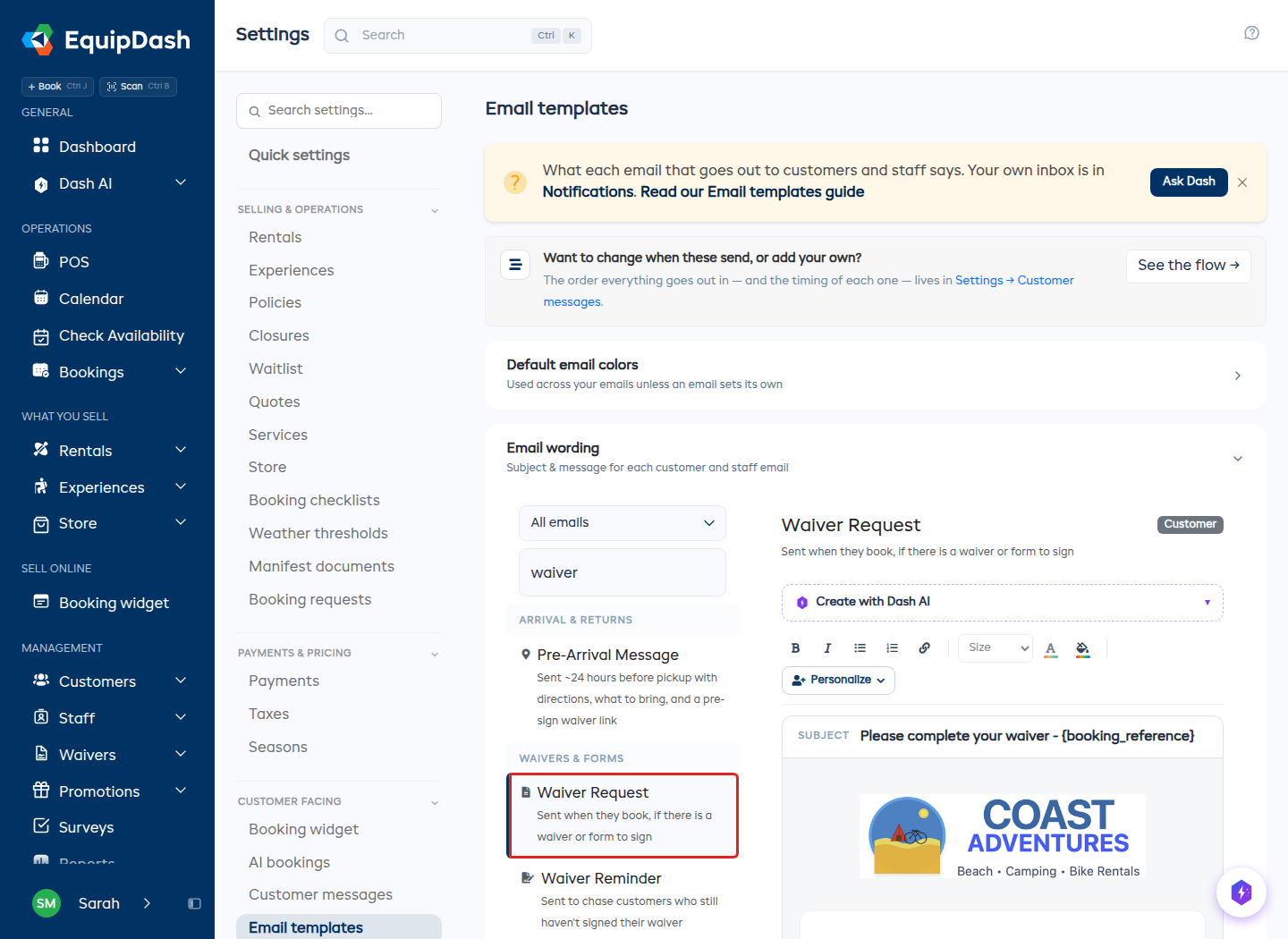
- Waivers & forms -- the waiver request, the chasers, agreements and form responses
- Reviews & surveys -- review and survey requests
- Customers -- portal links and waitlist notices
- Your team -- shift emails for your staff
- Use the Find an email... box above the list to jump straight to one.
This page is the emails that go out to customers and staff. To choose which emails land in your own inbox, use Notifications.
Editing an email
Pick an email from the list and you'll see it exactly as your customers will -- with your logo and colors. Click anywhere on the email to edit it.
- Subject -- click the subject line at the top of the email and type.
- Text -- click into any paragraph or heading and type. Use the toolbar for bold, italic, lists, links, text size and color.
- Add something -- hover between two parts of the email and press the + that appears. You can add a Heading, Text, Button, Image, Divider or Spacer.
- Move or remove -- hover over a part of the email and use the small ↑ ↓ ✕ tools.
- Background color -- use the fill swatch in the toolbar to change the email's background.
- Personalize -- inserts details like the customer's name or booking reference wherever your cursor is. See Available Email Variables.
The gray "added automatically" card in the middle of the email marks where EquipDash fills in the details -- booking items, dates, amounts. That part is always accurate for each email and can't be removed; you design everything around it.
Everything saves automatically as you edit -- you'll see a Saved note appear. To check the result in a real inbox, press Send test email and a copy with sample details arrives at your own email address.
Two pages, one job each
This page is what an email says. When it goes out, who gets it, whether it's switched on at all, and what else your customers receive around it -- that's Customer messages, where the whole sequence sits on one screen in the order it happens.
The split is deliberate: wording in one place, the sequence in another, with a link on every card in both directions so you're never more than one click from the other half.
When each email goes out
Pick any email that's part of a booking and, below the editor, a panel tells you what it's currently doing -- "24 hours before they come in", "Straight away", or This one is switched off. Change when this sends → takes you to that email's card on Customer messages.
Switching a booking email off stops the automatic send only. You can still send the confirmation, a reminder or a cancellation by hand from Email actions on the booking.
Emails that aren't part of a booking keep their controls here:
| What you can set | |
|---|---|
| Shift Reminder (Your team) | Send -- how far ahead of the shift your team is reminded. A shift isn't a booking, so it has no card on the customer timeline |
| Overdue Return Reminder | Offer online extension -- that's behavior, not timing, so it stays here. How long to wait past the due time is on the overdue card in Customer messages |
| Waiver Request | The first "please sign" email. It goes out when they book, so there is no timing to set. Chasing is set in Settings → Consent reminders |
| Waiver Reminder | On/off and the whole chasing cadence live in Settings → Consent reminders -- a sequence, not a single number. See Chasing Unsigned Consents |
Emails you send by hand -- like Damage Charge -- have no timing at all: they go out only when you choose to send them, so they keep a simple Send this email switch here.
These two are off until you turn them on -- consent chasing from Settings → Consent reminders, pre-arrival from its card on Customer messages. Every other email is on by default.
A different email for some items
Booking emails -- the Bookings and Arrival & returns groups -- can have versions: a different wording for some of your products or experiences. See Different Emails for Different Items.
Starting over
If you want to undo your changes to an email:
- Open the email you want to reset.
- Click Reset to default and confirm.
Its wording, blocks and colors go back to the standard version. Other emails are not affected.
Things to Keep in Mind
- All emails automatically include your business logo, business name, and contact details from your Business Details settings, and use your Default email colors from this page (each email can also set its own background color in the editor).
- Changes take effect immediately for all new emails. Previously sent emails are not affected.
- The address bar tracks whichever email you're viewing, so you can copy the link and send someone straight to it.
- By default, emails are sent from noreply@equipdash.com. On the Growth plan or higher, you can send from your own domain -- see Custom Sending Domain.