Business Details
Your business details appear across EquipDash -- on customer-facing emails, the booking widget, receipts, and more. Setting these up correctly ensures your customers always see the right information.
Updating Your Business Details
- Click Settings in the sidebar.
- Select Business details from the settings menu.
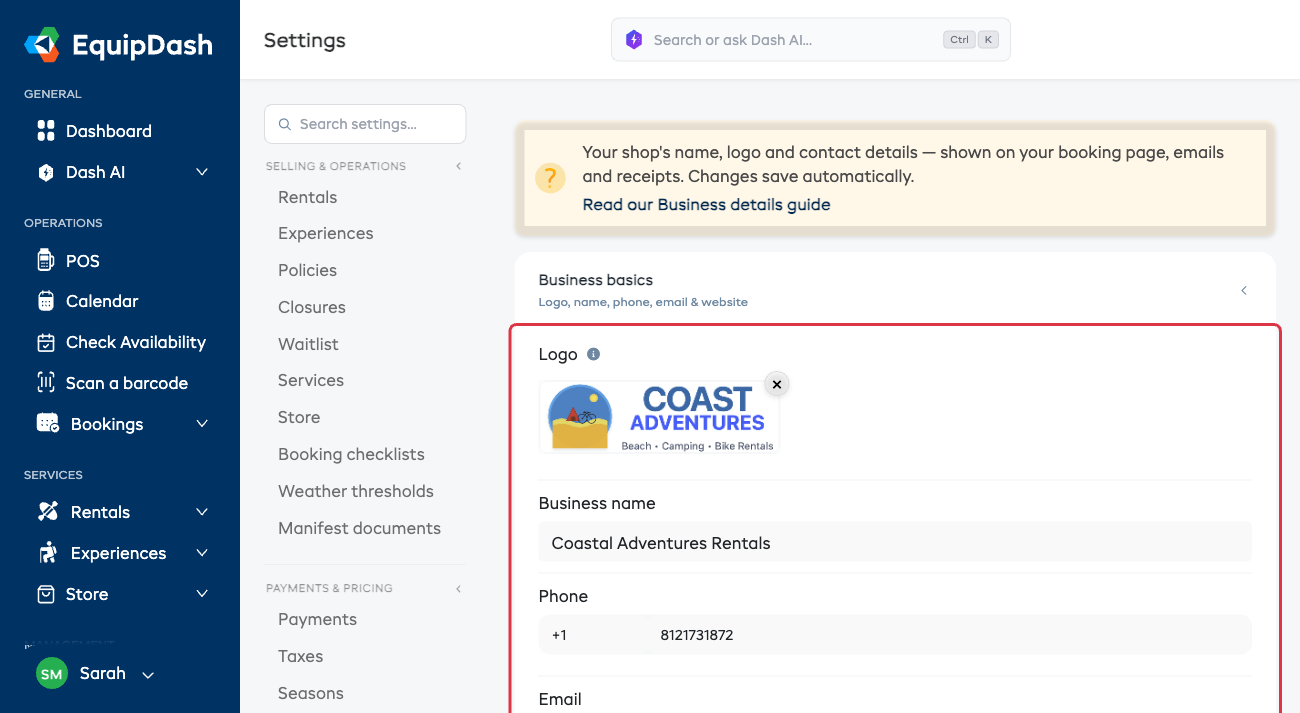
- The page is organized into two sections you can expand or collapse:
- Business basics -- your logo, name, phone, email, and website.
- Address -- where your business is based.
- Fill in or update the following fields:
- Logo -- click the upload area to upload your business logo (see below for details).
- Business name -- the name your customers know you by.
- Phone -- a contact number for your business. It is a single row with a country-code dropdown next to the number. You can paste a full international number (such as +44 7712 345 678) and the +44 dial code peels into the dropdown automatically.
- Email -- the email address displayed to customers and used as the reply-to address for automated emails.
- Website -- your business website URL (optional).
- Address line 1 and Address line 2 -- your street address.
- City, State, Zip / Post code, Country / Region -- the rest of your business address.
Your changes save automatically as you go -- you'll see a green Saved confirmation in the corner each time. There is no Save button to click.
Uploading Your Logo
Your logo appears in the booking widget, customer-facing emails, and PDF receipts.
- On the Business details page, open the Business basics section and find the Logo field at the top.
- Click the upload area to choose an image file.
- Your logo is saved automatically once uploaded, and a preview of the full logo appears in place. To swap it out, click the × on the preview and upload a new file.
tip
Use a JPG, PNG, BMP, GIF, SVG, or WebP file (max 500 kB). A square logo around 500 x 500 pixels with a transparent background works well across all placements.
Where Business Details Appear
| Location | What is shown |
|---|---|
| Booking widget | Business name, logo |
| Customer emails | Business name, email, phone, logo |
| Receipts | Business name, address, logo |
| Booking confirmation page | Business name, phone, email |