After the Answer ProThis feature requires the Pro plan
When the Customer Accepts
One click on Accept turns the quote into a normal confirmed booking:
- The total is exactly as quoted — line for line.
- If you require payment on acceptance, the customer pays right on the quote page as they accept — a deposit or the full amount, following your booking widget's payment settings. If the payment can't be taken online for any reason, the booking is still confirmed and the customer is emailed a payment link instead.
- Otherwise, any deposit request fires per your payment settings, as usual.
- The usual booking confirmation email goes out, along with any waiver requests for the items.
- The booking appears everywhere a normal booking does — calendar, bookings list, reports.
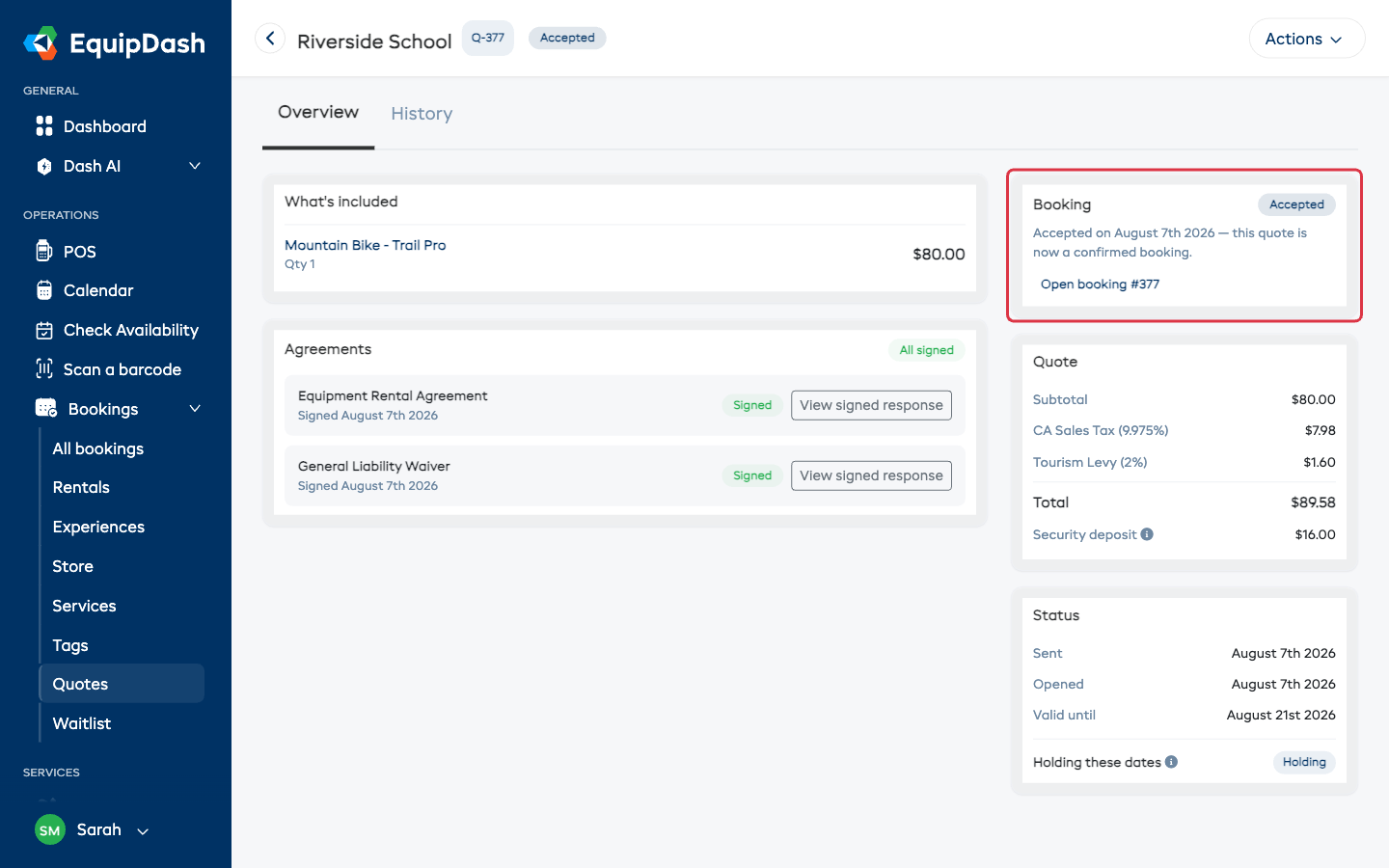
The quote page updates to Accepted with a link straight to the new booking:
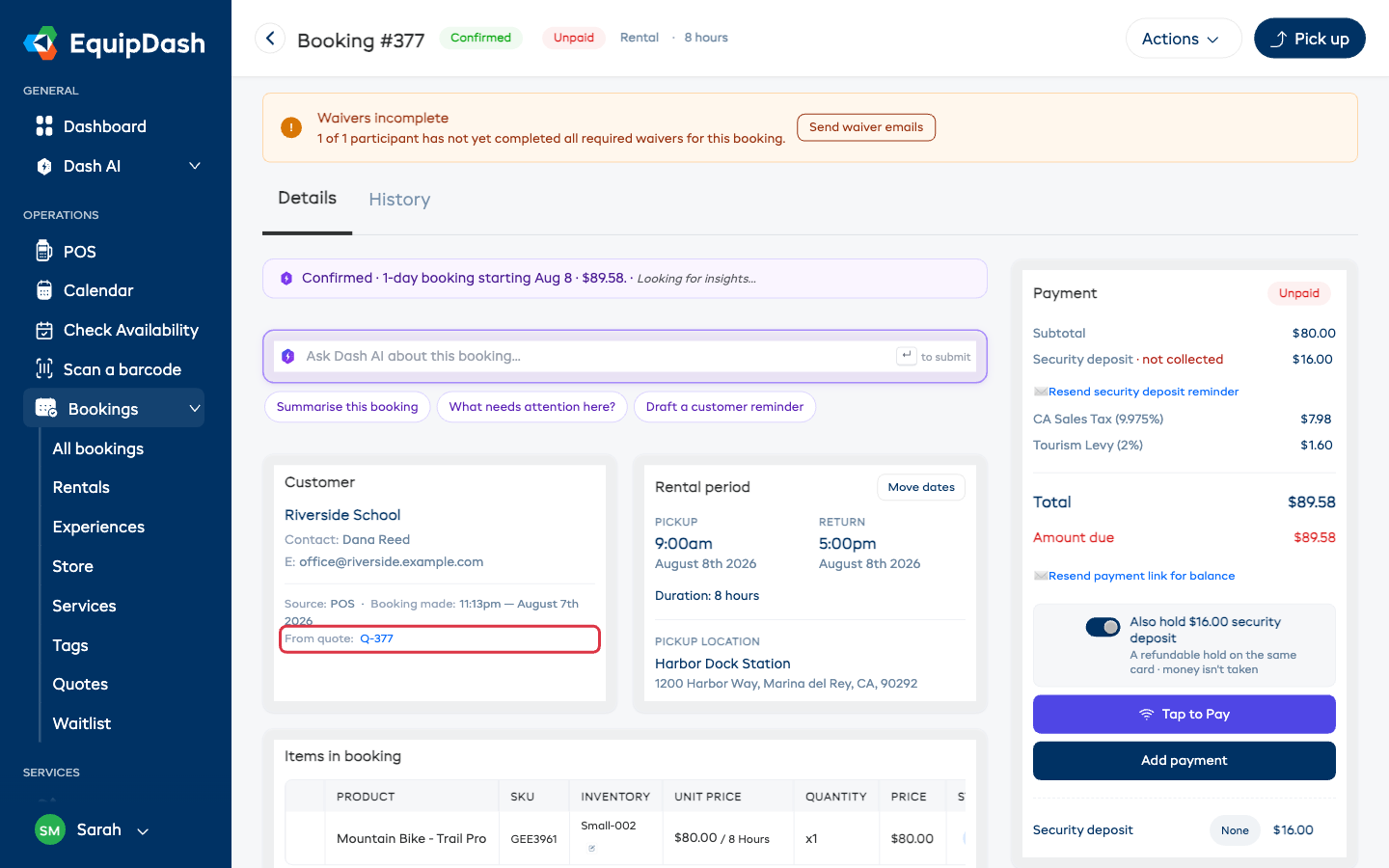
And the booking links back the other way — its customer card shows the quote it came from:
A quote that isn't holding its dates re-checks availability at the moment of acceptance. If someone else booked those dates in the meantime, nothing is booked — the customer sees a plain "these dates are no longer available" message, and you're emailed so you can offer new dates with a quick duplicate (see below).
When the Customer Declines
The customer can decline from their quote page and optionally tell you why. Any held dates come free immediately, and you're emailed the reason. The quote page shows when it was declined and what they said.
Deciding on the Customer's Behalf
Customer said yes over the phone or at the counter? No need to wait for them to click:
- Open the quote from Bookings → Quotes.
- Click Actions and choose Accept on their behalf — or Decline.
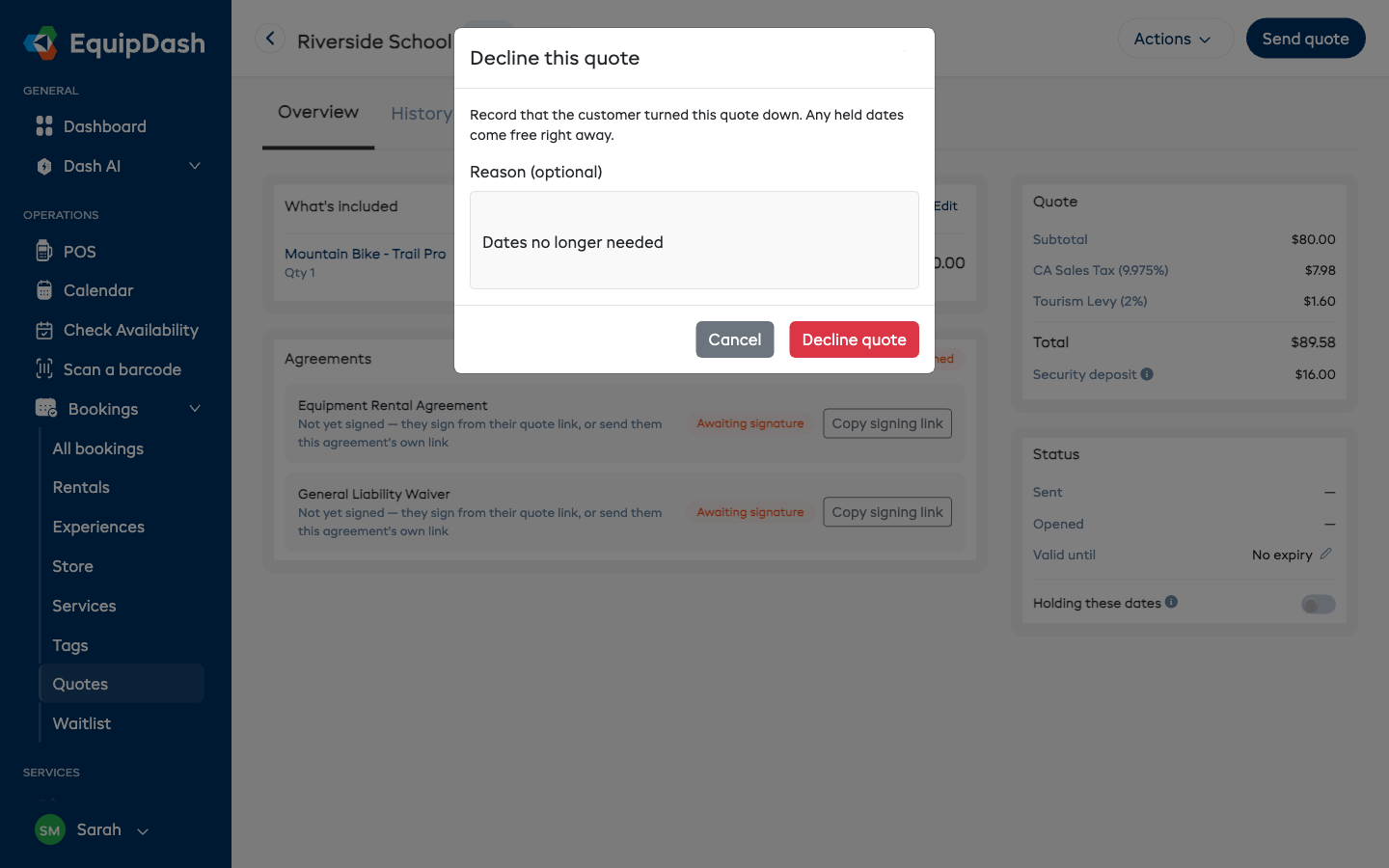
Accepting this way works exactly like the customer accepting — same booking, same emails. If you require payment on acceptance, no one is charged on the spot — the customer is emailed a payment link for the amount due. Declining asks for an optional reason and frees any held dates right away:
When a Quote Expires
If a quote has a Valid until date and it passes without a decision:
- The quote moves to Expired automatically.
- Any held dates come free.
- You're emailed, so you can follow up or re-quote.
Quotes with no valid-until date never expire. You can also have the customer nudged automatically before a quote lapses — set the timing under Settings → Selling & operations → Quotes, and see Quote Emails.
Editing an Open Quote
Until a quote is decided, it stays fully editable:
- What's included — click Edit on the quote page (or Actions → Edit items) to change items, dates, or prices on the booking screen.
- Valid until — click the pencil next to the date on the quote page.
- Holding these dates — flip the switch on the quote page at any time.
After changing anything, click Resend quote — the customer's link always shows the latest version.
Duplicating a Quote (Re-Quoting)
To offer new dates or a revised version — after a quote expired, was declined, or its dates were taken:
- Open the quote.
- Click Actions → Duplicate.
The new quote carries over the same items and customer, repriced at your current rates, as a fresh Draft. Adjust what you need, then send it. The original stays on record.
Every quote also has a History tab, and Actions → Download PDF / Download CSV exports the quote itself — handy when a customer's accounts team wants the proposal on file.
Related Guides
- What the Customer Sees
- Quote Emails
- Recording a Payment — taking payment once a quote becomes a booking
- Security Deposits