Quote Emails ProThis feature requires the Pro plan
Quotes send a small set of emails — two to the customer, three to you — and every one of them can be reworded to sound like your business.
What Goes Out, and When
To the customer:
| When it's sent | |
|---|---|
| Quote for the Customer | When you send (or resend) a quote — carries their private link to review, sign, and accept |
| Quote Expiry Reminder | A set number of days before their quote expires — only if you've turned the reminder on |
To you and your team:
| When it's sent | |
|---|---|
| Quote Declined | A customer declines a quote — includes any reason they gave |
| Quote Expired | A quote passes its valid-until date and lapses |
| Quote Dates Taken | A customer accepts a quote that wasn't holding its dates, but the dates have since been booked |
Once a quote is accepted, the emails that follow are the normal booking ones — confirmation, waiver requests, deposit request — covered in After the Answer.
Setting the Expiry Reminder
The reminder is off until you choose a timing:
- Go to Settings → Selling & operations → Quotes.
- Under Expiry reminder, pick how many days before expiry the customer should be nudged — or Don't remind to switch it off.
Rewording the Emails
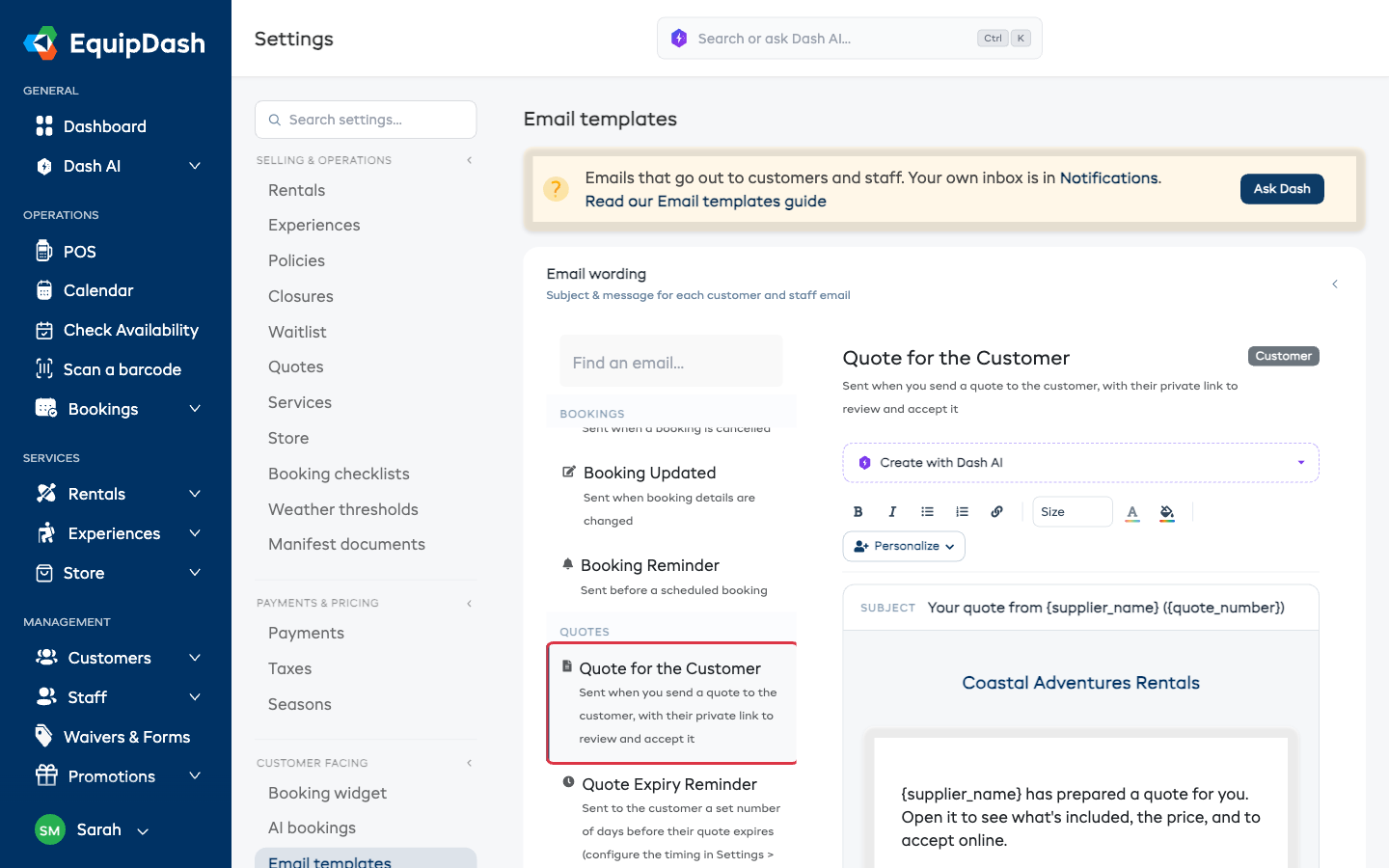
All five templates live with the rest of your email wording:
- Go to Settings → Email templates.
- Open the Quotes group in the email list.
- Pick the email and edit its subject and message — personalization tags like the quote number, the total, and the customer's link work just like in any other template.