Creating and Sending a Quote ProThis feature requires the Pro plan
You build a quote on the same screen you use for a new booking — there's no separate quoting tool to learn.
Building the Quote
- Open the booking screen (POS in the sidebar).
- Add items to the cart as usual — rentals, activities, store items — with dates and quantities.
- Pick the customer the quote is for.
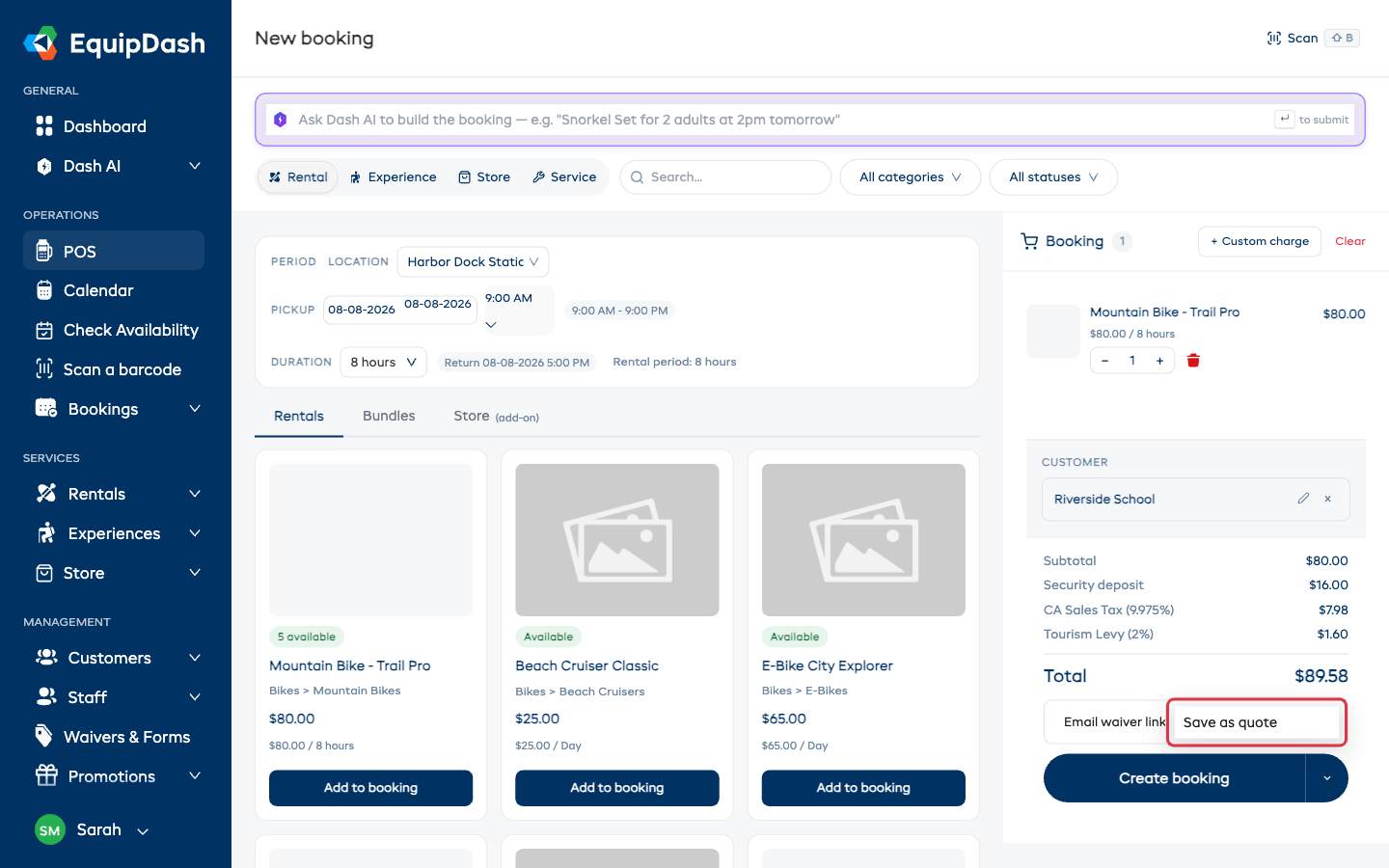
- Click the arrow next to Create booking and choose Save as quote.
The Quote Panel
Choosing Save as quote opens a small panel with the three quote decisions:
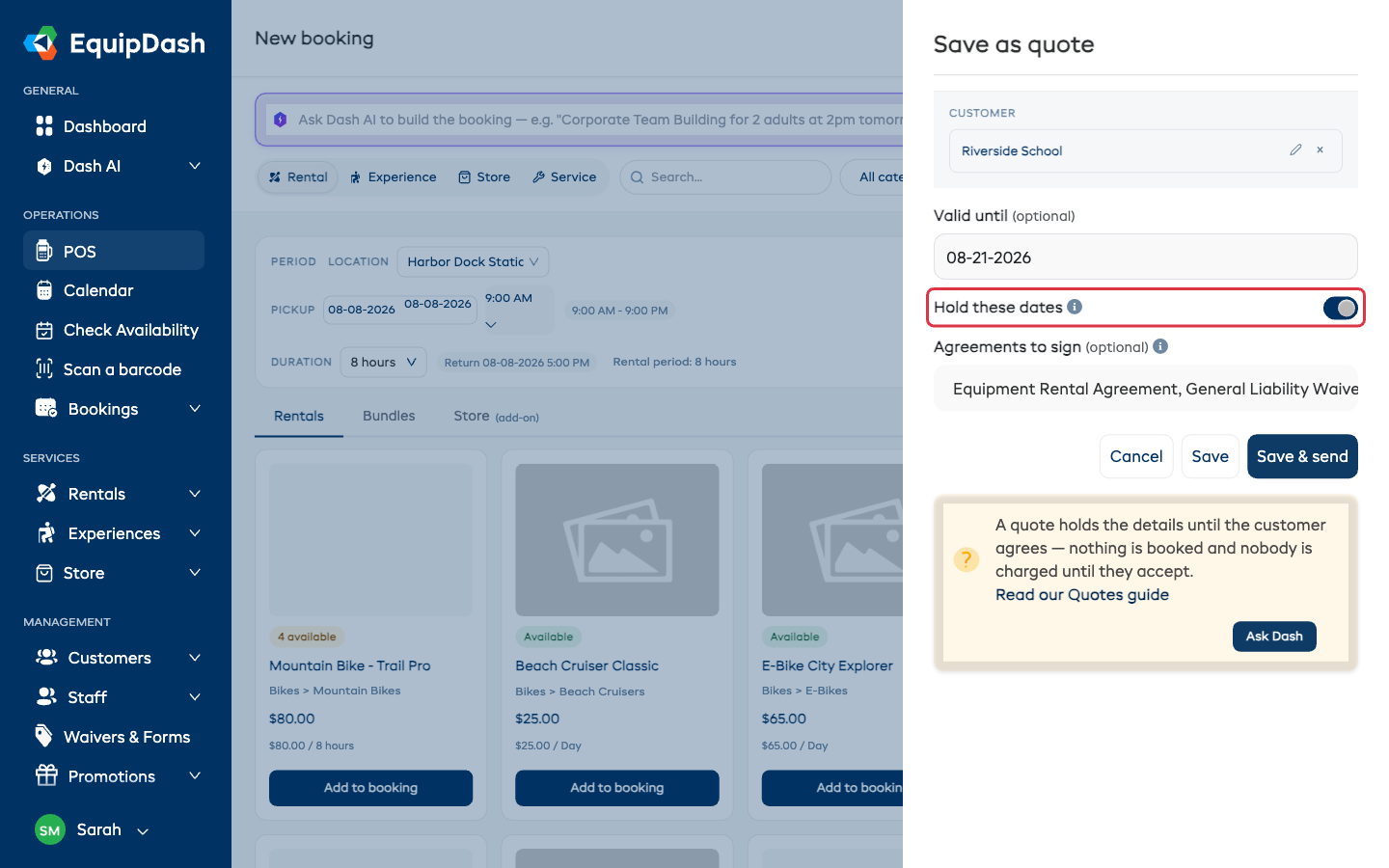
- Valid until (optional) — the date the quote lapses if the customer hasn't decided. Leave it empty and the quote never expires.
- Hold these dates — whether to set the items and spots aside while the customer decides (see below).
- Agreements to sign (optional) — attach one or more of your published waiver or form documents for the customer to read and sign before accepting. See Agreements on a Quote.
Then finish with one of the buttons:
- Save keeps the quote as a Draft — nothing is emailed yet.
- Save & send saves it and emails the customer their private link right away.
Should You Hold the Dates?
Hold these dates reserves the items and spots exactly like a confirmed booking — no one else can book them, not even walk-ins. That guarantees the customer gets exactly what you quoted, but the gear or spots sit blocked while they think about it.
- Hold the dates when the customer is likely to accept, or the dates matter more than keeping the calendar open.
- Don't hold them when it's an early inquiry — other customers can still book, and if the dates get taken before the quote is accepted, you're emailed so you can offer new ones.
A hold never needs to be remembered: if the quote expires or is declined, held dates come free automatically.
Sending and Resending
A Draft quote can be sent any time:
- Open the quote from Bookings → Quotes.
- Click Send quote.
The customer gets an email with a private link — no account or login needed. After sending, the button becomes Resend quote: change prices or items first (see After the Answer), and the customer's link always shows the latest version.
You can also copy the link yourself — Actions → Copy customer link — and share it however you like.
Following It Up
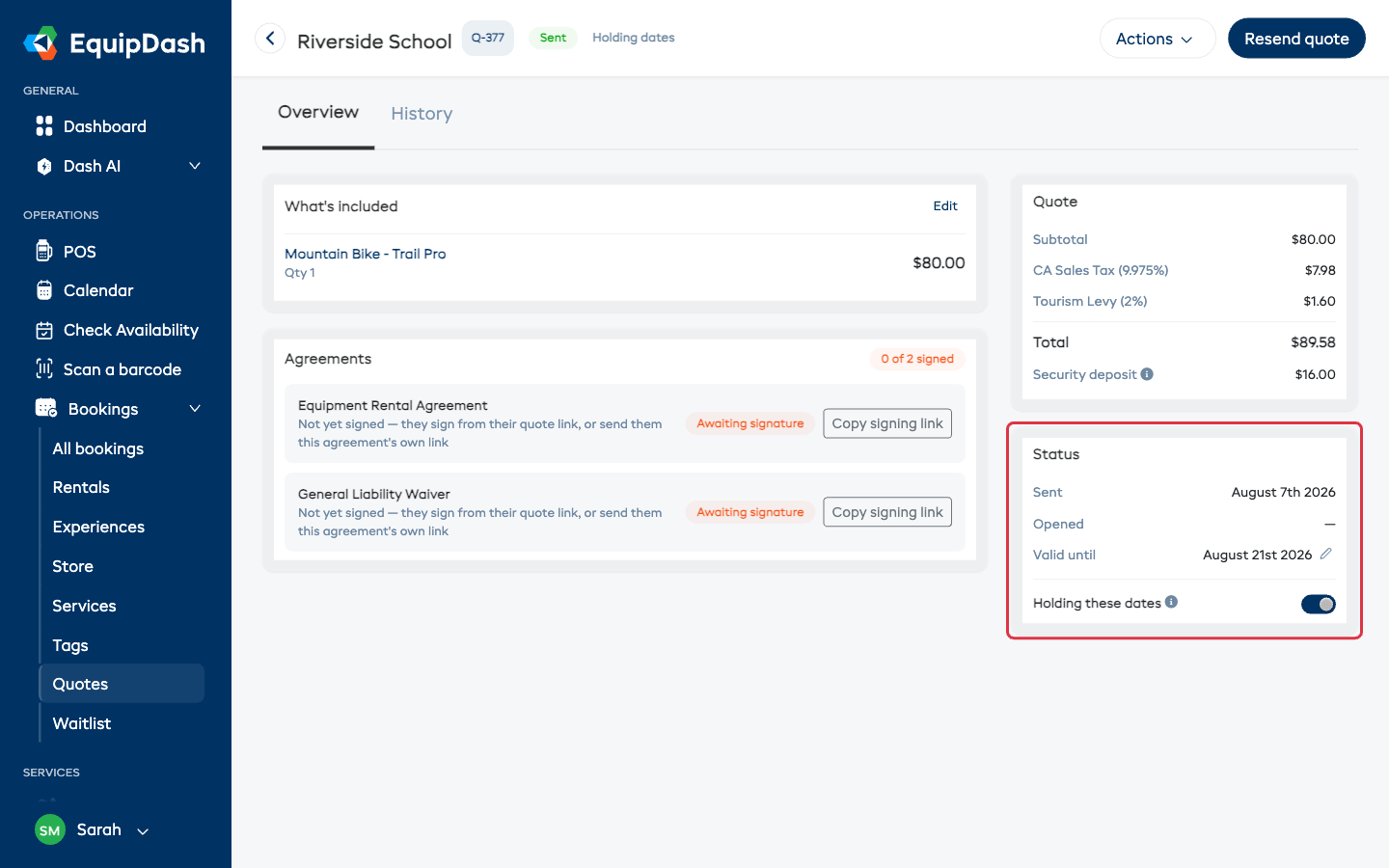
The quote page shows exactly where things stand: when the quote was Sent, when the customer Opened it, how long it's valid (click the pencil to change it), and whether it's holding the dates.
Related Guides
- Creating a POS Booking — the booking screen where quotes start
- Agreements on a Quote
- What the Customer Sees