Creating API Keys Growth+This feature requires the Growth+ plan or higher
API keys let external applications connect to your EquipDash account securely. Each key can be scoped to allow only specific operations, keeping your data safe.
Generating a New API Key
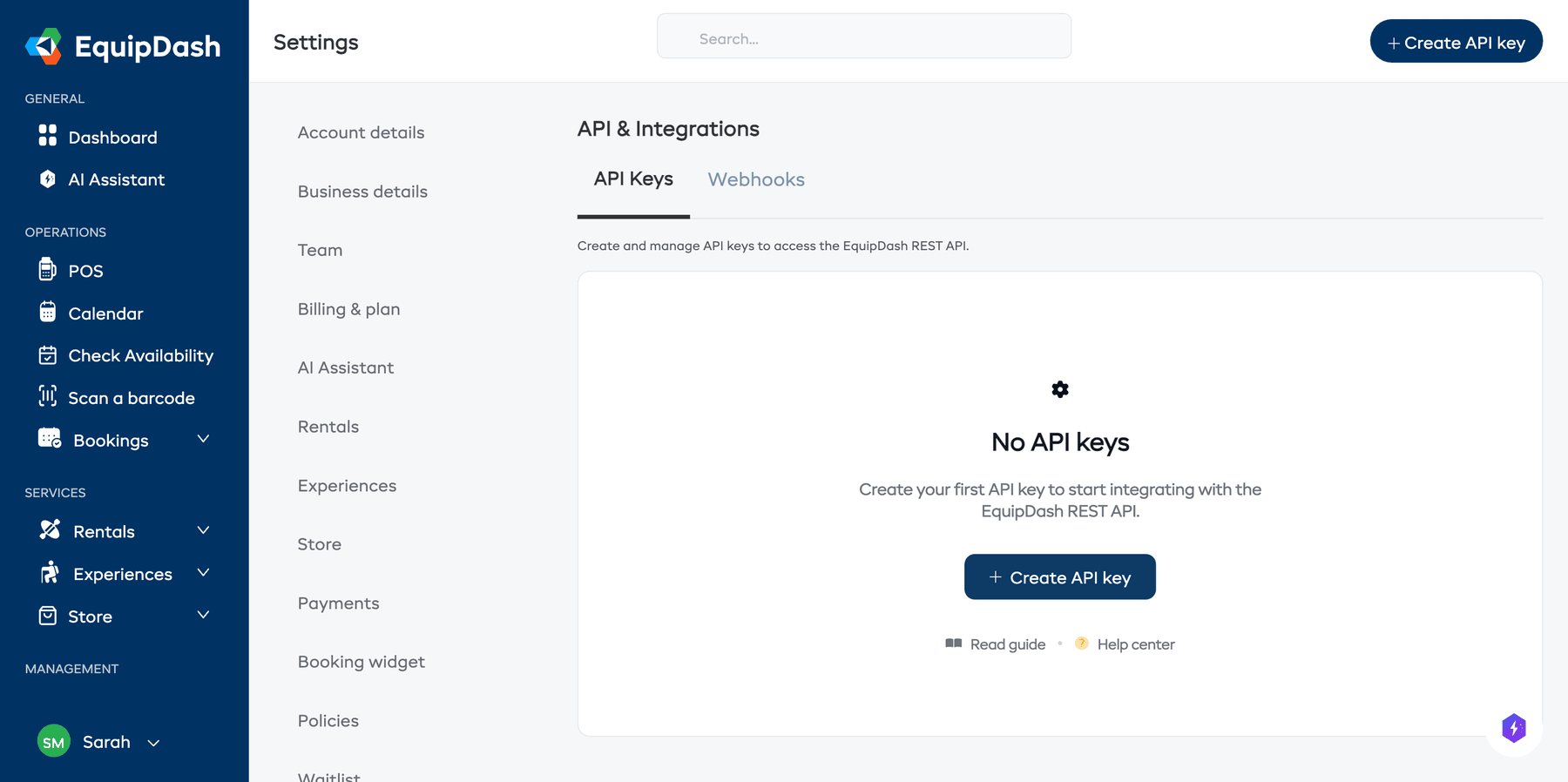
- Click Settings in the sidebar.
- Select API & Integrations from the settings menu.
- On the API Keys tab, click + Create API key.
- Fill in the following:
- Name -- a descriptive label for this key (e.g., "Website Integration", "Mobile App", "Zapier Connection").
- Scopes -- select which permissions this key should have. See API Scopes Explained for details on each scope.
- Expiry Date (optional) -- set a date after which the key will stop working. Leave blank for no expiry.
- IP Whitelist (optional) -- restrict the key to specific IP addresses for extra security. Enter one IP address per line.
- Click Create.
Copying Your API Key
After creating the key, EquipDash will display the full API key one time only.
- Copy the key immediately and store it in a secure location (e.g., a password manager or environment variable).
- Click Done to close the dialog.
The full API key is shown only once. After you close this dialog, you will only see the key prefix (e.g., edsk_live_abc1...). If you lose the key, you will need to create a new one.
Managing Existing Keys
All your API keys are listed on the API & Integrations page under the API Keys tab. For each key, you can see:
- Name -- the label you gave it.
- Key Prefix -- the first few characters of the key for identification.
- Scopes -- what the key has access to.
- Created Date -- when the key was generated.
- Last Used -- when the key was last used to make an API request.
- Status -- whether the key is active or revoked.
Editing a Key
- Click the key name to view its details.
- You can update the Name, Scopes, Expiry Date, and IP Whitelist.
- Click Update.
Revoking a Key
If a key is compromised or no longer needed:
- Click the Revoke button next to the key.
- Confirm the action.
Revoking a key immediately stops all API requests using that key. This action cannot be undone -- you will need to create a new key if needed.
Deleting a Key
To permanently remove a key and its request logs:
- Click the Delete button next to the key.
- Confirm the action.
Using Your API Key
Include your API key in the Authorization header of every API request:
Authorization: Bearer edsk_live_your_full_key_here
For full API documentation, see the EquipDash API Reference.