Enabling and disabling the Experiences module
The Experiences module controls whether your portal shows tours, classes, and scheduled-activity functionality — experiences, manifests, the experiences calendar, the experiences dashboard tab, and the experiences widget listings.
You can turn it on or off any time from Settings → Experiences. Disabling does not delete any of your experiences, schedules, rate categories, or past bookings — it just hides the module across the portal until you re-enable it.
For the full picture of how the three EquipDash modules work together (Rentals, Experiences, Store), see Modules.
Toggling Experiences on or off
- Click Settings in the left sidebar.
- Click Experiences from the settings menu.
- At the top of the page you'll see the Experiences module card with a toggle switch on the right.
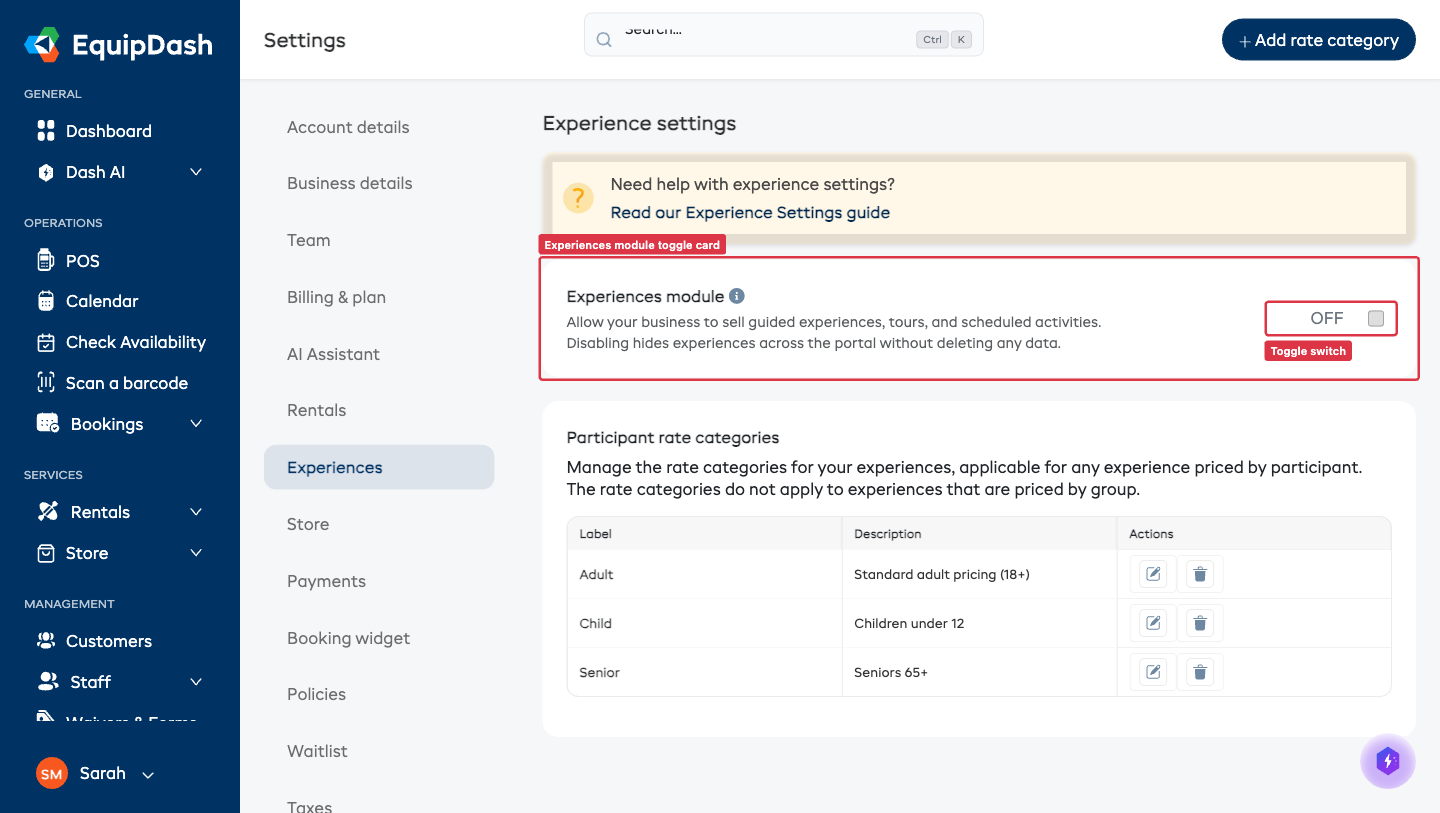
- Click the toggle to flip it.
- Turning OFF — a Disable experiences module? confirmation appears explaining that experiences will be hidden and your data is not deleted. Click Disable to confirm, or Cancel to abort.
- Turning ON — the change saves automatically, the Saved confirmation appears, and the page reloads so the sidebar/dashboard show the new state straight away.
Disabling the Experiences module does not delete any experiences, schedules, rate categories, manifests, or bookings. Everything is preserved and reappears when you re-enable the module.
When EquipDash will block you from disabling
There are two situations where EquipDash refuses to disable Experiences:
You have upcoming experience bookings
If any future-dated bookings (not cancelled, not completed) include experiences, EquipDash blocks the toggle and shows a message like:
You have 3 upcoming experiences bookings. Please cancel or complete them before disabling this module.
Cancel or complete those bookings, then try again.
Experiences is the only module you have enabled
EquipDash requires at least one of Rentals, Experiences, or Store to be enabled at all times. If Experiences is your only enabled module, the disable action is blocked. Enable Rentals or Store first, then come back and disable Experiences.
What's hidden when Experiences is off
Quick reference — see Modules for the full list:
- Sidebar: Experiences section (Listings, Manifests, Categories)
- Bookings page: Experiences tab
- Dashboard: Experiences tab and quick stats
- Calendar: Experiences tab (the Rentals calendar still shows if Rentals is on)
- POS / New booking: Experience booking-type option
- Reports: Experiences report tab
- Widget: experience listings
- Promo codes / Waivers / Surveys / Policies: the Experiences option in their "Applies to" pickers
The Experiences settings page itself stays accessible so you can always re-enable.