Certifications & Languages Growth+This feature requires the Growth+ plan or higher
Each staff member's profile can hold a structured list of certifications (first aid, swiftwater rescue, dive tickets, licenses, and so on) and the languages they speak. EquipDash tracks certification expiry dates for you, flags anything that is lapsing, and — when you assign guides to experiences — quietly warns you if a guide is missing a qualification the experience asks for.
The Certifications card holds structured records — a type, an issuing body, a reference number, and an expiry date — so EquipDash can track expiry and match guides. The separate Documents tab is for uploading the file itself (the PDF or photo of the certificate). Use both together: record the certification here, and attach a scan on the Documents tab.
Where to Find It
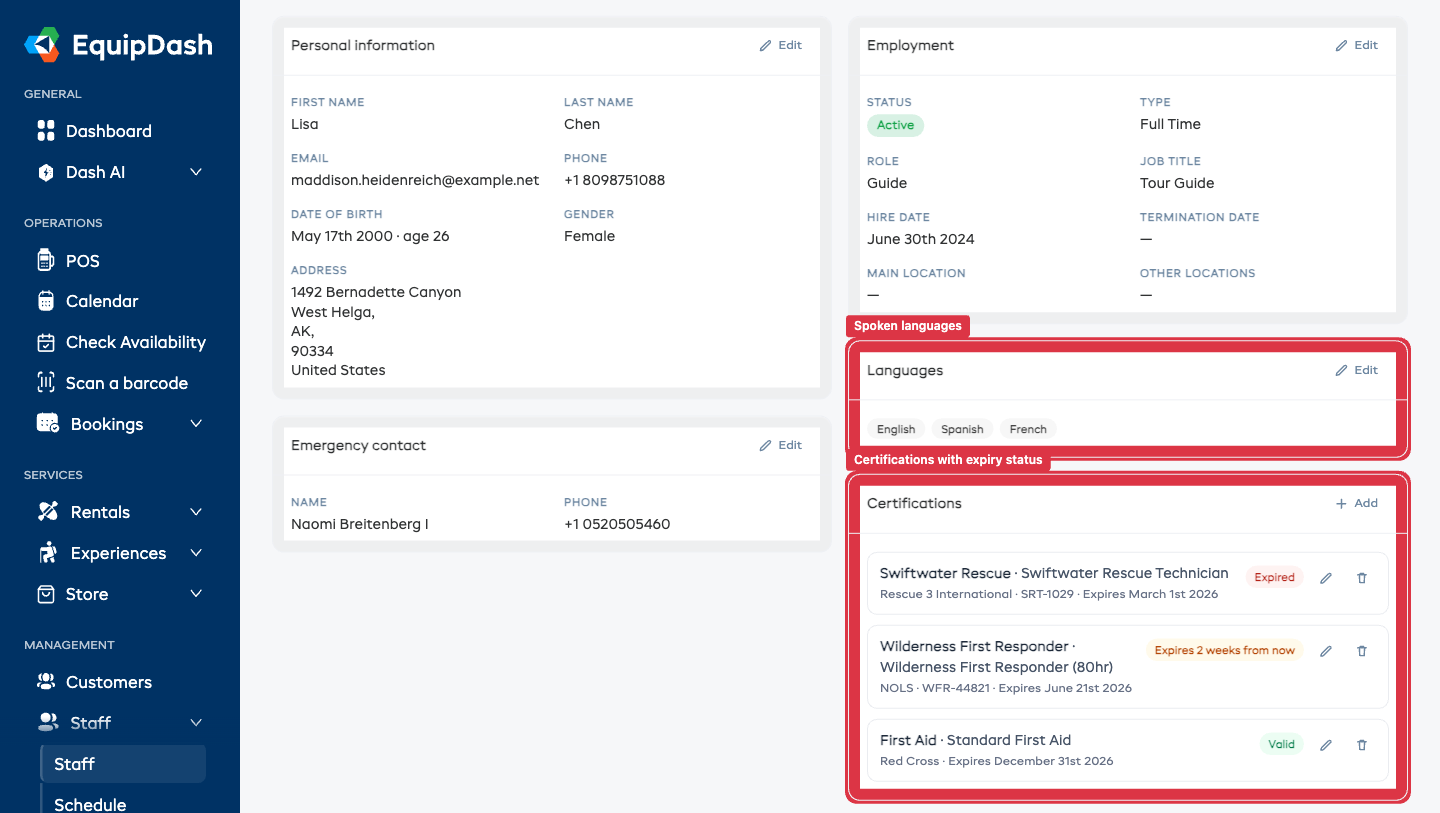
Certifications and languages live in two cards on the staff member's Profile tab.
- Go to Staff in the left sidebar.
- Click a staff member's name to open their detail page.
- The Profile tab shows a Languages card and a Certifications card in the right-hand column.
Recording Spoken Languages
- On the Languages card, click Edit.
- Open the Select languages dropdown and tick every language the staff member speaks.
- Click Save.
The languages appear as chips on the card. They're used when matching guides to experiences that require a specific language (see Guide qualification matching below).
Adding a Certification
- On the Certifications card, click + Add.
- The Add certification drawer opens from the right.
- Fill in the details:
- Type (required) — choose from the built-in list (First Aid, CPR, Wilderness First Aid, Wilderness First Responder, Lifeguard, Swiftwater Rescue, Avalanche Safety, Dive Certification, Driver's License, Boat License, Food Handling, Specialty, or Other).
- Name / details — a free-text label, e.g. "Wilderness First Responder (80hr)".
- Issuing body — who issued it, e.g. "Red Cross" or "NOLS".
- Reference / number — the certificate number, if you have one.
- Issued date — when it was issued.
- Expiry date — leave blank if the certification never expires.
- Notes — anything else worth recording.
- Click Save.
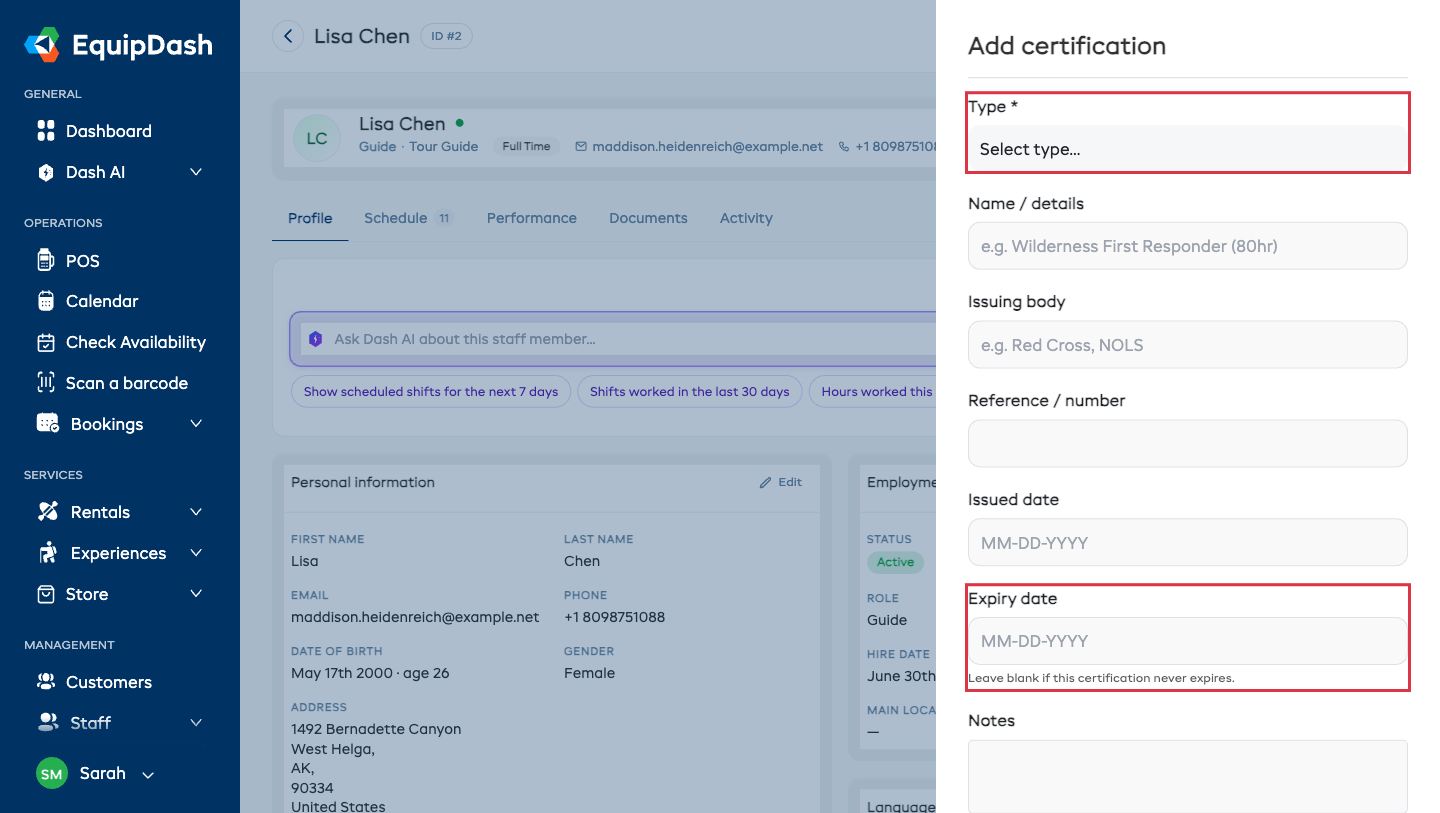
Pick the closest Type from the list rather than always using "Other" — typed certifications are what let EquipDash match guides to experiences that require, say, a Swiftwater Rescue ticket. Use the Name / details field for the specific course name.
To edit or remove a certification, use the pencil and bin icons on its row in the Certifications card.
Expiry Tracking
Every certification with an expiry date shows a status badge on the Certifications card:
| Badge | Meaning |
|---|---|
| Valid (green) | In date, more than 30 days until expiry |
| Expires … (amber) | Expiring within the next 30 days |
| Expired (red) | Past its expiry date |
| No expiry (grey) | No expiry date was set |
EquipDash surfaces lapsing certifications in three places so nothing slips through:
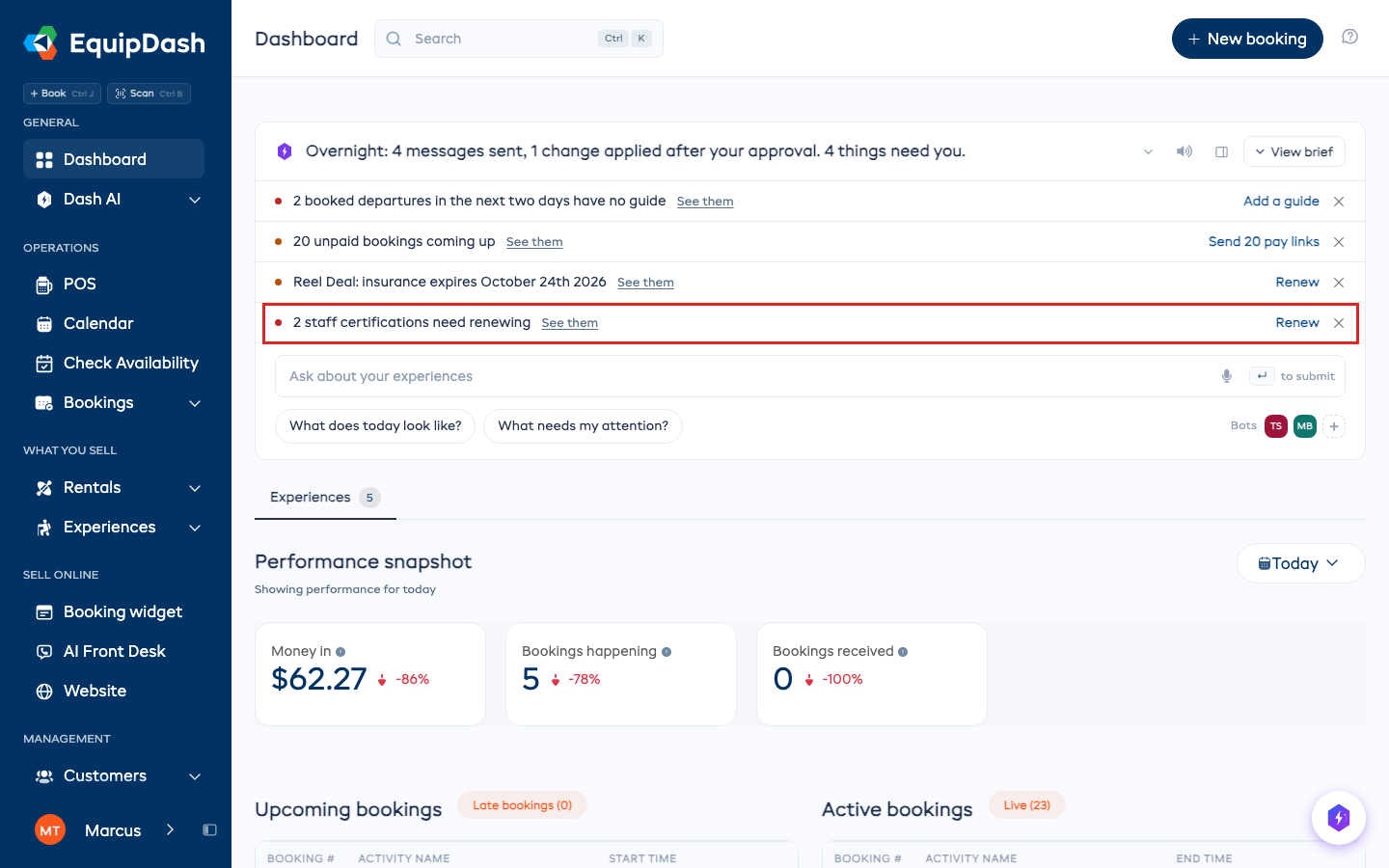
- Dashboard. A certification that is expired or expiring within 30 days is a row on the Dash card at the top of your Dashboard, naming the person and the date. Renew opens their Certifications card. Hide the row with the X if you have it in hand. (Visible to anyone who can view staff. People who can only view staff see See it instead of Renew.)
- Staff list. The Staff list has a Certifications column that lists each member's certifications as color-coded chips — red for expired, amber for expiring soon, green for valid — with a warning icon on anything that needs attention, so you can spot renewals at a glance before opening a profile.
- Weekly email digest. Every Monday morning, admins receive an email summarising certifications that are expired or expiring within 30 days. Recipients follow each admin's notification preferences.
Set the Expiry date on every certification that has one — it's what powers the badges, the Dashboard row, the staff-list pills, and the weekly email. A certification with no expiry date is assumed never to lapse.
Guide Qualification Matching
You can tell an experience which certifications and languages its guides should have. EquipDash then warns you (it never blocks you) when you assign a guide who is missing one — so you can roster knowingly.
Set the requirements on an experience
See Assigning Guides → Guide requirements for the full walkthrough. In short: open the experience, go to the Details tab, and edit the Guide requirements card to pick the required certifications and languages.
How the warnings appear
When you assign guides to a session, the guide picker groups your team into Available, Partially available, and Unavailable. A guide who lacks a required certification (or whose certification has expired) or a required language drops into Partially available with a small chip explaining why — for example Swiftwater Rescue expired.
These are warnings only. The guide can still be assigned — EquipDash just makes the gap visible. See Assigning Guides for the full picker walkthrough.