Time Clock & Timesheets Growth+This feature requires the Growth+ plan or higher
The schedule tells you who's supposed to work. The time clock records who actually worked — when they arrived, when they left, and how long they took for breaks. Timesheets total those hours per person so payroll takes minutes, not an evening with a calculator.
How it works
- Staff clock in and out on the Time clock — a full-screen page made for a shared tablet at your counter. It opens from a private link and needs no login, so staff can use it without ever getting into your manager account, your settings, or anyone else's hours.
- Tap a name, enter a private 4-digit PIN, then tap one big button — Clock in, Clock out, Start break, or End break. Break time is taken off worked hours automatically.
- Each clock-in is automatically matched to that person's scheduled shift for the day (when one exists), so you can see scheduled vs. actual side by side — and spot a late start at a glance.
- Timesheets (in your manager account) totals everyone's worked hours for any period and exports to CSV for payroll.
Setting up staff PINs
Each staff member taps their name on the time clock and confirms with a private 4-digit PIN — no logins, no passwords. PINs are stored securely (encrypted): nobody can read one back, including you. If someone forgets theirs, just set a new one.
You can set a PIN in two places — whichever is handier.
On an existing staff member's page:
- Click Staff in the left sidebar and open the person.
- On the Profile tab, find the Employment card and click Edit.
- In the Time clock PIN field, type a 4-digit PIN and click away — it saves on its own.
- Click Done.
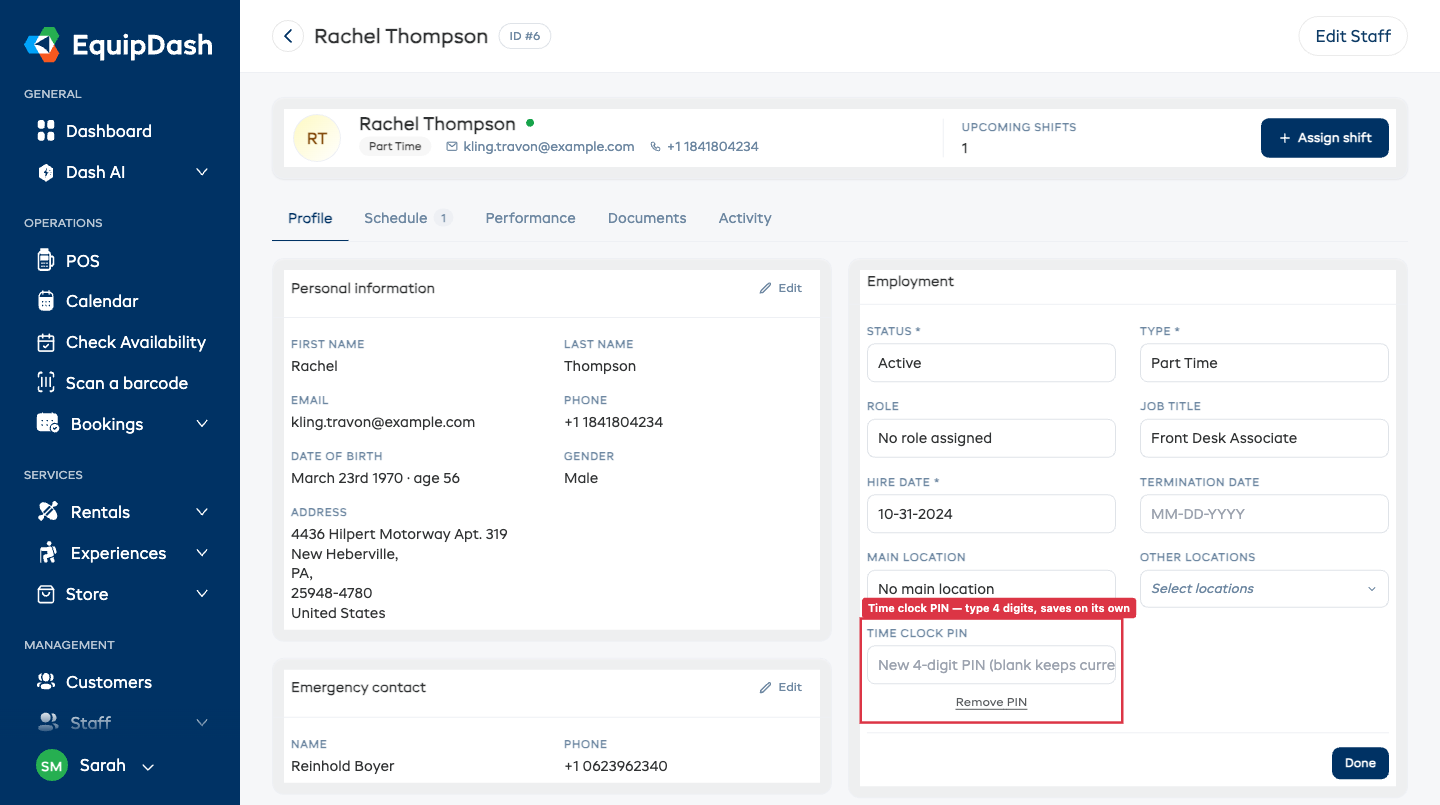
To change a PIN later, just type a new one over it. To remove it, click Remove PIN.
While adding a new staff member: on Add staff → step 3 (Additional Information) there's an optional Time clock PIN field — set it there and the person can clock in from day one.
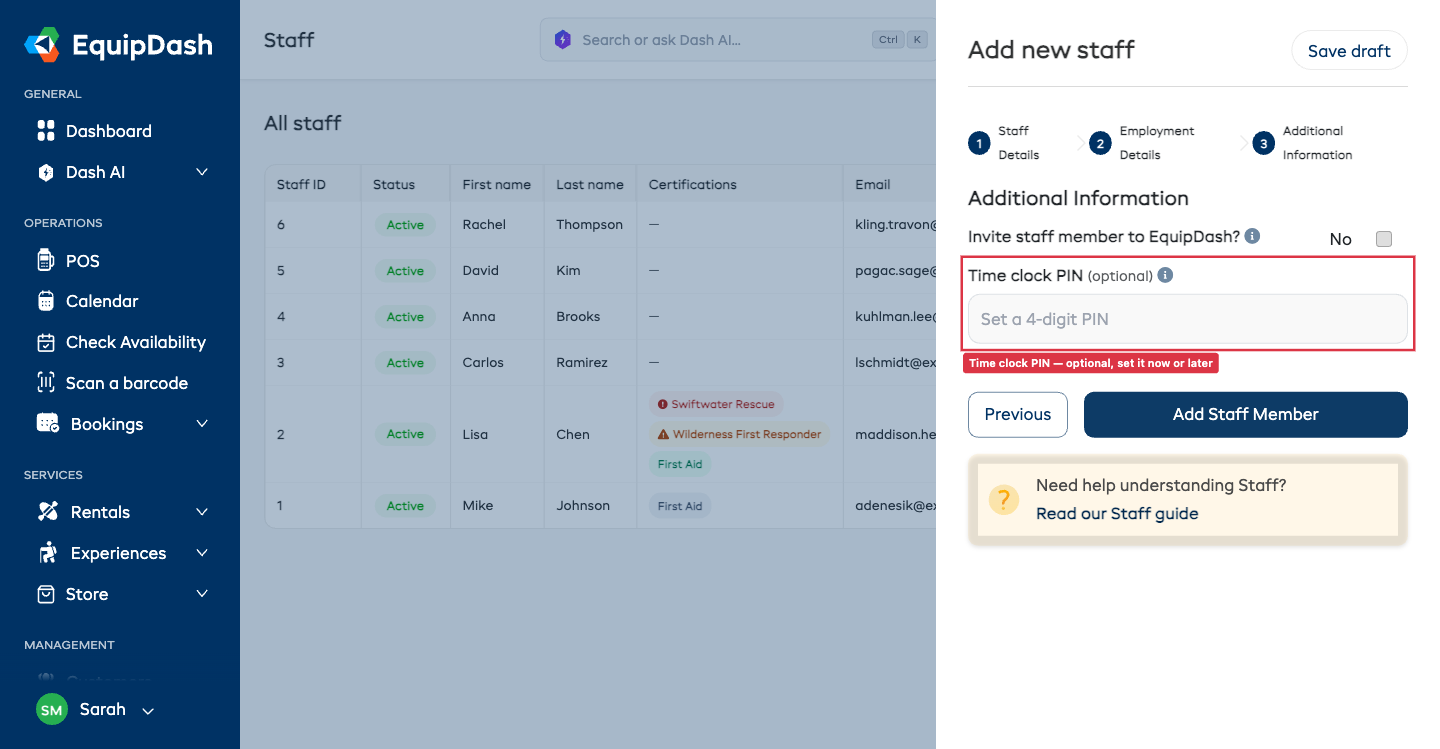
A PIN is optional. Staff without one simply can't self-clock at the tablet — a manager records their hours from Timesheets → Add entry instead.
Setting up the time clock on a tablet
The time clock has its own private link so it can run on a counter tablet without logging into EquipDash — that way staff can clock in and out but can never reach your manager account, settings, or hours.
- Click Staff in the left sidebar, then Timesheets.
- Find the Time clock link panel near the top and click Copy link.
- On your counter tablet, open a browser, paste the link, and bookmark it (or add it to the home screen).
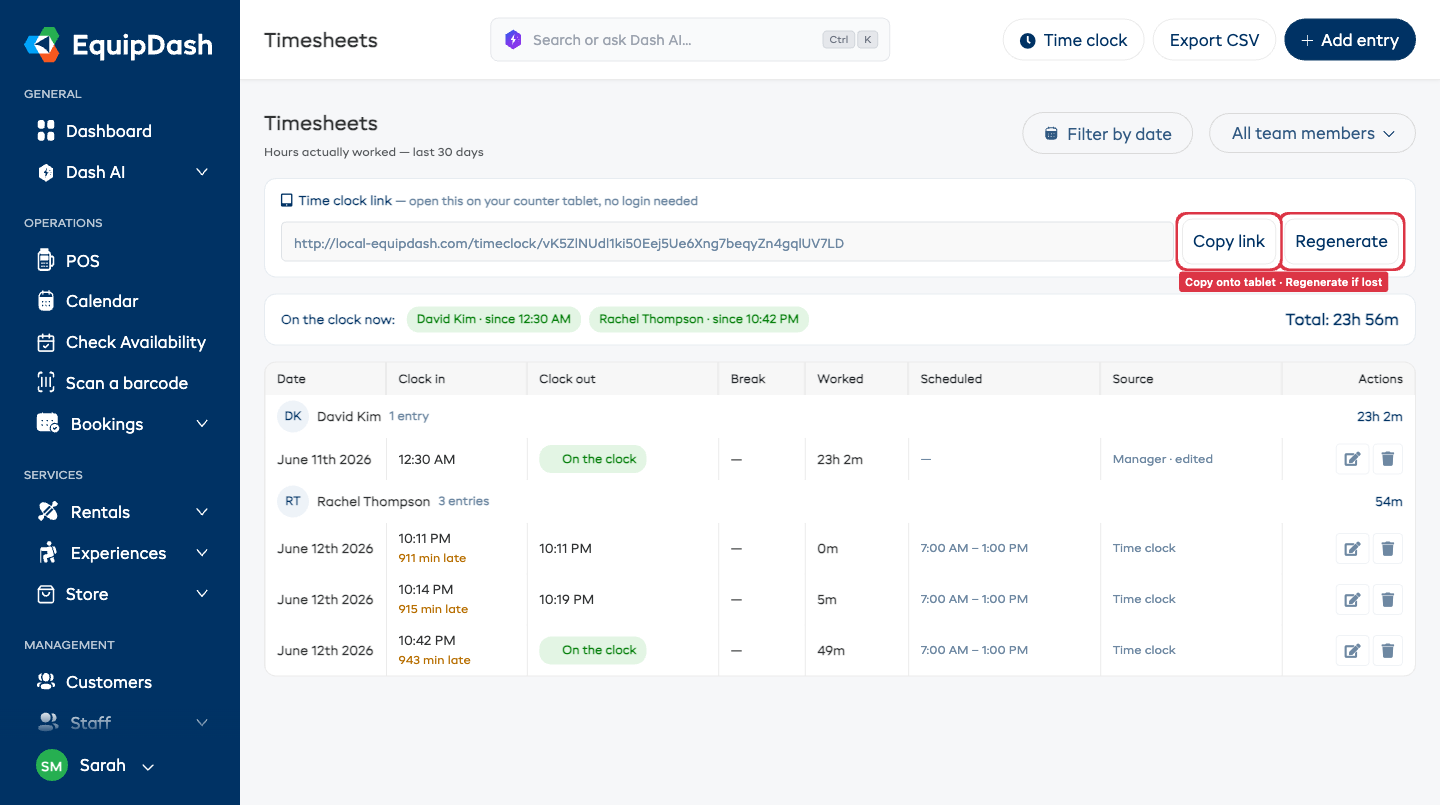
That's it — the tablet now shows a live clock and everyone's current status, refreshing on its own. You can also click the Time clock button (top-right of Timesheets, on the Schedule page, or in the Staff sidebar menu) to open it yourself in a new tab.
Click Regenerate next to the link to create a brand-new one. The old link stops working immediately, so a misplaced tablet can't be used to clock in. Then put the new link on your devices.
Clocking in and out
On the tablet, the time clock shows a card for every active team member with their status — Off, On since 9:07 AM, or On break — so anyone can see who's working at a glance.
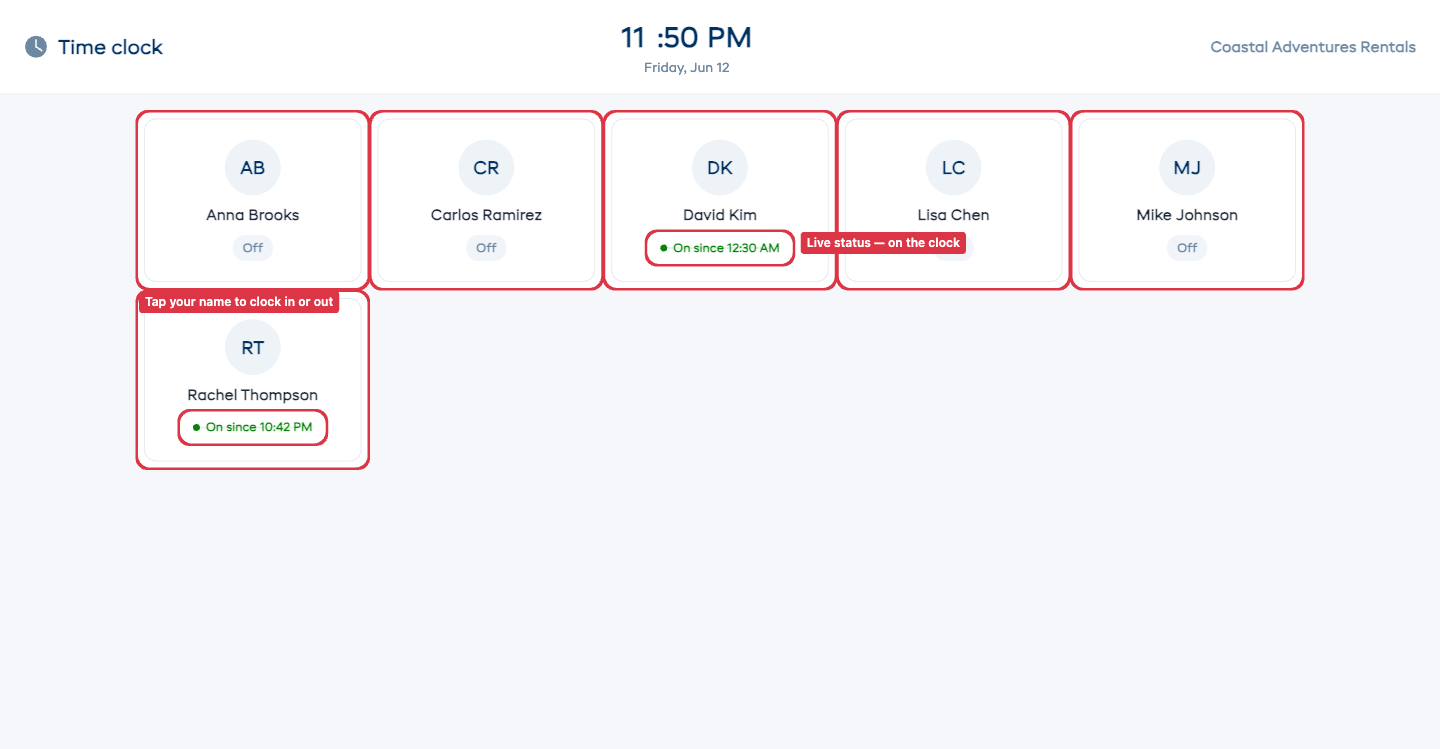
To clock in or out:
- Tap your name.
- Enter your 4-digit PIN on the number pad (or type it on a keyboard).
- Tap the one big button — Clock in to start, Clock out to finish.
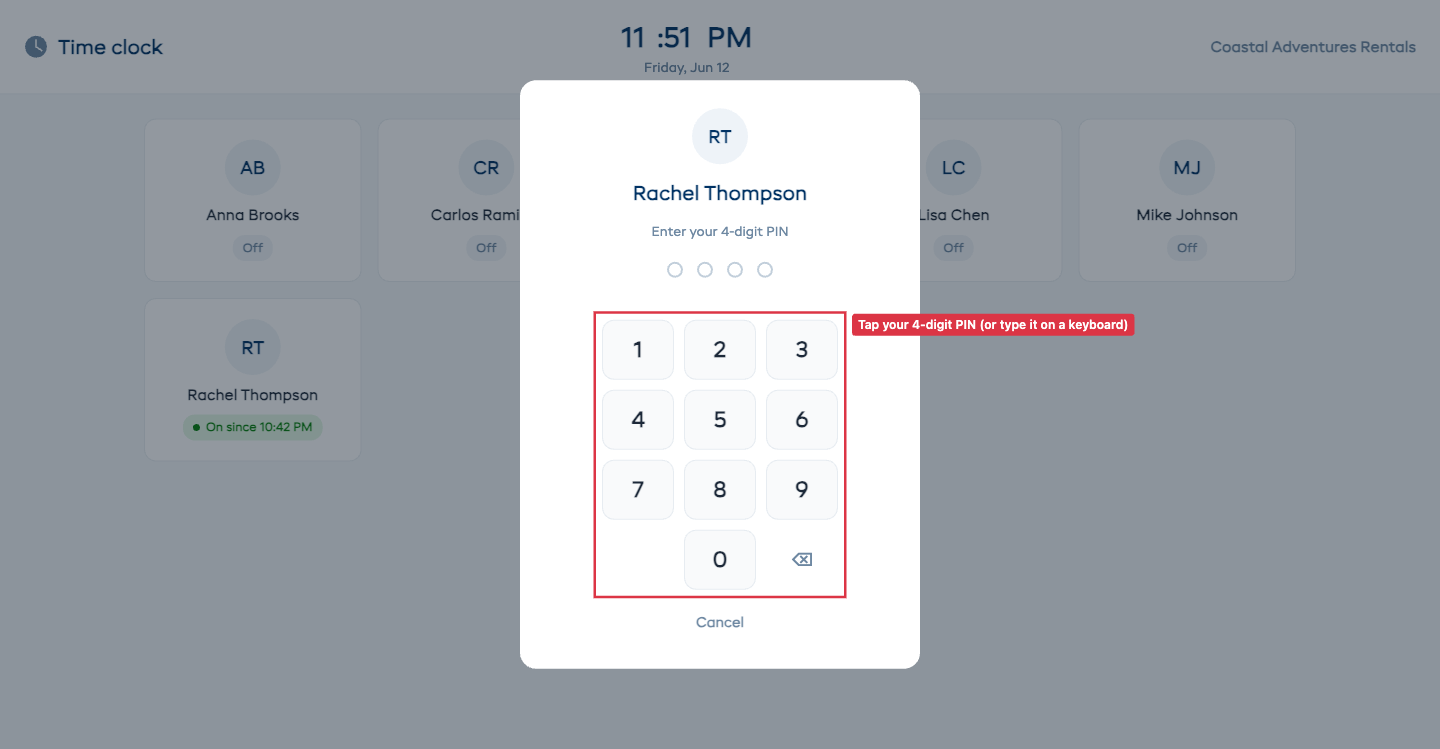
While you're on the clock, the same screen also shows Start break / End break. Break time is taken off your worked hours automatically.
Everyone clocks in with their own PIN. A wrong PIN is rejected, and too many wrong tries in a row briefly locks that person out — so nobody can clock in as someone else. If someone forgot to clock in or doesn't have a PIN yet, a manager fixes it from Timesheets → Add entry.
Timesheets
Open Timesheets from the Staff sidebar menu (or the Timesheets button on the time clock). It pulls every clock-in and clock-out together so you can review hours and run payroll.
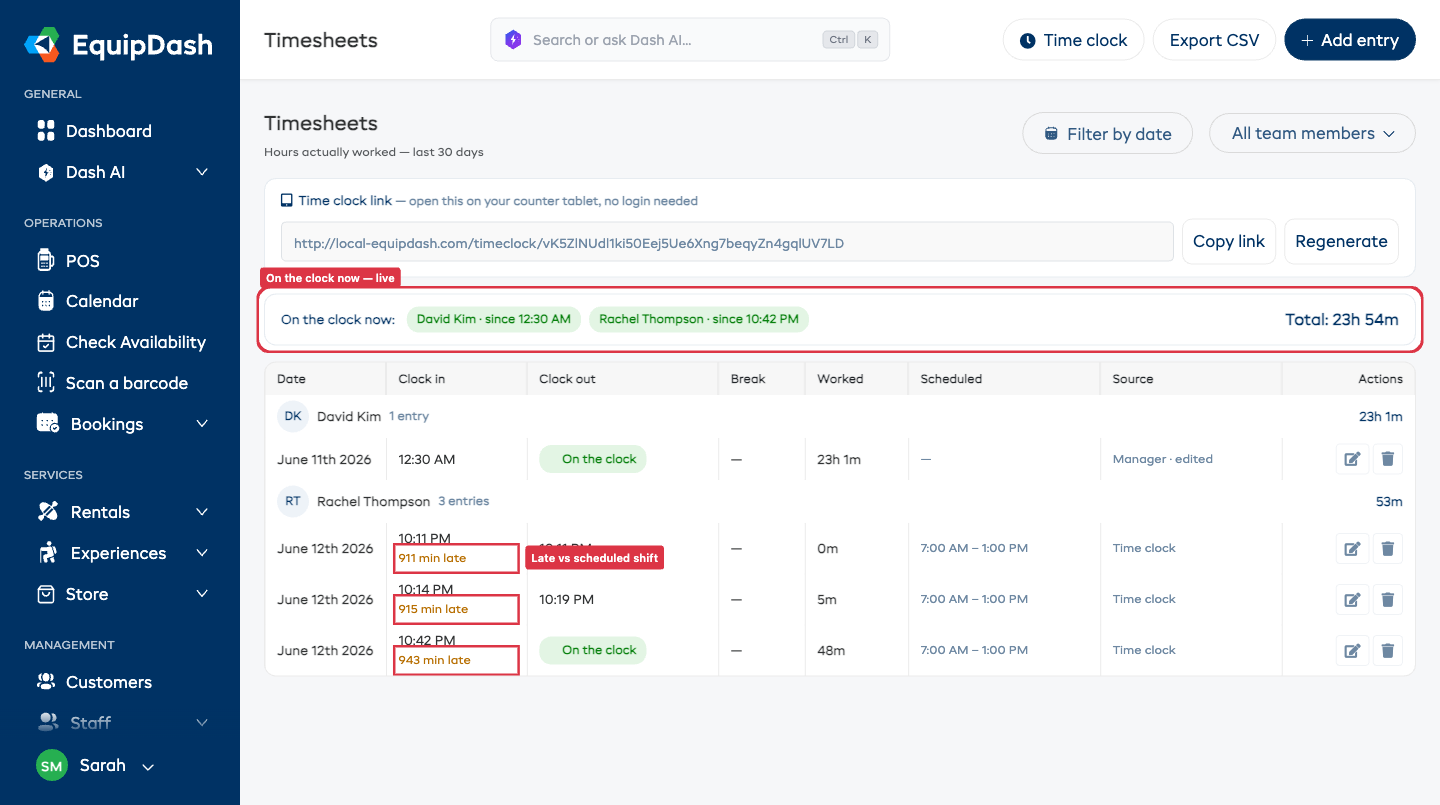
You'll see:
- On the clock now — who's working at this moment, including who's on break, with a running total of hours for the period.
- Hours per person — every clock-in/out for the chosen window, grouped by team member with a total each. A 9–5 with a 30-minute break shows as 7h 30m — the break is already deducted.
- Scheduled vs. actual — entries matched to a scheduled shift show that shift's times alongside the actual ones, and flag a late start so you can see who ran behind.
Choosing the dates and people
- Filter by date opens the same drawer you use on the bookings page. Pick Last 7 days, Last 30 days, or a Custom date range. Timesheets are historical, so you can't pick future dates. With no filter, it shows the last 30 days — a sensible default for payroll.
- All team members narrows the table to one person — handy when you're checking a single timesheet.
Fixing mistakes
People forget to clock out — it happens. To correct an entry:
- Click the pencil icon on the entry.
- Fix the times (or add the missing clock-out), set any break minutes, and click Save changes.
To record a whole day someone forgot entirely — or to log hours for someone without a PIN — click Add entry at the top right, pick the team member, the date, the times, and any break.
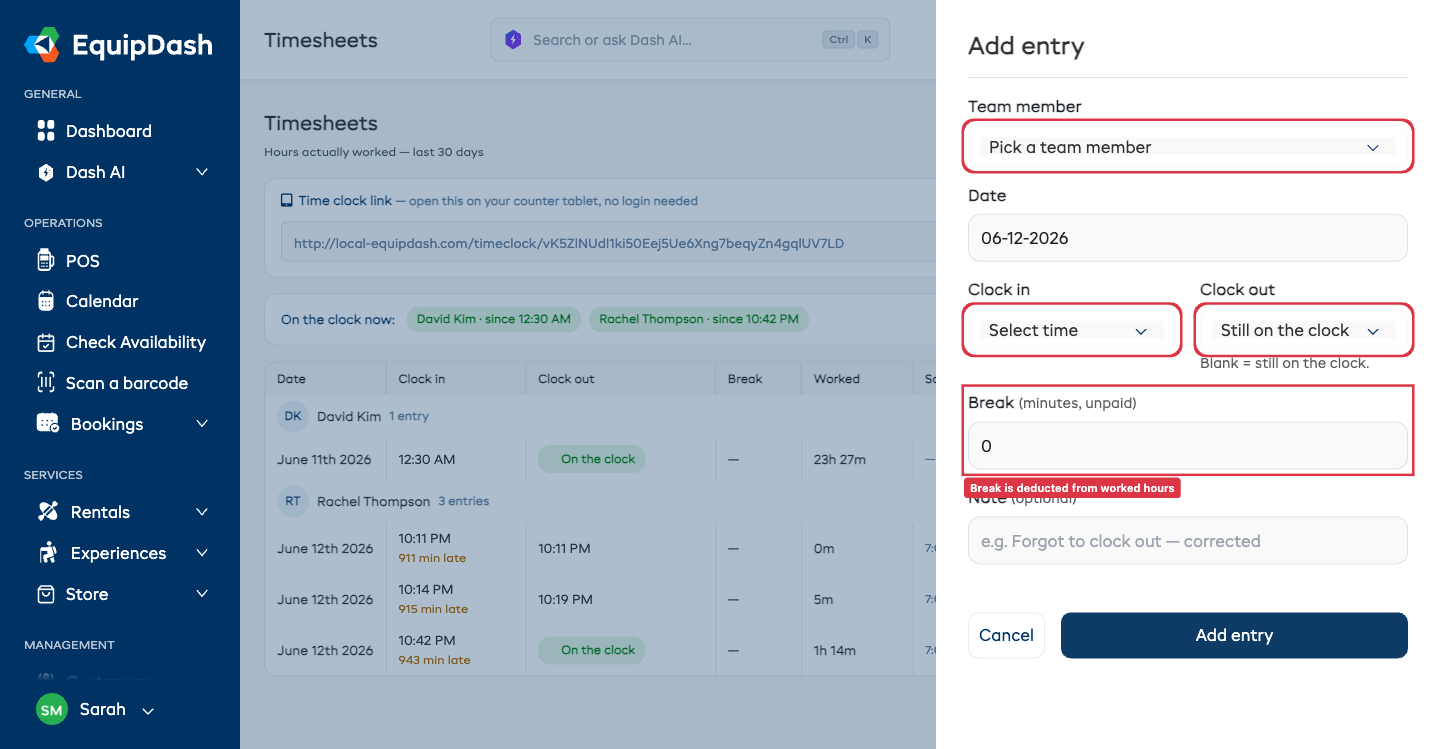
Corrected and manual entries are marked edited in the Source column, so you always know what was adjusted by hand. Use the trash icon to delete an entry you added by mistake.
Sending hours to Xero Payroll
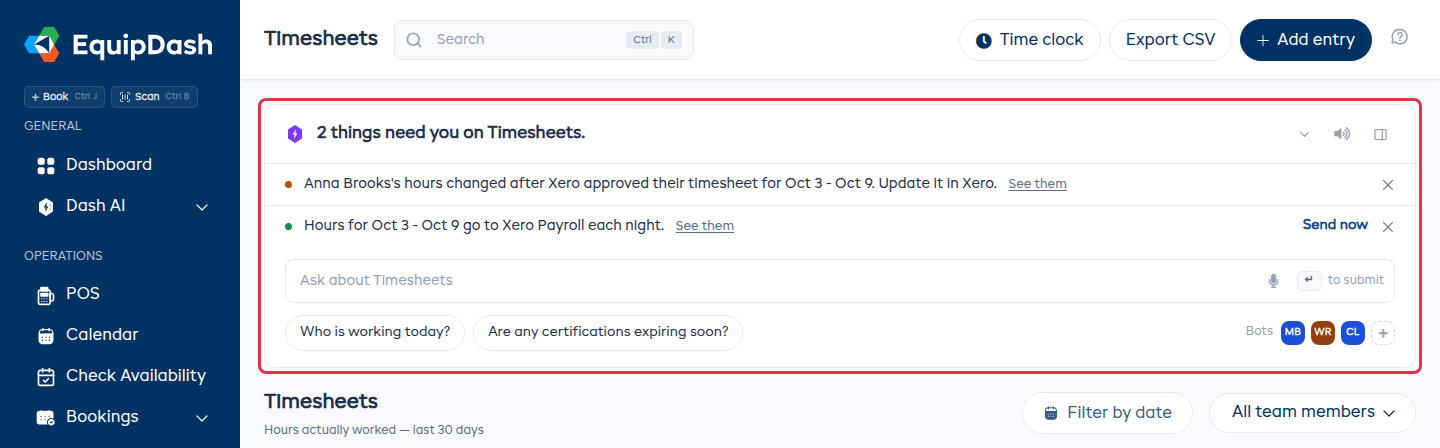
If you use Xero Payroll (Australia, New Zealand or the UK), hours go to Xero every night as draft timesheets for you to approve in Xero. The Dash card at the top of Timesheets shows the pay period they are in, and names anyone who is not matched to a Xero employee or whose hours did not send. See Xero Payroll.
Exporting for payroll
- Set the Filter by date window to your pay period (and optionally pick one team member).
- Click Export CSV.
The file lists every entry on screen — date, clock in, clock out, break, worked time — with a total row per team member, ready to hand to your bookkeeper or import into your payroll tool. The export always matches exactly what you're looking at.
Who can see what
| Action | Who |
|---|---|
| Clock themselves in/out at the time clock | Any active staff member with a PIN — no EquipDash account needed |
| View and edit timesheets, add or correct entries, export CSV, manage the tablet link | Admins and Managers (the Manage timesheets permission) |
The time clock tablet is deliberately login-free and locked down: a staffer at the counter can clock in and out but can never open your manager account, settings, or other people's hours. Everything else — viewing and editing timesheets — lives behind the Manage timesheets permission, which you grant or remove per person in Roles & Access.