Adding the Chat to Your Website Add-onA paid add-on you buy on top of the Growth or Pro plan
The chat is already on your EquipDash booking page. If you also have your own website, one line of code puts the same chat button there.
Go to Settings → AI front desk and open the Embed tab.
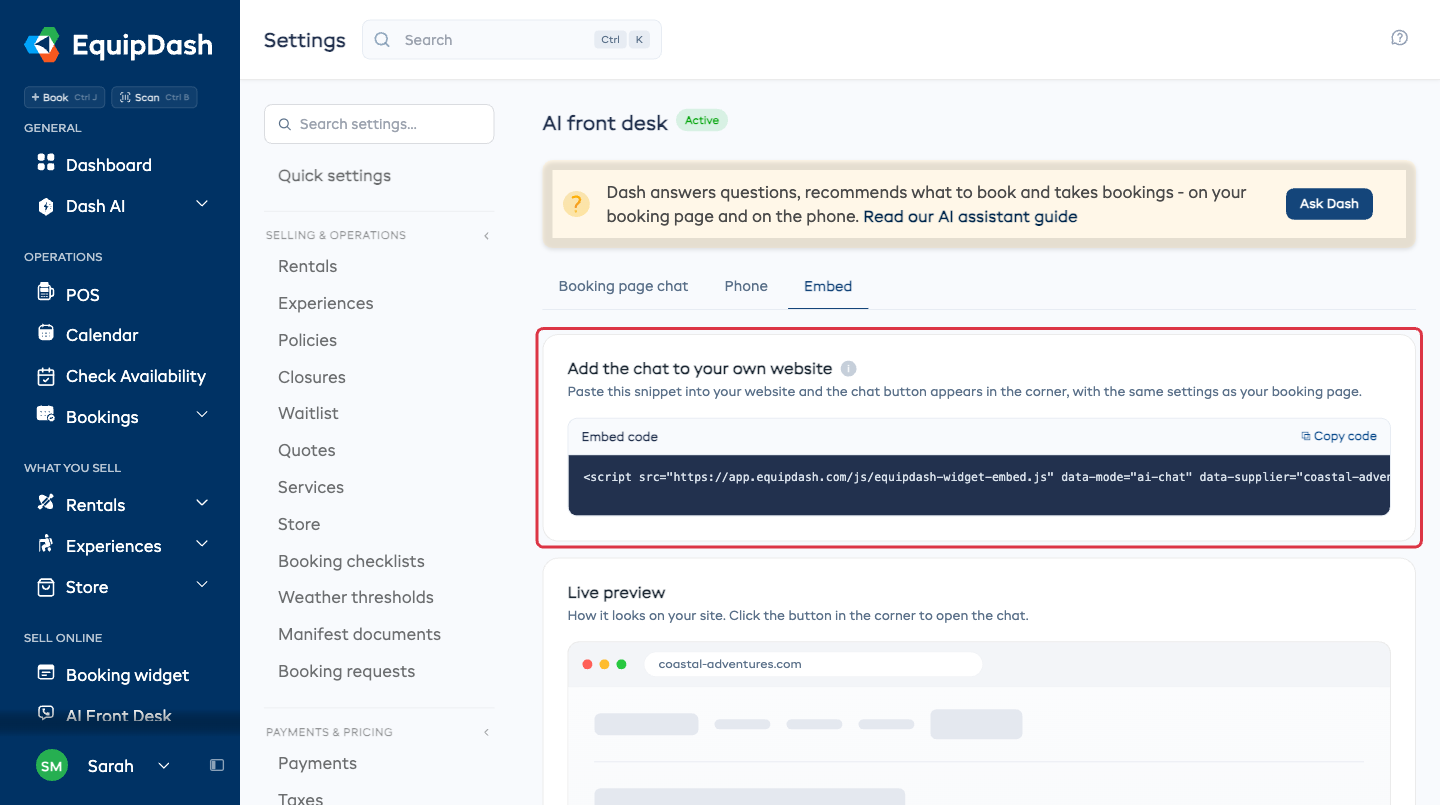
Copy the code
- Click Copy code.
- Paste it into your website just before the closing
</body>tag, the same place any other website snippet goes.
The chat button then appears in the bottom corner of every page you put it on. If somebody else looks after your website, send them the snippet and that one instruction.
Check it first
Under the code, Live preview shows the chat exactly as it appears on a website, in your colors and with your starter questions. Click the button in its corner to open it and try it.
One assistant, both places
The chat on your website and the chat on your booking page are the same assistant. Change the look and feel or teach it something once and both follow.
What next
- Teach Dash so it can answer more.
- What it costs - chats from your own website count the same as chats on your booking page.