Making the Chat Your Own Add-onA paid add-on you buy on top of the Growth or Pro plan
The chat works out of the box. A few touches make it look like part of your shop.
Everything here is on the Booking page chat tab under Settings → AI front desk, in the Look & feel card. Changes save as you make them and show on your booking page right away.
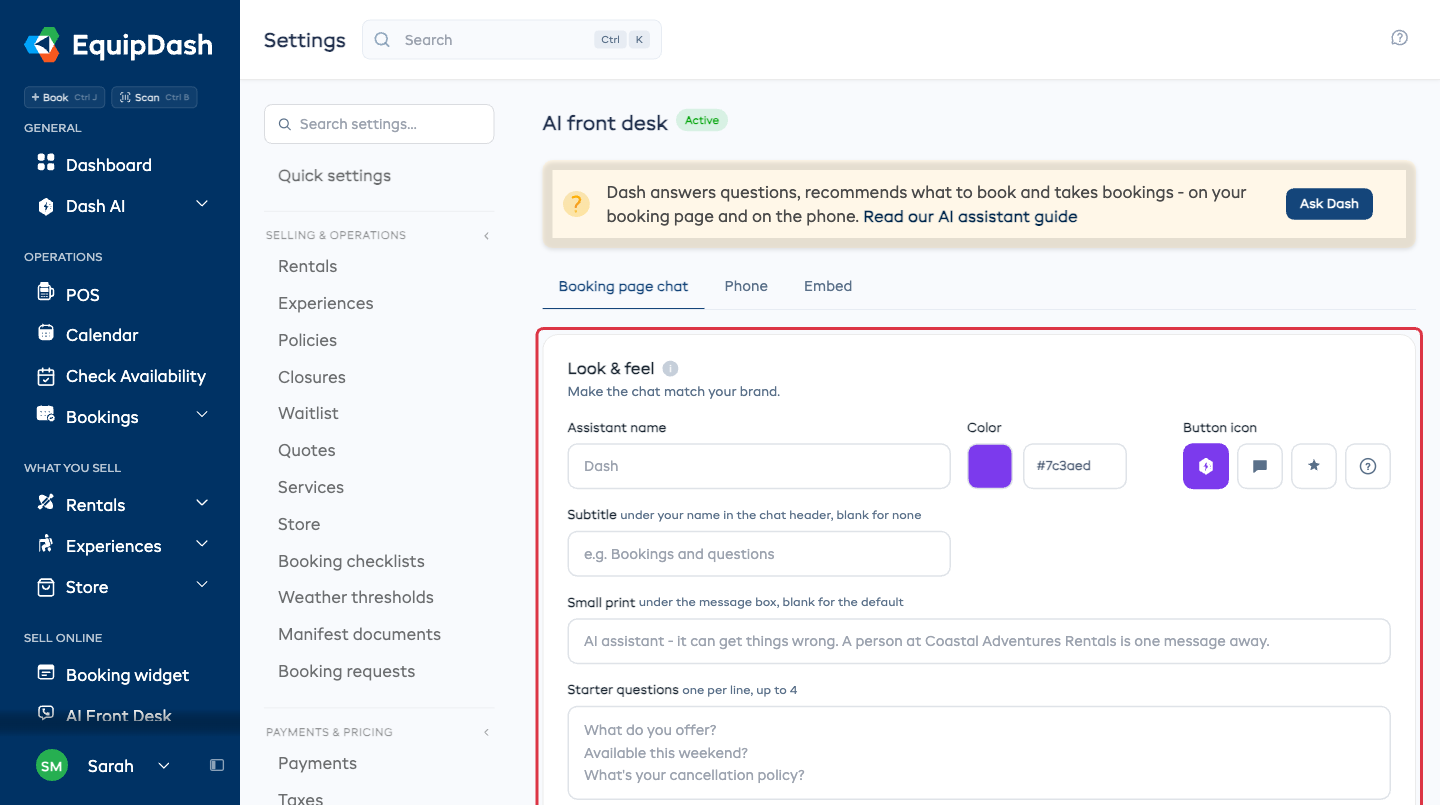
| Setting | What it does |
|---|---|
| Assistant name | What the chat calls itself. Dash by default. Plenty of shops use their own name |
| Color | The chat button and header. Set it to your brand color |
| Button icon | The mark on the chat button: the Dash mark, a chat bubble, a sparkle or a question mark |
| Subtitle | One short line under the name in the chat header. Leave it blank for none |
| Small print | The line under the message box. Leave it blank and it says a person at your shop is one message away |
| Starter questions | The suggestions a customer sees before they type. One per line, up to four |
| Pop-up invite | A small message beside the chat button inviting a question. Write your own or switch it off |
Two settings worth your time
Set the Color and the Starter questions. The starter questions do the most work, because they tell a customer what they are allowed to ask, so use the ones your customers already ask you.
The voice on the phone is separate
This card is the chat. The greeting and the voice a caller hears are on the Phone tab. See How it answers calls.
What next
- Teach Dash so it can answer more.
- Add the chat to your own website.