Turning On AI Front Desk Add-onA paid add-on you buy on top of the Growth or Pro plan
Step 1 - Add it to your plan
- Go to Settings → Billing & plan.
- Find the Add-on: AI Front Desk panel below your plan options.
- Click Add it to your plan and confirm.
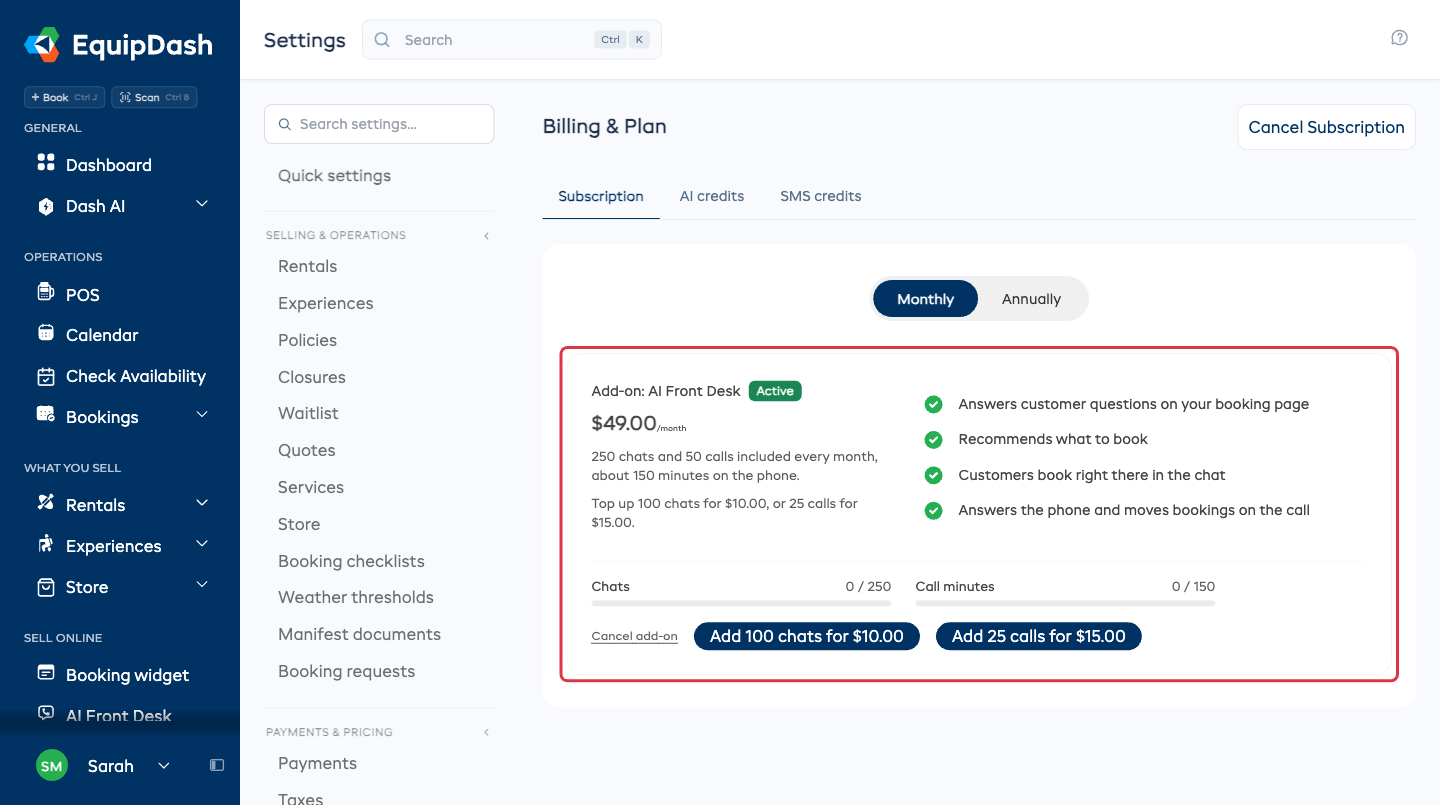
The chat goes live on your booking page as soon as the add-on is added. There is nothing else to do for it to appear.
Growth and Pro plans only
AI Front Desk is available on the Growth and Pro plans. On Starter you are asked to upgrade first. See Choosing a plan.
Step 2 - Check the chat is on
- Go to Settings → AI front desk.
- On the Booking page chat tab, check that Chat on your booking page reads ON.
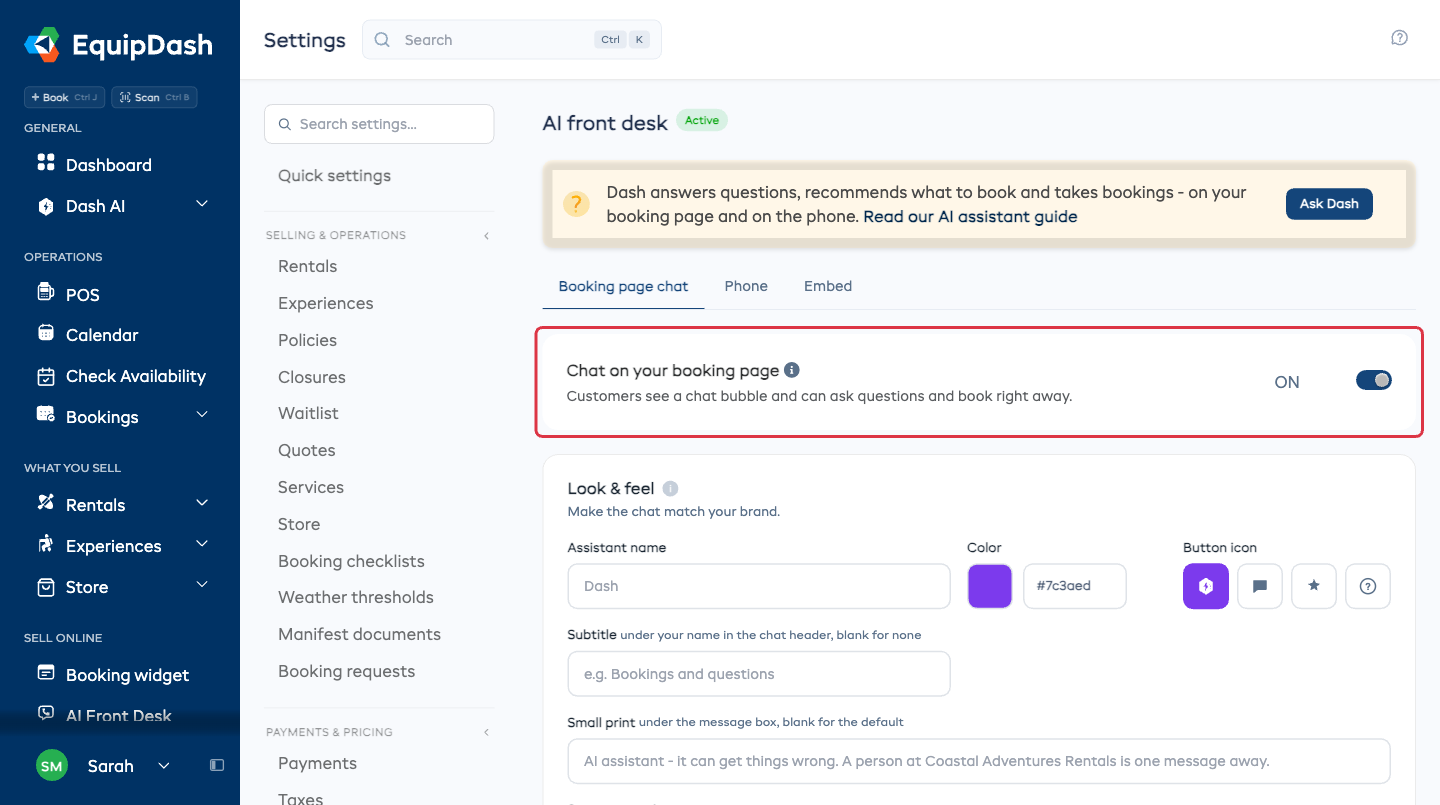
Turn that switch off any time to take the chat off your booking page without giving up the add-on, which is handy out of season.
Step 3 - Try it
Open AI Front Desk in the sidebar. On the Overview tab, Try it runs the real chat your customers get. Ask it something about your shop and watch it answer from your listings.
Step 4 - Turn the phone on
The phone is a separate step, because we have to get you a number first. See Getting a phone number.
What next
- Make the chat your own - name, color and the questions it suggests.
- Teach Dash your policies, your directions and anything a listing does not cover.
- Add the chat to your own website.