Your Inbox Add-onA paid add-on you buy on top of the Growth or Pro plan
Open AI Front Desk in the sidebar and go to the Inbox tab. Every chat on your booking page and every call Dash answers is here, whichever channel it came in on.
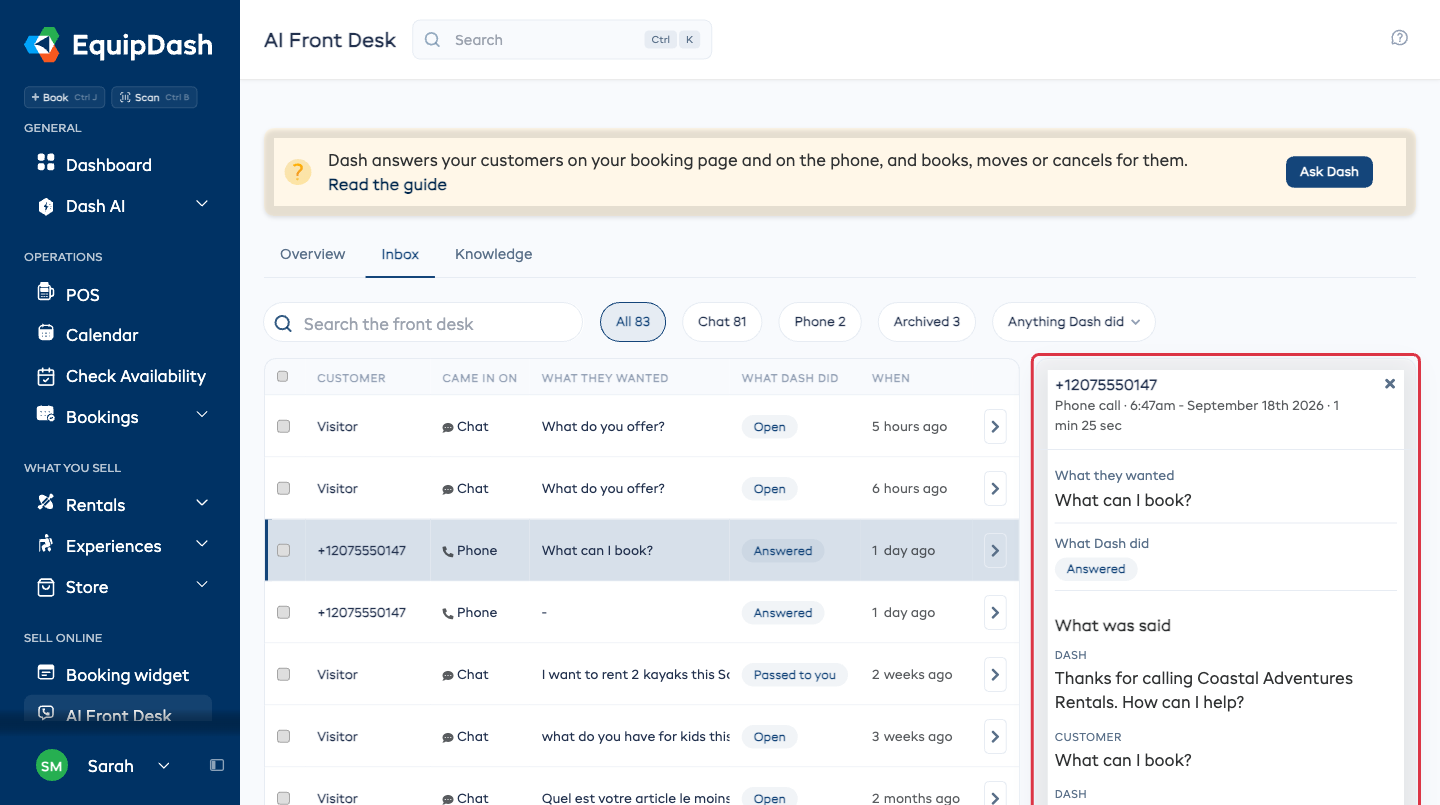
Reading the list
Each row says the same five things:
| Column | What it tells you |
|---|---|
| Customer | Their name if Dash got one, the number they called from if not |
| Came in on | Chat or Phone |
| What they wanted | In the customer's own words |
| What Dash did | Booked, Moved, Canceled, Texted the booking link, Answered, Took a message, Passed to you, Didn't know, or Needs you |
| When | How long ago it came in |
Needs you is the one to look for. It means Dash could not finish the job and a person has to.
Opening one
Click any row. On a wide screen it opens in the pane beside the list, so you can read one and go straight to the next. On a narrower screen it opens in a drawer over the list.
Inside you get what they wanted, what Dash did and why, a link to the booking if there is one, the recording if you record calls, and the whole conversation word for word.
Finding one
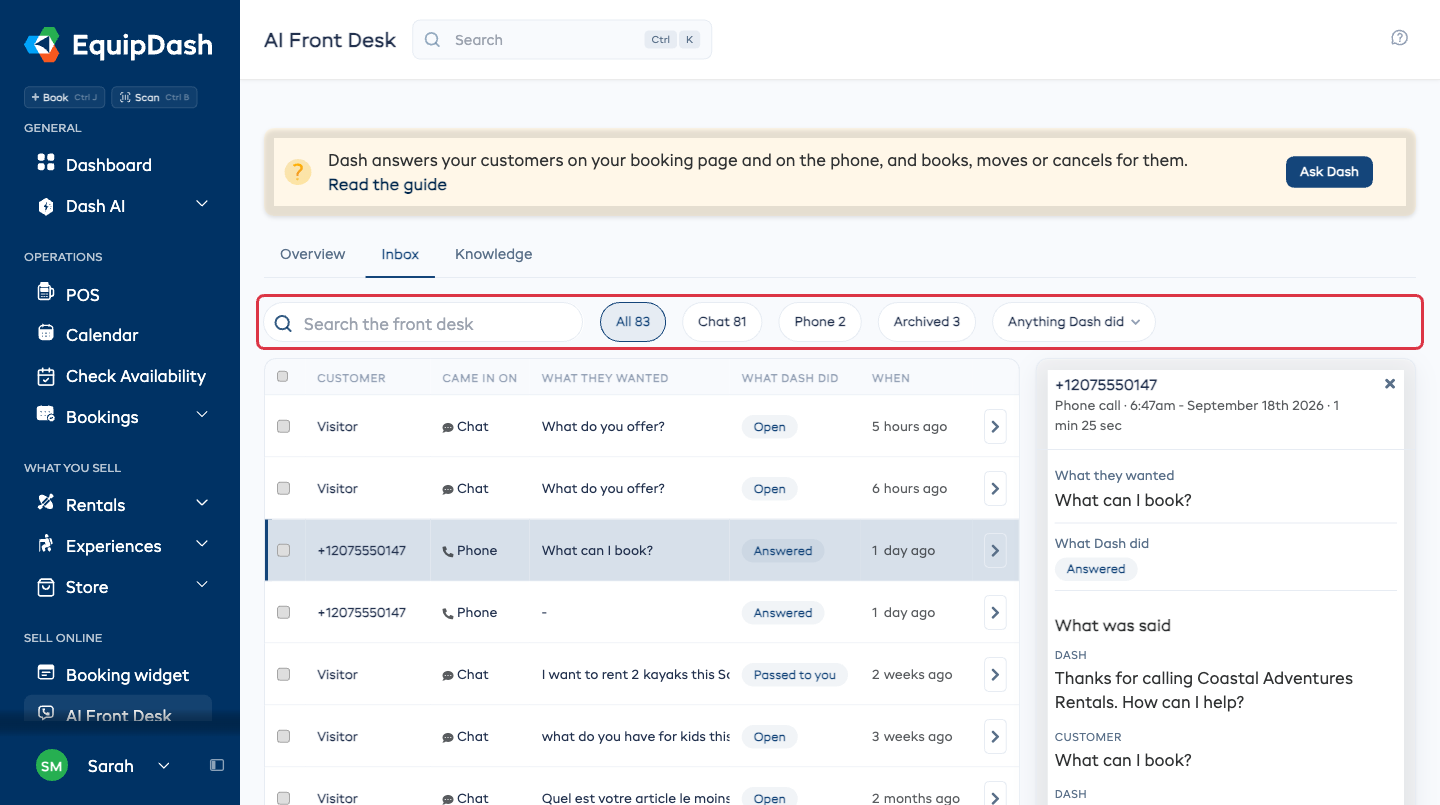
- Search the front desk looks through what customers said.
- All, Chat and Phone narrow it to one channel.
- Needs you shows only the ones waiting on a person. It appears when there are any.
- Archived shows the ones you have put away. It appears when there are any.
- Anything Dash did narrows it to one outcome, such as only the ones that became a booking.
The four things you can do
| Do this | When |
|---|---|
| Mark as handled | You have dealt with it. It stops waiting on you |
| Re-open | You marked it handled too soon, or the customer came back about the same thing |
| Archive | You want it off the list without deleting it |
| Put back on the list | You want an archived one back |
Open a conversation and the button is right under What Dash did.
Several at once
Tick the box on each row you want, or the box in the header to take the whole page. A bar appears above the list with the same actions on it.
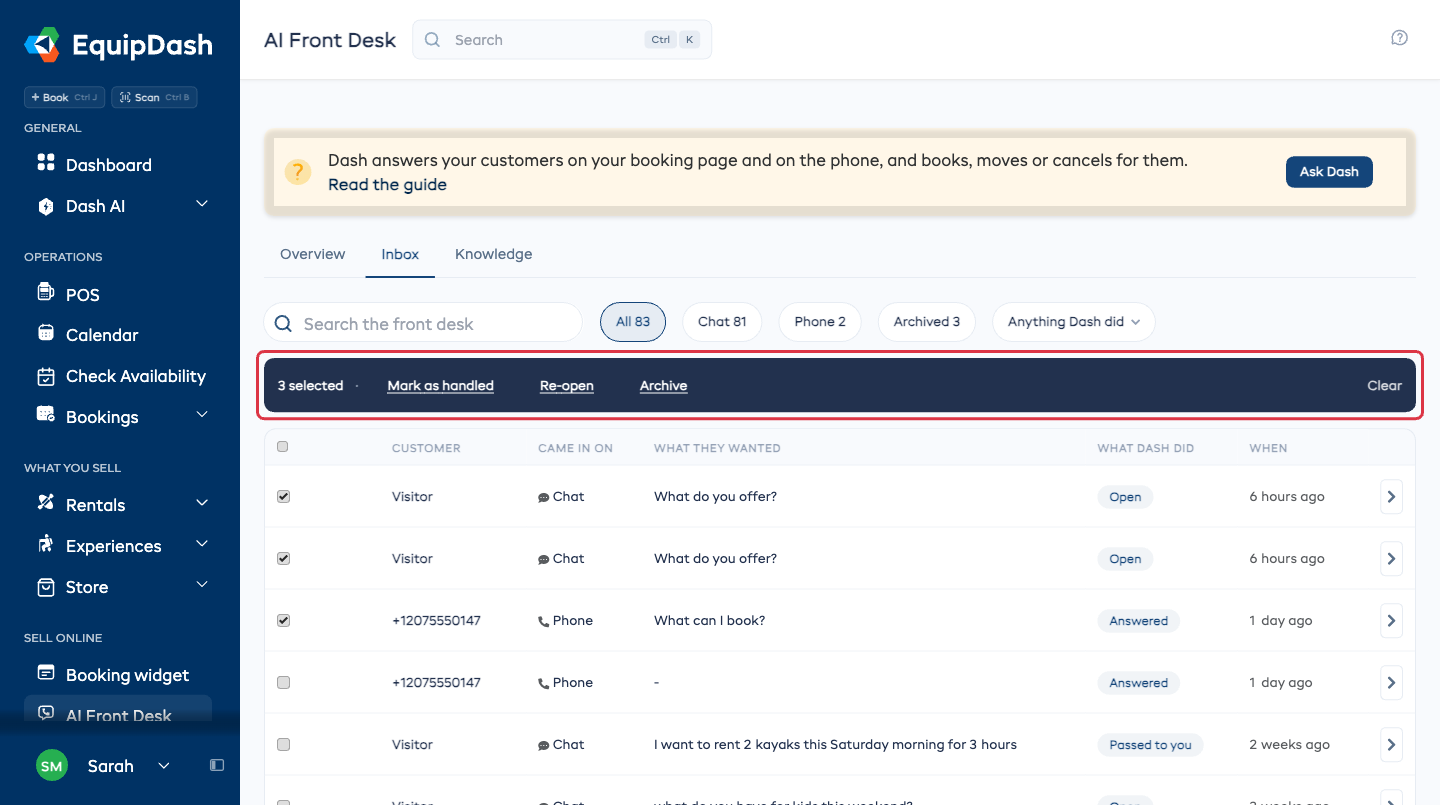
Clear unticks everything.
Getting told about them
Under Settings → Notifications, in the AI front desk group:
- Needs you emails you when Dash passes a chat or a call to your team. This is on to start with.
- Every chat and call emails you every time Dash finishes one. This is off to start with, because a busy Saturday is a lot of email.
Both emails link straight to the conversation.
On your phone
The inbox is in the EquipDash phone app too, with the same four actions, so you can clear the Needs you ones between jobs. See the mobile app.
What next
- Teaching Dash - answering the questions behind the Didn't know rows is what makes the inbox shorter.