Editing a Booking
Plans change, and EquipDash makes it easy to update a booking after it has been created. You can change dates, swap items, adjust quantities, and update customer details.
For weather-driven reschedules and date-only changes, use the inline Move dates panel directly on the booking detail page — much faster than the full edit flow, and you don't have to remove and re-add items.
Who Can Edit Bookings?
Editing a booking requires the Bookings: Edit permission. If you do not see the edit options described below, ask your account admin to check your role and permissions.
How to Start Editing
- Open the booking you want to edit by clicking it in the bookings table.
- Click the Actions ▾ dropdown in the top-right corner of the booking detail page.
- Select Edit.
This puts the booking into edit mode where you can make changes.
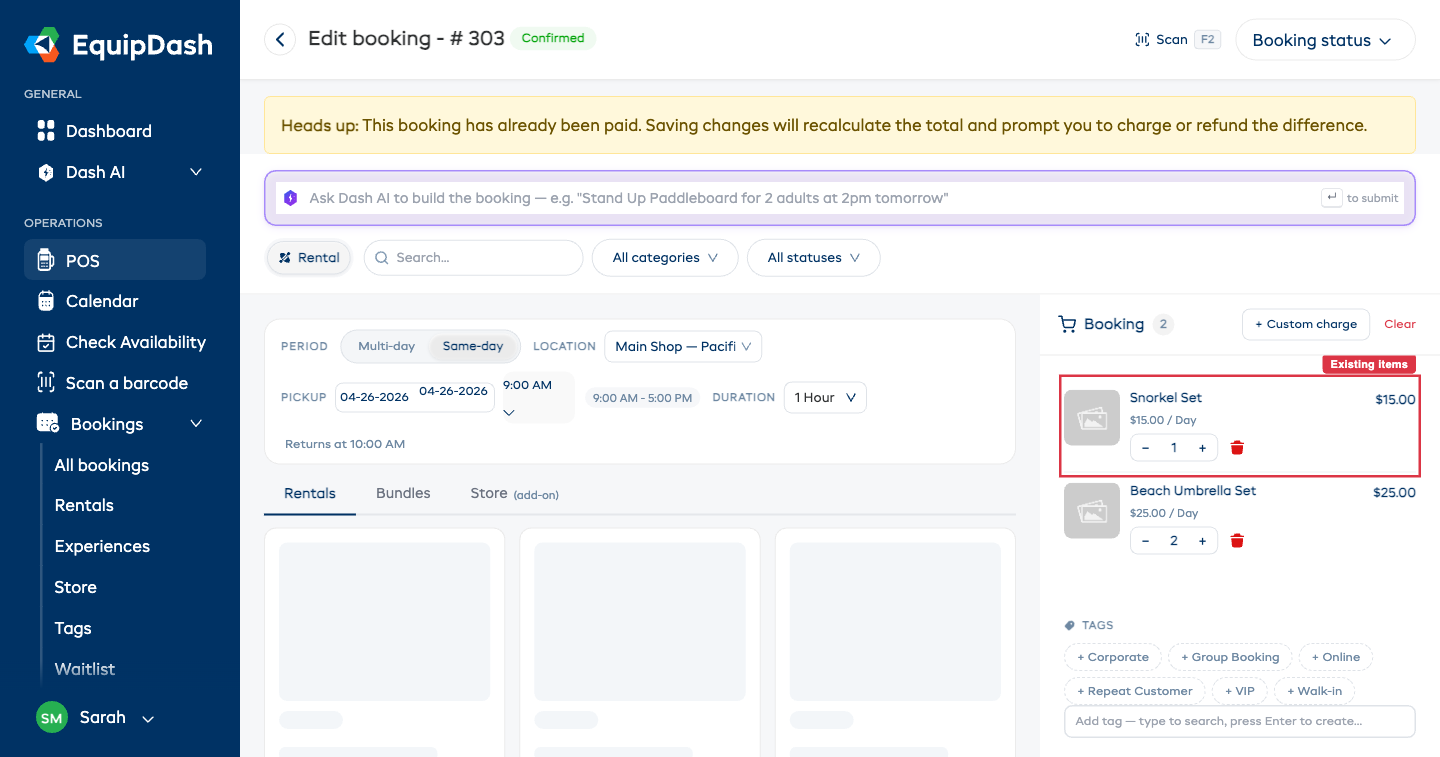
Changing Dates
- In edit mode, update the Pick up date & time, Return date & time, or both using the date and time pickers.
- EquipDash will automatically check availability for the new dates. If any items are unavailable, you will see a warning.
- Click Save to apply the changes.
When you change dates, EquipDash recalculates the pricing based on the new rental period. Check the updated total before saving.
Changing Items and Quantities
Adding an Item
- In edit mode, click Add Item.
- Search or browse for the product you want to add.
- Select the quantity and any variation (e.g. size).
- Click Add to include it in the booking.
Removing an Item
- Find the item in the booking's item list.
- Click the Remove button (trash icon) next to the item.
- Confirm the removal.
Adjusting Quantity
- Find the item in the booking's item list.
- Click the quantity to edit it, or use the Edit button.
- Enter the new quantity.
- Click Save.
Changing the Customer
- In edit mode, click Edit next to the customer name.
- Search for a different customer by name or email.
- Select the correct customer from the results.
- Click Save to update the booking.
Changing the customer does not affect the booking's payment history. Any payments already recorded remain linked to the booking.
Editing Participants (Experience Bookings)
You don't need to enter edit mode to change participants — every participant action is inline on the booking detail page:
- Change a participant's ticket — use the inline ticket-type dropdown on the participant row to assign or move them to a different rate category.
- Edit a participant's name, email, or notes — click the edit pencil on the row, update the fields, edit any participant-scope custom fields, and click Save.
- Remove a non-booker participant — click the × on the row.
- Add a new participant or change a customer link — click + Add at the top of the Booking participants card. The bulk participants form opens with POS-style customer autocomplete (start typing a name or email to link an existing customer).
The booker (the customer who made the booking) cannot be removed — every booking must have at least one anchor participant.
How Edits Affect Pricing
When you make changes to a booking, the pricing is automatically recalculated:
- Date changes may change the rental duration and therefore the total price.
- Adding or removing items updates the subtotal.
- Quantity changes adjust the line item total.
- Promo codes and discounts are reapplied to the updated subtotal.
Editing a Paid Booking
You can edit a booking even after the customer has paid. When you save changes that move the total up or down, EquipDash opens a Reconcile Balance step so you can settle the difference in one place.
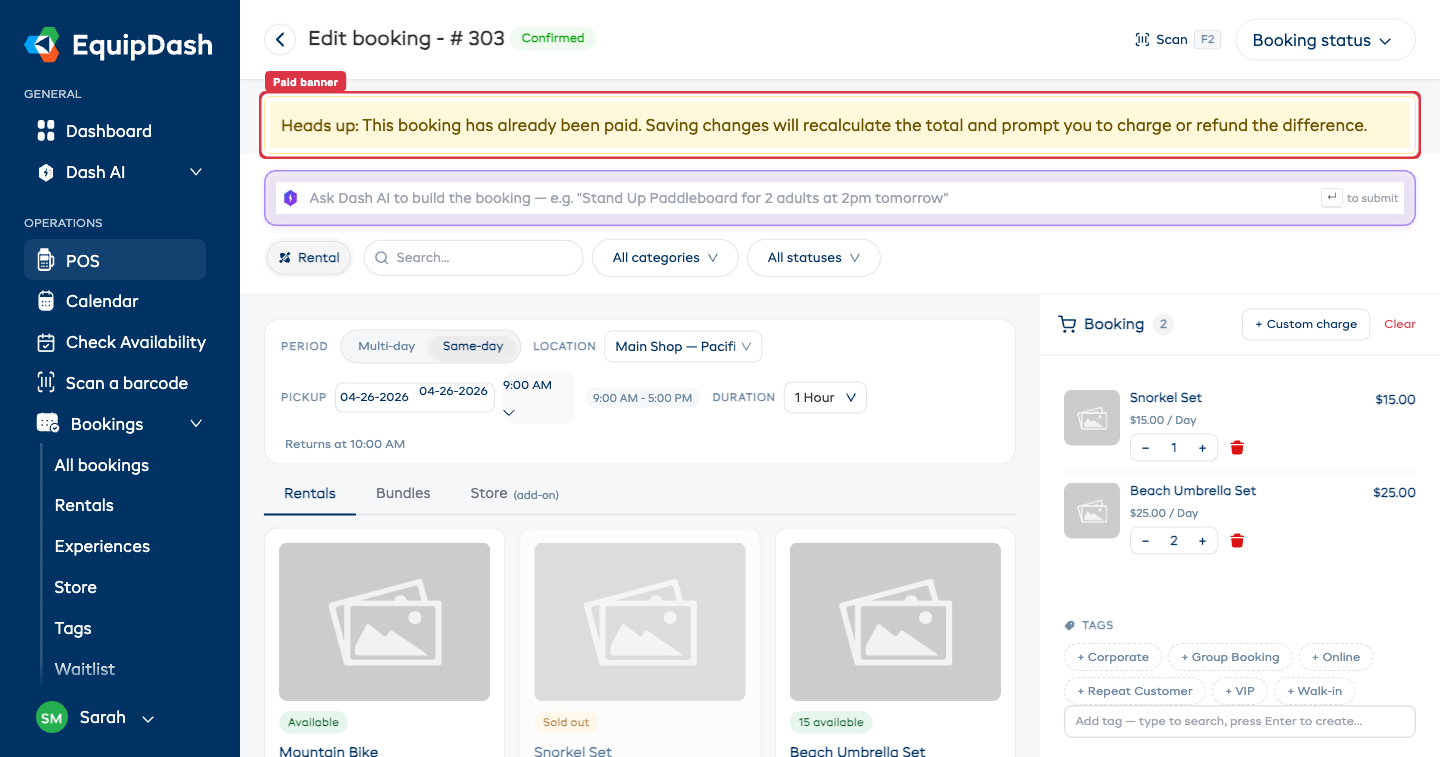
A yellow banner appears at the top of the edit page to remind you the booking is paid:
Heads up: This booking has already been paid. Saving changes will recalculate the total and prompt you to charge or refund the difference.
When the price goes up
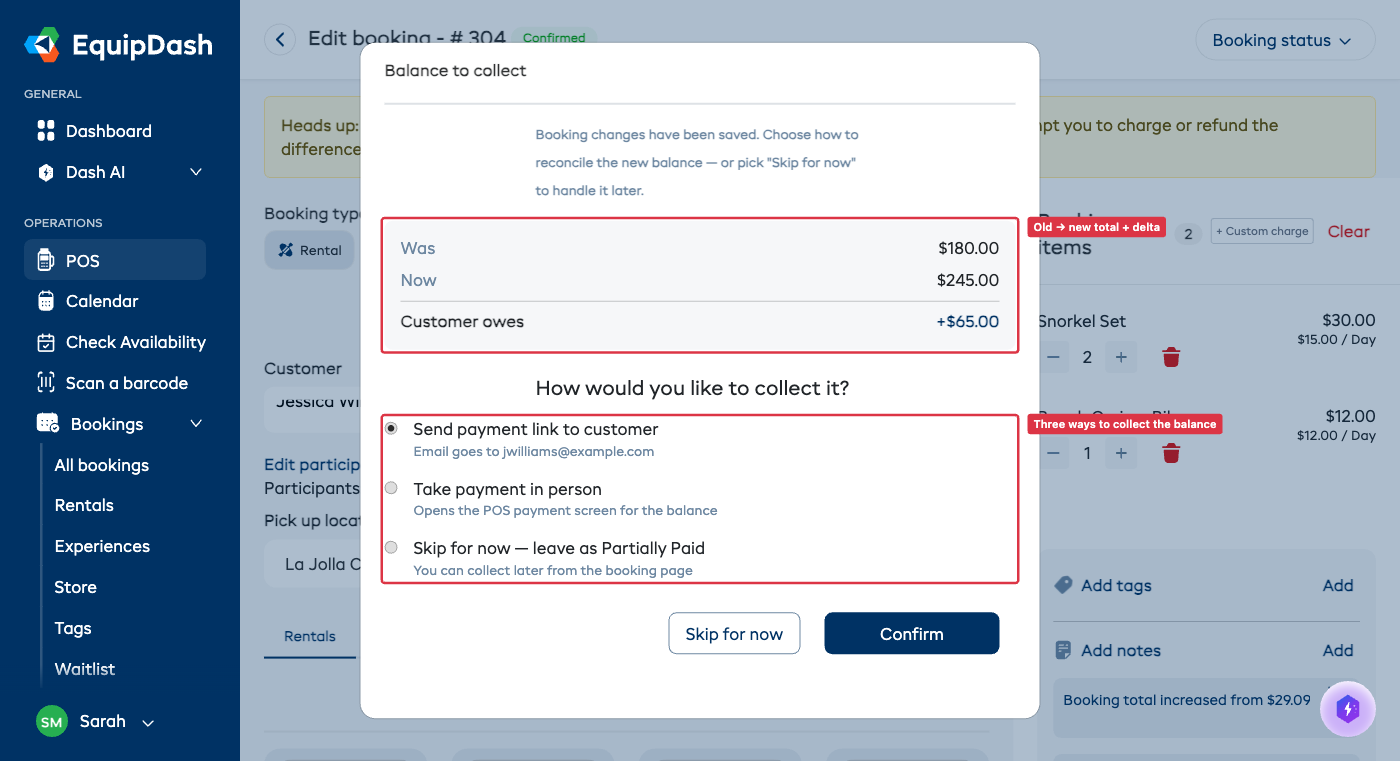
If the total increased, the modal asks how you'd like to collect the extra balance:
- Send payment link to customer — emails the customer a Stripe payment link for the difference. The booking is marked Partially Paid until they complete payment.
- Take payment in person — opens the existing POS payment screen pre-filled with the balance, so you can charge a card or record cash.
- Skip for now — leave as Partially Paid — saves the new total without charging. You can collect the balance later from the booking page.
The customer always receives an updated booking summary email that explains the new total and how the difference will be handled.
When the price goes down
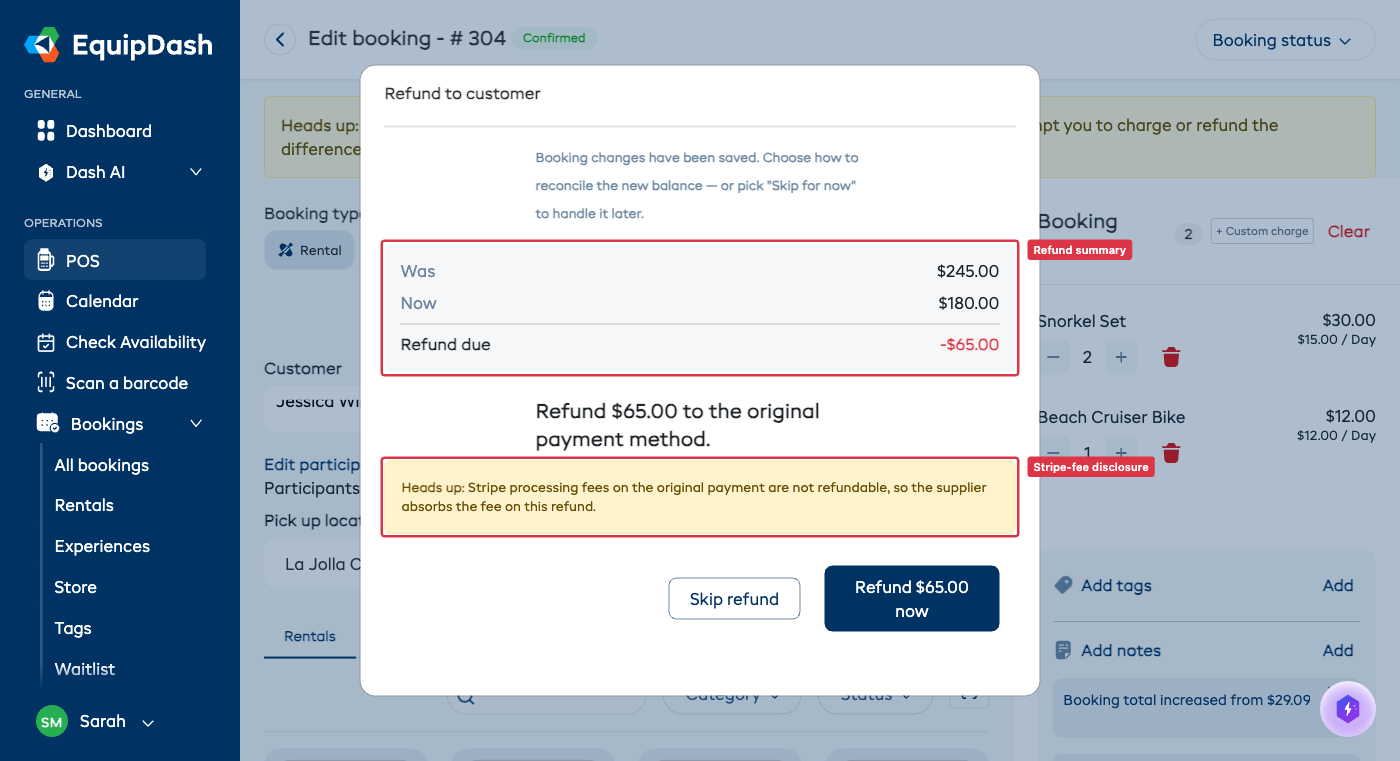
If the total decreased, the modal offers to refund the difference to the customer's original payment method. Refunds use the same plumbing as a normal booking refund, so:
- Stripe and Paystack are both supported automatically.
- Stripe processing fees on the original payment are not refunded by Stripe — your business absorbs that small fee.
- You can choose Skip refund to leave the overpayment as a credit on the booking, then process the refund manually later from the Payments section.
What if I cancel the modal?
The booking edit is committed when you click Update booking — that's before the modal opens. If you click Skip for now in the Reconcile Balance modal, the booking stays in its newly-edited state and is marked Partially Paid so the imbalance is visible on the booking detail page. You can come back at any time and either charge the balance or process a refund.
If the change was a mistake, edit the booking again to return it to the original totals.
Editing Picked-Up Rentals
You can also edit a rental booking after items have been picked up — useful for extending a rental by an extra day or adding an accessory mid-trip. See Extending an in-progress rental for the full walkthrough.
When the booking is in Picked up status, a warning banner appears at the top of the edit page:
Items have been picked up. You can extend dates, add items, or adjust prices, but you can't remove items already collected by the customer.
To remove an item, mark it as returned first via the returns flow.
Edit access shortcut
The Edit option lives in the Actions ▾ dropdown on the booking detail page. If you don't see it, your role might be missing the Bookings: Edit permission — check with your account admin.
Edit History
All edits are logged in the booking's History tab. You can see who made each change and when, giving you a full audit trail. Price changes specifically write a system note recording the old total, new total, and delta.