Cancelling a Booking
Sometimes a booking needs to be canceled. EquipDash guides you through the process step by step, applying your cancellation policies automatically and giving you control over refunds.
Who Can Cancel Bookings?
Cancelling a booking requires the Bookings: Cancel permission. If you do not see the cancel option, ask your account admin to check your role and permissions.
When the Cancel Option Appears
Cancel booking shows on any booking that hasn't finished — including one that has already started. A no-show, a customer who calls an hour after their pickup time, an item handed over by mistake: all of these can still be cancelled, and your cancellation policy decides the refund. A cancellation after the start time usually falls past every refund tier, so the modal shows a 0% refund unless your policy says otherwise.
The option is hidden once a booking is Cancelled, Returned, or Completed — there is nothing left to cancel. Use a refund instead if you need to give money back on a finished booking.
Customers can't cancel themselves once the booking has started — that stays blocked on their self-service page. Only your team can.
How to Cancel a Booking
- Open the booking you want to cancel from the bookings table.
- Click the Actions ▾ dropdown in the top-right corner of the booking detail page.
- Select Cancel booking.
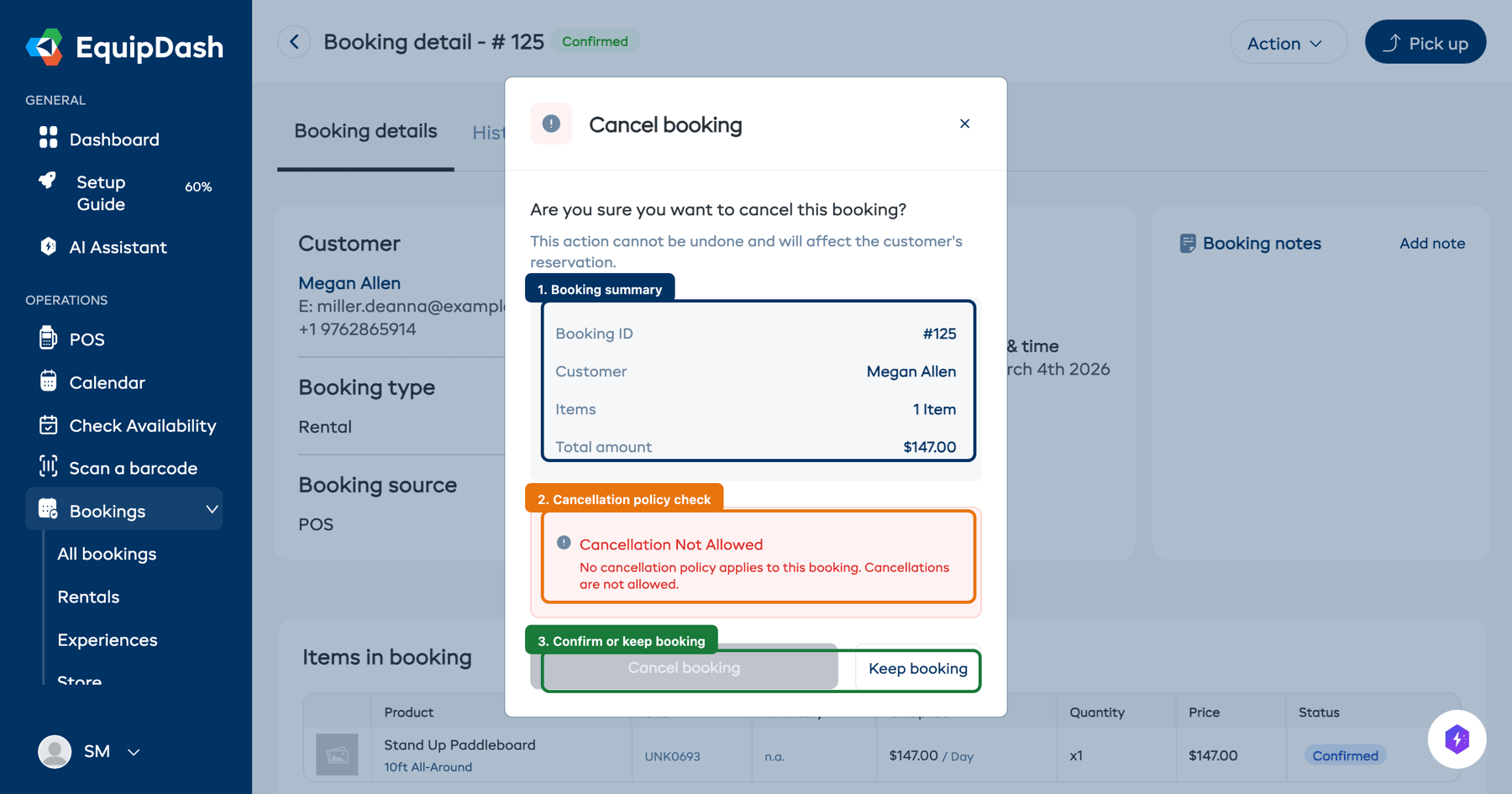
- The cancellation modal opens and walks you through the process in steps.
Step 1: Select a Reason
Choose a cancellation reason from the dropdown. The available reasons are:
| Reason | When to Use |
|---|---|
| Illness or medical emergency | The customer or a participant is unwell. |
| Change in travel plans | The customer's trip or schedule has changed. |
| Bad weather or unsafe conditions | Conditions make the activity or rental unsafe. |
| Personal or family emergency | A personal situation prevents the customer from attending. |
| Minimum participants not reached | (Experiences) Not enough people signed up. |
| Transportation issues | Flight delay, vehicle breakdown, etc. |
| Force majeure | Natural disaster, government restrictions, or other extraordinary events. |
| Other | Any other reason -- you can add details in the notes field. |
You can also add optional Cancellation Notes to provide more context.
Step 2: Review Cancellation Policy
If you have a cancellation policy configured, EquipDash automatically finds and applies the most relevant policy based on:
- The specific product or experience in the booking
- The product or experience category
- A general "all products" or "all experiences" policy
- How far in advance the cancellation is being made
For multi-tier policies, the modal cites the specific tier that applies given how many hours before start the cancellation is happening — e.g. "Cancelled 30 hours before start — 50% refund tier applies".
The modal displays:
- The policy name that applies
- The matched tier (for multi-tier policies)
- The refund percentage the tier allows
- The calculated refund amount
If you need to override the tier's refund percentage, toggle the Override Refund Percentage switch and enter a custom percentage.
Step 3: Confirm Cancellation
Review the summary and click Confirm Cancellation. The booking status changes to Cancelled.
What Happens After Cancellation
When a booking is canceled:
- The booking status is set to Cancelled.
- Reserved inventory is released (rental bookings).
- Held spots on the schedule are freed (experience bookings).
- If a refund amount was calculated, you can process it from the booking detail page. See Processing a Refund.
- If the waitlist is enabled, customers on the waitlist for the same item are automatically notified that availability has opened up.
- A cancellation email is sent to the customer (if email notifications are enabled). For multi-tier policies, the email cites the matched tier — "Cancelled 30 hours before departure. Refund: 50% ($42.50)."
Cancellations Without a Policy
If no cancellation policy applies to the booking, you are given full control. You can choose to offer a full refund, a partial refund, or no refund at all.
Can I Undo a Cancellation?
Cancellation is a final action and cannot be undone. If the customer wants to rebook, you will need to create a new booking.
Related Guides
- Processing a Refund
- How the Waitlist Works
- Creating Cancellation Policies
- Viewing & Managing Bookings
- Archiving Bookings — once cancelled, you can archive to clean up your list