Booking Tags
Tags let you label and categorise your bookings however you like. Whether you want to flag VIP customers, mark group bookings, or track bookings from a specific event, tags make it easy to stay organized.
Creating a Tag
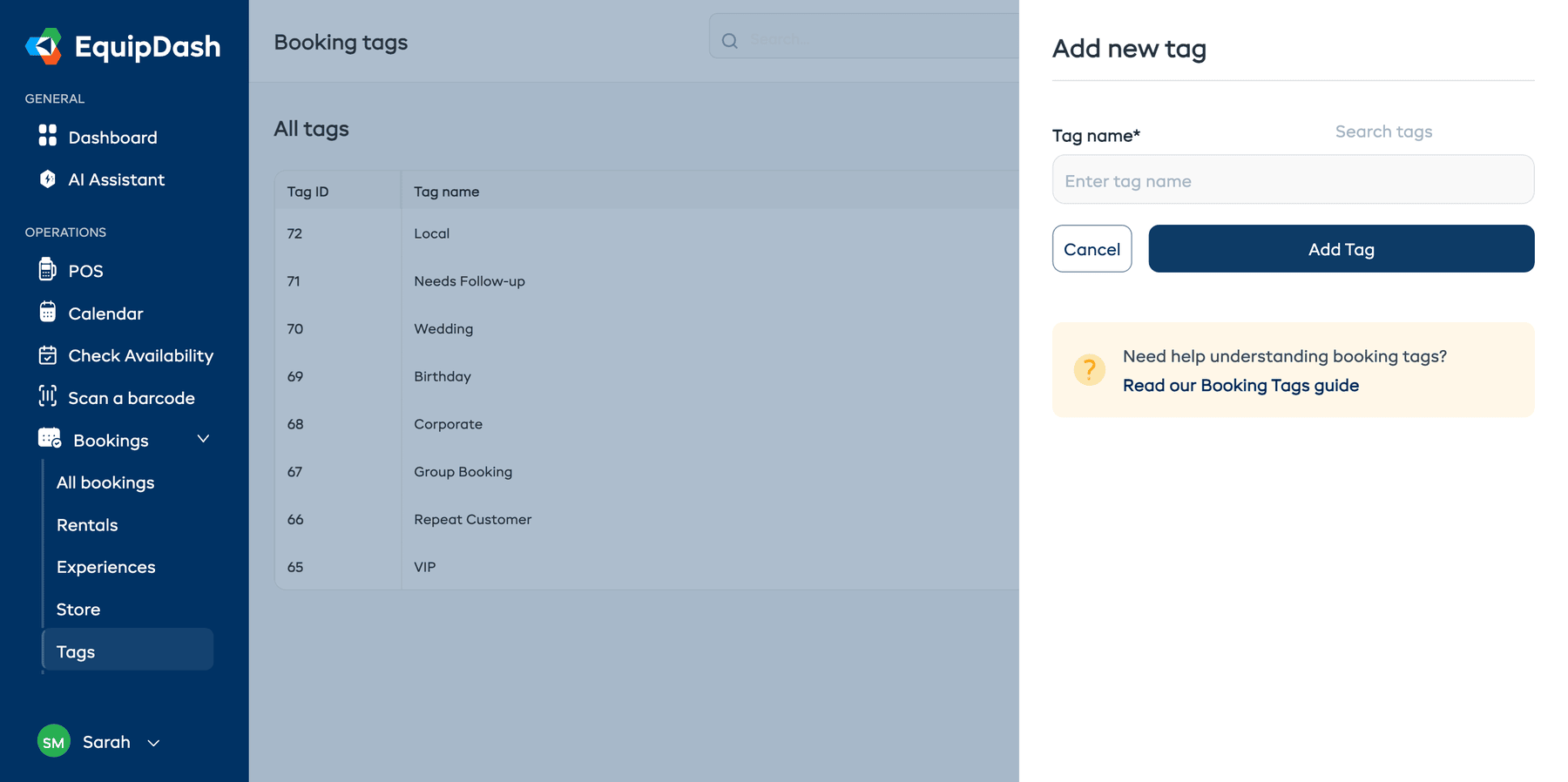
- Navigate to Bookings > Tags from the sidebar.
- Click the Add Tag button in the top-right corner.
- In the sidebar panel, enter a name for your new tag.
- Click Add Tag.
The tag is now created and available to assign to any booking.
Assigning Tags to a Booking
- Open the booking you want to tag from the bookings table.
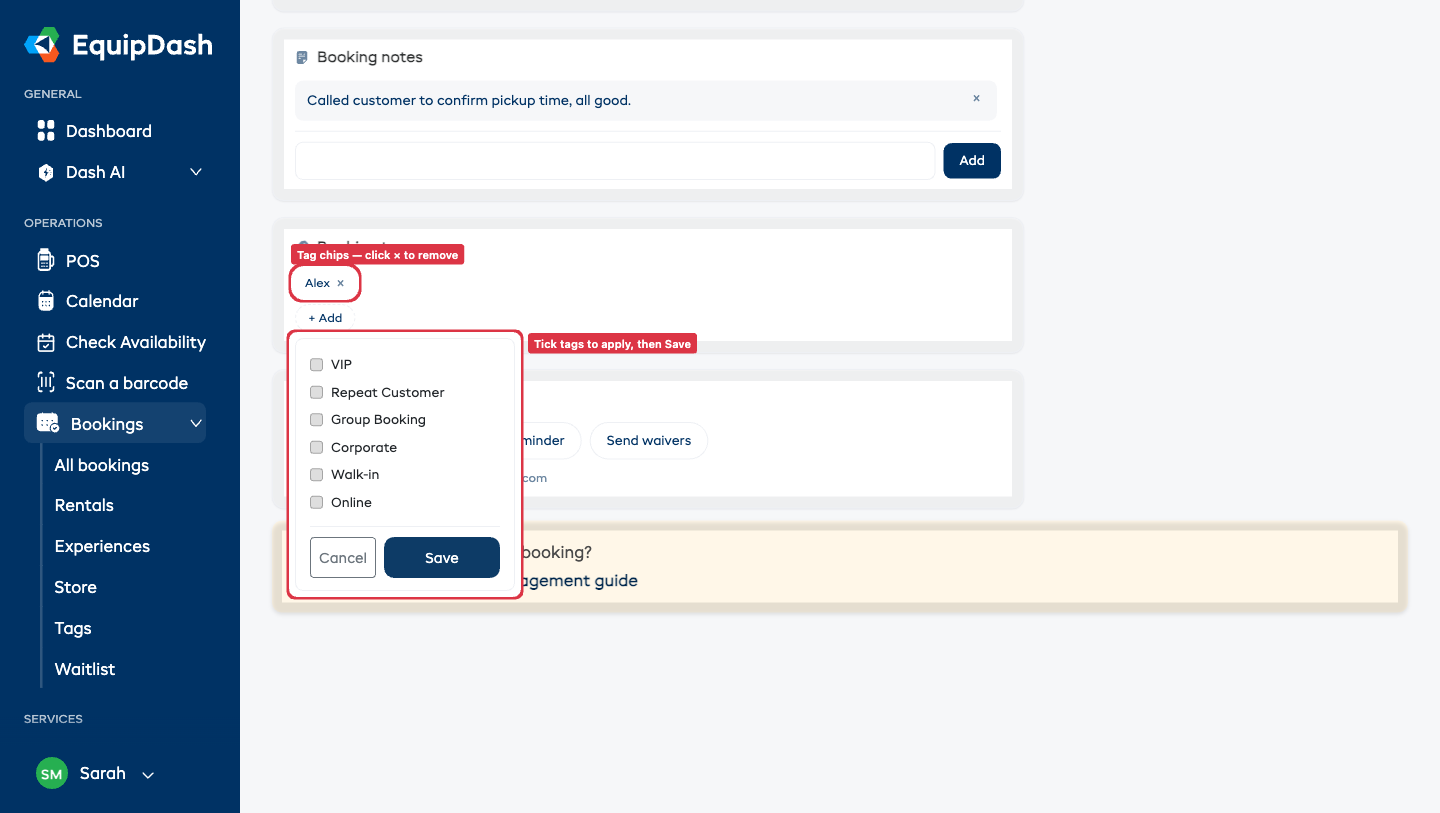
- On the booking detail page, find the Booking tags card.
- Click + Add. A small popover opens with every tag your supplier has configured.
- Tick the tags you want applied (untick to remove).
- Click Save.
Selected tags appear as chips in the Booking tags card. You can assign multiple tags to a single booking.
Removing a Tag from a Booking
- Open the booking.
- In the Booking tags card, find the chip for the tag you want to remove.
- Click the × on the chip.
- The tag is removed immediately — no separate confirmation step.
Removing a tag from a booking does not delete the tag itself. It remains available for use on other bookings.
Deleting a Tag
- Navigate to Bookings > Tags from the sidebar.
- Find the tag you want to delete in the tags list.
- Click the Delete icon in the Actions column.
- Confirm that you want to permanently delete the tag.
Deleting a tag removes it from all bookings that use it. This action cannot be undone.
Filtering Bookings by Tag
Tags become especially powerful when combined with the bookings table filter:
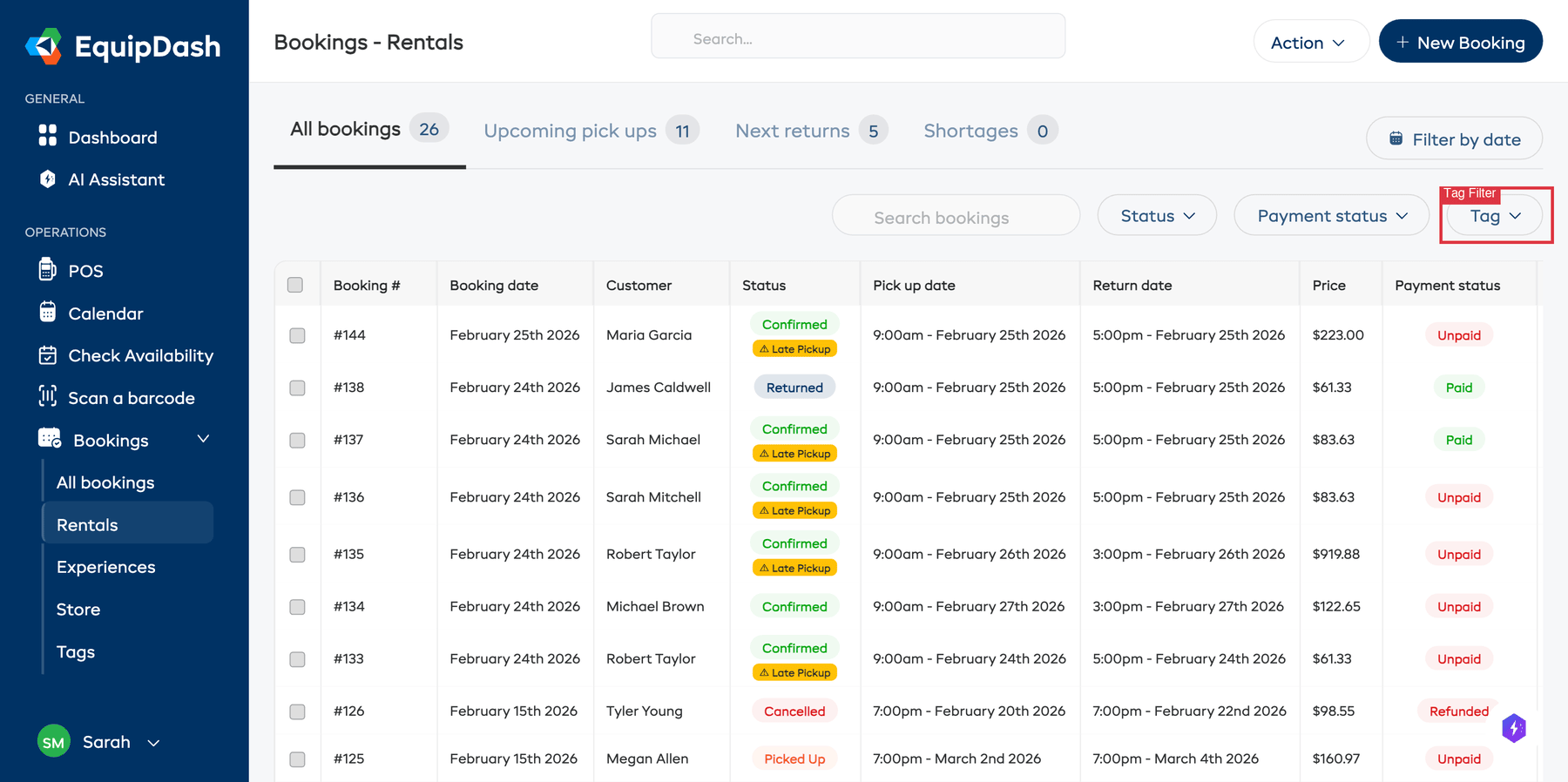
- Go to Bookings > Rentals or Bookings > Experiences.
- Use the Tag dropdown filter above the table.
- Select the tag you want to filter by.
- The table updates to show only bookings with that tag.
This is a great way to quickly pull up all bookings related to a particular group, event, or category.
Ideas for Using Tags
Here are a few ways other businesses use booking tags:
- VIP -- flag high-value or returning customers
- Group Booking -- mark bookings with large groups
- Corporate -- identify business or corporate bookings
- Event Name -- track bookings tied to a specific event or festival
- Needs Follow-Up -- flag bookings that need extra attention