Booking Notes & History
Keep your team informed by adding notes to bookings and reviewing the complete history log. Notes help communicate important details, and the history log gives you a full audit trail of every action taken on a booking.
Adding a Note
- Open the booking from the bookings table.
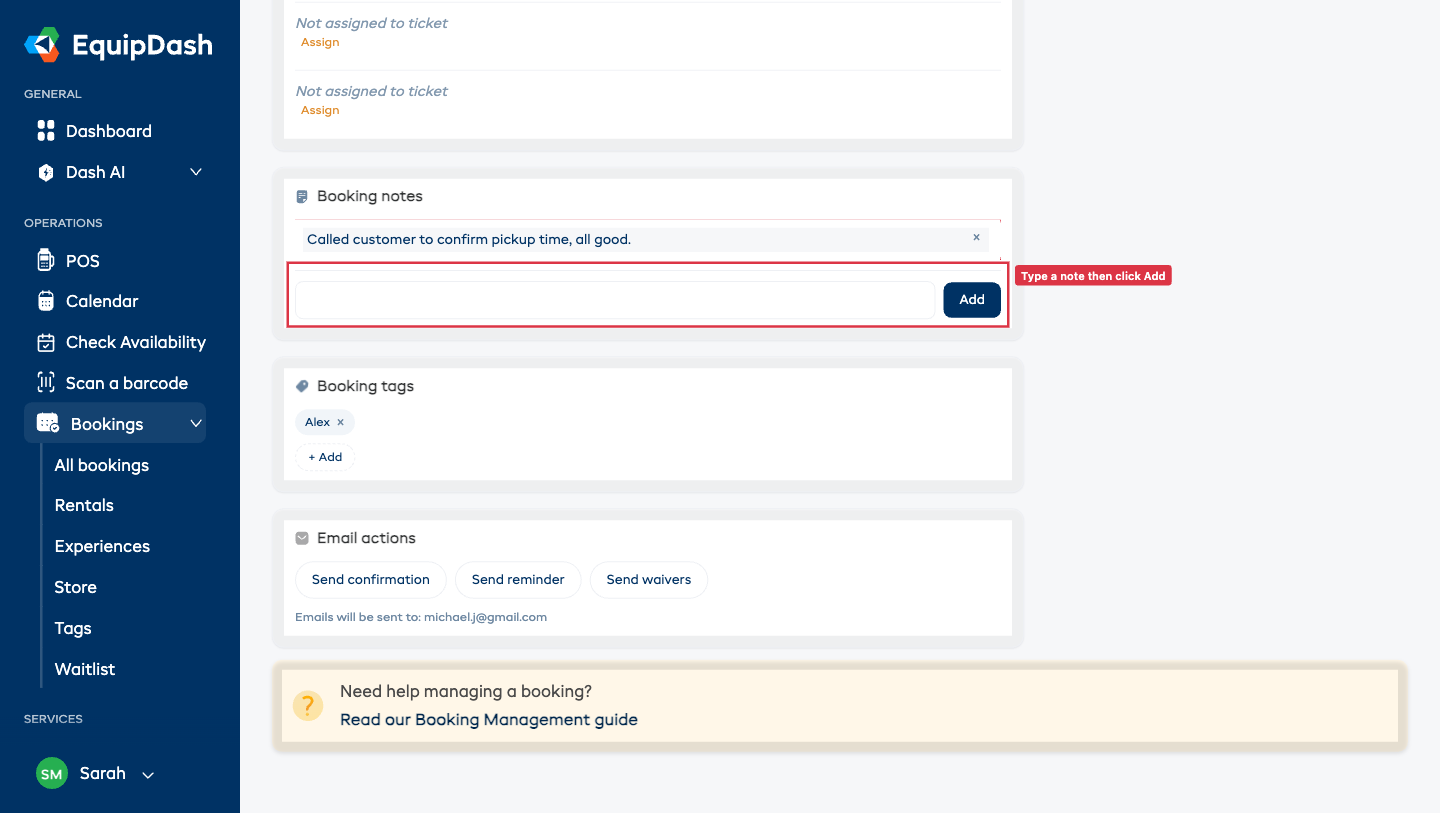
- On the booking detail page, scroll to the Booking notes card.
- Type your note in the textarea at the bottom of the card.
- Click Add.
The note appears in the list above the textarea immediately.
Viewing Notes
All notes appear in the Booking notes card on the booking detail page, listed newest at the top. Each row shows the note text and a small × to remove it.
Deleting a Note
- Find the note you want to delete in the Booking notes card.
- Click the × button on that note row.
- The note is removed immediately.
Deleting a note is permanent and cannot be undone.
Examples of Useful Notes
- "Called customer to confirm pickup time, all good."
- "Size swap agreed -- changed from medium to large wetsuit."
- "Customer mentioned they may want to extend the rental by one day."
- "Group of 6, need extra helmets ready at pickup."
Viewing Booking History
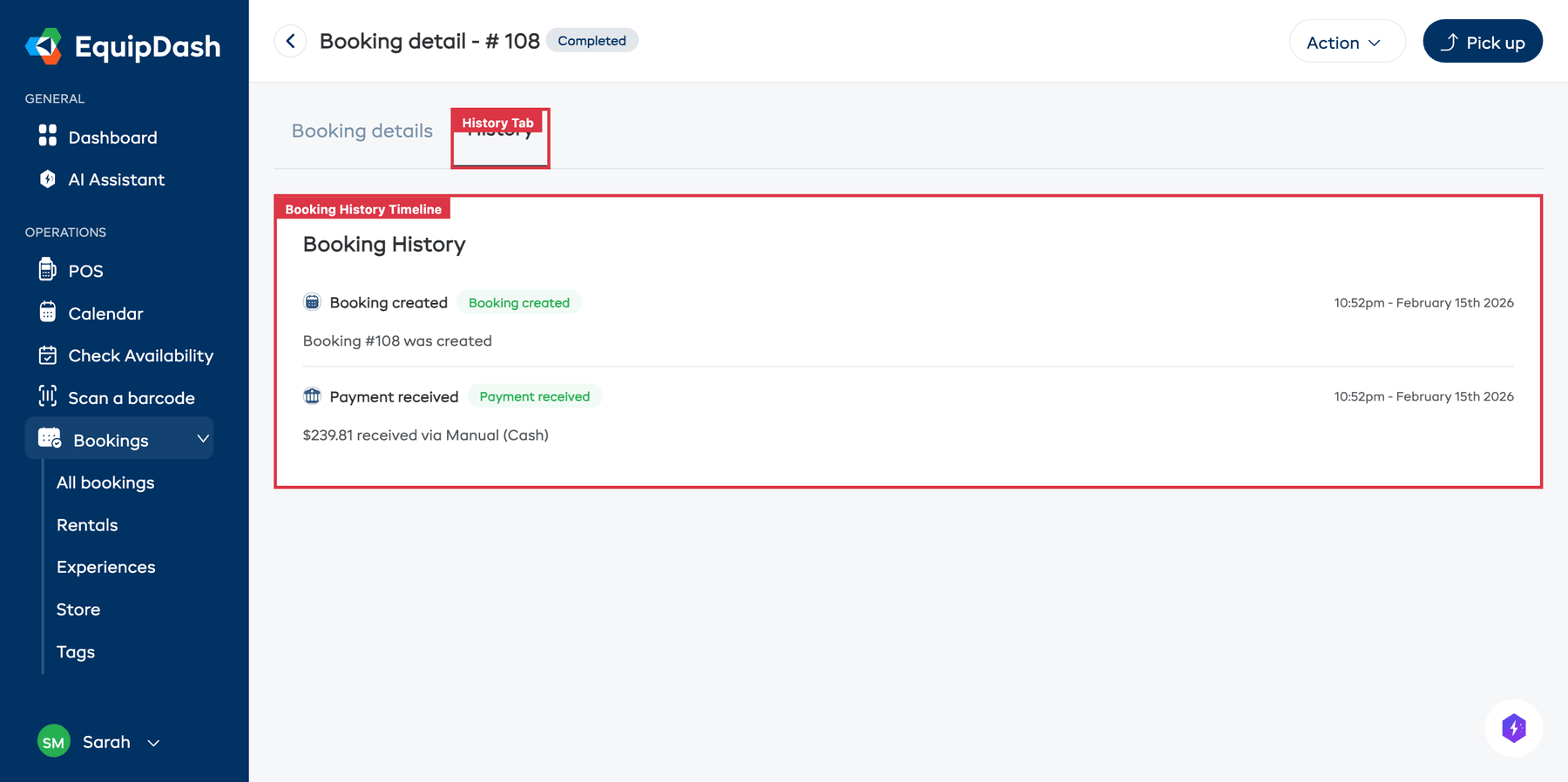
The History tab on the booking detail page provides a chronological timeline of every action taken on the booking, titled Booking History.
What Is Logged
| Event | Example |
|---|---|
| Booking created | "Booking #1234 was created" |
| Status change | "Status changed from Confirmed to Picked Up" |
| Payment recorded | "Payment of $150.00 recorded (Cash)" |
| Refund processed | "Refund of $50.00 processed" |
| Booking edited | "Start date changed from 15 Feb to 17 Feb" |
| Items changed | "Mountain bike x2 added to booking" |
| Cancellation | "Booking canceled -- reason: Change in travel plans" |
| Fulfillment action | "Items marked as picked up" |
| Fulfillment undone | "Pickup undone by Sarah" |
| Note added | "Note added by Sarah" |
| Email sent | "Confirmation email sent to customer" |
Reading the Timeline
- Open the booking.
- Click the History tab.
- Scroll through the timeline to see all events, with the most recent at the top.
Each entry shows:
- What happened -- a description of the action with a status badge
- When -- the date and time
Using Notes and History Together
Notes and history serve different purposes:
- Notes are things you write -- messages, reminders, and context for your team.
- History is automatic -- EquipDash logs every action without you lifting a finger.
Together, they give you a complete picture of what has happened on a booking and why.
Related Guides
- Viewing & Managing Bookings
- Booking Tags
- Editing a Booking
- Booking Fulfillment -- undoing a pickup or a return is recorded here too