How the Waitlist Works Growth+This feature requires the Growth+ plan or higher
The waitlist feature lets customers sign up to be notified when a fully booked item or experience becomes available. Instead of losing potential bookings, you capture demand and convert it automatically when availability opens up.
The Big Picture
Here is how the waitlist works from start to finish:
- A customer tries to book a product or experience, but it is fully booked for their desired dates.
- The customer joins the waitlist by entering their name and email.
- When availability opens up (e.g. another booking is canceled), EquipDash automatically notifies the waitlisted customer by email.
- The customer clicks the link in the email to book the now-available item.
- If they complete the booking, their waitlist entry is marked as Booked.
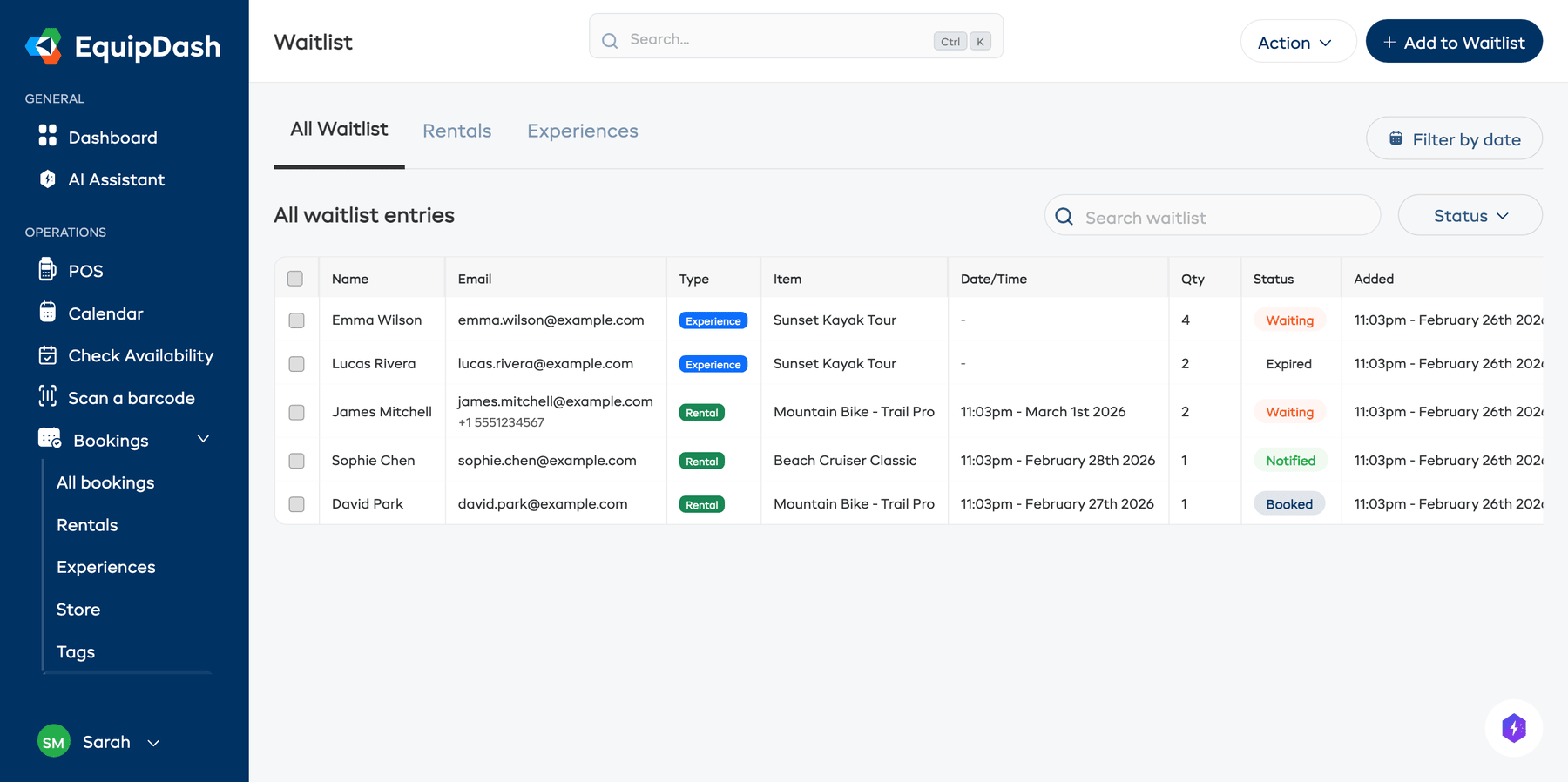
Where Customers Can Join the Waitlist
Customers can join the waitlist from several places:
| Source | How It Works |
|---|---|
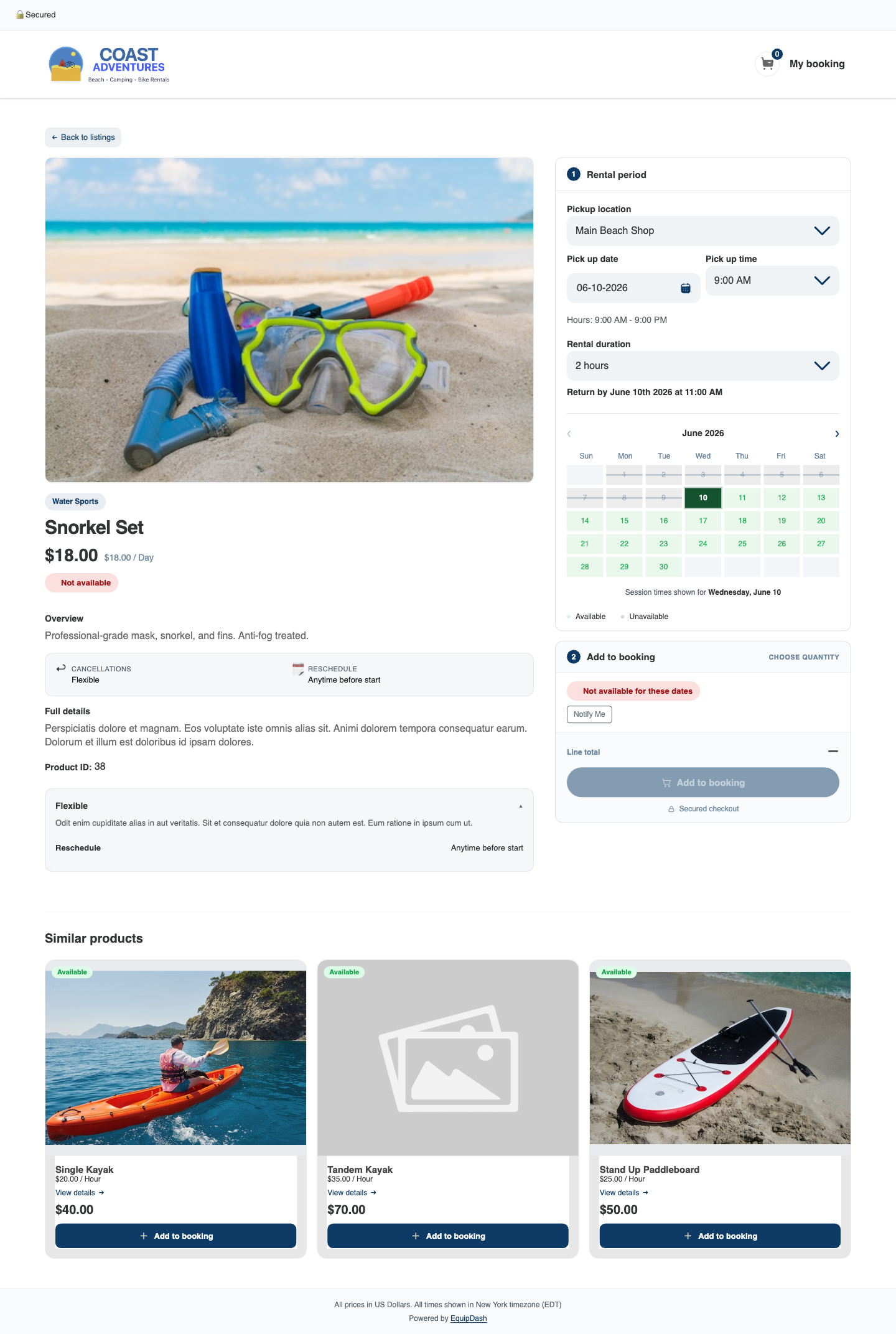
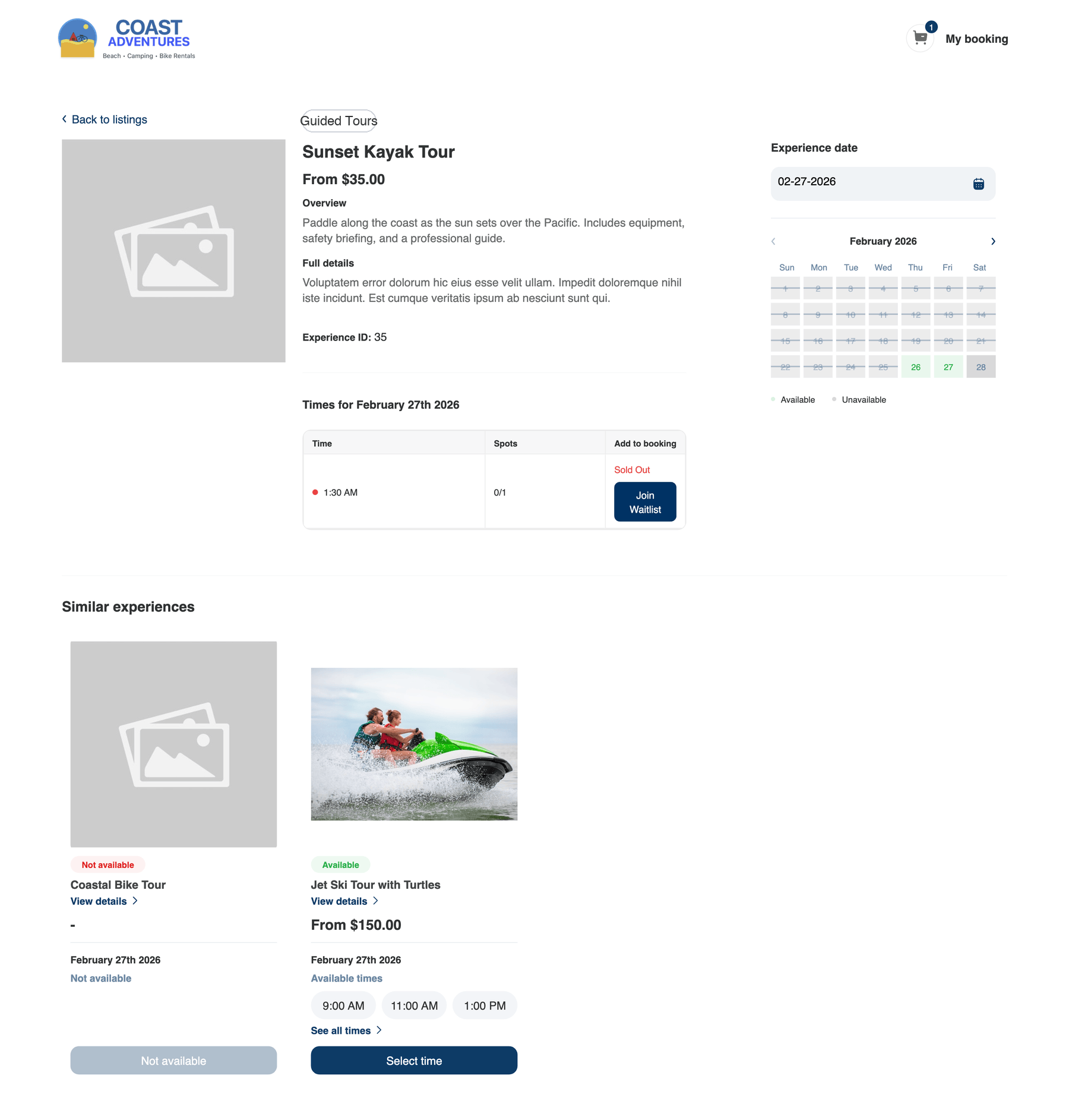
| Booking Widget | When an item is fully booked on your website, customers see a Notify Me button (rental products) or a Join Waitlist button (experiences). |
| Point of Sale (POS) | When you try to add a fully booked item during POS booking creation, you can add the customer to the waitlist directly. |
| API | External systems can create waitlist entries through the API. |
| Manual | You can manually add a customer to the waitlist from the waitlist page by clicking + Add to Waitlist. |
Widget -- Rental Waitlist
When a rental product is sold out for the selected dates, a Notify Me button appears inside the Add to booking card on the product page, next to the "Not available for these dates" notice. Clicking it opens a short form (name, email, optional phone) that adds the customer to your waitlist.
Widget -- Experience Waitlist
When an experience session is fully booked, the time slot shows Sold Out with a Join Waitlist button underneath.
Waitlist Entry Statuses
Each waitlist entry moves through a lifecycle:
| Status | Meaning |
|---|---|
| Waiting | The customer is actively on the waitlist. |
| Notified | An availability notification has been sent to the customer. |
| Booked | The customer has successfully converted their waitlist entry into a booking. |
| Expired | The desired date has passed without the customer booking. |
| Cancelled | The customer (or you) canceled the waitlist entry. |
What Triggers a Notification?
EquipDash automatically checks for newly available spots when:
- A booking is canceled that included the waitlisted item or experience.
- An experience schedule's capacity is increased.
- Additional inventory is added for a rental product.
When availability is detected, all customers in Waiting status for that item are notified.
Waitlist Types
The waitlist works for both booking types:
- Rental waitlist -- customers wait for a specific product (and optionally a specific variation like size or color) to become available for their desired dates.
- Experience waitlist -- customers wait for a spot to open on a specific scheduled session.
Enabling the Waitlist
The waitlist is available on the Growth+ plan and above. To enable it:
- Go to Settings in the sidebar.
- Scroll down to the Waitlist section.
- Toggle Enable Waitlist on.
- Optionally toggle Auto-Notify to have EquipDash automatically send availability notifications (recommended).
- Click Save.
Duplicate Prevention
EquipDash prevents the same customer from joining the waitlist twice for the same item. If a customer tries to join a waitlist they are already on, they will see a message letting them know.
Rate Limiting
To prevent abuse, there is a limit of 5 waitlist submissions per email address per hour per business.