Pickup & Return Locations
When your business has multiple locations, each booking is tied to a pickup location and an optional return location. This ensures the right inventory is reserved at the right site, and your team knows exactly where each booking starts and ends.
Only locations with Rental pickup location? enabled in Settings > Locations appear as pickup and return options. See Multi-Location Inventory Setup for how to configure locations.
Selecting a Pickup Location in the POS
When a staff member creates a booking from the POS:
- Open the POS and start a new booking.
- Select a Pickup location from the location dropdown near the top of the form (styled to match the duration dropdown).
- Only inventory available at the selected location is shown as you add rental products.
- Store product stock is also filtered by the selected location.
- Complete the booking as usual.
The selected location is saved on the booking and appears on the booking detail page.
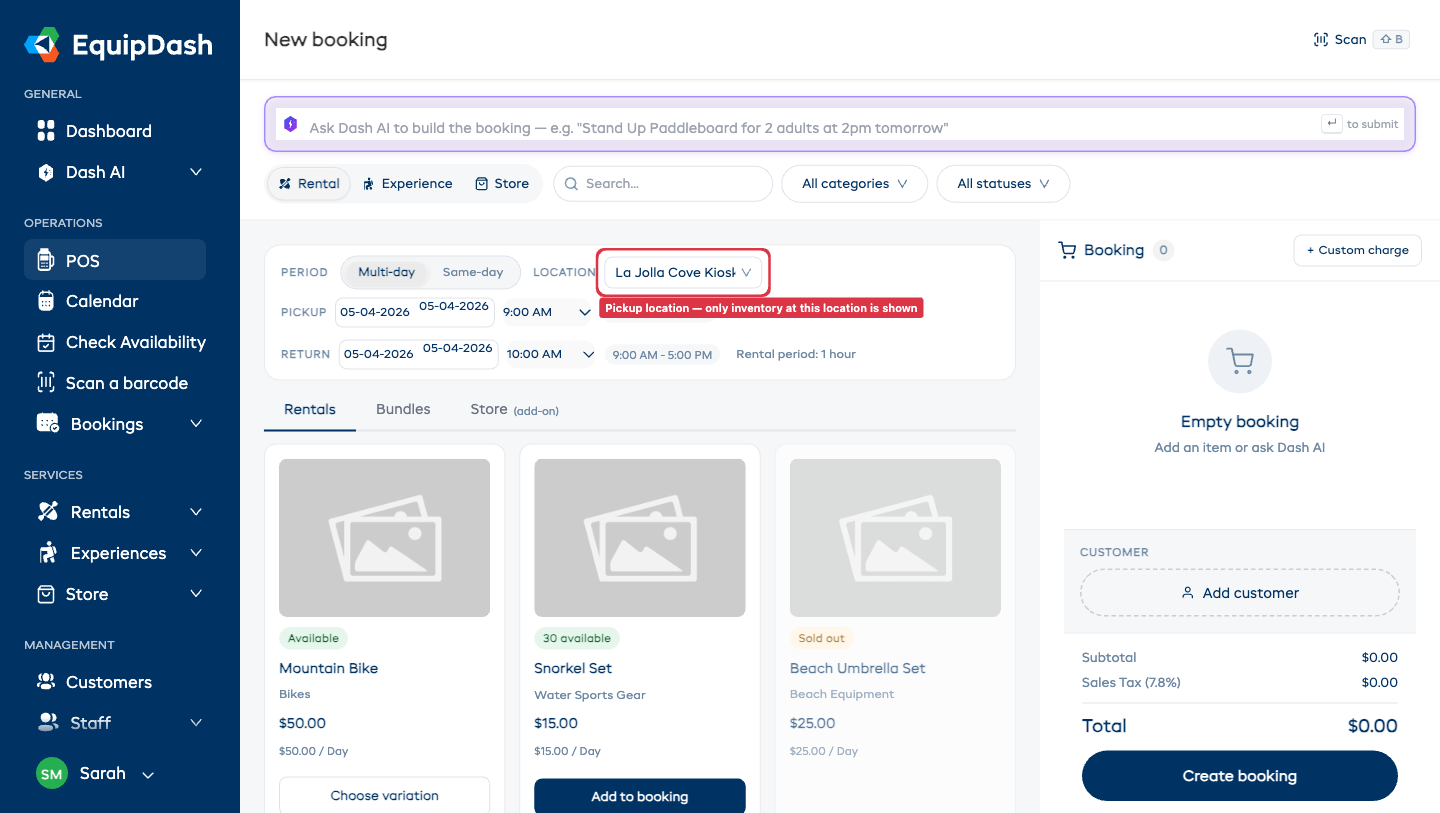
If you change the pickup location after adding items to the cart, a warning modal appears letting you know that your cart will be cleared. You can confirm the change or cancel to keep your current items.
Selecting a Return Location in the POS
If Allow returns to a different location is enabled (see below), a Return location dropdown appears alongside the pickup location dropdown. By default, the return location matches the pickup location.
- To set a different return location, select a location from the Return location dropdown.
- The return location is saved on the booking and shown on the booking detail page.
Selecting a Location in the Widget
When a customer books through the booking widget:
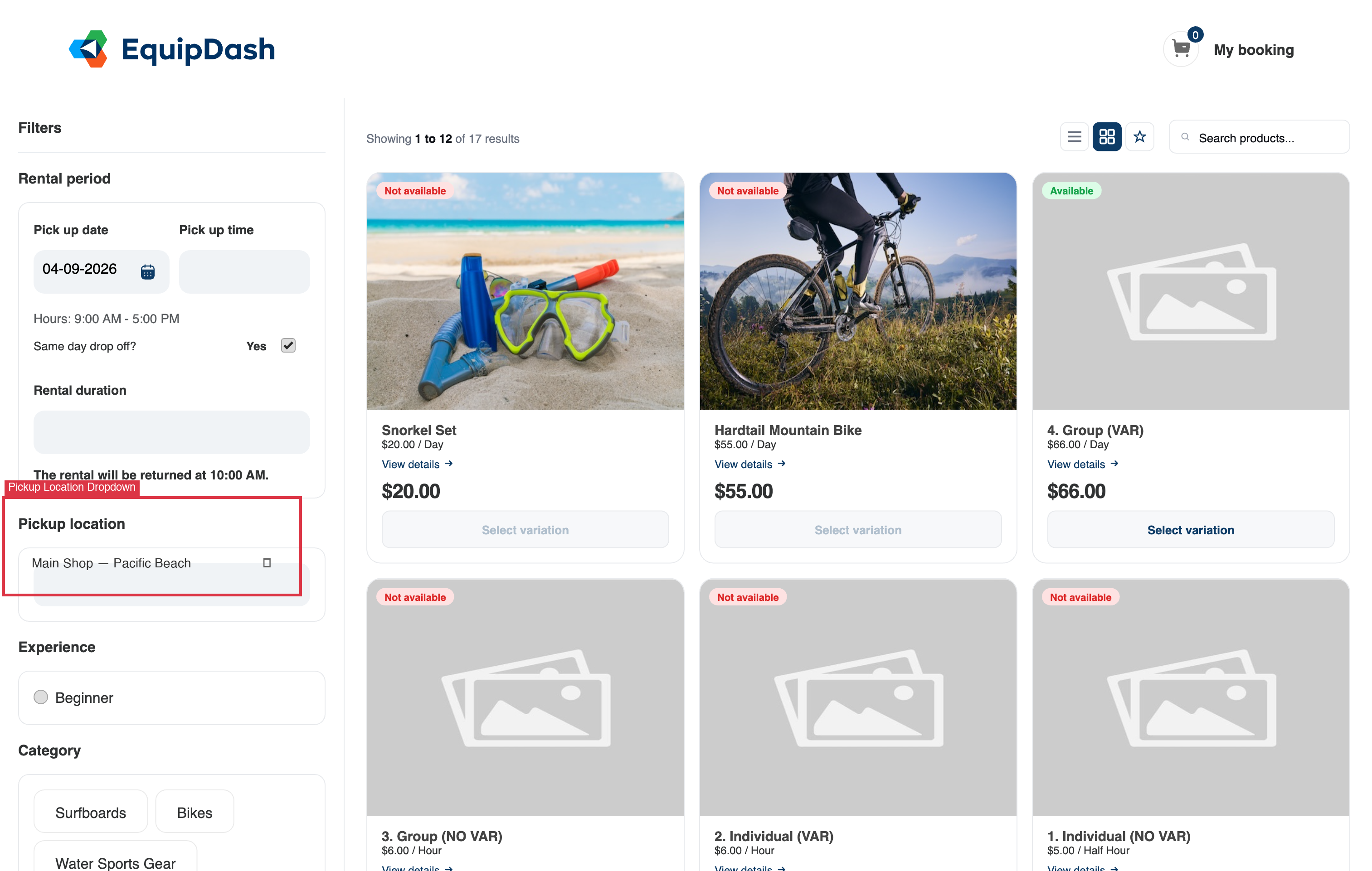
- If your account has two or more pickup locations, a location picker appears on the listing sidebar and the product detail page.
- The customer selects their preferred location.
- The widget shows only products and availability for that location.
- The selected location is saved to the cart session and shown at checkout.
- The location is saved as the booking's pickup location.
If your account has only one pickup location, the location picker does not appear and all bookings default to your single location.
Allowing Returns to a Different Location
By default, the return location is the same as the pickup location. If you want staff to be able to set a different return site on a booking, enable this option in your rental settings.
- Click Settings in the sidebar.
- Select Rentals from the settings menu.
- Scroll to find Allow returns to a different location and toggle it on.
- Click Save.
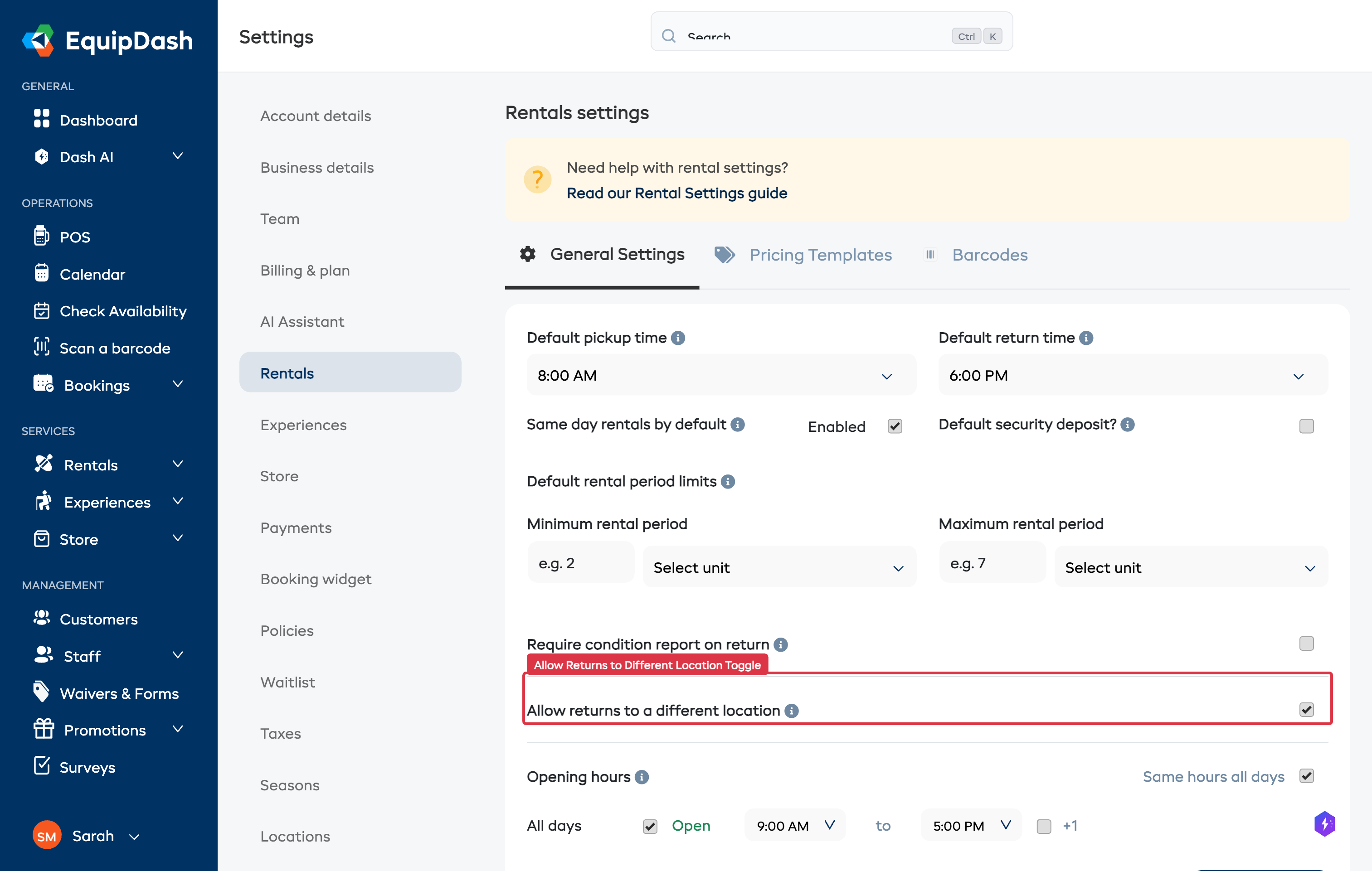
This toggle is in Settings > Rentals (not Settings > Locations). It only appears when your account has two or more locations.
Once enabled:
- A Return location dropdown appears in the POS booking form.
- The booking detail page shows the return location when it differs from the pickup location.
How Inventory Updates on Return
When an item is returned to a different location from where it was picked up, EquipDash automatically updates the item's location in your inventory:
- Item-tracked products: The individual unit's location is updated to the return site. It will appear at the new location in your inventory and be available for future bookings from that site.
- Group-tracked products: The stock count decreases at the original pickup location and increases at the return location.
This means your inventory always reflects where your items physically are, without manual adjustments.
If you regularly move items between locations via customer returns, check your inventory levels at each site periodically to keep things balanced. The Availability Report can help with this.
Viewing Location on a Booking
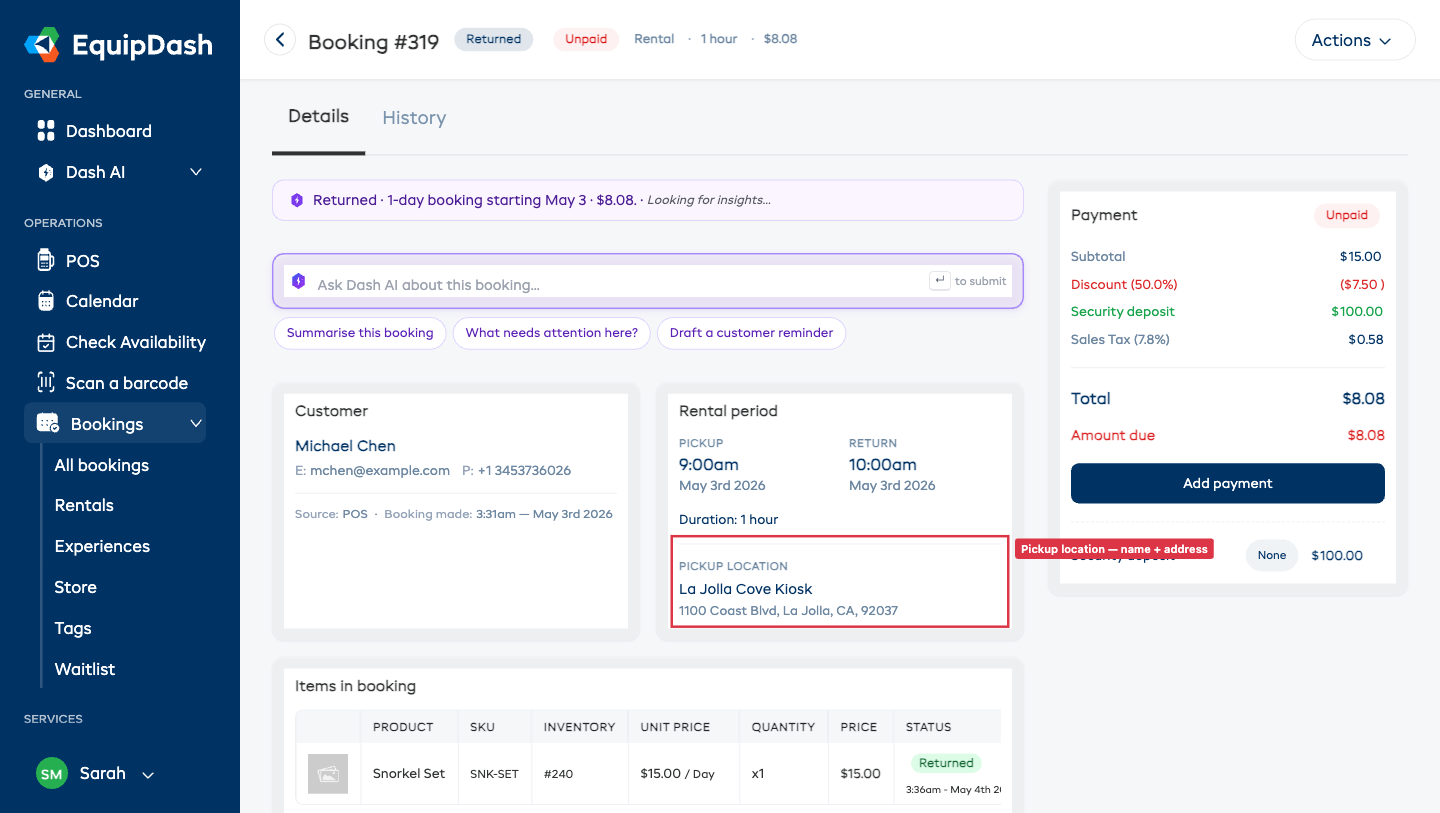
The booking detail page shows location information in the booking summary section:
- Pickup location: The location name and full address (if an address is set on the location).
- Return location: Shown only when it differs from the pickup location, displaying the return location name and address.
This makes it easy for staff to see at a glance where the customer is collecting and returning items.
Location in Booking Emails
Both the customer booking confirmation email and the admin new booking notification email include the pickup location name and address. If the return location differs from pickup, it is shown separately so everyone knows where items should be returned.
Store Products and Locations
When creating a POS booking, store product availability is filtered by the selected pickup location:
- Only store products with stock at the pickup location are shown in the Store tab.
- Products without stock at the selected location are hidden (unless backorders are allowed).
For experience bookings with store product add-ons, the Store tab includes a location filter so staff can check stock at a specific site when adding add-on products.
Filtering by Location Across the Application
Several areas of EquipDash include a Location filter dropdown so you can focus on a single site:
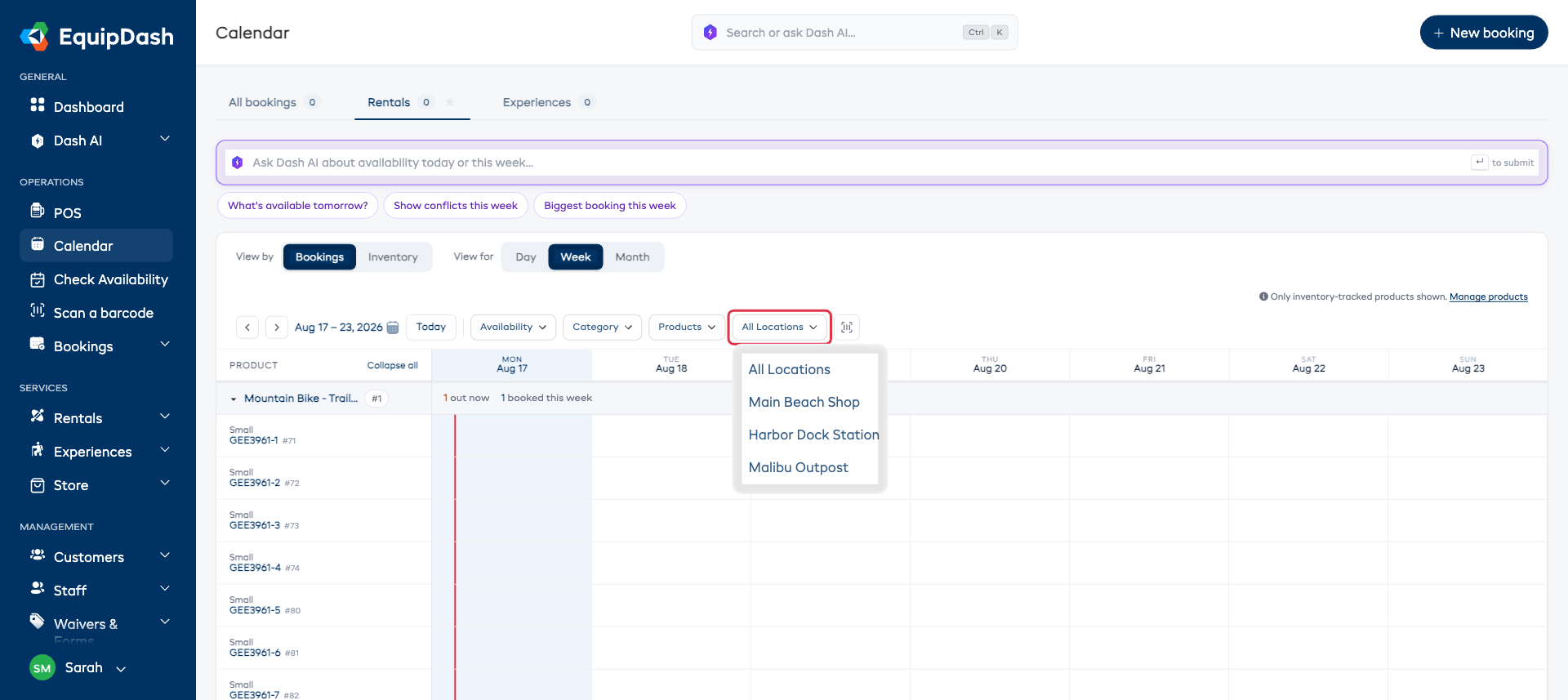
Calendar
- Open the Calendar from the sidebar.
- Use the Location filter dropdown above the calendar grid.
- The calendar shows only bookings for the selected location.
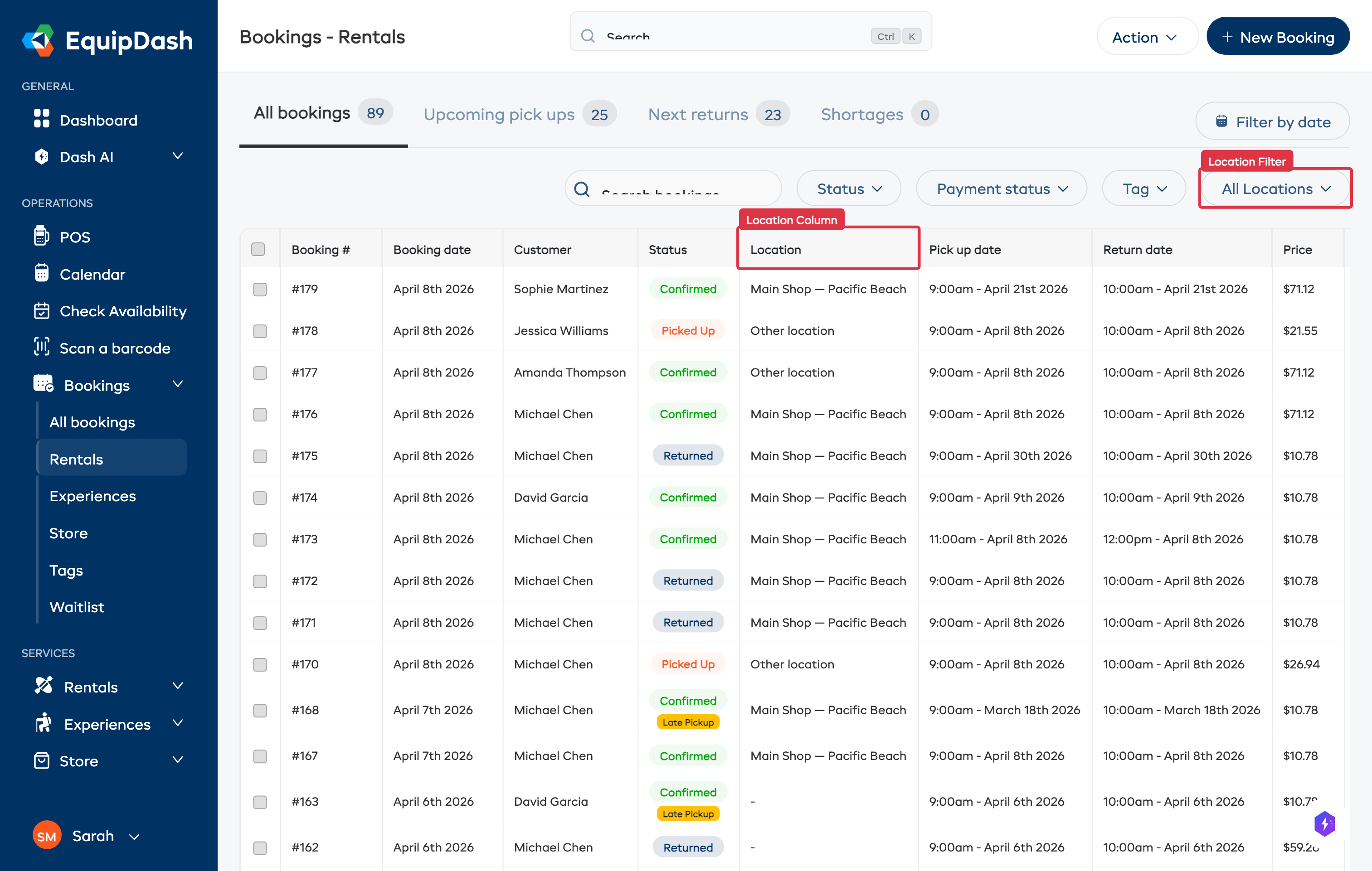
Bookings List
- Go to Bookings in the sidebar (Rentals, Experiences, or All Bookings).
- Use the Location filter in the filter bar.
- The table shows only bookings with a matching pickup location.
Fulfillment Board
- Go to Bookings > Fulfillment in the sidebar.
- Use the Location dropdown next to the date picker.
- The fulfillment board shows only items for bookings at the selected location.
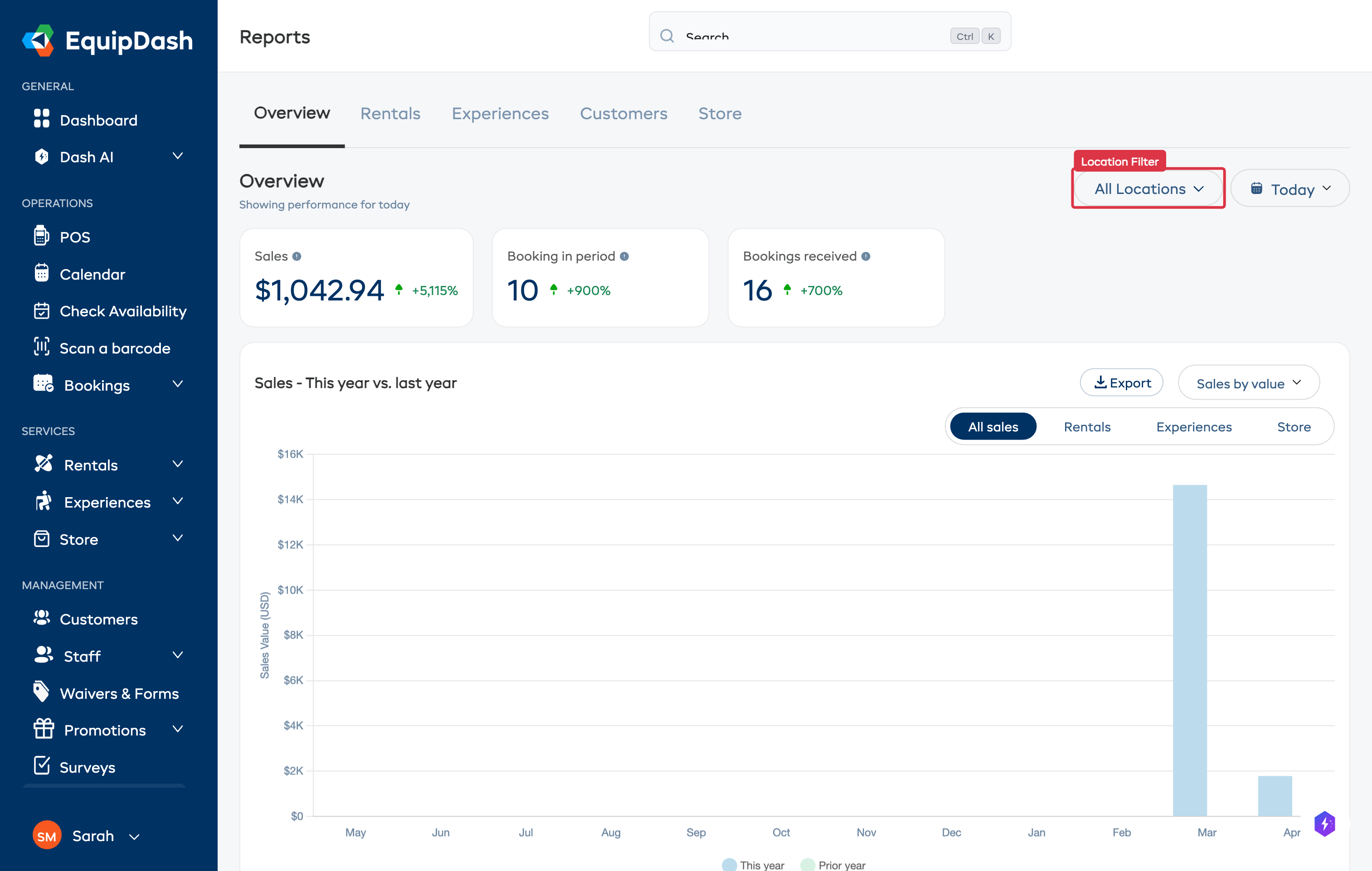
Reports
- Go to Reports in the sidebar.
- Select a report section (Rental Reports, Experience Reports, or Store Reports).
- Use the Location filter in the report filter bar to narrow results to a specific site.
Availability Report
- Go to Rentals > Availability in the sidebar.
- Use the Location dropdown next to the period dropdown.
- The availability data is filtered to show only inventory at the selected location.
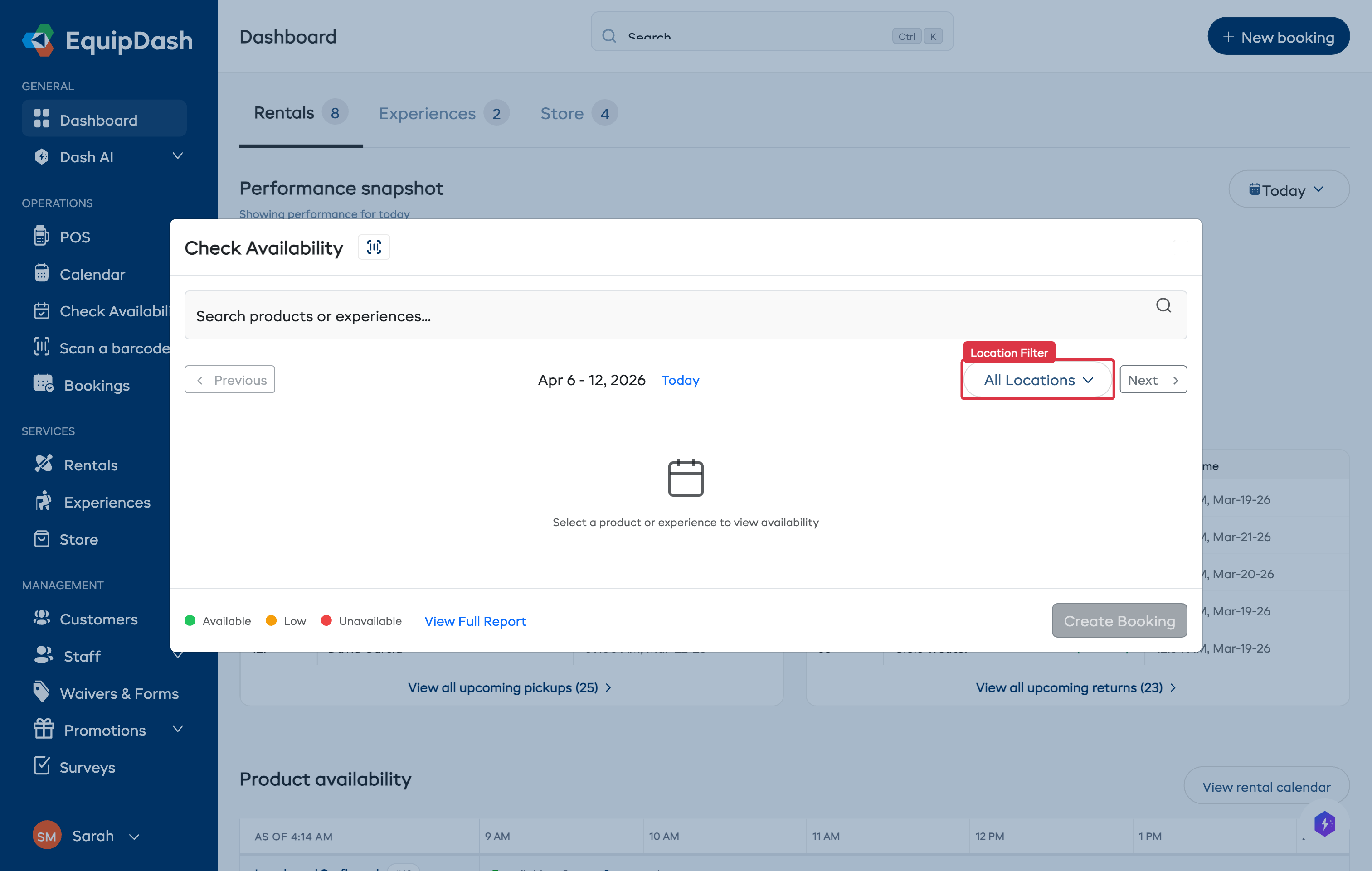
Check Availability (Modal and Panel)
- Open the Check Availability modal (from a product page) or the availability panel.
- Use the Location dropdown to filter availability to a specific site.
- The availability grid updates to reflect only stock at that location.
Related Guides
- Multi-Location Inventory Setup -- Setting up locations and assigning inventory.
- Locations Settings -- Adding and managing locations.
- Booking Fulfillment -- The full pickup and return process.
- Booking Widget -- How the widget works for customers.
- Calendar Overview -- Navigating the booking calendar.