Payment Links
Payment links let you send a customer a secure link to pay for their booking online. This is perfect for collecting payment before the customer arrives, or when you create a booking over the phone and need to collect card details later.
Prerequisites
Payment links require Stripe to be connected to your EquipDash account.
Generating a Payment Link
- Open the booking from the bookings table.
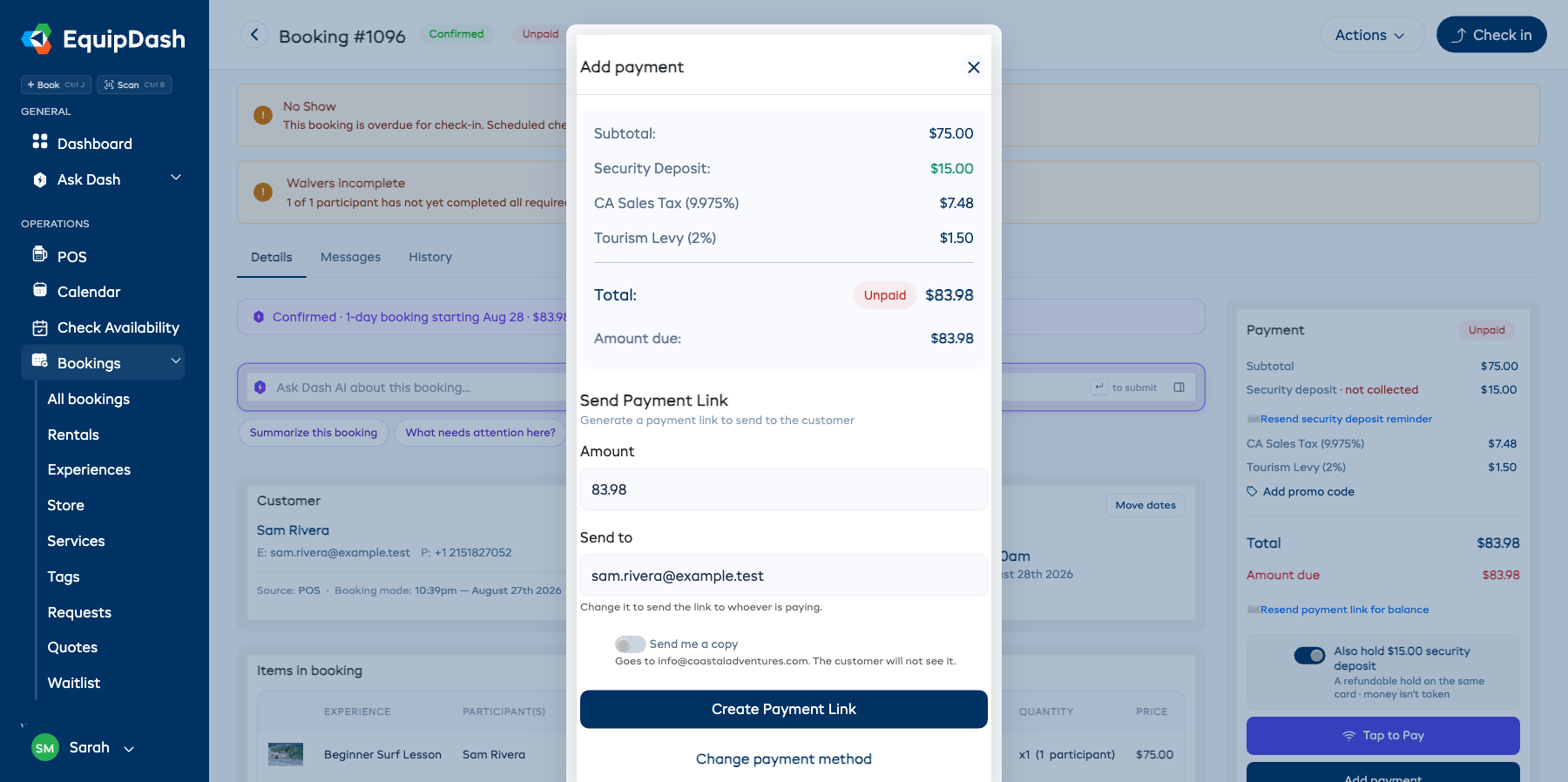
- Click Add payment in the Payment card on the right of the booking detail page to open the payment modal.
- Select Payment link.
- The Amount defaults to the full amount due. Adjust it if you want to send a link for a partial payment.
- Send to is filled in with the customer's email address. Change it to send the link to whoever is actually paying - a partner, a parent, or whoever is settling the bill.
- Turn on Send me a copy if you want the same email. It is a blind copy, so the customer never sees your address.
- Click Create Payment Link. The link appears with a Copy button so you can also paste it into a text message.
If the booking has no email address on it, the link is still created and nothing is emailed - the screen says so, and you copy the link and send it yourself.
Resending the Link for an Outstanding Balance
Resend payment link for balance on the Payment card sends the open link again and copies it to your clipboard at the same time, ready to paste into a text. It also names the address it went to, so you can tell at a glance whether it reached the right person.
To have a copy of every customer email rather than one link at a time, see Customer messages and turn on Send us a copy of customer emails under Advanced.
What the Customer Sees
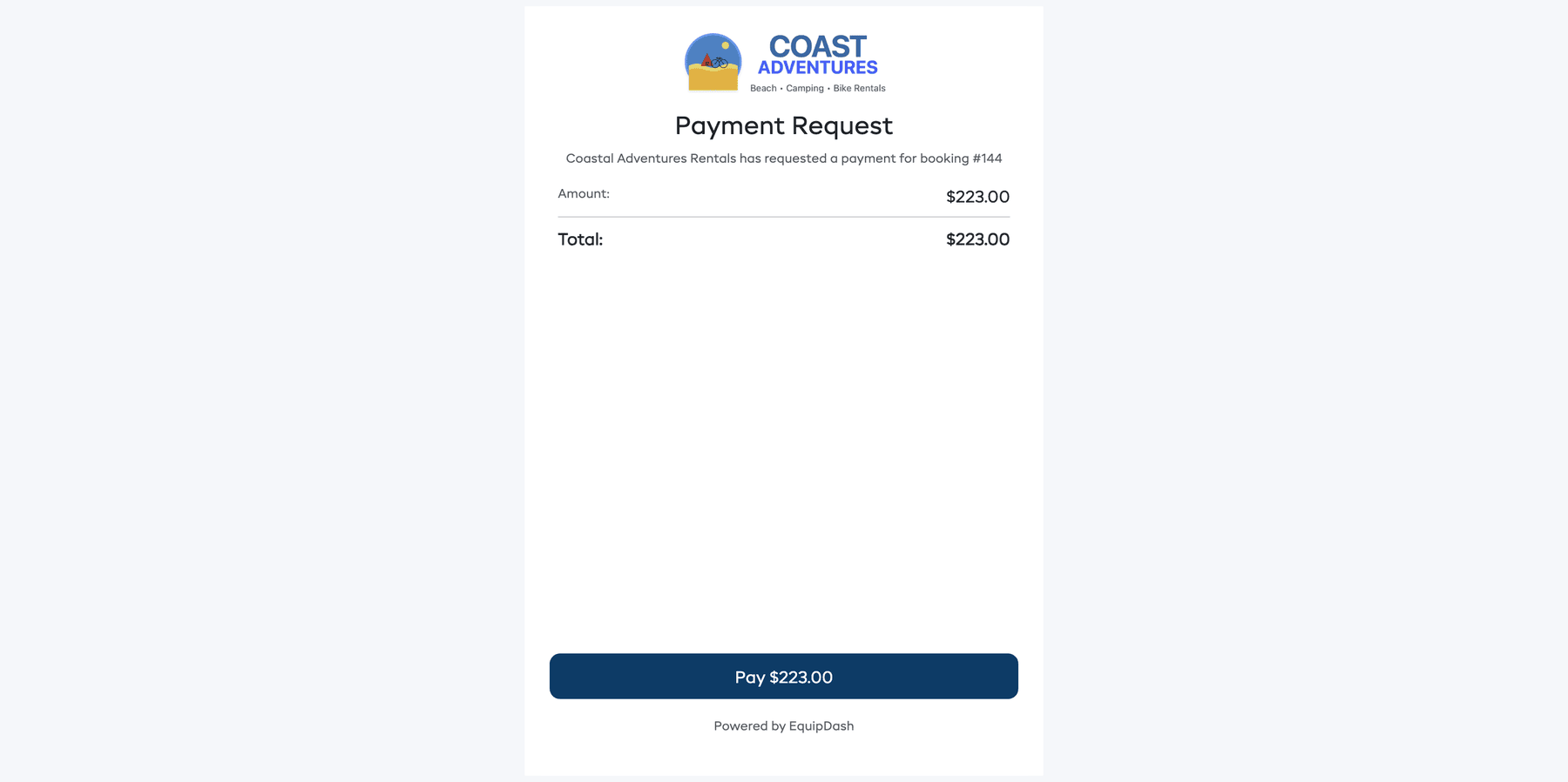
When you send a payment link, the customer receives an email with:
- Your business name and branding
- The booking reference number
- The payment amount
- A secure Pay Now button
Clicking the button takes the customer to a secure payment page where they can enter their card details and complete the payment.
After the Customer Pays
Once the customer completes the payment:
- The booking's payment status updates automatically (to Paid or Partially Paid).
- A payment transaction is recorded in the booking's payment history.
- You receive a notification that payment has been received (if email notifications are enabled).
Resending a Payment Link
If the customer did not receive the email or the link has expired, you can generate a new one by following the same steps above.
Tips
- Payment links are a great alternative to taking card details over the phone.
- Use them for deposits or partial payments by adjusting the amount before sending.
- The customer does not need an EquipDash account to pay.