Move or Reschedule a Booking
Plans change. Weather rolls in. A customer calls and asks to come a few days later. EquipDash makes it easy to move a booking to a different date without going through the full edit screen — and without having to remove and re-add the items.
This is the right tool when:
- The customer wants to come on a different day or at a different time.
- Bad weather forces you to reschedule the day's bookings.
- A piece of equipment needs maintenance and you need to push the booking out.
If you also need to change what is in the booking (add or remove items, swap quantities), use Editing a Booking instead.
Who Can Move Bookings?
Moving a booking requires the Bookings: Edit permission — the same permission as editing. If you don't see the Move dates button, ask your account admin to check your role and permissions.
How to Move a Booking
- Open the booking you want to reschedule from the bookings table.
- On the Rental period or Experience date card, click Move dates (or click anywhere in the date block).
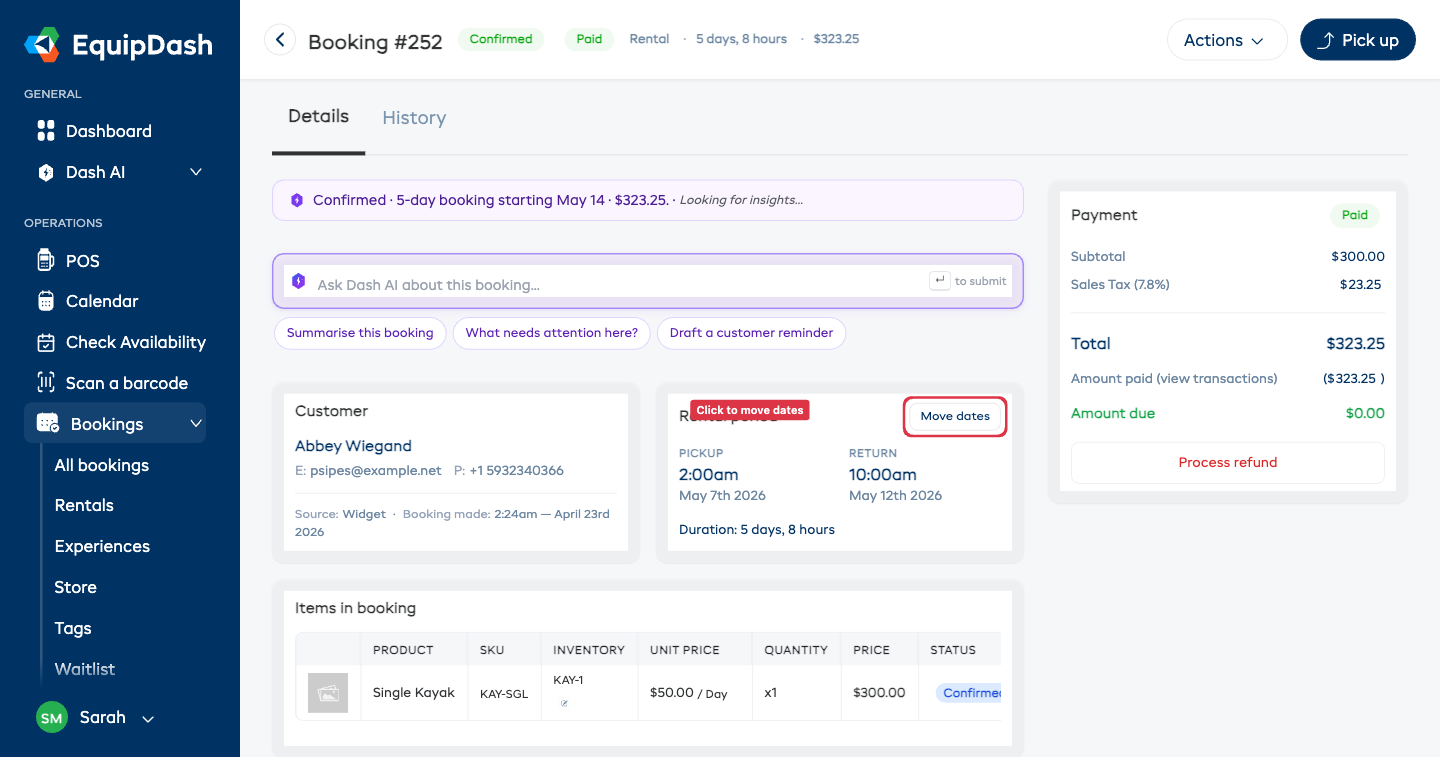
The Move dates panel opens directly on the page — no navigation away.
Rental Bookings
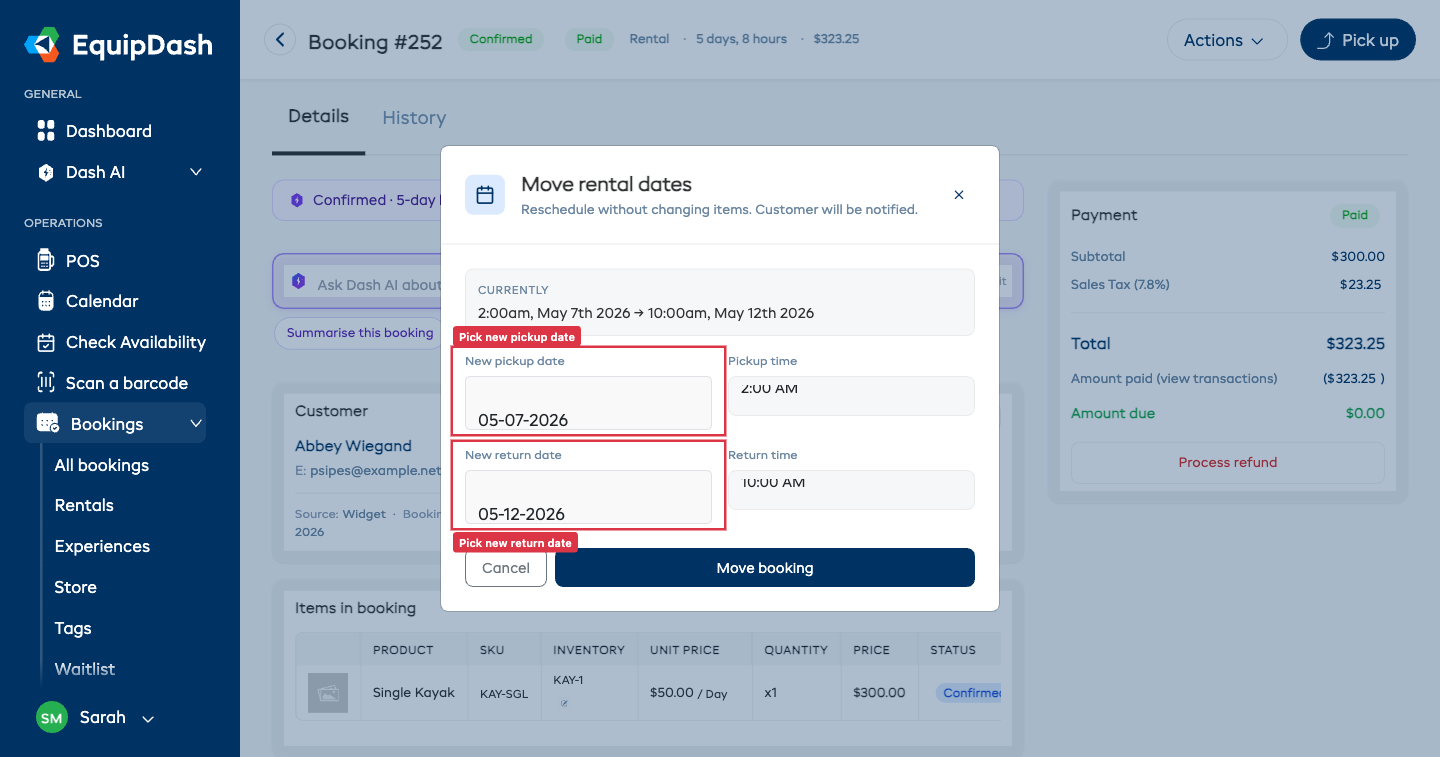
For rental bookings, pick the new pickup and return date and time:
- Update the New pickup date and Pickup time.
- Update the New return date and Return time.
- EquipDash checks availability for the new dates as you type. If any item lacks stock on the new dates, you'll see a list of conflicts and the Move booking button stays disabled until you pick dates that work.
Experience Bookings
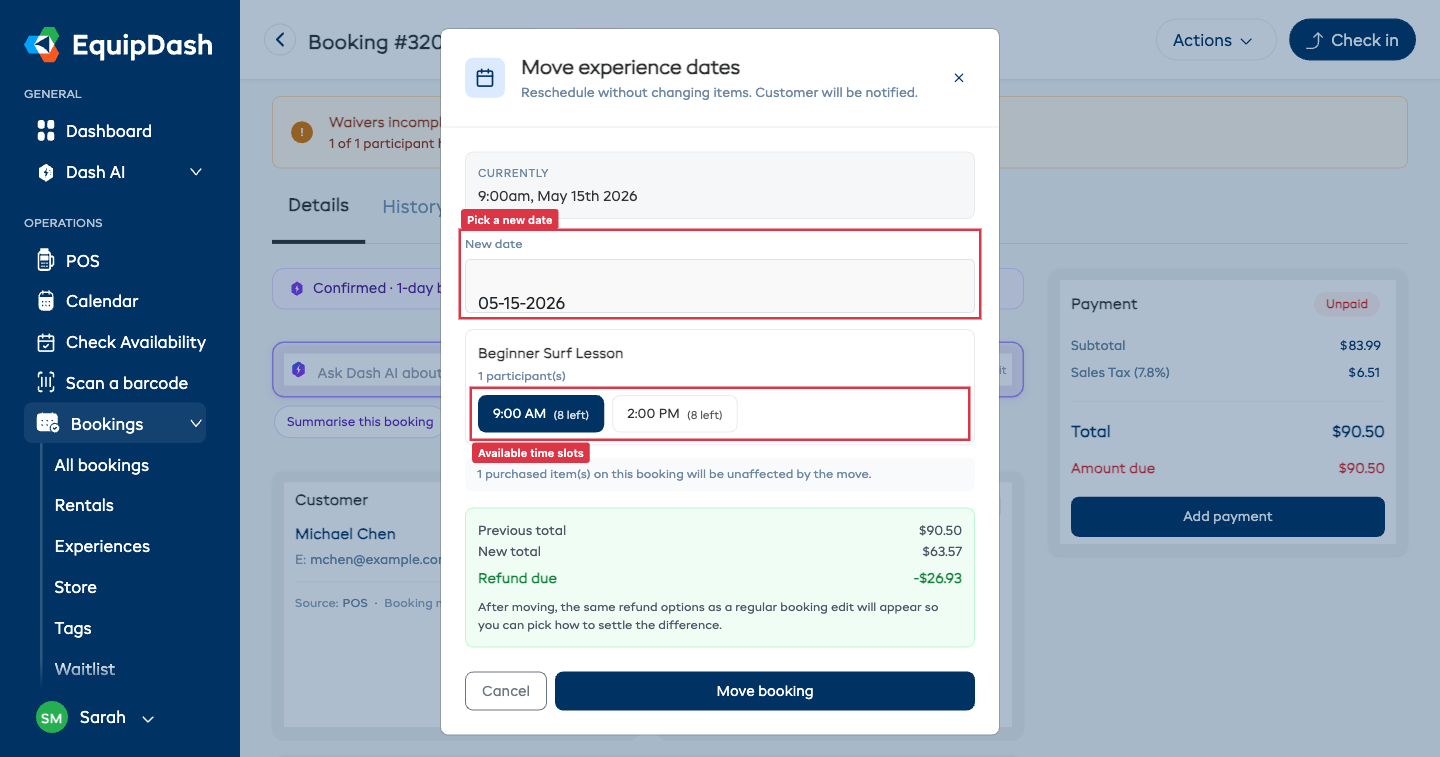
For experience bookings, the panel shows the available schedule slots for that experience:
- Pick the New date.
- Click an available time slot. Slots that are already full appear greyed out with a strikethrough — you can see why they're unavailable (e.g.
8/8participants booked). - If your booking has multiple experiences on it, pick a slot for each one.
Pricing Changes
If your seasonal pricing or schedule rates result in a different total for the new dates, the panel shows the previous total, the new total, and the difference. Pick how to settle the change:
- Send payment link to customer — for an increase, sends a payment link by email.
- Take payment in person — records the additional balance as outstanding for in-person settlement.
- Refund to card — for a decrease where the booking is paid by card, refunds the difference to the original card.
- Skip — leaves the difference as an outstanding balance or credit on the booking, to be settled manually.
Confirming the Move
Click Move booking. EquipDash will:
- Update the booking dates (rental) or schedule slot (experience).
- Recalculate pricing if applicable.
- Update inventory reservations to the new dates.
- Send a reschedule email to the customer with the old and new dates.
- Notify supplier admins that the booking has been moved.
The detail page updates with the new dates immediately.
What Doesn't Get Touched
- Items in the booking stay exactly as they were. The customer is keeping the same products / experiences — only the date changes.
- Store products purchased on the booking (sales, not rentals) are unaffected.
- Tags, notes, custom fields, participant details all carry over.
- Payment status is preserved unless the new total differs.
What Cannot Be Moved
The Move dates button is hidden for:
- Store-only bookings — these are point-of-sale orders without a date.
- Past bookings — you cannot reschedule a booking that has already ended.
- Cancelled or archived bookings — these are read-only.
What if the New Dates Aren't Available?
EquipDash checks availability for every item on the booking before allowing the move. If any product or experience slot doesn't have capacity, the panel lists the affected items with how many you're requesting versus how many are actually available, and disables the Move booking button.
The fix is to either pick different dates, or — if you really need to free up capacity — go into edit mode to remove or change the items first.
See Also
- Editing a Booking — for changes to items, quantities, or customer details.
- Cancelling a Booking — when a customer needs to cancel entirely.
- Booking History — to see when a booking was rescheduled.