Special hours
Your normal opening hours live in Rentals settings — one weekly schedule that applies all year. Special hours override that schedule for a date range or a single date: run longer summer evenings, switch to short winter days, open a weekday you're normally closed, or set one-off hours for an event day.
Customers only see pickup and return times inside the hours that apply to the date they picked — on your booking widget, at the point of sale, and through integrations.
For example:
- July – August: Monday to Friday, 9:00 AM – 5:00 PM
- September – November: Monday to Friday, 10:00 AM – 10:00 PM
- …and September 10 specifically: 11:00 AM – 2:00 PM (its own single-date entry)
- Different hours for a season, a school-holiday period, or one date → Special hours (this page).
- Fully closed for a holiday or maintenance → a closure.
- Only open part of the year at all → open dates.
How the rules stack up
On any given date, EquipDash applies your availability rules in this order:
- Closures always win — a closed date or time window stays closed.
- Open dates come next — outside your season, every date is closed, no matter what.
- Special hours apply on the dates they cover — a single-date entry beats a range entry covering the same date.
- Opening hours (the weekly schedule in Rentals settings) apply everywhere else.
So special hours can open a Monday you're usually closed, but they can't open a date that's out of season or covered by a closure.
Accessing Special hours
- Click Settings in the sidebar.
- Select Closures from the settings menu.
- Below the month calendar, click the Special hours tab (next to Open dates).
Days covered by special hours show a blue pill on the month calendar at the top of the page, with the hours that apply to that day (or "Closed").
Adding special hours
- Click Add special hours (top right of the Special hours card).
- Fill in the details (below).
- Click Add special hours to save.
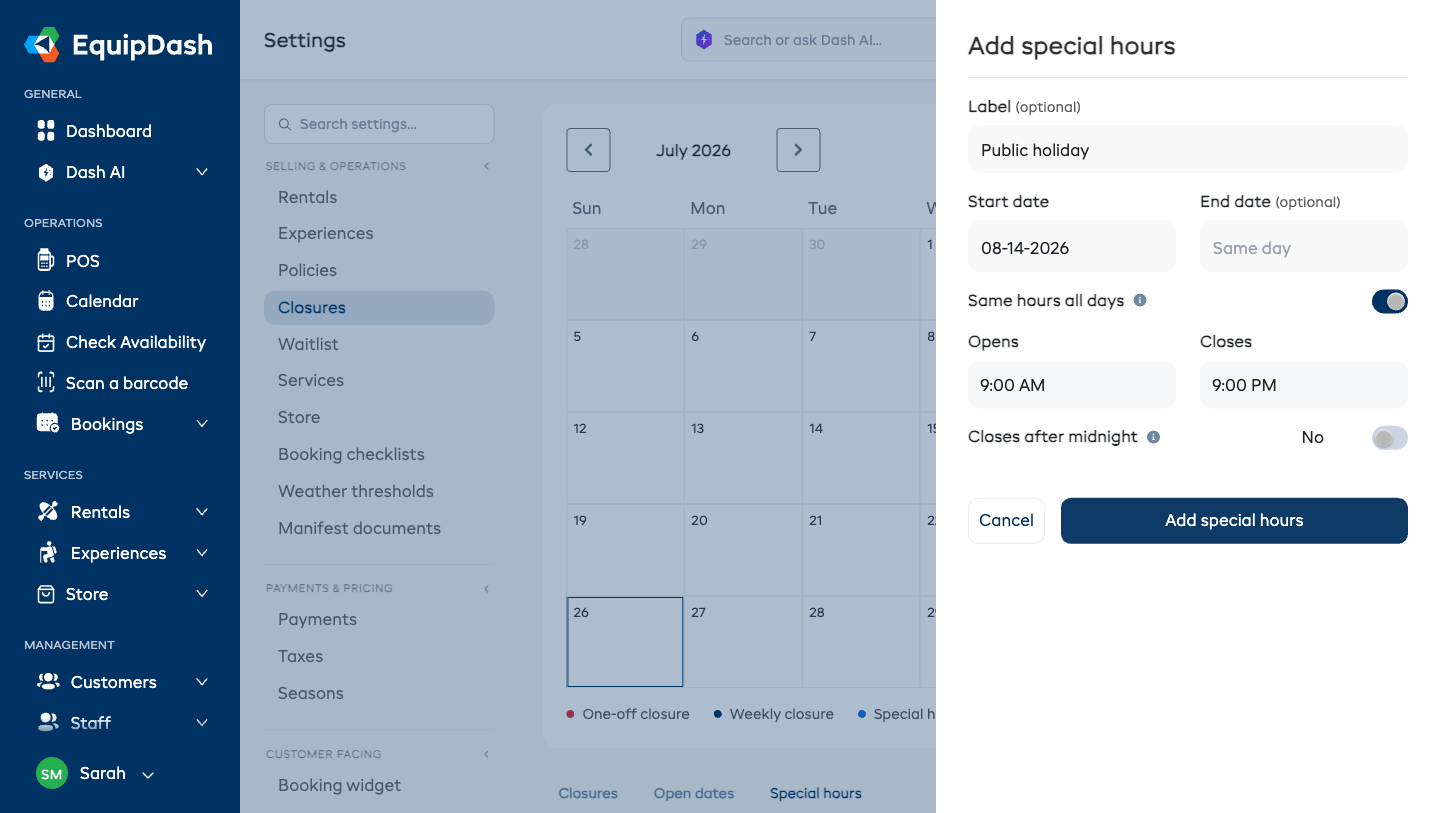
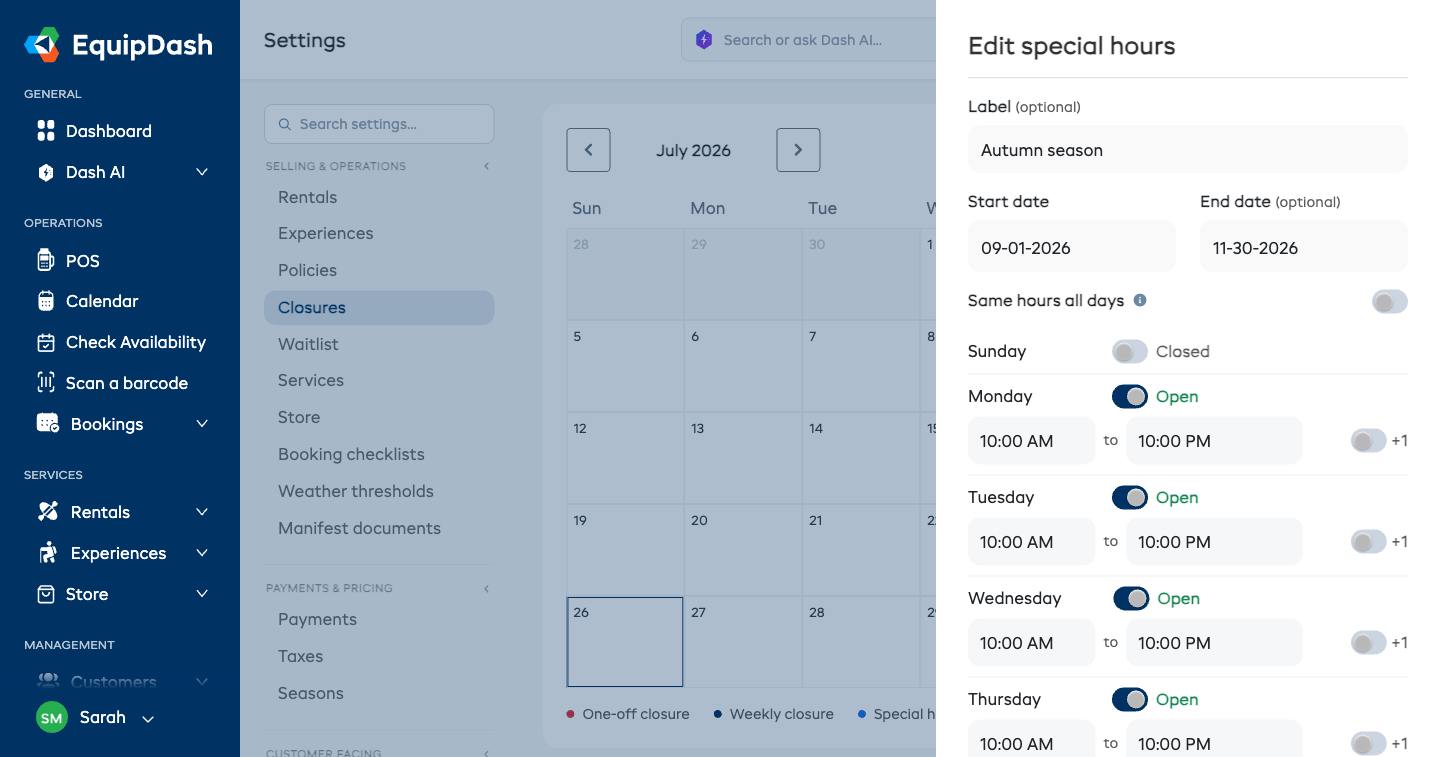
Label (optional)
A short name so you recognize it later — for example "Autumn season" or "Event day".
Start date and End date
The first and last date the entry applies to. Leave the end date empty for a single day.
Same hours all days
- Leave it on to set one set of opening and closing times for every date in the range. The times start from your normal hours, so you only adjust what's different.
- Turn it off to set hours by day of the week, applied across the whole range — just like your weekly opening hours. Each day can be Open with its own times, or Closed (for example: Monday to Friday 10:00 AM – 10:00 PM, weekends closed).
One date that's different again
If a single date inside a range needs its own hours — an event day in the middle of your autumn schedule — just add it as a separate entry with only a start date. A single-date entry always wins over a range entry for that date.
Closing after midnight
If a day closes in the early hours of the next morning (for example 6:00 PM to 1:00 AM), turn on Closes after midnight — or the +1 toggle on that weekday's row.
Overlapping entries
- Two range entries can't share a date, and two single-date entries can't cover the same date — you'll see a message and the new one won't be saved.
- A single-date entry inside a range entry is fine — that's how you make one day different.
What customers see
On a date with special hours:
- The booking widget shows the hours that apply under the date picker and only offers pickup and return times inside them.
- The point of sale validates pickup and return times against the same hours, with the same friendly messages.
- If a date is closed by special hours, customers are asked to choose another date — the message names the date, so it never reads like you're closed every week on that weekday.
Editing, pausing, and deleting
Each entry in the list has:
- An Active switch — turn an entry off to go back to your normal weekly hours for those dates, without deleting it.
- Edit — change the label, dates, or times.
- Delete — remove it entirely. Those dates go back to your normal weekly hours.
Past dates disappear from the list automatically.