Open dates (your season)
Open dates let you tell EquipDash the date ranges you're open for bookings — your operating season. Once you've set them, every date outside your open dates becomes unbookable on every channel (your online booking widget, point of sale, and integrations), for both rentals and experiences.
It's the exact opposite of a closure:
- A closure takes specific days out of an otherwise-open calendar (a public holiday, a maintenance morning).
- Open dates do the reverse — they define when you're open at all, so a seasonal business doesn't have to block every off-season day by hand.
Open dates are also separate from seasonal pricing. They only control when you take bookings — they never change your prices. To vary prices by season, use Seasonal Pricing instead.
To change your opening times on specific dates (rather than whether you're open at all), see Special hours. Open dates always outrank special hours — an out-of-season date stays closed even if special hours cover it.
If you don't add any open dates, nothing changes — you stay open all year (minus any closures). Open dates are only for businesses that operate seasonally.
Accessing Open dates
- Click Settings in the sidebar.
- Select Closures from the settings menu.
- Below the month calendar, click the Open dates tab (next to Closures).
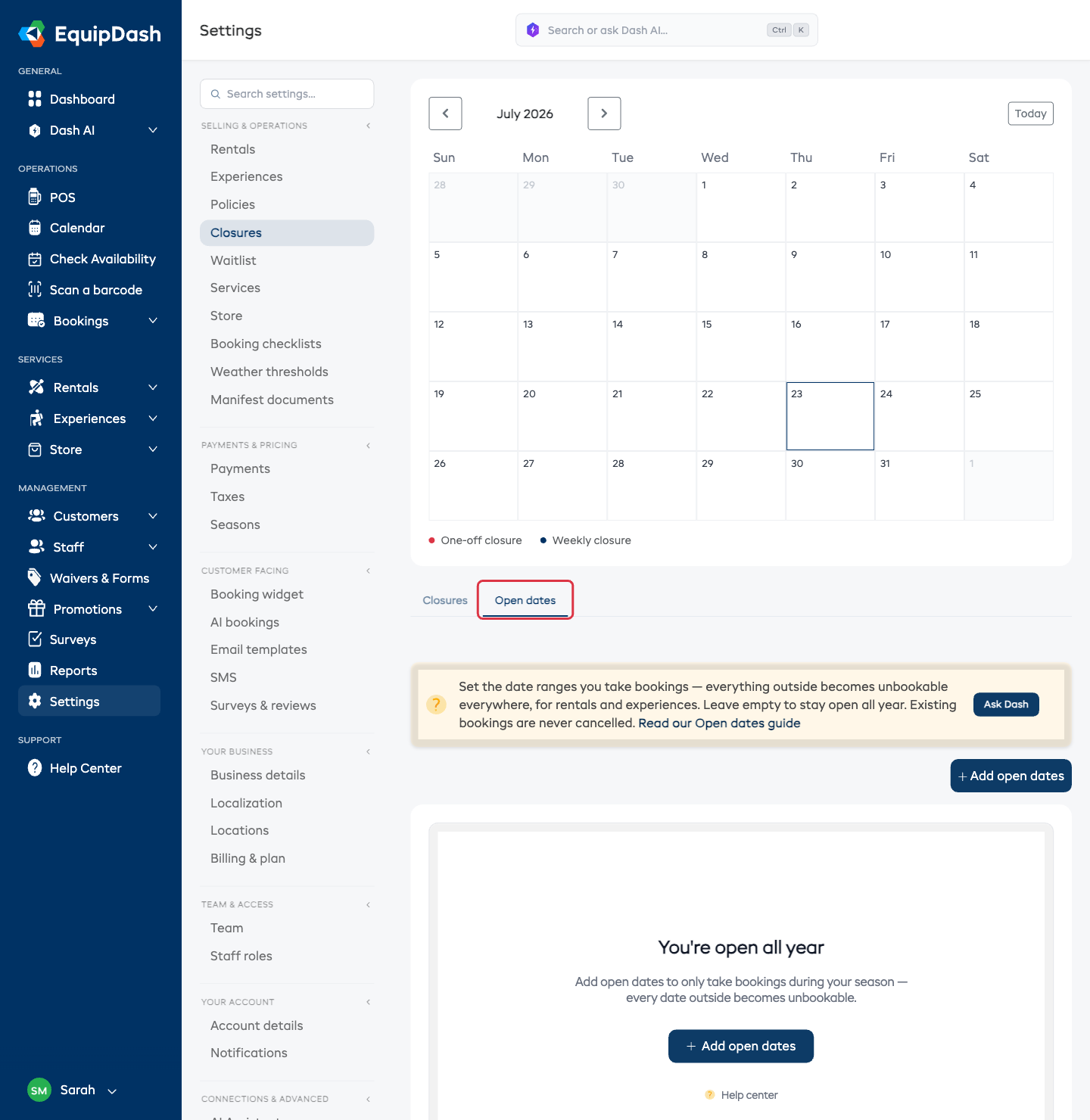
When you haven't set any open dates yet, the tab shows "You're open all year". Once you add a season, it becomes a list of your open-date ranges, and the month calendar above shades your open days green and your out-of-season days grey.
Adding open dates
- Click Add open dates (top right of the Open dates card).
- Fill in the details (below).
- Click Add open dates to save.
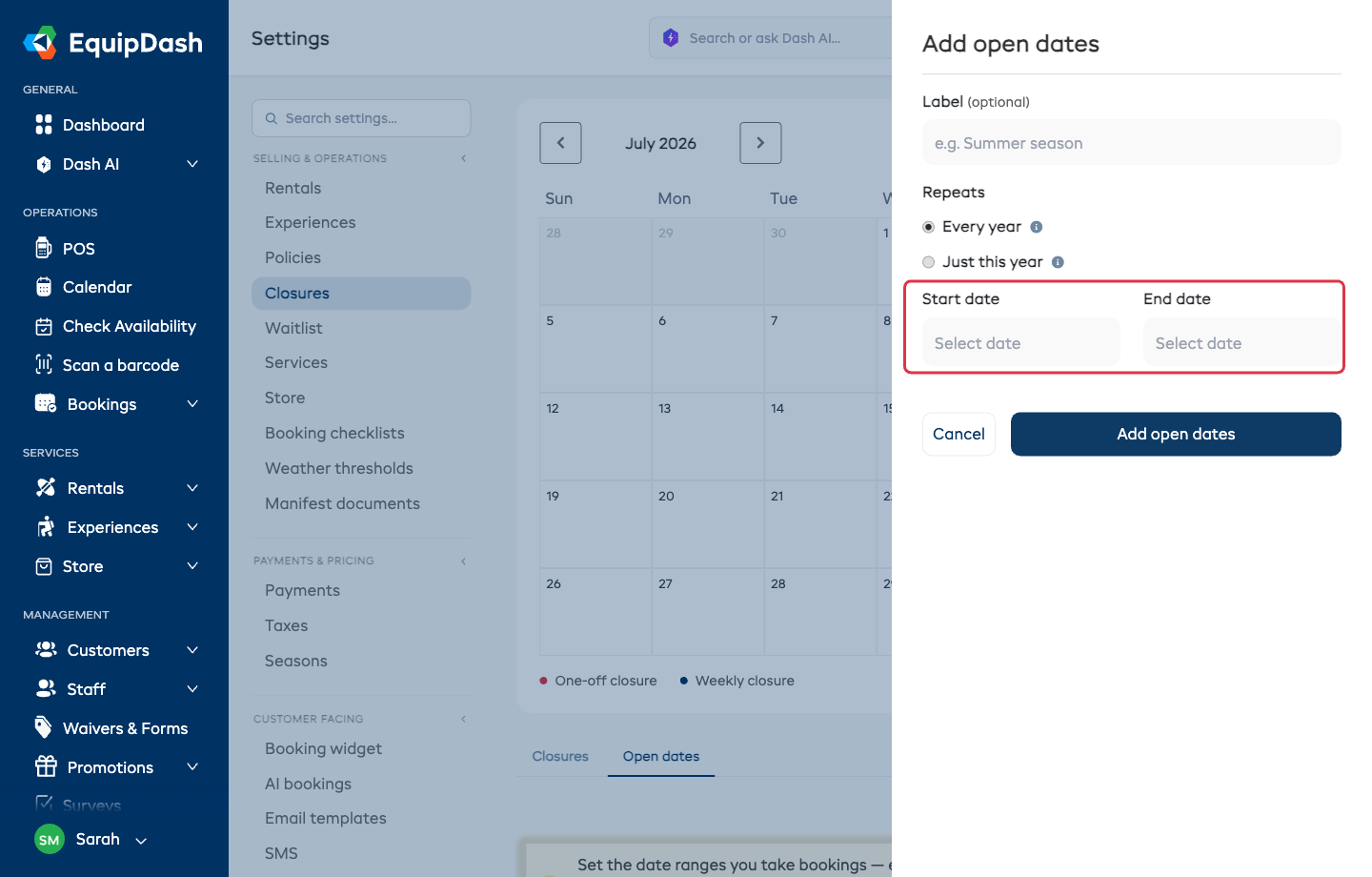
Label (optional)
A short name so you recognize the season later — for example "Summer season". If you leave it blank it's simply listed as "Open dates".
Repeats
Choose how the season recurs:
- Every year (the default) — the same dates open every year, so you set it once. Only the day and month matter; the year rolls over automatically.
- Just this year — a one-time window, for a specific year only (for example a pop-up shop for one summer).
Start date and End date
Set the first and last day you're open. For an every-year season the year you pick doesn't matter — only the day and month are used.
Seasons that run over New Year
If your season runs across the New Year — for example November to March — just set the start to your November date and the end to your March date. EquipDash understands that the season wraps the year end, so November, December, January, February and March all count as open, and the summer months stay closed.
You cannot create overlapping open dates
EquipDash prevents you from adding an open-date range that overlaps one you already have, so you don't end up with redundant ranges. If two ranges clash you'll see a message and the new one won't be created — edit the existing range instead, or pick dates that don't collide. Separate, non-overlapping ranges are fine (for example a summer season and a short December window).
What happens outside your open dates
Once you have at least one active open-date range, any date outside every range is a hard close on every channel — exactly like a closure, and it cannot be overridden:
- Booking widget and API / integrations — out-of-season dates are blocked. Customers are told bookings aren't being taken for that date and are asked to choose another.
- Point of sale — staff can't add a product, bundle, or experience to a booking on an out-of-season date.
This is enforced from one central place, so the widget, point of sale, integrations, and final booking creation all behave the same way.
Rentals: pickup and return days are what matter
For rentals, the pickup day and the return day must both fall within your open dates. A rental can't start or end while you're closed for the season — there's nobody at the counter to hand the gear over or take it back.
Open dates and closures work together
Open dates and closures combine. A date is bookable only when it's inside your open dates and not inside a closure. So you can be open all summer (open dates) but still close for a public holiday in July (a closure) — the holiday is blocked even though it's in season.
Existing bookings are never cancelled
Open dates are forward-looking. Setting or narrowing a season never cancels bookings that already exist outside it — it only stops new bookings on out-of-season dates.
Managing open dates
From the Open dates list you can:
- Edit a range — click the edit icon to change its label, repeat setting, or dates.
- Activate / deactivate a range — use the Status toggle to turn a season off without deleting it. Turning off your only open-date range reopens the whole year.
- Delete a range — remove it permanently. Deleting your only range reopens the whole year.
Related Guides
- Closures — close specific days within your season (holidays, maintenance).
- Seasonal Pricing — vary your prices by season (separate from open dates).
- Understanding Availability — how availability is calculated for rentals.