Closures
Closures let you close your business for specific dates or times — public holidays, maintenance mornings, staff offsites, or a recurring weekly day off. A closure makes those windows unbookable on every channel (your online booking widget, point of sale, and integrations) for both rentals and experiences.
By default a closure is business-wide — it closes every location you operate from. If you run more than one location, you can also scope a closure to just one site or a few sites, so closing your beach kiosk for the off-season doesn't take your downtown depot offline. Closures are not tied to a single product or experience — they are the right tool for "we're shut that day," not for limiting one item's availability.
Accessing Closures
- Click Settings in the sidebar.
- Select Closures from the settings menu.
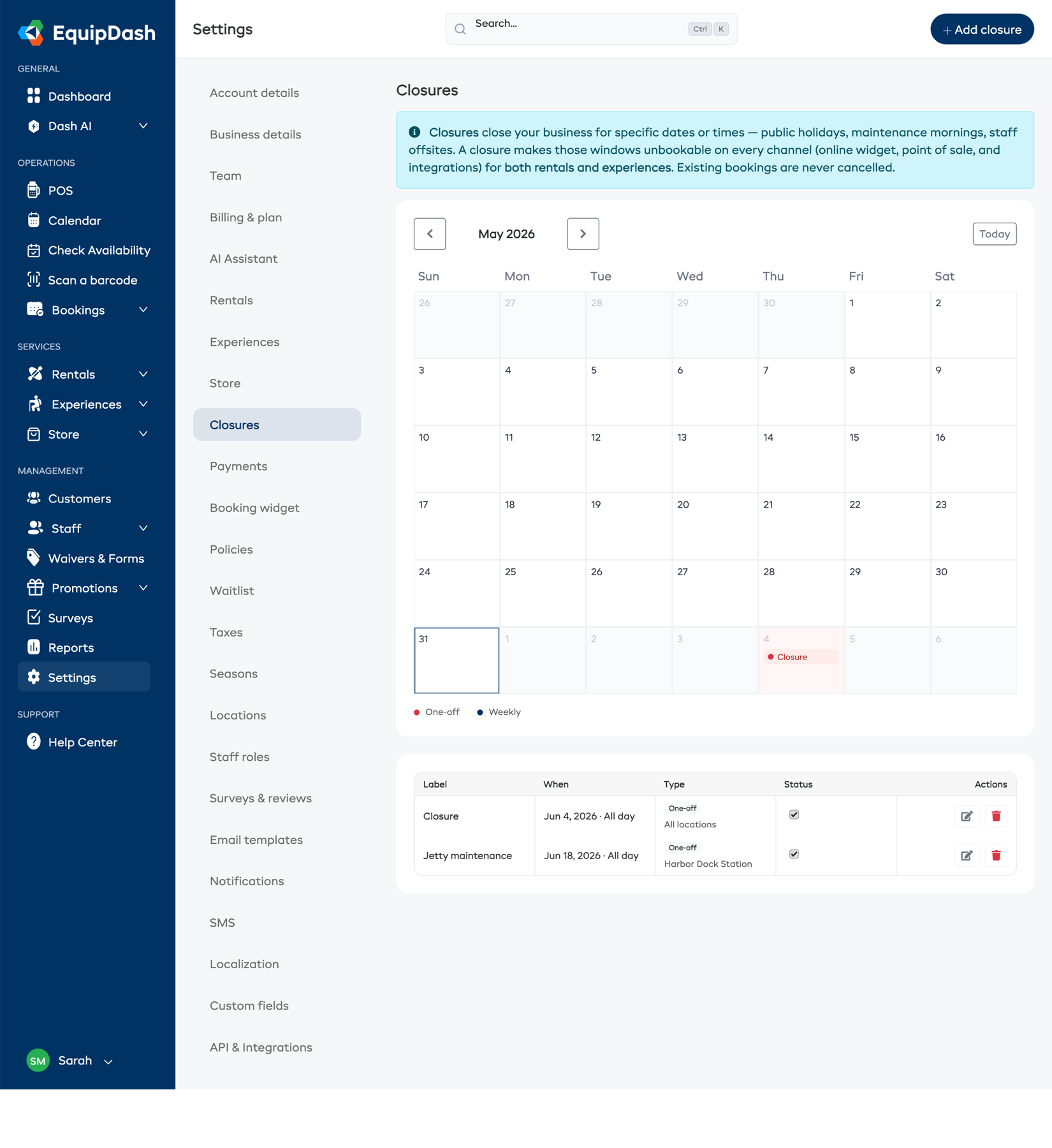
You can also shade the days you are closed on your calendar - see Closed days on the calendar.
The page has two parts:
- A month calendar that shows when you are closed. Use the arrows to move between months and Today to jump back. Past months still show their closures here for reference.
- A list of your current and upcoming closures, with controls to edit, activate, or delete each one. If a closure is limited to specific locations, the location names are shown on the closure so you can tell at a glance which sites it affects.
The calendar shows past closures for context, but the list below only shows current and upcoming closures — past one-off closures drop off the list automatically.
Adding a Closure
- Click Add closure (top right, or Add your first closure when the list is empty).
- Fill in the closure details (below).
- Click Add closure to save.
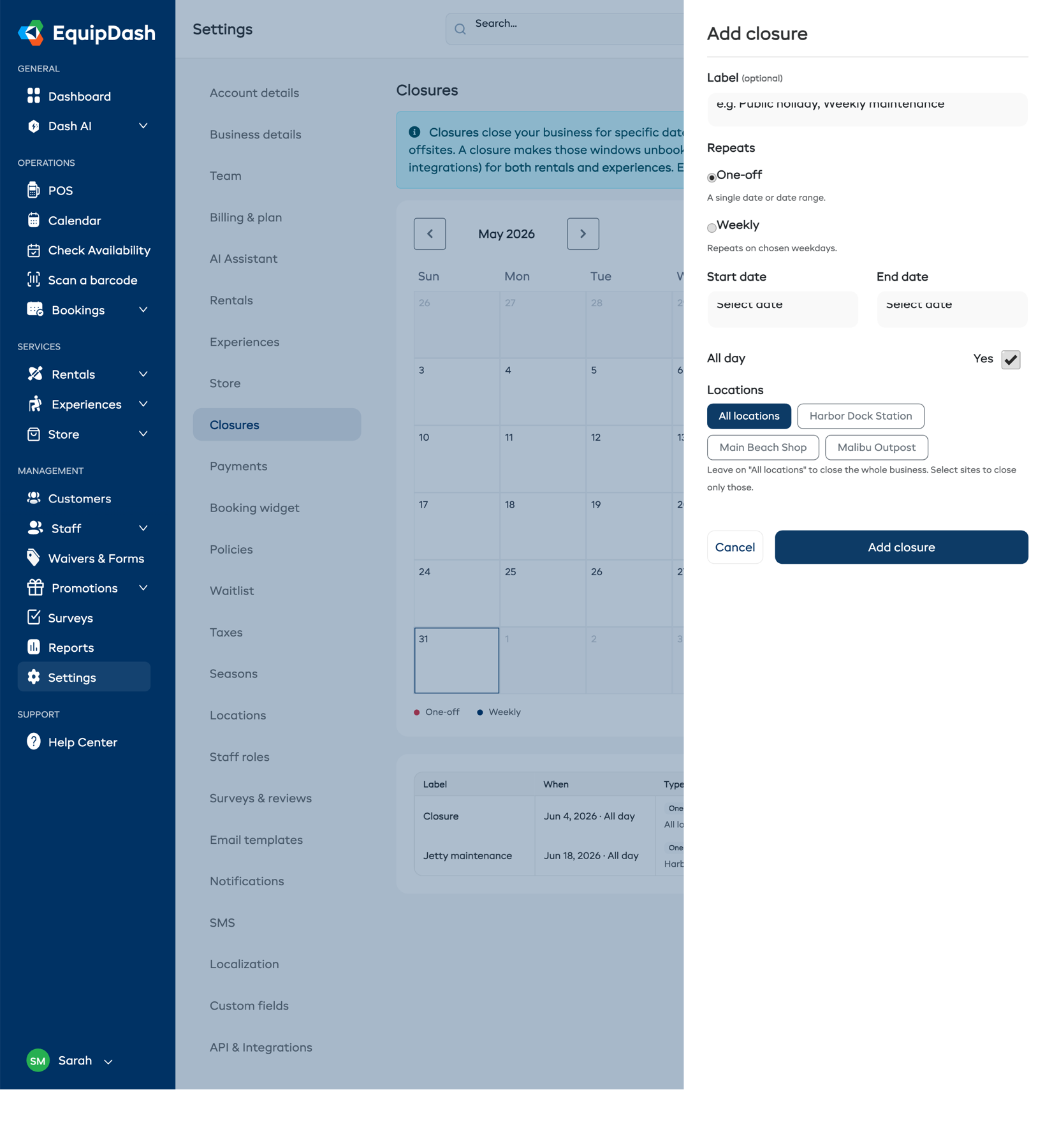
Label (optional)
A short name so you recognize the closure later — for example "Public holiday" or "Weekly maintenance". If you leave it blank the closure is simply listed as "Closure".
Repeats
Choose how the closure recurs:
- One-off — a single date or a date range (for example, closed 24–26 December).
- Weekly — the closure repeats on the weekdays you choose (for example, closed every Sunday).
Locations
If your account has more than one location, a Locations selector appears so you can decide which sites the closure applies to:
- All locations (the default) — closes your whole business. This is the same as a business-wide closure and is the right choice for company-wide public holidays or shutdowns.
- Specific locations — pick one or more sites from the list. The closure then only blocks bookings at the locations you selected; every other location stays open and bookable as normal.
For example, a closure scoped to Folly Beach Kiosk blocks bookings at that kiosk only — customers can still book at your other sites for the same dates.
The Locations selector only appears for businesses with two or more locations. If you have a single location, every closure applies to it automatically and there is nothing to choose.
Only locations marked as a rental pickup location in Settings > Locations appear in the selector. See Multi-Location Inventory Setup for how locations are configured.
Dates
- For a one-off closure, set a Start date and, optionally, an End date. Leave End date blank to close just the start date, or set an end date to close a range (for example, closed 24–26 December). For a single day you can either leave the end date blank or set it to the same date as the start.
- For a weekly closure, select the weekdays it applies to, and optionally a Repeat until date to stop the recurrence after a certain point. Leave Repeat until blank to repeat indefinitely.
Closures can only be added for today or a future date — you cannot create a closure in the past.
All day or a time window
- Leave All day on to close for the whole day.
- Turn All day off to close only part of the day — then set a Start time and End time (for example, closed 8:00 AM – 10:00 AM for maintenance). Bookings outside that window on the same day are still allowed.
You cannot create overlapping closures
EquipDash prevents you from creating a closure that overlaps one you already have. Two closures overlap when they share the same date, the same location, and an overlapping time window. If you try to save one that clashes, you will see a message and the closure will not be created — edit the existing closure instead, or change the date, location, or time so the two don't collide.
Because overlap is checked per location, the same date can be closed by two different closures as long as they cover different locations. For example, "Beach Kiosk – maintenance" on 1 June and "Downtown Depot – staff training" on 1 June can both exist, since they affect different sites.
What Happens When a Date Is Closed
A closure is a hard close — it applies the same way on every channel, and (unlike minimum booking notice or pickup capacity) it cannot be overridden:
- Booking widget and API/integrations — the closed date or time is blocked. Customers see a "We're Closed" message and cannot book it.
- Point of sale — staff cannot add a product, bundle, or experience to a booking on a closed date; a "Business closed" message is shown. The closed date is blocked here too.
This is enforced from one central place, so the widget, point of sale, integrations, and final booking creation all behave the same way.
Location-scoped closures only block the closed sites
When a closure is limited to specific locations, only those sites are blocked:
- On the widget, a customer who has picked a closed location sees the "We're Closed" message for the affected dates; switching to an open location lets them book normally.
- In the POS, the closure is checked against the pickup location selected on the booking. Choosing a different, open location for the same date lets staff continue.
If the closure is set to All locations, every site is blocked regardless of which location is selected.
Rentals: pickup and return days are what matter
For rentals, a closure only blocks a booking when the pickup day or the return day lands on the closed date — not the days in between. A multi-day rental can span a closed day: the gear is already out with the customer, so a mid-rental closure doesn't affect it.
EquipDash checks the two ends independently and against the right site:
- The pickup day is checked against the closure for the pickup location.
- The return day is checked against the closure for the return location.
So a closure at your beach kiosk blocks rentals that start or end there on that day, but a rental that was picked up the day before and is simply still out is unaffected. (For experiences, which happen on a single scheduled date, the closure simply blocks that date at the relevant location.)
Existing bookings are never cancelled
Closures are forward-looking. If you create a closure over a date that already has bookings, those bookings are not cancelled — EquipDash simply warns you how many existing bookings fall inside the period so you can contact those customers yourself if needed.
Managing Closures
From the list under the calendar you can:
- Edit a closure — click the edit icon to change its label, locations, dates, or times.
- Activate / deactivate a closure — use the Status toggle to temporarily turn a closure off without deleting it. The change saves the moment you flip the switch — you'll see a green "Saved" confirmation in the corner. Inactive closures don't block anything.
- Delete a closure — remove it permanently.
Related Guides
- Multi-Location Inventory Setup — setting up locations and assigning inventory.
- Pickup & Return Locations — how pickup and return sites work on a booking.
- Rental Settings — minimum booking notice and pickup-window capacity (soft limits, distinct from closures).
- Understanding Availability — how availability is calculated for rentals.