Seasonal Pricing Growth+This feature requires the Growth+ plan or higher
Seasonal pricing lets you charge different rates for the same experience depending on the time of year. For example, you might charge a premium during summer when demand is high, and offer lower rates during the quieter off-season.
How Seasonal Pricing Works
Instead of one fixed set of prices that apply all year, seasonal pricing lets you define prices for each season you have configured in your account. When a customer books a session, EquipDash automatically applies the correct price based on which season the session date falls into.
Example:
- Summer (1 Dec - 28 Feb): Adult $85, Child $50
- Shoulder (1 Mar - 31 May): Adult $65, Child $40
- Winter (1 Jun - 31 Aug): Adult $50, Child $30
Prerequisites
Before you can use seasonal pricing, you need to set up seasons in your account settings. Seasons define the date ranges that make up your pricing periods.
Setting Up Seasons
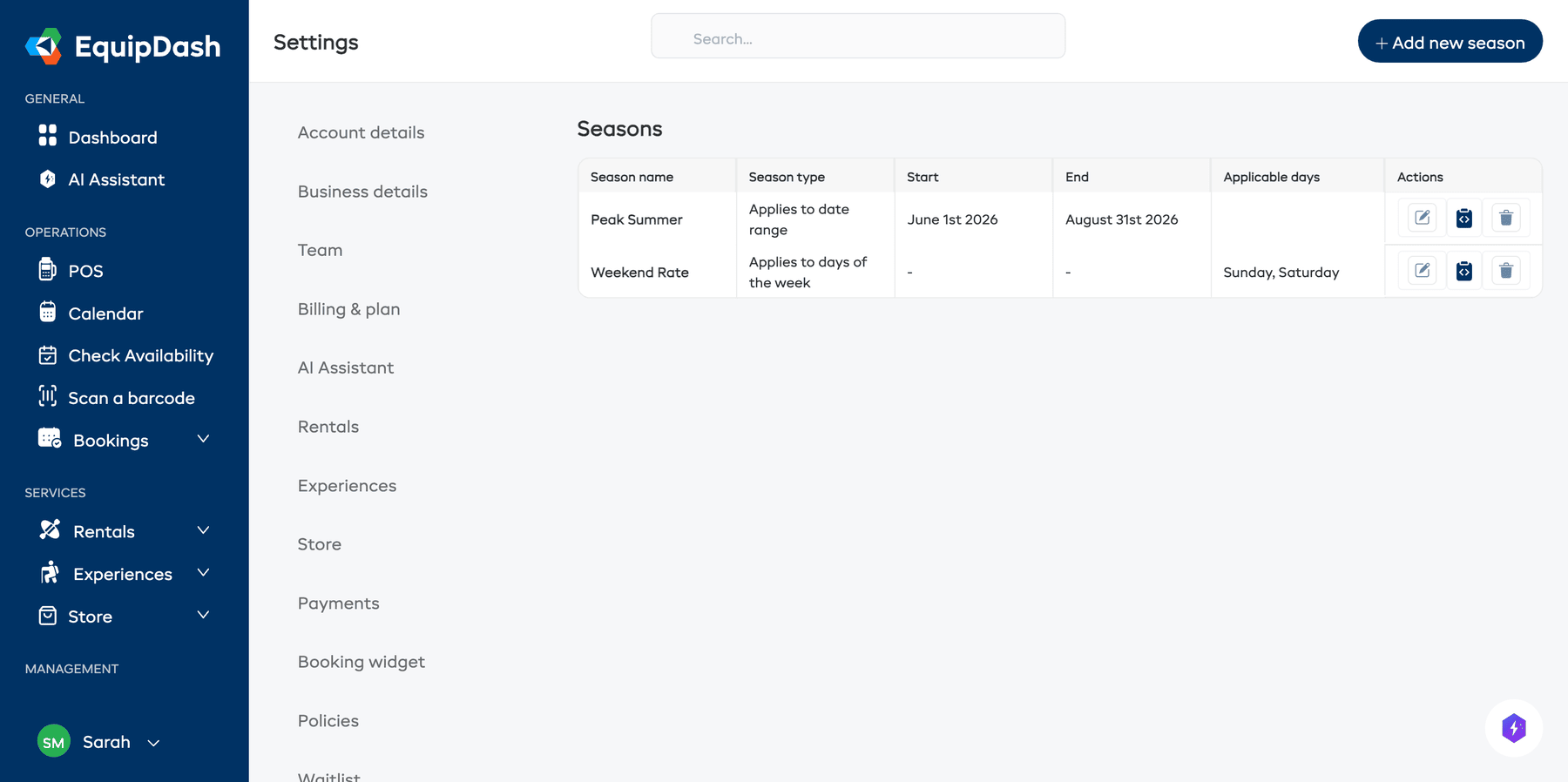
- Go to Settings > Seasons in the sidebar.
- Click + Add new season.
- Give the season a Name (e.g. "Peak Summer", "Off-Peak Winter").
- Set the Season Type to Applies to date range.
- Enter the Date ranges the season covers. A single season can cover more than one period -- click + Add another date range to add another (for example, a "Regular" season that covers the weeks on either side of a peak). Date ranges within a season can't overlap.
- Click Save.
- Repeat for each season you need.
Make sure your seasons cover all the dates you offer experiences. If a session date falls outside any defined season, seasonal pricing will not be able to determine a rate for it.
Enabling Seasonal Pricing for an Experience
Seasonal pricing is set per experience during Step 2 of the experience wizard.
- Create a new experience or edit an existing one.
- In Step 2: Pricing, under Applies, select Seasonal.
- The seasons you have configured will appear as checkboxes. Select the seasons you want to set prices for.
- Under Pricing Structure, choose either By Participant or By Group.
- Enter prices for each season.
Seasonal + By Participant
If you choose by-participant pricing, you will set a price for each rate category within each season.
For example:
- Summer — Adult: $85, Child: $50
- Winter — Adult: $50, Child: $30
Seasonal + By Group
If you choose by-group pricing, you will set a group price and maximum participants for each season.
For example:
- Summer — $400 per group (up to 10 people)
- Winter — $280 per group (up to 10 people)
How Customers See Seasonal Pricing
Customers do not see the word "seasonal" when booking. They simply see the price that applies to the session they have selected. EquipDash automatically determines which season a session falls into and displays the correct price.
If a customer is browsing sessions across different seasons, they will see the price change as they select different dates.
Editing Seasonal Prices
To change seasonal prices for an experience:
- Open the experience detail page and click Edit.
- Go to Step 2: Pricing.
- Adjust the prices for the seasons you want to change.
- Click Save.
Tips
- Name your seasons clearly in Settings. Good names like "Peak Summer" or "Shoulder Season" make it easy to remember what each one covers when you are setting prices.
- Check for date gaps. If there are dates not covered by any season, experiences booked on those dates may not have correct pricing.
- You do not have to use every season. When setting up seasonal pricing for an experience, only select the seasons that are relevant.