Booking-Linked Scheduling Growth+This feature requires the Growth+ plan or higher
Most scheduling tools treat staff schedules as if they exist in a vacuum — you guess what coverage you need, and hope you guessed right. EquipDash is built for rental and tour operators, so the schedule is wired directly to your live bookings.
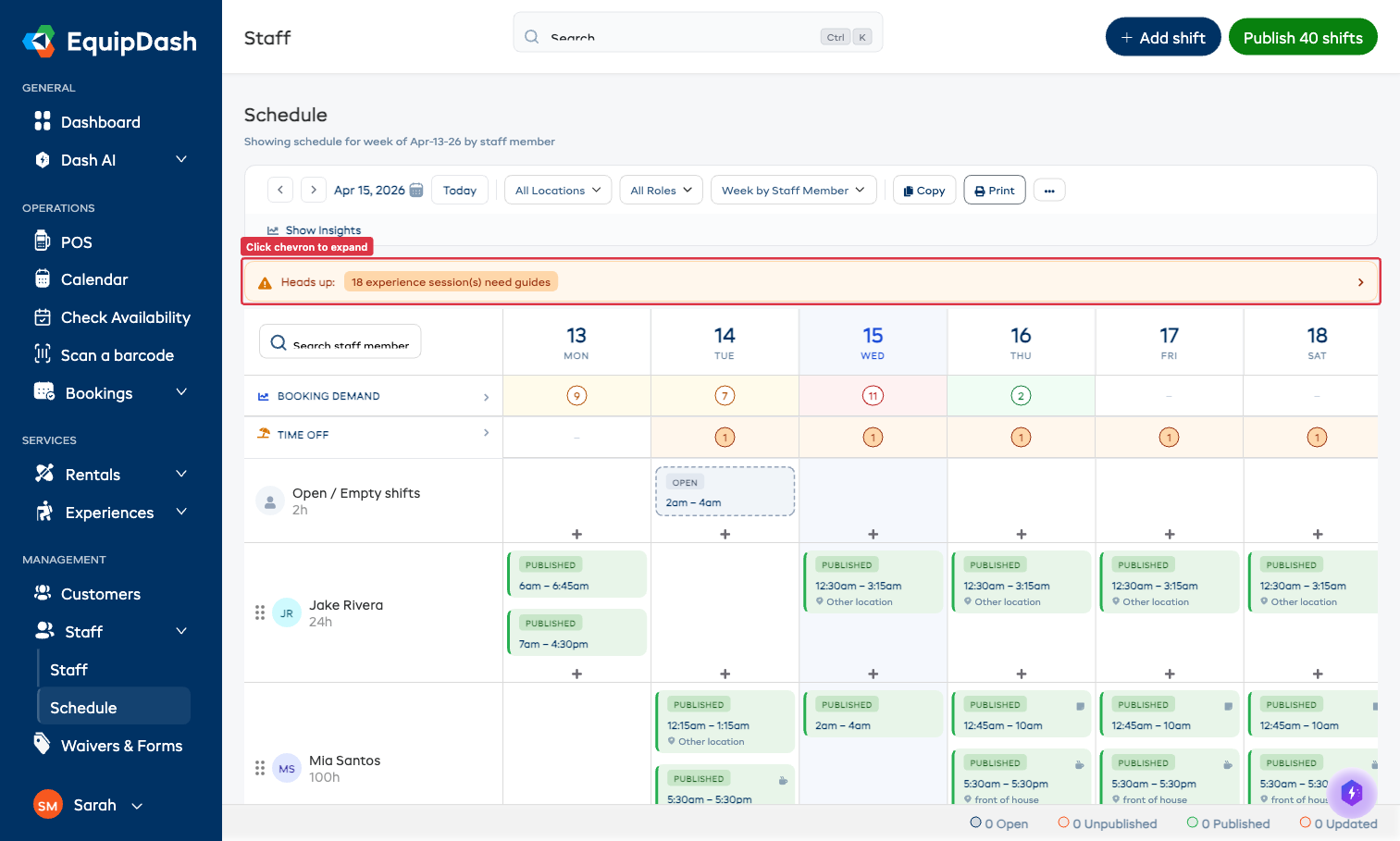
You can see your booking demand for each day on the same grid you use to schedule shifts, get warned when a day has bookings but no staff, and assign guides to experience sessions with a picker that already knows who's free, who's blocked, and why.
The Booking Demand Row
Above the staff rows on the schedule grid, two summary rows show the live activity for each day:
- Booking Demand — total rental and experience activity per day
- Time Off — count of approved time-off entries
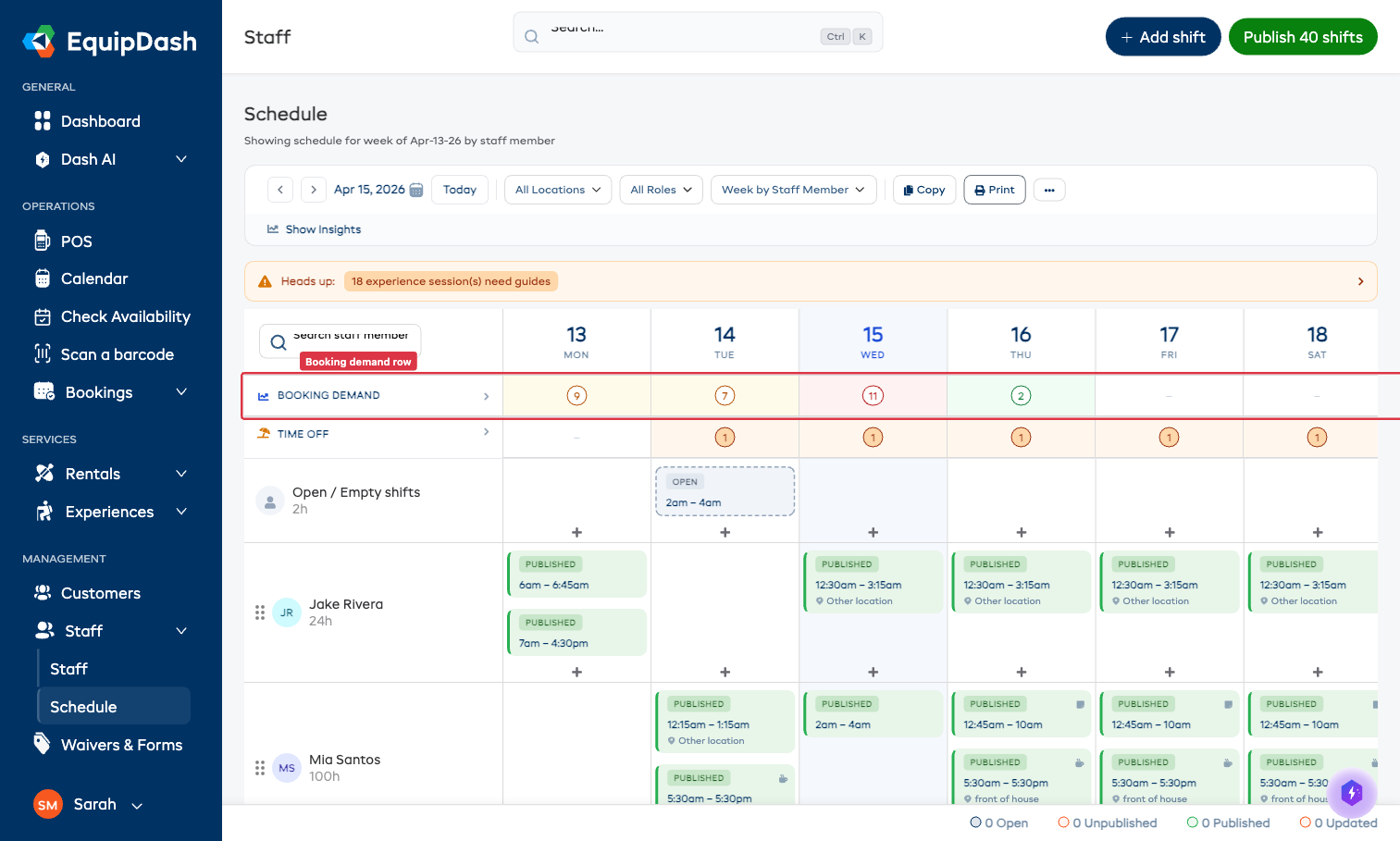
The Booking Demand row gives you context as you build the week. If Wednesday shows 11 bookings but you only see one shift on the staff grid for that day, you have a coverage problem that needs fixing now — not Monday morning when phones start ringing.
Demand Heat Levels
The cells in the Booking Demand row are color-coded by load:
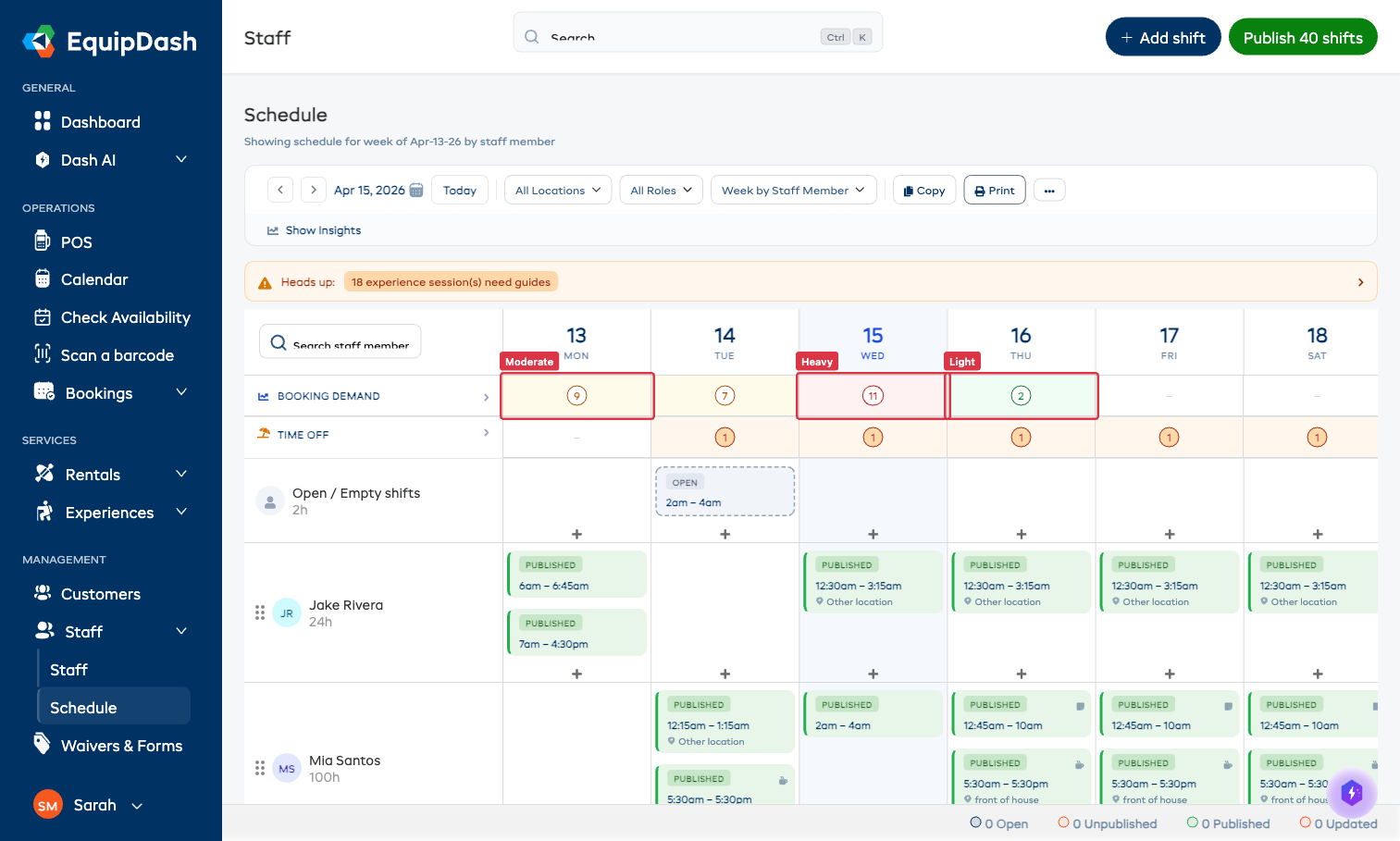
| Color | Level | When |
|---|---|---|
| Pale yellow / no fill | Light | A handful of bookings — usually a regular day |
| Pale orange | Moderate | A busier day — make sure you have backup coverage |
| Pale red / pink | Heavy | A peak day — full team plus contingency recommended |
| Pale green | Very light | Quiet — consider trimming shifts to save labour |
Day Breakdown
Click on a Booking Demand cell to expand it — you'll see a per-day breakdown showing rental pickups, returns, experience sessions, and total participants for that day.
Understaffing Warnings
When EquipDash detects you have bookings but no coverage, a yellow Heads up warning bar appears above the schedule grid.
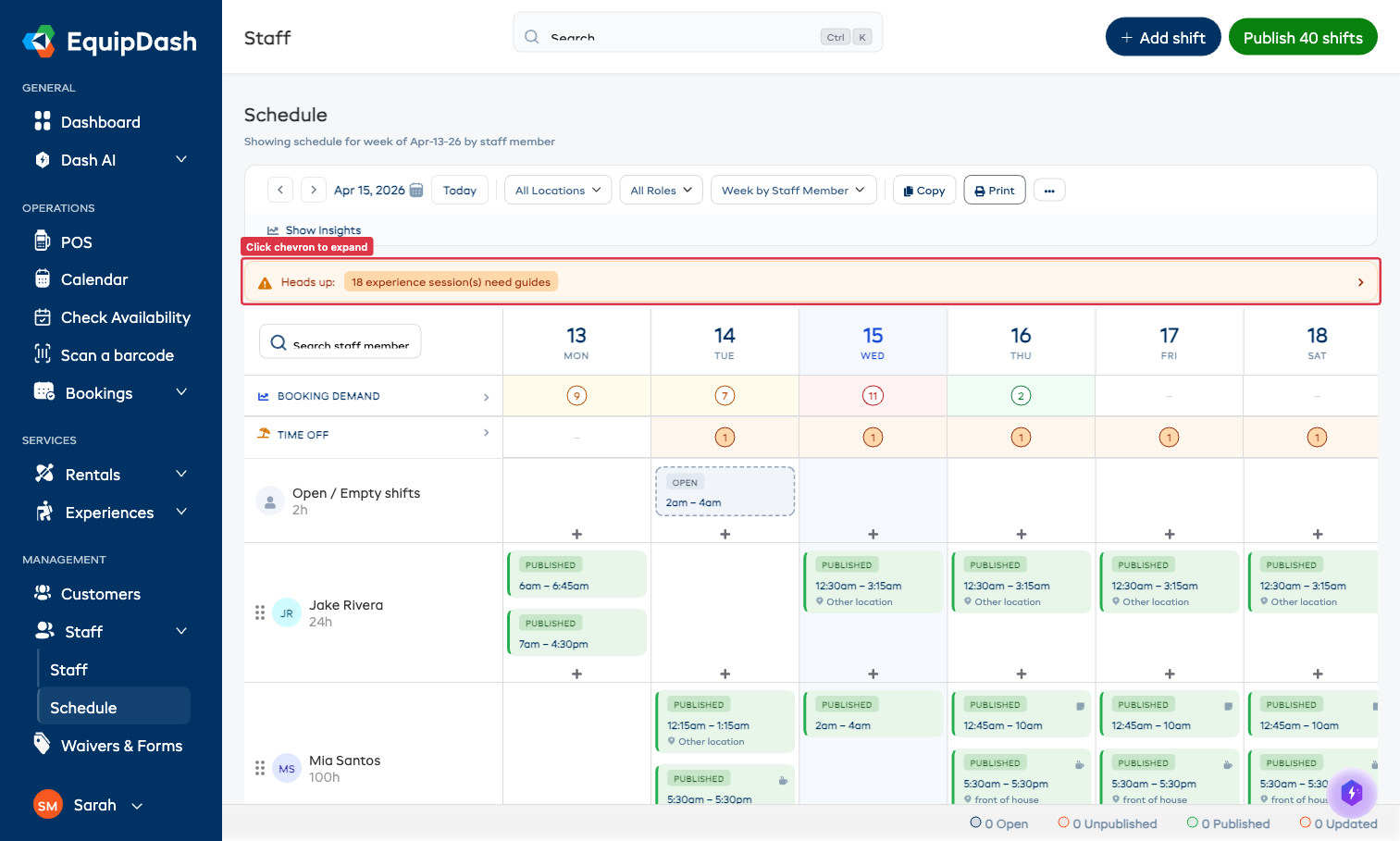
Click the chevron on the right of the bar to expand it.
Unguided Experience Sessions
Every experience session in the current week that doesn't yet have a guide assigned is listed individually. Each row shows the experience name, date, and time window.
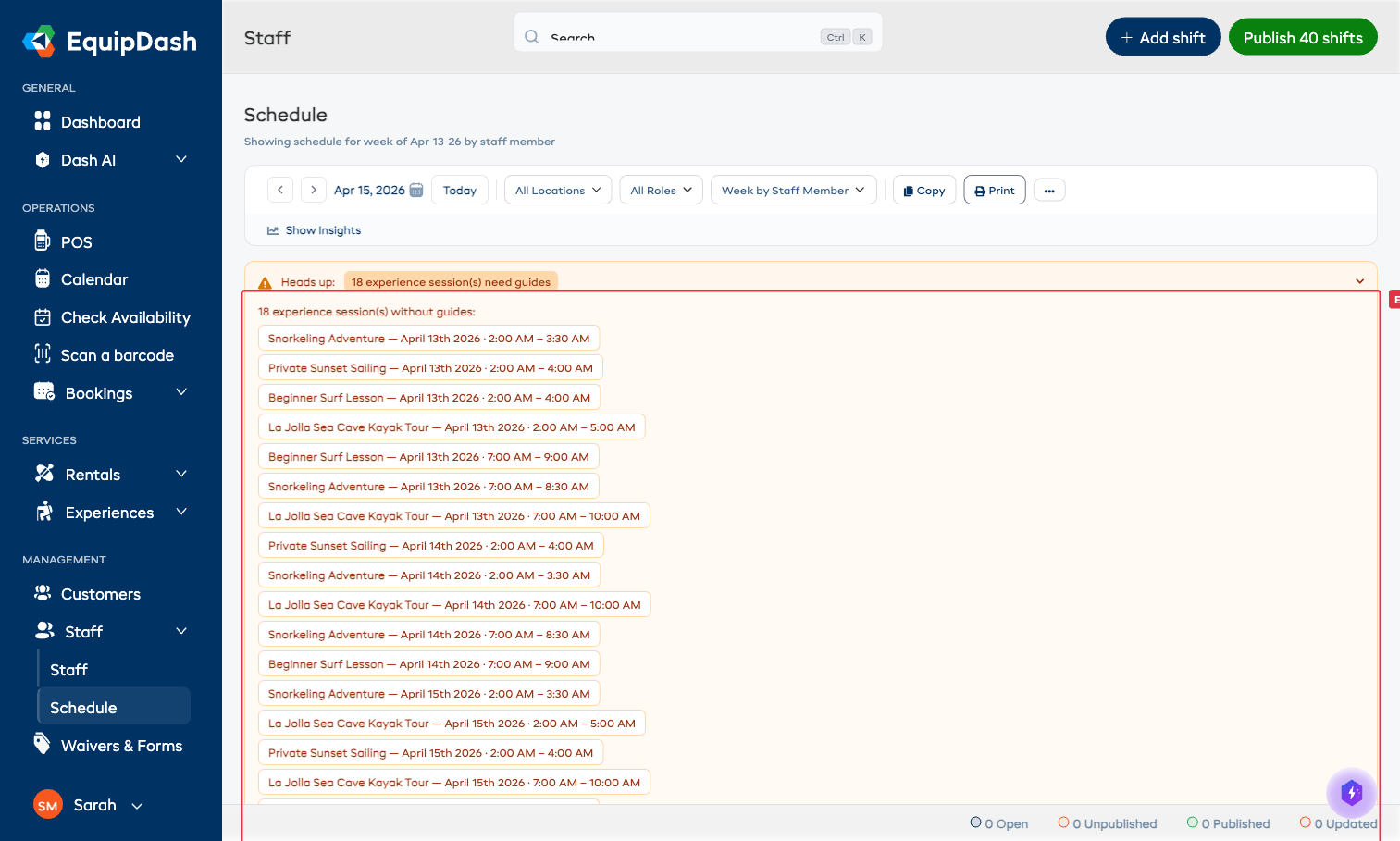
Click any session in the list to jump straight to that experience's availability page where you can assign a guide.
Days with No Staff Shifts
If you have rental bookings on a day with zero staff shifts scheduled, the warning bar surfaces this too. Without staff, no one will be there to hand out gear.
Auto-Suggest Guide Picker
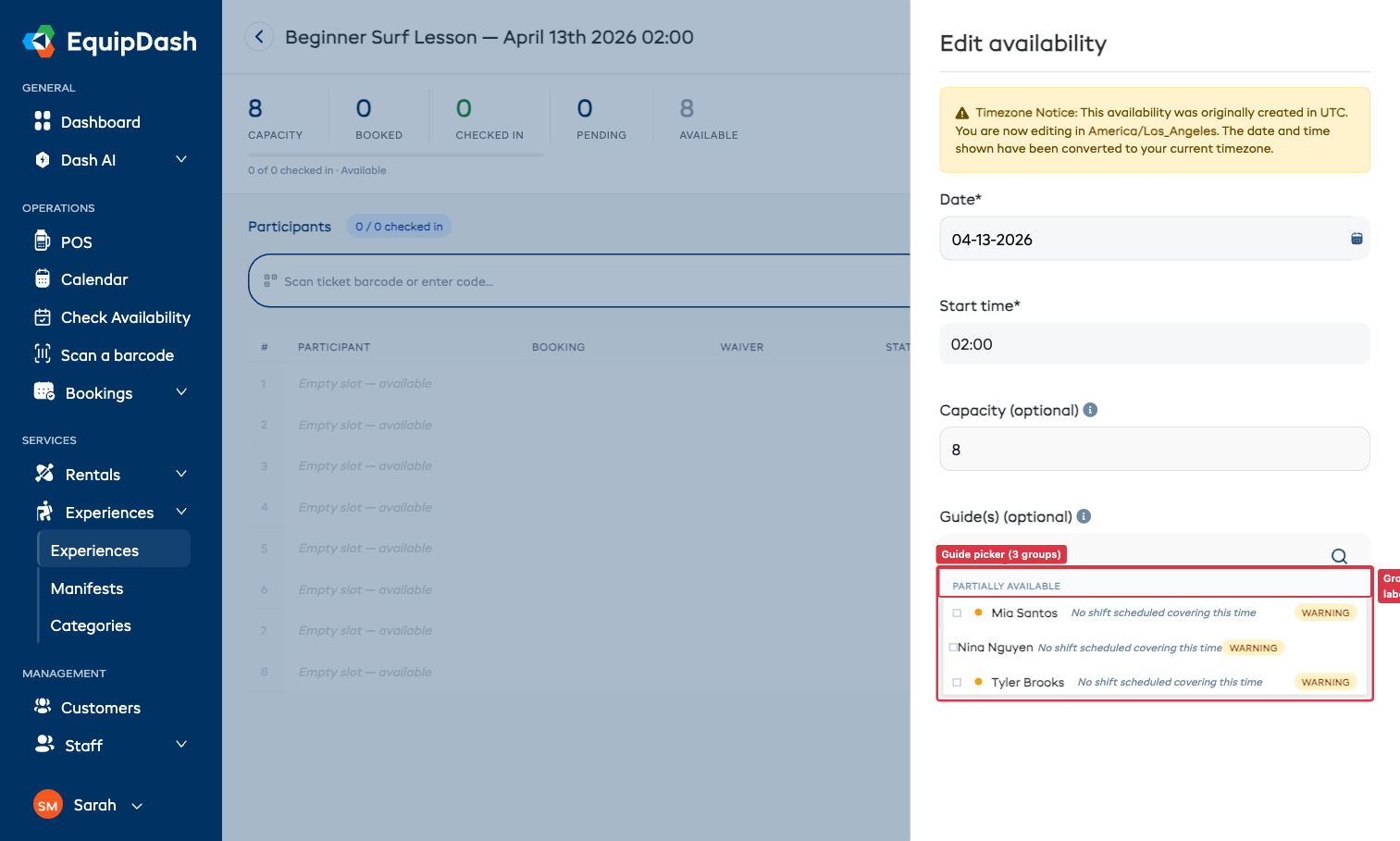
When you assign a guide to an experience session, EquipDash shows you a smart picker that already knows who's available — saving you from manually cross-checking shifts and time-off.
Opening the Picker
- Go to Experiences → Experiences and open an experience.
- Click on a scheduled session, or click Edit on a session row.
- The Edit availability sidebar opens — scroll to the Guide(s) picker.
- Click Select guides... to open the dropdown.
Three Groups
Guides are organized into three groups, with the most assignable guides at the top:
| Group | Indicator | When |
|---|---|---|
| Available | Green dot · "Free" badge | Has a shift covering this time, no conflicts, not on time-off |
| Partially available | Amber dot · "Warning" badge | Has a shift but with a soft warning (no shift covering exact time, etc.) |
| Unavailable | Grey dot · "Blocked" badge | Hard-blocked — on approved time-off, or already guiding another experience at this time |
Reading the Reason
Every guide outside the Available group has a one-line reason explaining why they're partially available or blocked.
Common reasons:
- No shift scheduled covering this time — a soft warning. The guide doesn't have a shift on the day, but there's no hard reason they couldn't.
- Outside their hours - a soft warning. The time is outside the hours the guide gave you. They're listed after the others but can still be picked. See Let Staff Set Their Own Availability.
- On approved time-off — hard block. They're scheduled to be away.
- Already assigned: [experience name] — hard block. They're guiding another experience that overlaps in time.
Time-Off Blocks
If a guide has approved time-off that overlaps the session, they appear in the Unavailable group with the reason On approved time-off. They cannot be assigned without first cancelling or rejecting the time-off.
This is your safety net against the classic "I scheduled Jake on his vacation day" mistake.
Shift Coverage Prompt
After you assign a guide to an experience session, EquipDash checks whether the guide has a staff shift that covers the session time. If not, a Create shift? prompt appears so you can fix the coverage in one click.
The prompt offers:
- Create shift — automatically creates a staff shift for the guide that exactly covers the experience time window.
- Skip — continue without a covering shift. Useful if the guide already has a different shift you forgot, or for special cases.
If multiple guides need coverage, you'll see one prompt per guide in sequence.
Why This Matters
Without booking-linked scheduling, you're relying on memory and spot-checks to make sure your roster matches your bookings. With it:
- You see demand and coverage on the same grid.
- Unguided sessions can't slip through — they're flagged at the top of the schedule.
- Guide assignment respects time-off and shift coverage automatically.
- Coverage gaps prompt you to fix them in one click.
It's the difference between thinking you're covered and knowing you are.