Adding a Promo Code to an Existing Booking Growth+This feature requires the Growth+ plan or higher
A customer turns up at the counter with a code they forgot to mention, or emails one the day after they booked. You do not have to rebuild the booking or type a discount by hand. Add the code straight to the booking, and it counts against that code in your reports exactly as if it had gone on at the till.
Before You Start
You can add a code while there is still money owed on the booking. Once a booking is paid in full the option is not there, because taking money off a paid booking only creates a refund you then have to give back. See Refunding a Booking for that.
You need permission to edit bookings. If you do not have it, the option does not appear.
Adding the Code
- Open the booking from Bookings.
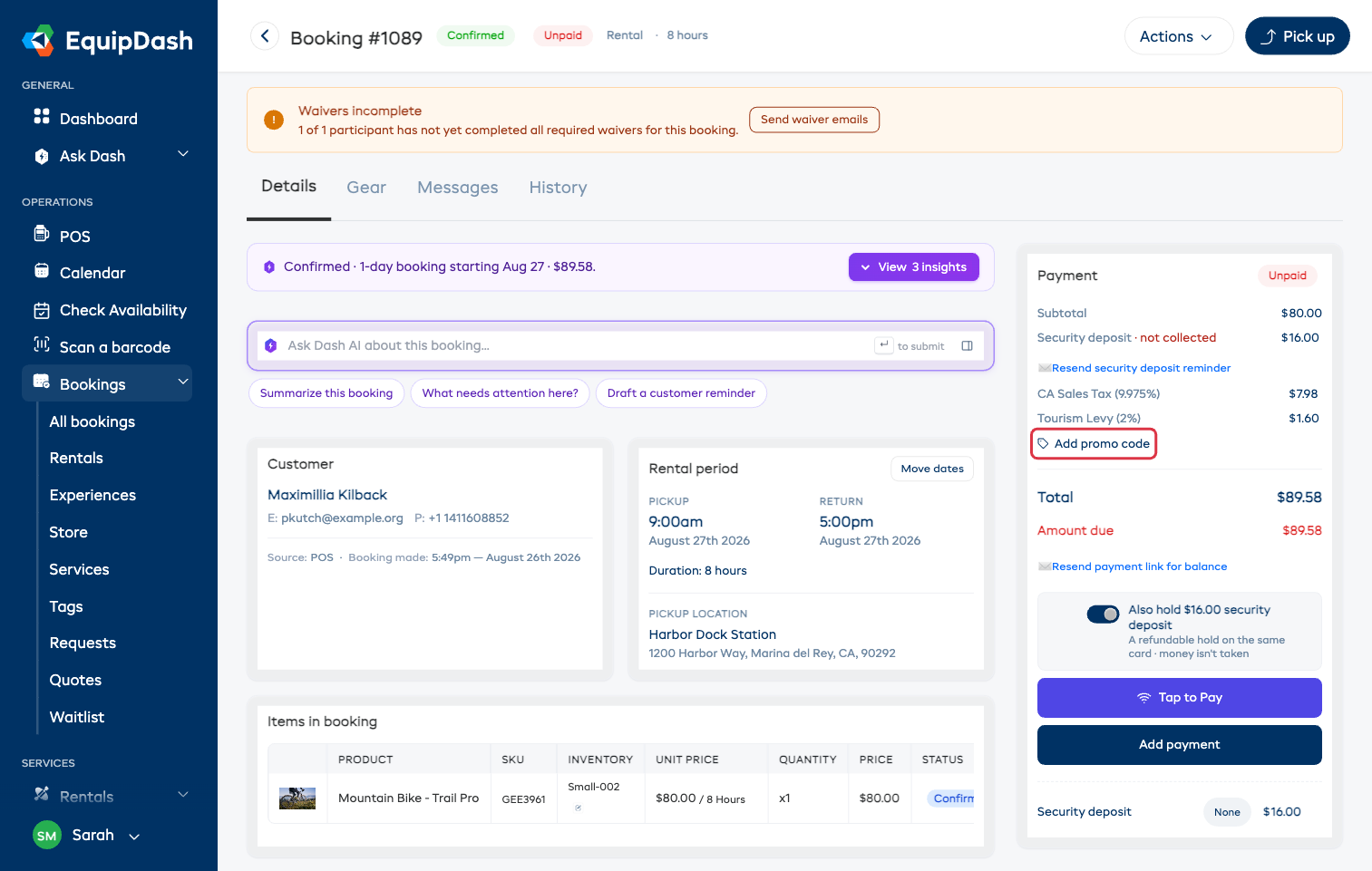
- In the Payment panel on the right, click Add promo code.
- Type the code and click Apply, or press Enter.
The discount appears as its own line, the tax and total drop to match, and the amount due goes down. A message confirms how much came off.
If you change your mind before applying, press Escape.
Taking a Code Back Off
Click Remove next to the promo code line. The booking goes back to its full price, and the use is returned to the code, so a code you typed wrong does not eat one of its uses.
When a Code Will Not Go On
| What you see | What it means |
|---|---|
| Invalid promo code. | No code by that name. Check for a typo. |
| This promo code is no longer active. | The code has been switched off. See Managing Promo Codes. |
| This promo code is not yet valid. | Its start date has not arrived. |
| This promo code has expired. | Its end date has passed. |
| This promo code has reached its usage limit. | Every use has been claimed. |
| This customer has already used this promo code the maximum number of times. | The per-customer limit is used up for this customer. |
| This promo code doesn't apply to any items in this booking. | The code is limited to products, experiences or categories that are not on this booking. |
| Minimum booking amount of $X not met. | The booking is worth less than the code's minimum. |
| ...more than is still owed on this booking. | The discount is bigger than the remaining balance. Refund the difference instead. |
| This booking is paid in full... | Nothing is owed, so there is nothing to discount. |
| This booking is cancelled... | Cancelled bookings cannot be changed. |
Things Worth Knowing
- One discount per booking. If you already typed a discount by hand, applying a code replaces it. You are asked to confirm first.
- One code per booking. To swap codes, remove the first one, then add the other.
- Gift cards and vouchers work differently. They are a payment, not a discount, so they go on through Add payment at any time, even on a paid booking. See Vouchers and Gift Cards.
- The customer is not emailed automatically. Send them an updated receipt yourself if they need one.
- Every change is logged. The booking's History tab records who added or removed the code and how much came off.