Importing Promo Codes Growth+This feature requires the Growth+ plan or higher
If you already have a list of promo codes — from another booking system, a spreadsheet, or an agency agreement — you don't have to add them one at a time. Upload a CSV and EquipDash creates them all in one go.
This is the fastest way to move across from another system, because the codes your customers are already holding keep working exactly as they were.
Step-by-Step: Importing Your Codes
- In the left sidebar, click Promotions then Promo Codes.
- Click Action in the top-right corner, then Import promo codes. (On a phone, tap the ⋯ button next to New code.)
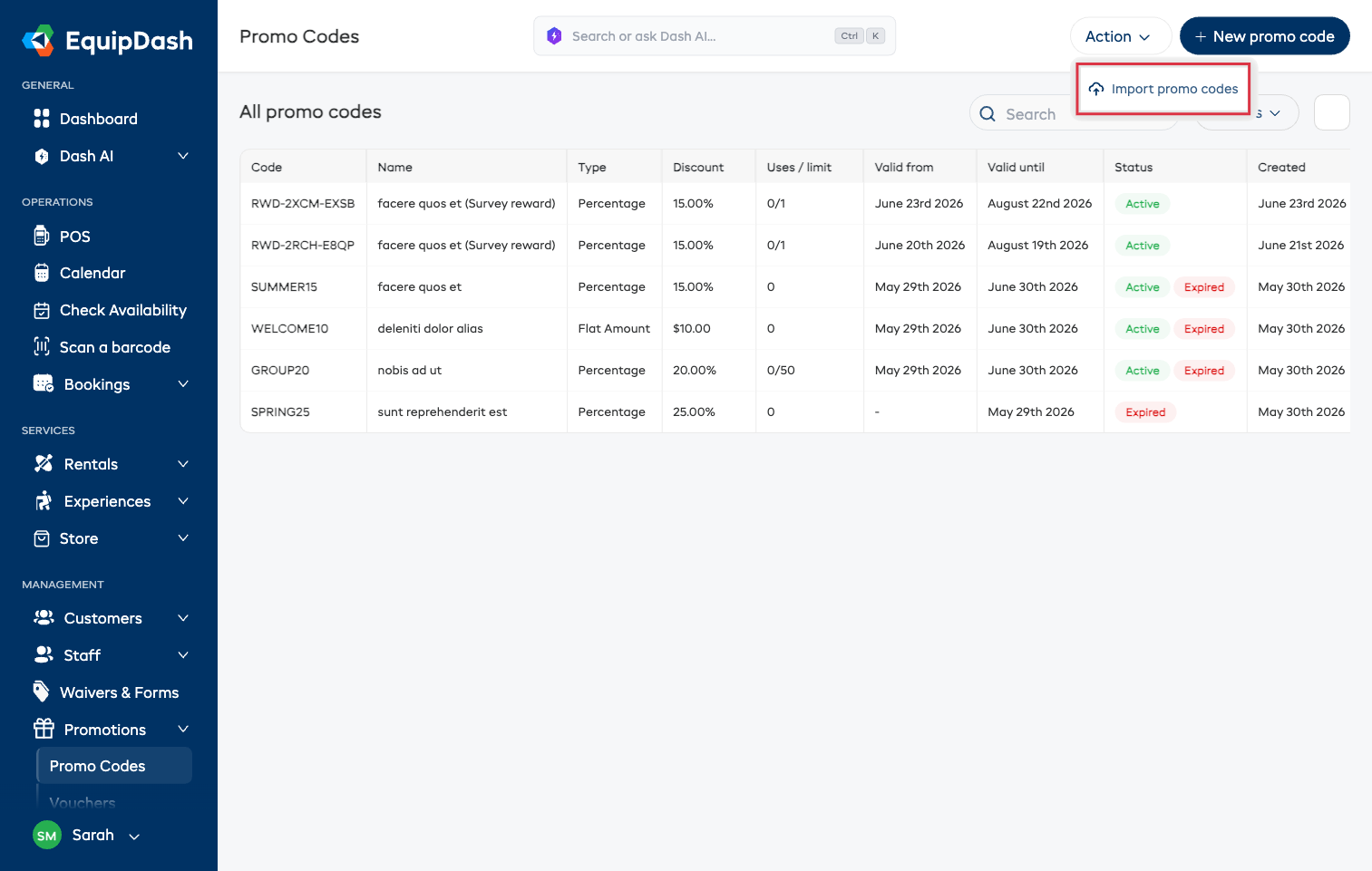
- The import panel opens on the right, with three steps: Upload, Match columns, Import.
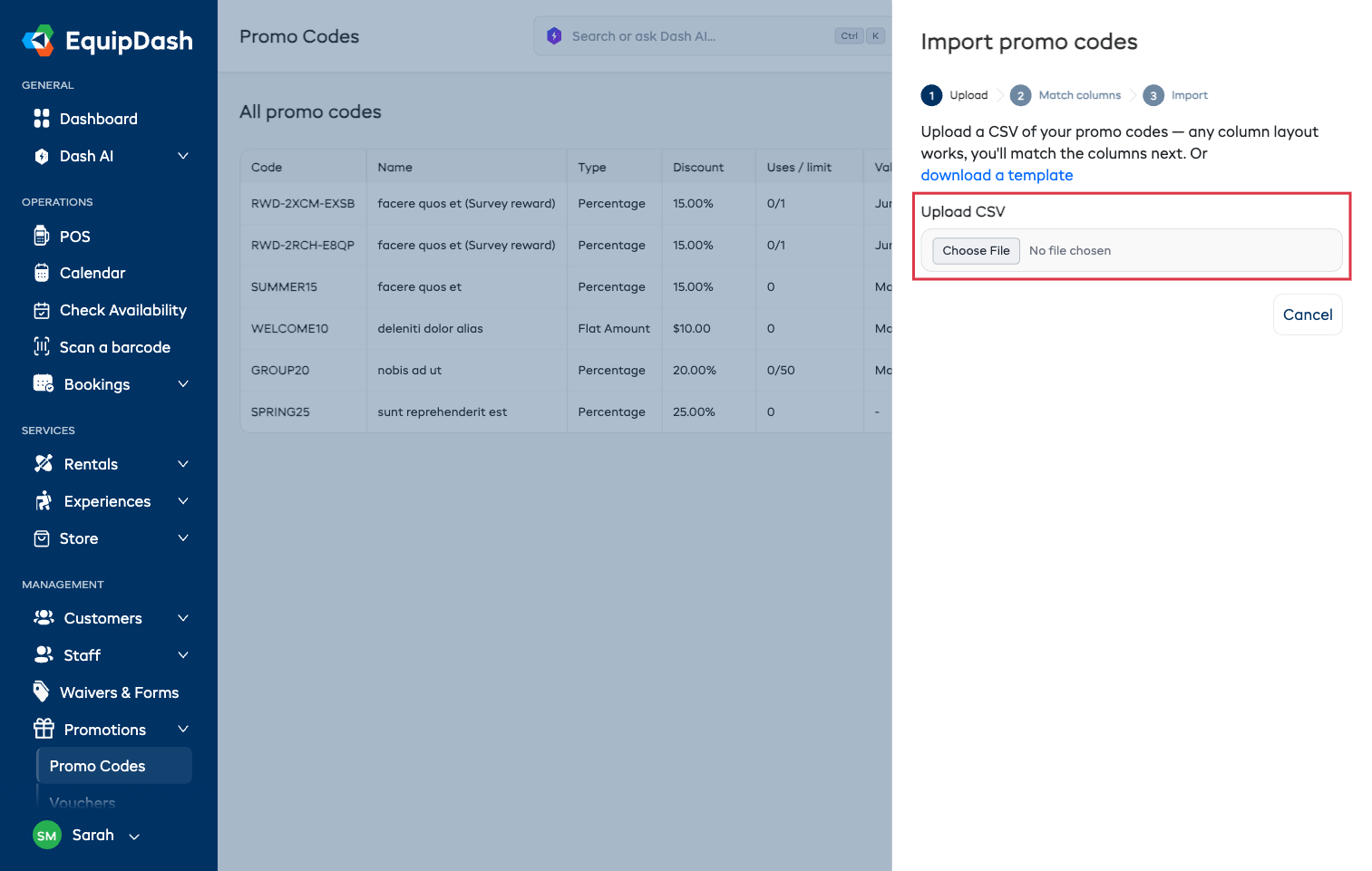
Step 1: Upload your file
Choose your CSV file. Any column layout works — you match your columns to EquipDash fields in the next step, so there's no need to rearrange your spreadsheet first.
If you'd rather start from scratch, click download a template for a file with all the columns already set up.
You can import up to 1,000 codes per file. If yours has more, EquipDash tells you how many it found and asks you to split it — save it as smaller files of 1,000 or fewer and upload them one after another. Nothing is imported until you do, so you never end up with half a list.
Step 2: Match your columns
EquipDash reads your file and matches what it can automatically — a column called "Coupon Code" is matched to Code, "Expiry Date" to Valid until, and so on.
Check each row. The Example column shows a real value from your file so you can confirm the match is right. Drag the example sideways to see the whole value.
Change any that are wrong using the dropdown, or set a field to Don't import to leave it out.
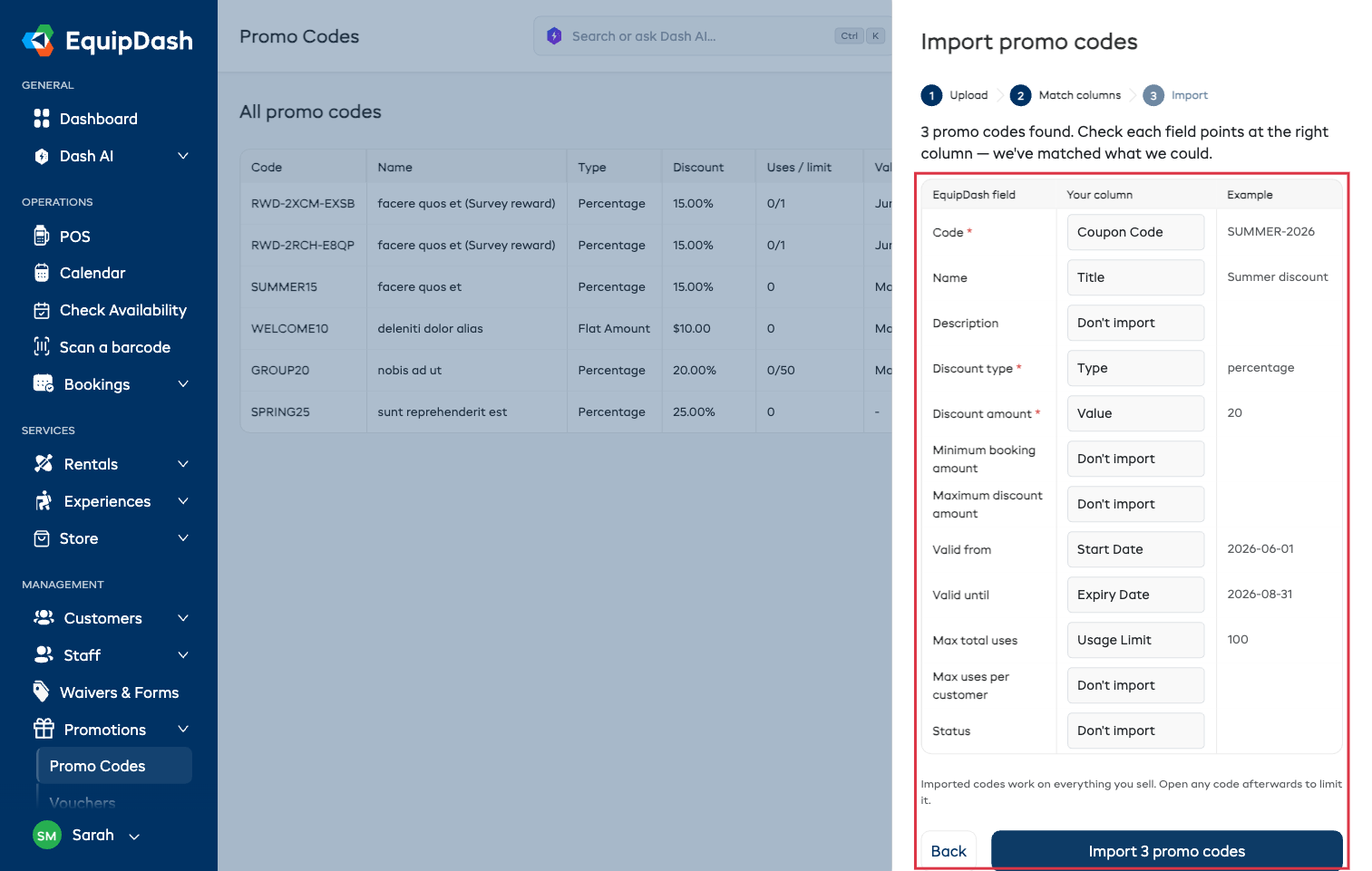
Three fields are required — everything else is optional:
| Field | Required | What it accepts |
|---|---|---|
| Code | Yes | The text customers type at checkout. Letters, numbers, hyphens and underscores. Saved in uppercase. |
| Name | No | A name to help you identify the code. If you leave it out, the code itself is used as the name. |
| Description | No | An internal note. Customers never see it. |
| Discount type | Yes | percentage or fixed (also accepts "percent", "flat" or "amount"). |
| Discount amount | Yes | The number — 20 for 20% off, or 20 for $20 off. Currency symbols and commas are fine. |
| Minimum booking amount | No | The booking total must reach this before the code works. |
| Maximum discount amount | No | Caps the discount. Useful for a percentage off a large booking. |
| Valid from | No | The date the code starts working. Past dates are fine — a code that's been running for months imports as-is. |
| Valid until | No | The date the code stops working. |
| Max total uses | No | How many times the code can be used in total. Blank means unlimited. |
| Max uses per customer | No | How many times one customer can use it. Blank means unlimited. |
| Status | No | active or inactive. Blank means active. |
Write dates the way you write them everywhere else in EquipDash, or as year-month-day (2026-12-31). Both are understood.
- Click Import [number] promo codes to start.
Imported codes work on everything you sell. Open any code afterwards to limit it to particular products, experiences or store items — see Managing Promo Codes.
Step 3: Import
A progress bar shows how far through it is. Keep the panel open until it finishes.
When it's done you'll see how many codes were imported and how many were skipped, with a plain-English reason for each skipped row.
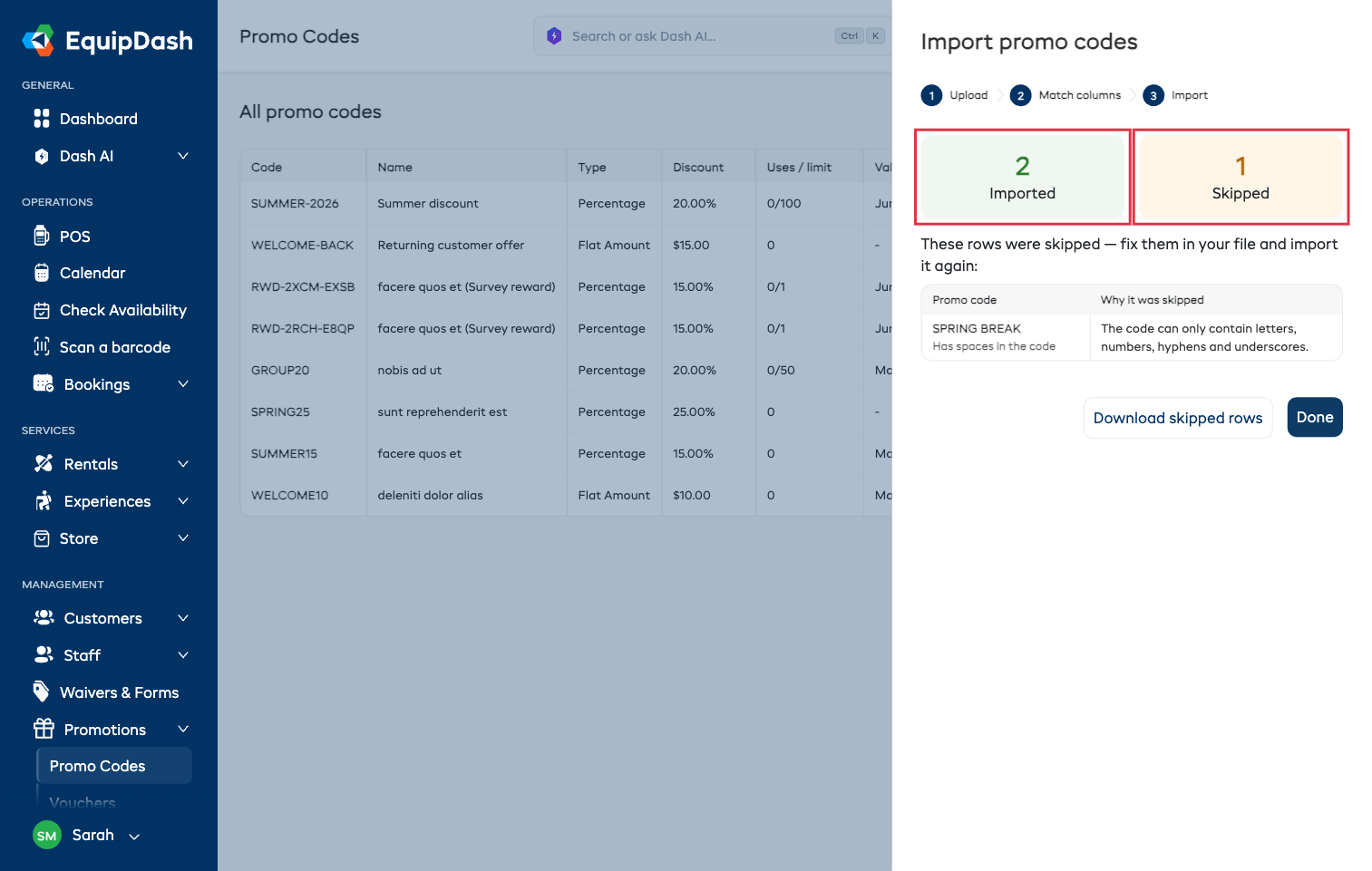
Common reasons a row is skipped:
| Reason | What to do |
|---|---|
| Already in your promo codes | You already have a code with that exact text. Nothing to do unless it should have been different. |
| The code can only contain letters, numbers, hyphens and underscores | Remove spaces or punctuation from the code in your file. |
| A discount type is required | Fill in percentage or fixed for that row. |
| The discount amount must be more than zero | Add a real discount amount. |
| A percentage discount cannot be more than 100% | Check whether the row should be a fixed amount instead. |
| Valid until is before valid from | Swap the two dates around. |
Click Download skipped rows to get a copy of just those rows, with the reason added as an extra column. Fix them in that file and import it again — the codes that already came through are left alone.
Good to Know
- Nothing is overwritten. If a code already exists it's skipped, never changed. To change an existing code, open it and edit it.
- You can import as many times as you like. Import in batches if that's easier — a second import only adds the codes that aren't already there.
- Large lists are fine — 1,000 at a time. The import works through your file in batches, which is why the progress bar moves gradually. Just leave the panel open. For more than 1,000 codes, split the file and run it in a few goes.
- Only your own business is affected. Codes are always created against the business you're signed in to.
Related Articles
- Creating a Promo Code — adding one code by hand
- Managing Promo Codes — editing, deactivating and limiting where codes apply
- Promo Code Analytics — seeing how your codes are performing