Managing Promo Codes Growth+This feature requires the Growth+ plan or higher
Once you have created promo codes, you can view their details, edit them, deactivate them when a promotion ends, or delete them entirely.
Viewing Your Promo Codes
- In the left sidebar, click Promotions then Promo Codes.
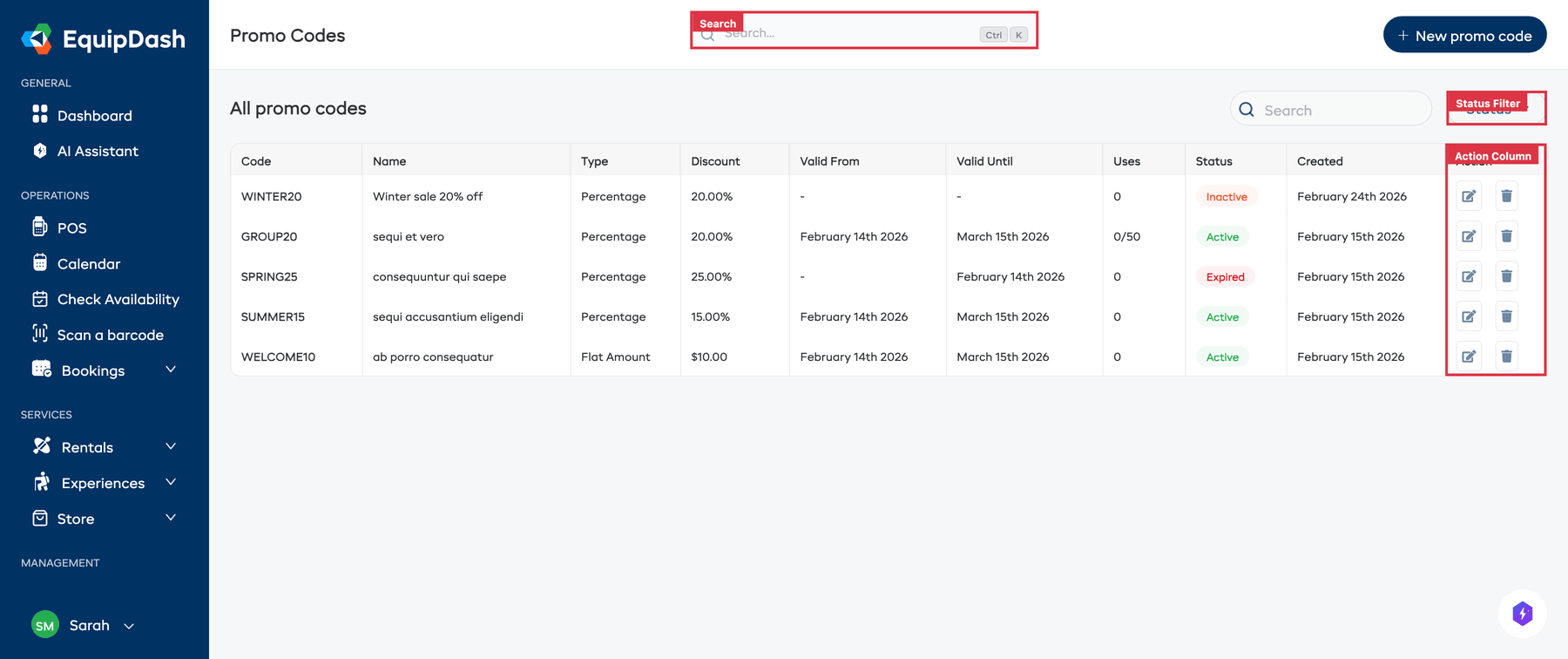
- The table lists all your promo codes with key details.
| Column | What It Shows |
|---|---|
| Code | The promo code text |
| Name | The internal name for the code |
| Type | Percentage or Flat Amount |
| Discount | The discount value (e.g., "20.00%" or "$10.00") |
| Valid From | The start date (or "-" if not set) |
| Valid Until | The end date (or "-" if not set) |
| Uses | How many times the code has been used vs. the limit (e.g., "0/50" or "0" for unlimited) |
| Status | Active, Inactive, or Expired |
| Created | When the code was created |
| Action | Edit (pencil icon) and Delete (trash icon) buttons |
Click the gear icon near the top of the table to customize your columns. Tick a column under Available columns to show it, untick one under Active columns to hide it, and drag columns into the order you prefer. Your layout is saved and shared with your whole team.
Searching and Filtering
Use the controls above the table:
- Search — Type a code name or text to find it quickly.
- Status dropdown — Filter by Active, Inactive, or Expired codes.
Viewing Promo Code Details
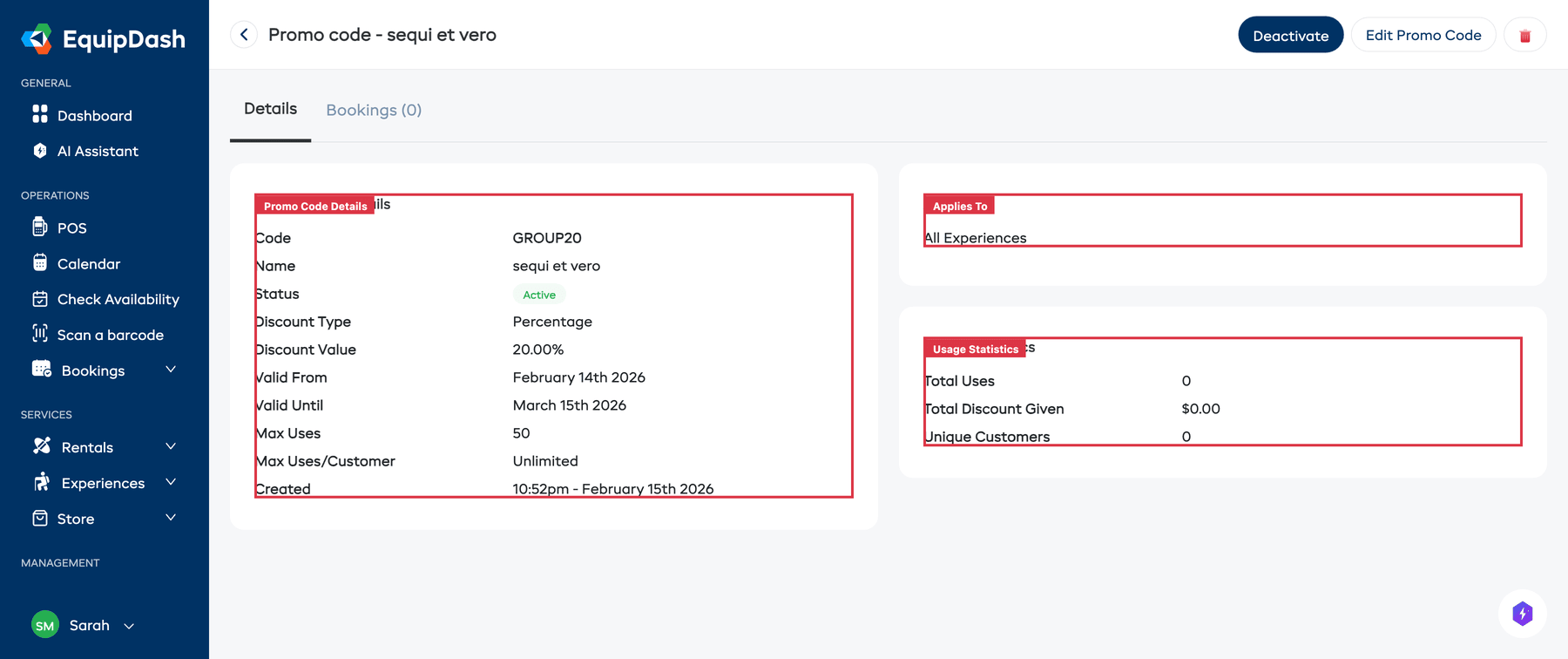
Click on any row in the table to open the promo code detail page. The detail page has two tabs:
Details Tab
Shows two cards:
Promo Code Details (left):
- Code, Name, Status, Discount Type, Discount Value, Valid From, Valid Until, Max Uses, Max Uses/Customer, Created
Applies To (top right):
- Shows which products, experiences, or store products the code applies to (e.g., "All Products")
Usage Statistics (bottom right):
- Total Uses, Total Discount Given, Unique Customers
Bookings Tab
Lists every booking that used this promo code. If no bookings have used the code yet, you will see an empty state: "No bookings have used this promo code yet."
Editing a Promo Code
- From the promo code detail page, click the Edit Promo Code button in the top-right corner.
- A slide-over panel opens with the same 3-step form used for creation (Details, Values, Rules), pre-filled with the current settings.
- Navigate through the steps using Next and Previous.
- Update any fields you need to change.
- Click Save changes on the final step.
You can also click the edit icon (pencil) directly from the table's Action column.
Deactivating a Promo Code
When a promotion ends, you can deactivate the code so it can no longer be used:
- Open the promo code detail page by clicking on it in the table.
- Click the Deactivate button (red) in the top-right corner.
- The code's status changes to Inactive. Customers who try to use it will see a message that the code is no longer valid.
To reactivate, open the detail page and click Activate.
Deleting a Promo Code
To permanently remove a code:
- Click the delete icon (trash) in the Action column of the table, or click the trash icon on the detail page.
- Confirm the deletion.
Deleting a promo code removes it from the table. Existing bookings that used the code are not affected — the discount they received stays in place.
Tips
- Deactivate rather than delete. Keeping old codes (as inactive) lets you reference their settings and usage stats later.
- Review expiring codes regularly. Check for codes approaching their end date so you can decide whether to extend or replace them.
- Check Usage Statistics on the detail page. The Total Discount Given and Unique Customers stats help you evaluate whether a promotion is paying off.