Importing Vouchers Growth+This feature requires the Growth+ plan or higher
Moving from another booking system? Your customers still hold the gift cards you sold there. Upload them as a CSV and each card keeps its code, what is left on it, and when it runs out, ready to spend at checkout and in POS.
Nobody is emailed when you import.
Step-by-Step
- In the left sidebar, click Promotions then Vouchers.
- Click Action at the top, then Import vouchers. On a phone, tap the ⋯ button next to New voucher.
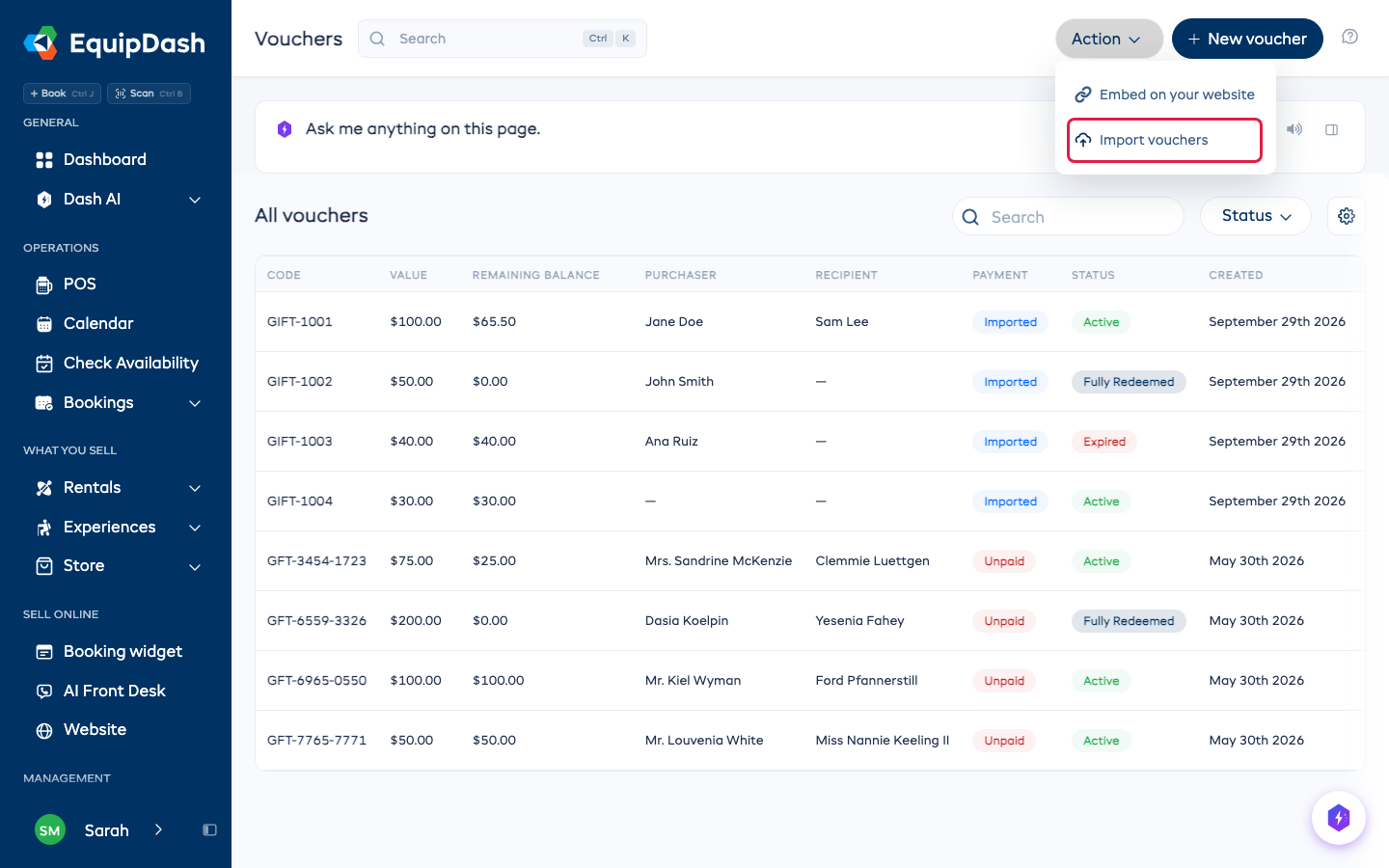
Step 1: Upload your file
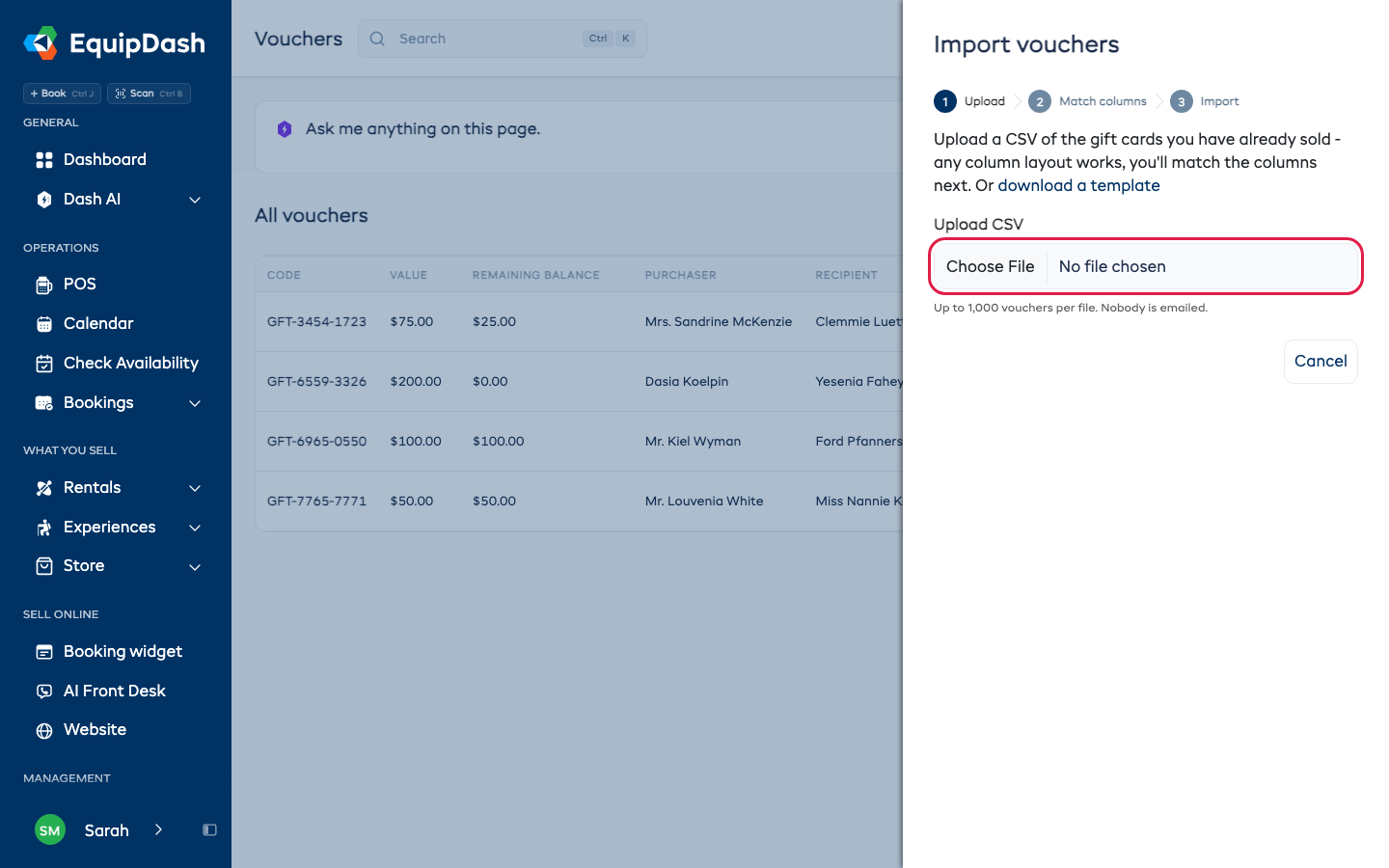
Choose your CSV. Any column layout works, because you match the columns in the next step. To start from scratch, click download a template.
You can import up to 1,000 vouchers per file. Split a bigger list into files of 1,000 or fewer and upload them one after another.
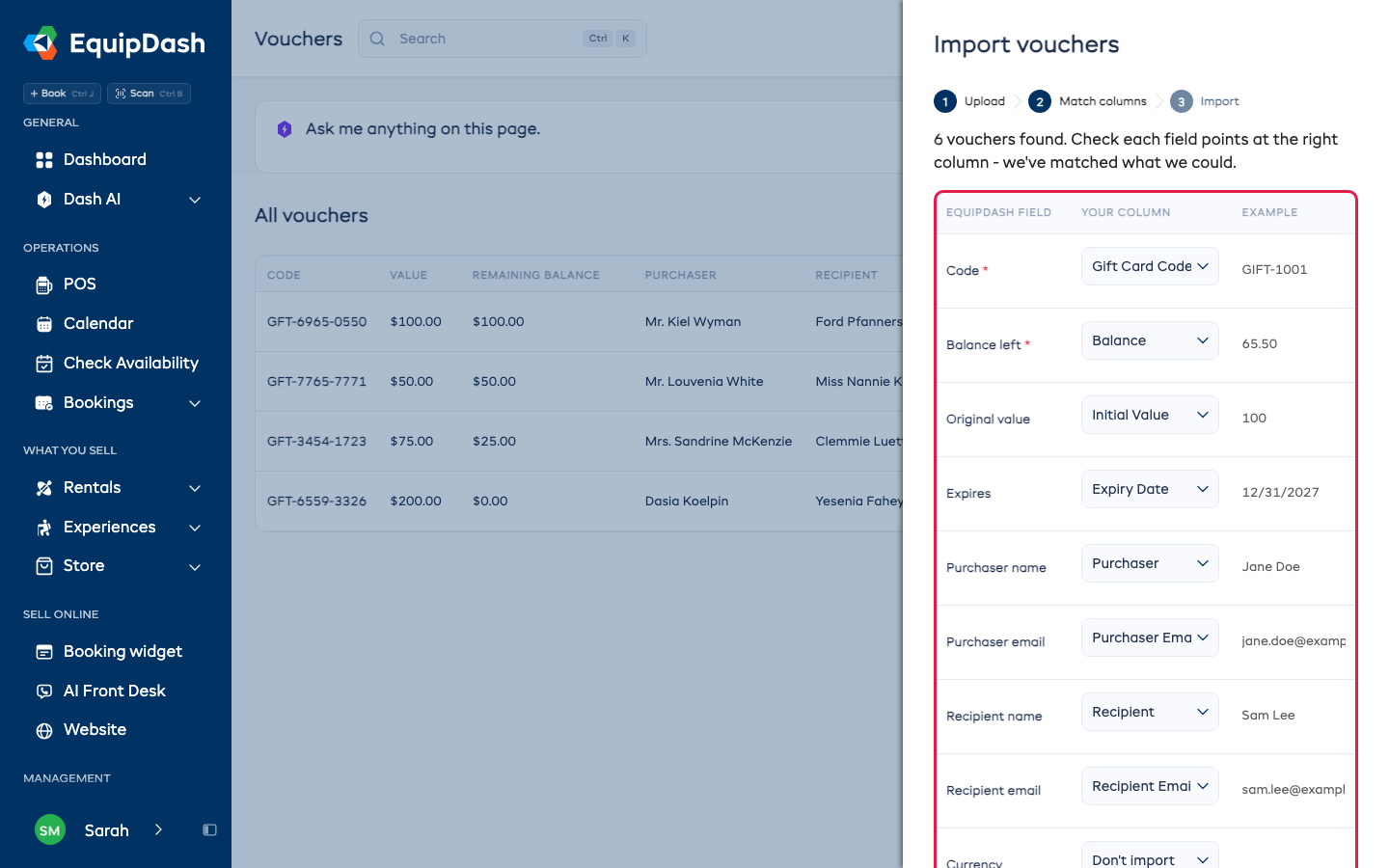
Step 2: Match your columns
EquipDash matches what it can for you - "Gift Card Code" goes to Code, "Balance" to Balance left, "Expiry Date" to Expires, and so on. The Example column shows a real value from your file so you can check each match. Change any that are wrong, or pick Don't import to leave a field out.
| Field | Required | What it accepts |
|---|---|---|
| Code | Yes | The code on the card. Saved in uppercase. |
| Balance left | Yes | What is left to spend. Use 0 for a card that has been used up. |
| Original value | No | What the card was first worth. If you leave it out, the balance is used. |
| Expires | No | The last day it can be used. Past dates are fine: the card comes in as Expired and you can extend it later. |
| Purchaser name and Purchaser email | No | Who bought it. A card with no buyer on record comes in with "-" instead. |
| Recipient name and Recipient email | No | Who it was given to. |
| Currency | No | Leave it out, or use your shop's own currency. A card in any other currency is skipped. |
Currency symbols and commas are fine ($65.50, 1,250 or 40,50). Write dates the way you write them everywhere else in EquipDash, with dashes, slashes or dots, or as year-month-day (2026-12-31).
- Click Import [number] vouchers.
Step 3: Import
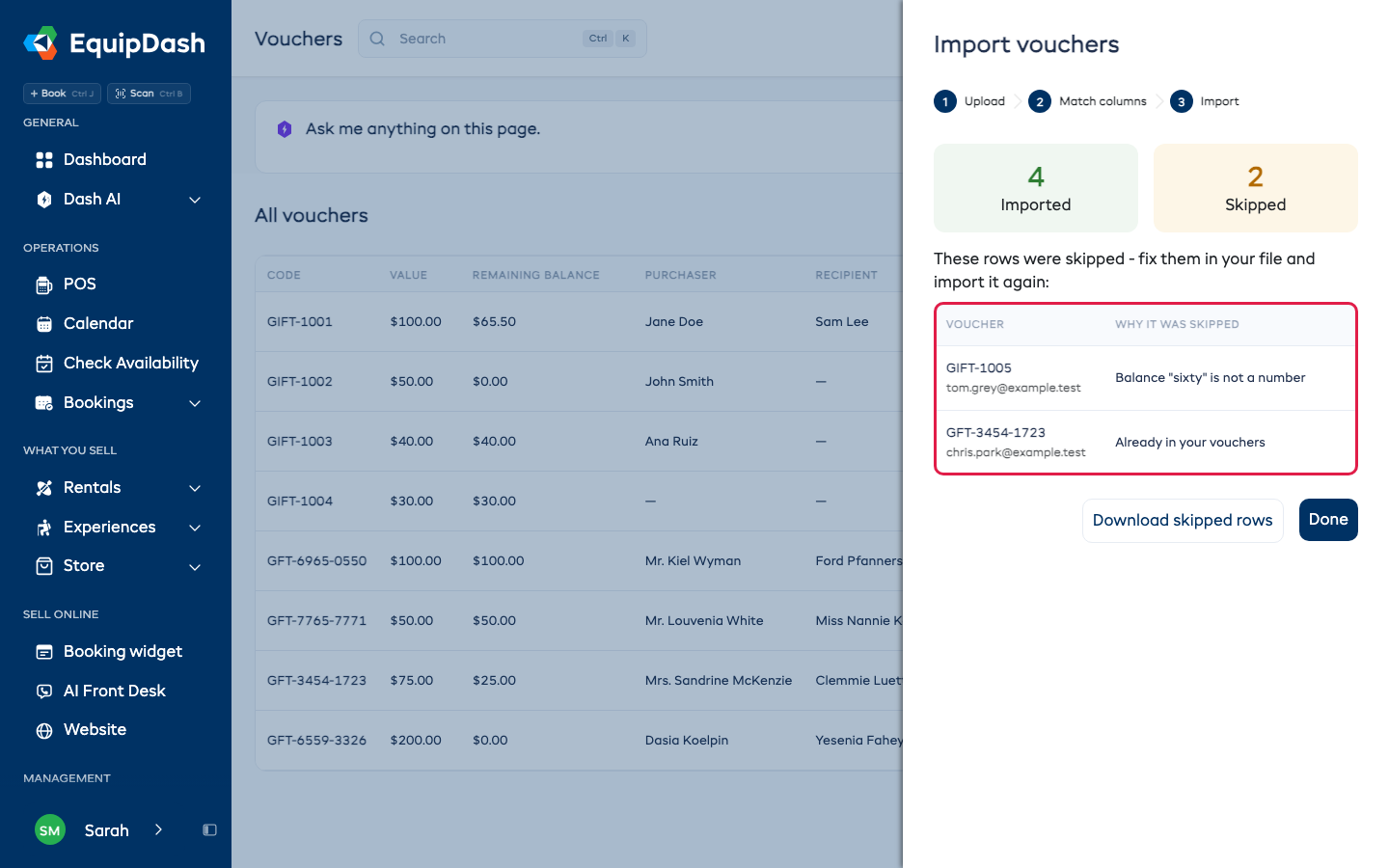
A progress bar shows how far through it is. Keep the panel open until it finishes. You then see how many vouchers came in and how many were skipped, with the reason for each skipped row.
| Reason | What to do |
|---|---|
| Already in your vouchers | You already have a voucher with that code. It is left as it is. |
| Balance "..." is not a number | Fix the amount in your file. |
| The balance is more than the original value | Check the two amounts are the right way round. |
| Expiry date "..." not recognized | Write the date like the example in the message. |
| Currency ... is not your shop's currency | That card was sold in another currency. Add it by hand at its value in your currency, if you want to honor it. |
Click Download skipped rows for just those rows with the reason added. Fix them and import that file. The vouchers that already came in are left alone.
After the Import
Imported vouchers show Imported in the Payment column. They were paid for in your old system, so they can be spent straight away at checkout and in POS.
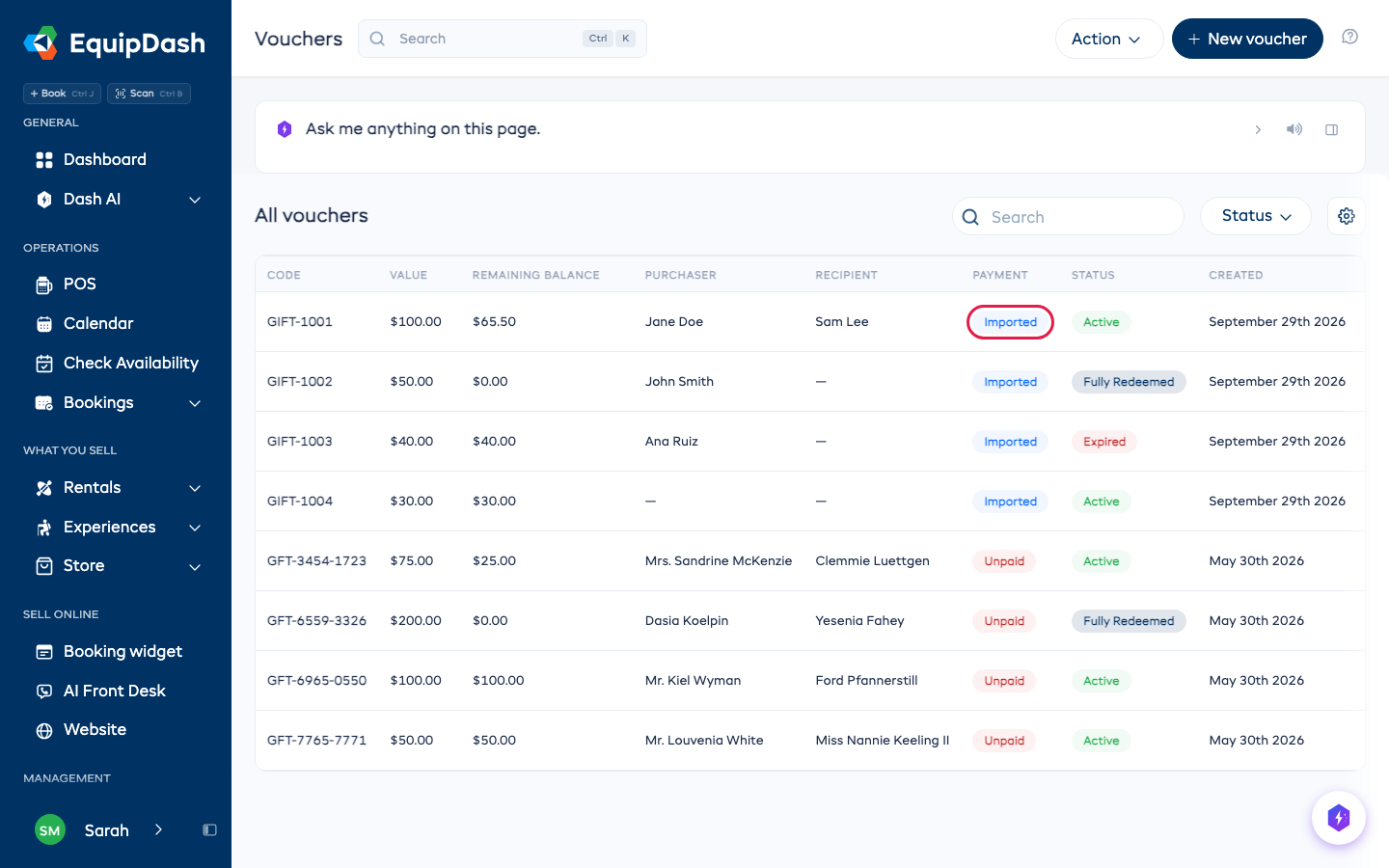
- A card with nothing left on it shows Fully Redeemed.
- A card past its expiry shows Expired. To honor it, open it, click Edit Voucher, and set a new expiry date.
- Imported vouchers are not sent to QuickBooks or Xero as sales. You already recorded that money in your old system.
Good to Know
- Nothing is overwritten. A code that already exists is skipped, never changed.
- You can import as many times as you like. A second import only adds the codes that are not already there.
Related Articles
- Creating Vouchers - adding one voucher by hand
- Managing Vouchers - editing, extending and deactivating vouchers
- Importing Promo Codes - the same import for discount codes