Available Email Variables
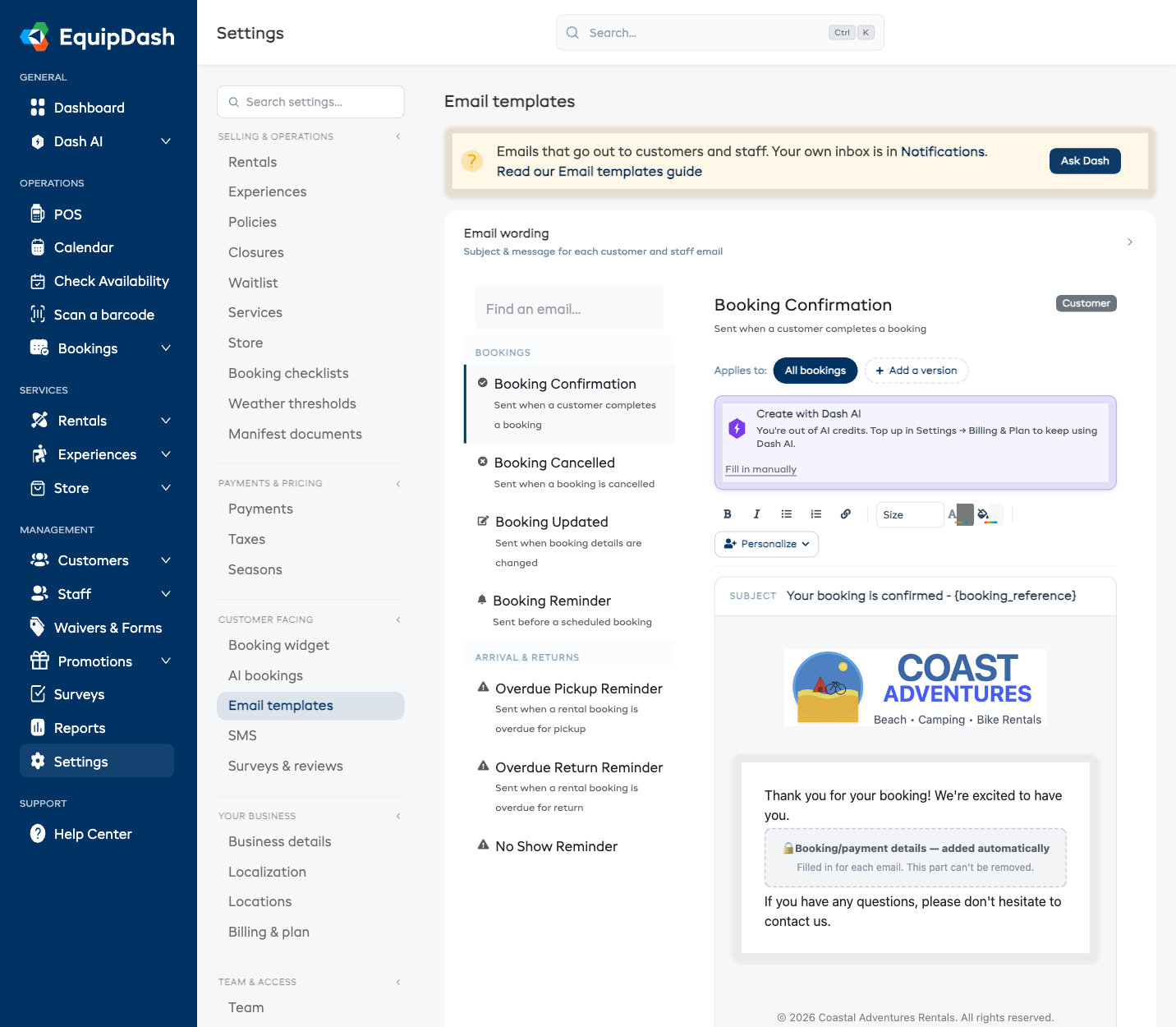
Email variables (also called merge tags) let you insert dynamic content into your email templates. When the email is sent, each variable is replaced with the actual value for that booking, customer, or transaction.
Variables are written in curly braces, like {customer_name}.
How to Use Variables
Simply type the variable name (including the curly braces) anywhere in your template's Subject line, Introduction text, Closing text, or Email body. In free-form templates you can also use the Insert placeholder dropdown to drop a variable in for you. Your changes save automatically. For example:
Hi {customer_name}, thank you for booking with {supplier_name}!
When the email is sent, this becomes:
Hi Sarah Johnson, thank you for booking with Coastal Kayak Hire!
Common Variables (Available in Most Templates)
These variables are available across most email templates:
| Variable | Description |
|---|---|
{supplier_name} | Your business name |
{supplier_phone} | Your business phone number |
{supplier_email} | Your business email address |
{customer_name} | The customer's full name |
{customer_email} | The customer's email address |
Booking Variables
Available in booking-related templates (Confirmation, Cancelled, Updated, Reminder, Payment Receipt, Overdue alerts, Pre-Arrival Message, Damage Charge):
| Variable | Description |
|---|---|
{booking_reference} | The booking reference number (e.g., BK-00045) |
{booking_date} | The formatted booking date |
{booking_time} | The formatted booking time |
{service_name} | The name of the booked product or experience |
{total_amount} | The formatted total amount including currency symbol |
Form Variables
Available in the Form Response template:
| Variable | Description |
|---|---|
{form_name} | The name of the form that was submitted |
Survey Variables
Available in the Survey Request template:
| Variable | Description |
|---|---|
{survey_name} | The name of the survey |
Damage Charge Variables
Available in the Damage Charge template, in addition to the common and booking variables:
| Variable | Description |
|---|---|
{charge_amount} | The formatted damage / overage charge amount, including currency symbol |
Customer Portal Variables
Available in the Customer Portal Link template, in addition to the common and booking variables:
| Variable | Description |
|---|---|
{portal_url} | The customer's private My bookings link |
The email already includes a button to that link, so you only need {portal_url} if you want a second, inline one in your own wording.
Voucher Variables
Available in the Voucher Purchase Confirmation template:
| Variable | Description |
|---|---|
{purchaser_name} | Name of the person who bought the voucher |
{voucher_code} | The voucher code |
{voucher_value} | The value of the voucher |
{recipient_name} | Name of the gift card recipient (if applicable) |
Gift Card Variables
Available in the Gift Card template:
| Variable | Description |
|---|---|
{recipient_name} | Name of the gift card recipient |
{sender_name} | Name of the person who sent the gift card |
{voucher_code} | The voucher code |
{voucher_value} | The value of the voucher |
{gift_message} | The personal message from the sender |
Waitlist Variables
Available in the Waitlist Availability template:
| Variable | Description |
|---|---|
{item_name} | The experience or product name |
{date_time} | The formatted date and time (if applicable) |
{book_now_url} | A direct link the customer can use to book |
Staff Shift Variables
Available in staff shift templates (New Shift, Shift Updated, Shift Reminder):
| Variable | Description |
|---|---|
{staff_name} | The staff member's full name |
{shift_date} | The formatted shift date |
{shift_time} | The formatted shift time |
{shift_location} | The location name for the shift |
Tips for Using Variables
- Double-check your curly braces -- missing or extra braces will cause the variable to appear as plain text instead of being replaced.
- Preview before sending -- the live Email preview below the editor shows your wording as you type, and you can click Send test email to see how it looks with sample data.
- Not all variables work in all templates -- only use variables listed for that specific template type. Using a variable in the wrong template will result in it appearing as an empty value.