Organizing Products by Category
Once you have created categories, you can assign products to them and control the order in which categories and products appear on your booking widget.
Assigning a Product to Categories
A product can belong to more than one category at the same time. For example, an item can sit in both a "type" group and a seasonal or promotional group, so customers find it whichever way they browse. Add as many categories as make sense — the product then appears under every one of them, everywhere categories are used (the category list, filters, and your booking widget).
During product creation
- In the product creation wizard (Step 1: Product Details), click the Categories field.
- Search for and select a category. It appears as a pill below the field.
- Repeat to add more categories. To remove one, click the × on its pill.
- Continue with the rest of the wizard.
For existing products
- Go to Rentals > Products and click the product name.
- Click Edit Product. In Step 1: Product Details, add or remove categories in the Categories field.
- Click Next through the remaining steps, then click Update Product.
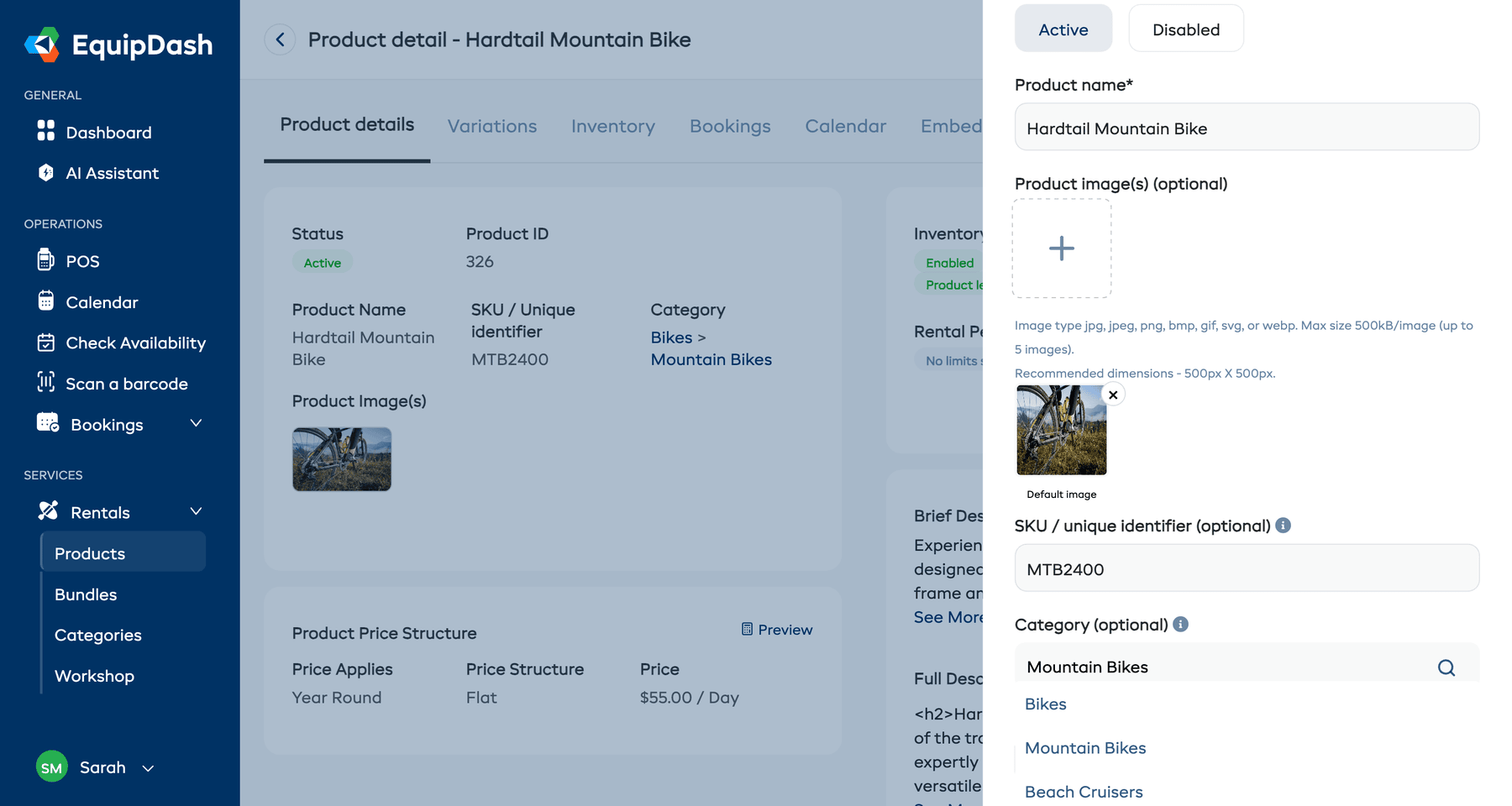
There is no separate "primary" category to worry about — just add every category the product belongs in. It will be counted and shown under each of them.
Viewing Products in a Category
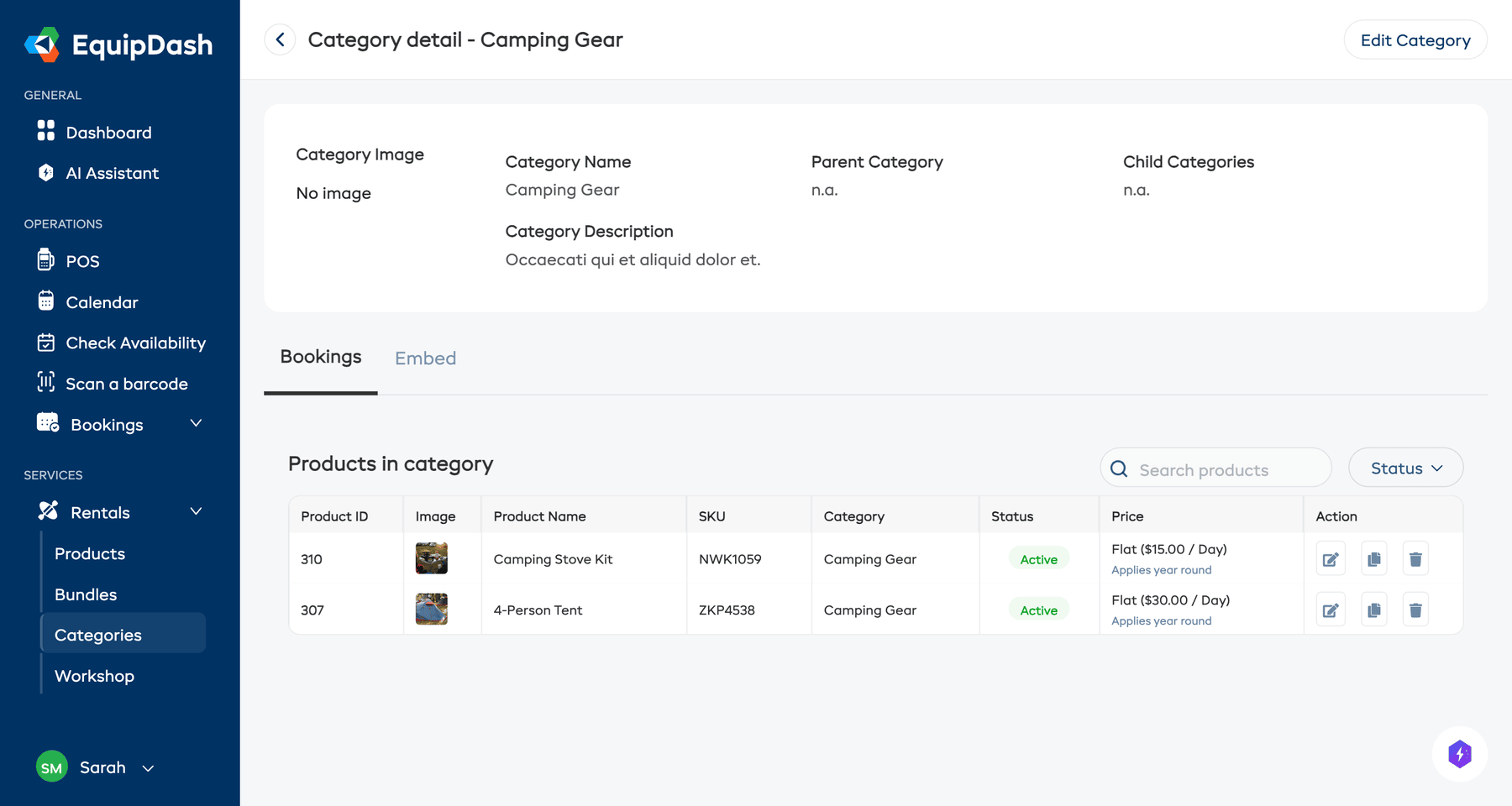
- Go to Rentals > Categories.
- Click on a category name in the table to open the Category Detail page.
- The detail page shows the category information at the top and a Products in category table below, listing every product assigned to that category — including products that are in this category alongside others.
From this view you can:
- See all products in the category at a glance.
- Open a product to edit its Categories choices.
How Categories Appear on the Widget
On your public booking widget, categories are displayed as browseable sections. Customers can click a category to see only the products in that group, or browse all products at once.
- Parent categories appear as the main sections.
- Child categories appear as sub-sections that customers can drill into.
- A product in several categories shows up under each of them, so customers find it whichever section they open.
- Products without a category will still appear when customers browse all products.
Changing Several Products
Go to Rentals > Products, tick the products, and click Add to category in the bar above the table. Pick the category and click Add. Each product keeps the categories it already has. See Changing several products at once.
To change the order customers see, use Arranging Display Order.
Related Guides
- Creating Categories -- Setting up new categories.
- Creating a Product -- Choosing a category when creating a product.
- Widget: Rentals -- How categories appear on your booking widget.
- Embedding on Your Website -- Put a whole category on your own site.