Tax Report
The Tax report gives you a clear view of the tax on your sales: your sales before tax, the tax you have collected (broken out by each tax you charge), and your totals for any period. Use it for bookkeeping and for filing your tax returns, and download it as a spreadsheet to hand to your accountant.
Who Can See It
You need the Reports: Revenue permission to view the Tax report, and the Reports: Export permission to download the CSV. Both are available to Admin users by default. If you do not see the Tax tab, ask your Admin to check your permissions under Settings > Team & Permissions.
Finding the Tax Report
- Click Reports in the left sidebar.
- Click the More tab, then choose Tax.
Reading the Numbers
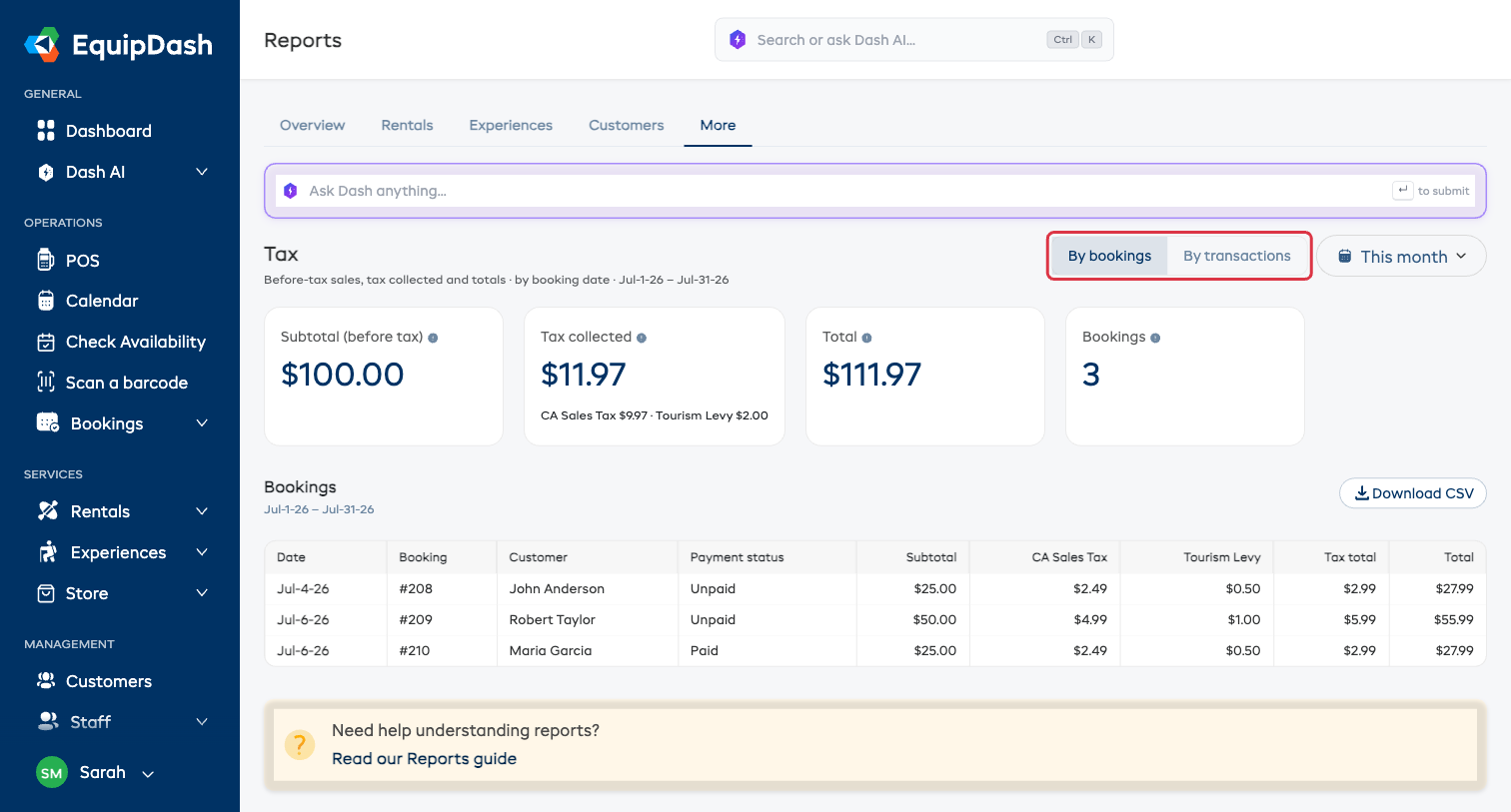
At the top you will see three totals for the selected period, plus a count:
| Card | What it means |
|---|---|
| Subtotal (before tax) | Your sales before any tax — the figure to report as revenue |
| Tax collected | The total tax on those sales. If you charge more than one tax (for example a sales tax and a tourism levy), each one is listed with its own amount |
| Total | What customers paid in total (before-tax amount plus tax) |
| Bookings / Transactions | How many items are included in the period |
Below the totals, a table lists each row with a column for every tax you charge, so you can see exactly how each amount breaks down.
Choosing a Time Period
Use the period dropdown in the top-right corner to pick a range built for tax filing:
- This month and Last month
- This quarter and Last quarter
- This year and Last year
- Last 30 days, Last 7 days, Today, and All time
- Custom range — pick any start and end date
Bookings vs Transactions
A toggle at the top lets you view the report two ways. Pick the one that matches how you keep your books.
| View | One row per… | Dated by | Best for |
|---|---|---|---|
| By bookings | Booking | Booking date | Your sales for the period — matches your invoices |
| By transactions | Payment | Payment date | Reconciling against your card processor's payments |
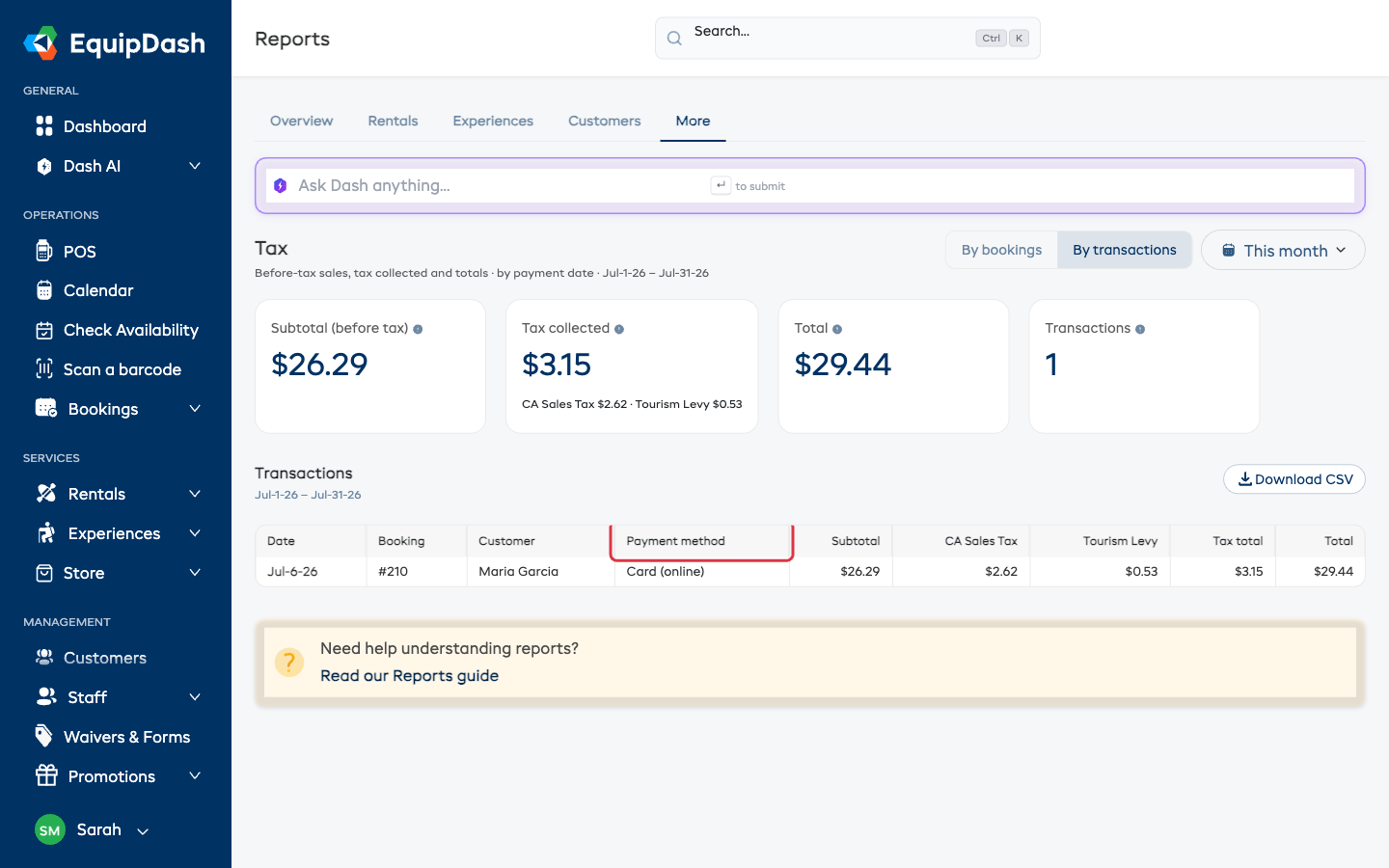
By transactions adds a Payment method column (card, cash, and so on) and, in the download, a Reference column — the payment's ID from your card processor. That lets you match each row line-by-line against your processor's own payment list, with the before-tax split included. A booking's tax is spread across its payments, so a deposit and a balance each carry their share, and refunds appear as negative amounts.
The transactions download also includes two fee columns for each payment: a Platform fee (the EquipDash fee) and a processing fee named after your card processor — for example Stripe processing fee (the fee your card processor charges, which is not an EquipDash charge). Together they show what was deducted so you can work out your net. Both are blank for cash and other non-card payments.
Downloading the Spreadsheet
- Choose your time period and your view (Bookings or Transactions).
- Click Download CSV.
- Open the file in Excel or Google Sheets.
The download has one row per booking (or per payment), with the before-tax subtotal, a column for each tax, the tax total, and the grand total — so the before-tax column is exactly what your accountant needs.
Good to Know
- Tax-inclusive pricing (where the tax is built into your listed prices) is handled correctly — the report always shows the tax portion, even when it is included in the price.
- Tax-exempt bookings show zero tax, and their before-tax amount equals their total.
- Cancelled bookings are left out of the sales figures.