Rate Categories
Rate categories let you define different pricing tiers for your experiences -- such as Adult, Child, Senior, or Student. When you create an experience, you assign prices to each rate category so customers can select the right option when booking.
Adding a Rate Category
- Click Settings in the sidebar.
- Select Experiences from the settings menu.
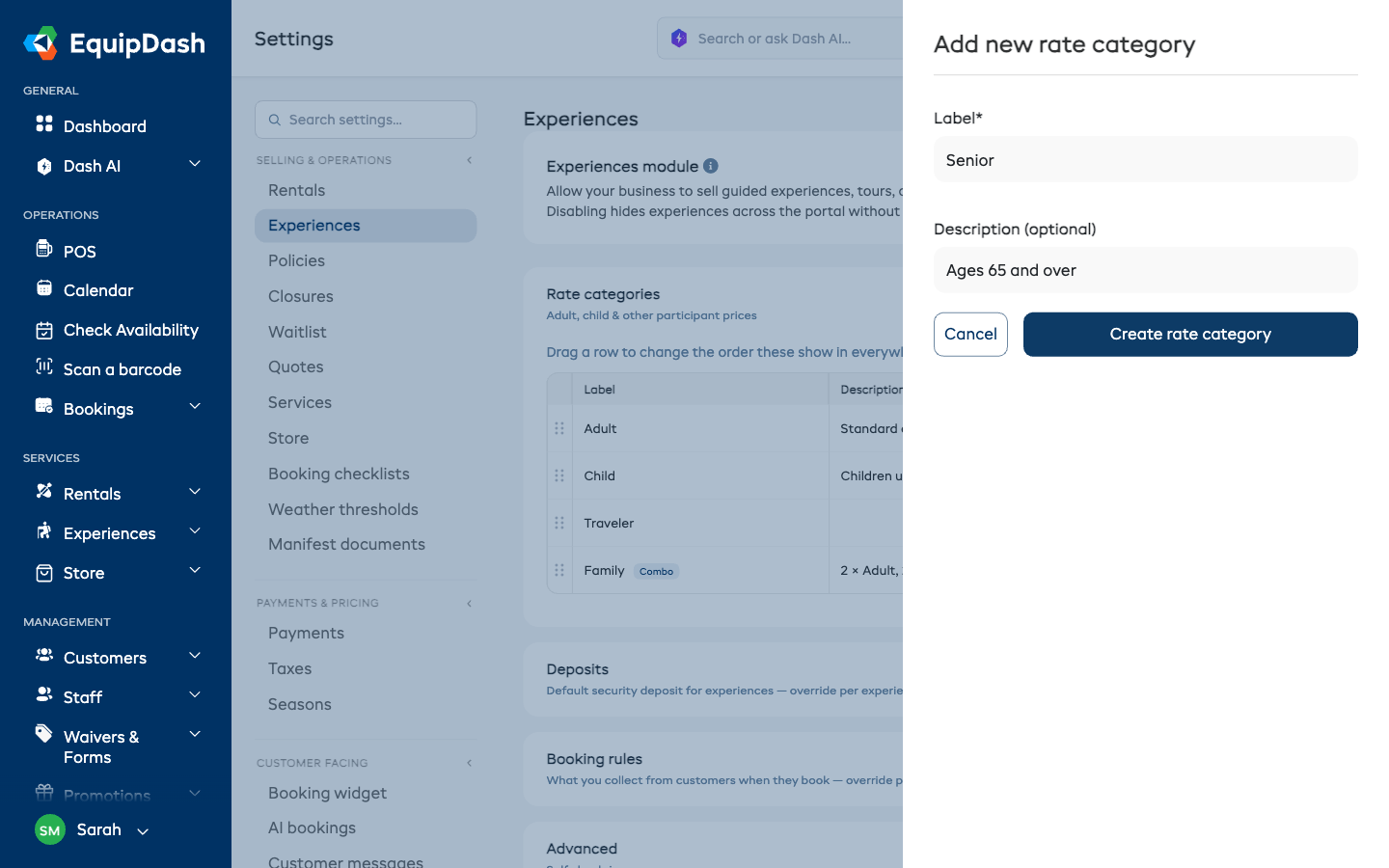
- Open the Rate categories section and click + Add rate category in its header. (To create a combo -- one price for a set group of people, like a family -- click + Add combo beside it instead.)
- Enter the following:
- Label -- the label customers will see (e.g., "Adult", "Child (5-12)", "Student").
- Description -- an optional description or age range clarification.
- Click Create rate category.
Managing Rate Categories
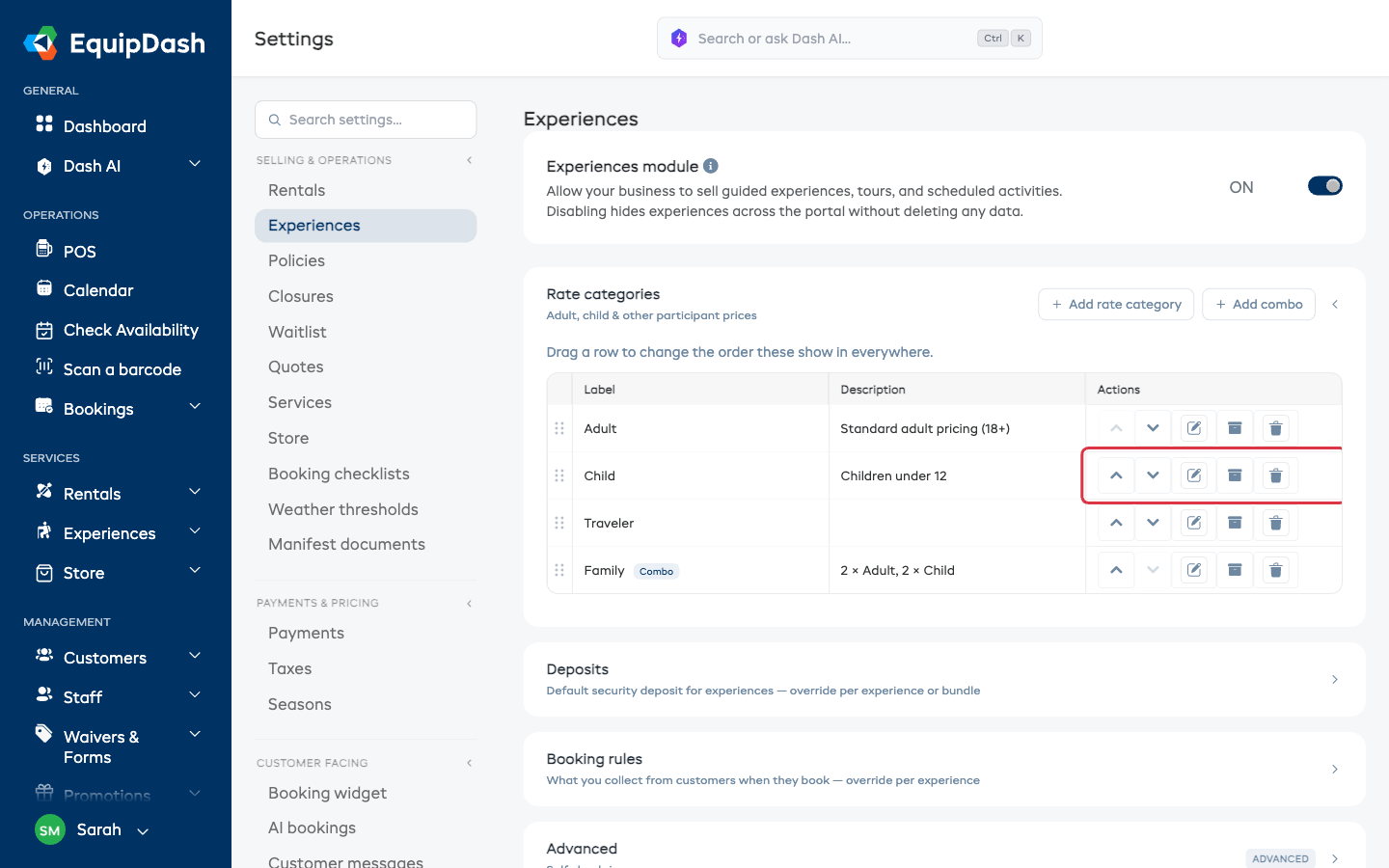
Your existing rate categories are listed on the Experiences settings page in the Rate categories section. The table shows Label, Description, and Actions columns. From here you can:
- Move a rate category up or down to change the order it appears in -- see Changing the order rates appear in below.
- Edit a rate category by clicking the edit icon to change its label or description.
- Archive a rate category by clicking the archive icon to stop offering it on new bookings -- see Retiring a rate you no longer offer below.
- Delete a rate category by clicking the delete icon. You will be asked to confirm before it is removed.
A rate category that is used to price any of your experiences cannot be deleted -- the bookings made at that price need to keep its name. Archive it instead, and it stops being offered on new bookings while everything already booked stays exactly as it is.
Changing the order rates appear in
The order you put your rate categories in here is the order they appear in everywhere else -- on each experience's pricing, in your Add and Edit experience forms, at the till, on your booking widget, and in the EquipDash app. Set it once and it is consistent for you and your customers.
Put the rate most people book at the top -- usually Adult -- so it is the first thing a customer sees.
- Click Settings in the sidebar, then select Experiences.
- Open the Rate categories section.
- Either:
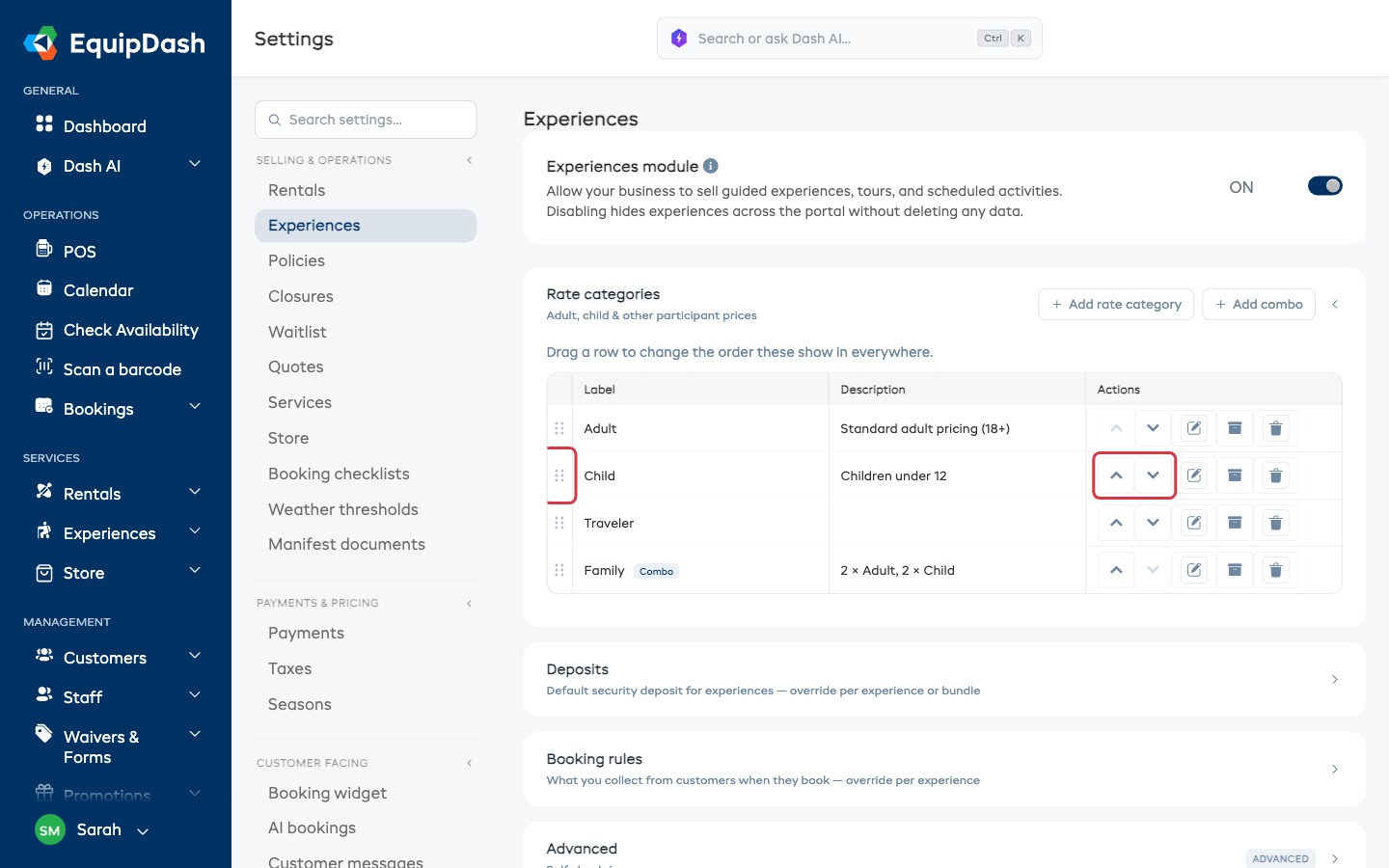
- Drag a row by the handle on its left and drop it where you want it, or
- Click the up or down arrow on a row to move it one place.
- The new order saves straight away -- you will see a Saved confirmation appear in the corner.
Changing the order never changes any price and never affects a booking that has already been made. It only changes the order the rates are listed in.
Retiring a rate you no longer offer
When you stop selling a rate -- say you no longer do a Student price -- you usually cannot delete it, because bookings you have already taken were sold at that price and need to keep its name.
Archiving is what you want instead. An archived rate category:
- Stops being offered on new bookings -- it disappears from your booking widget, the till, your experience pricing, and the app.
- Leaves everything already booked alone -- existing bookings keep the rate name and the price they were sold at.
- Can be brought back at any time.
Archiving a rate
- Click Settings in the sidebar, then select Experiences.
- Find the rate category in the Rate categories table.
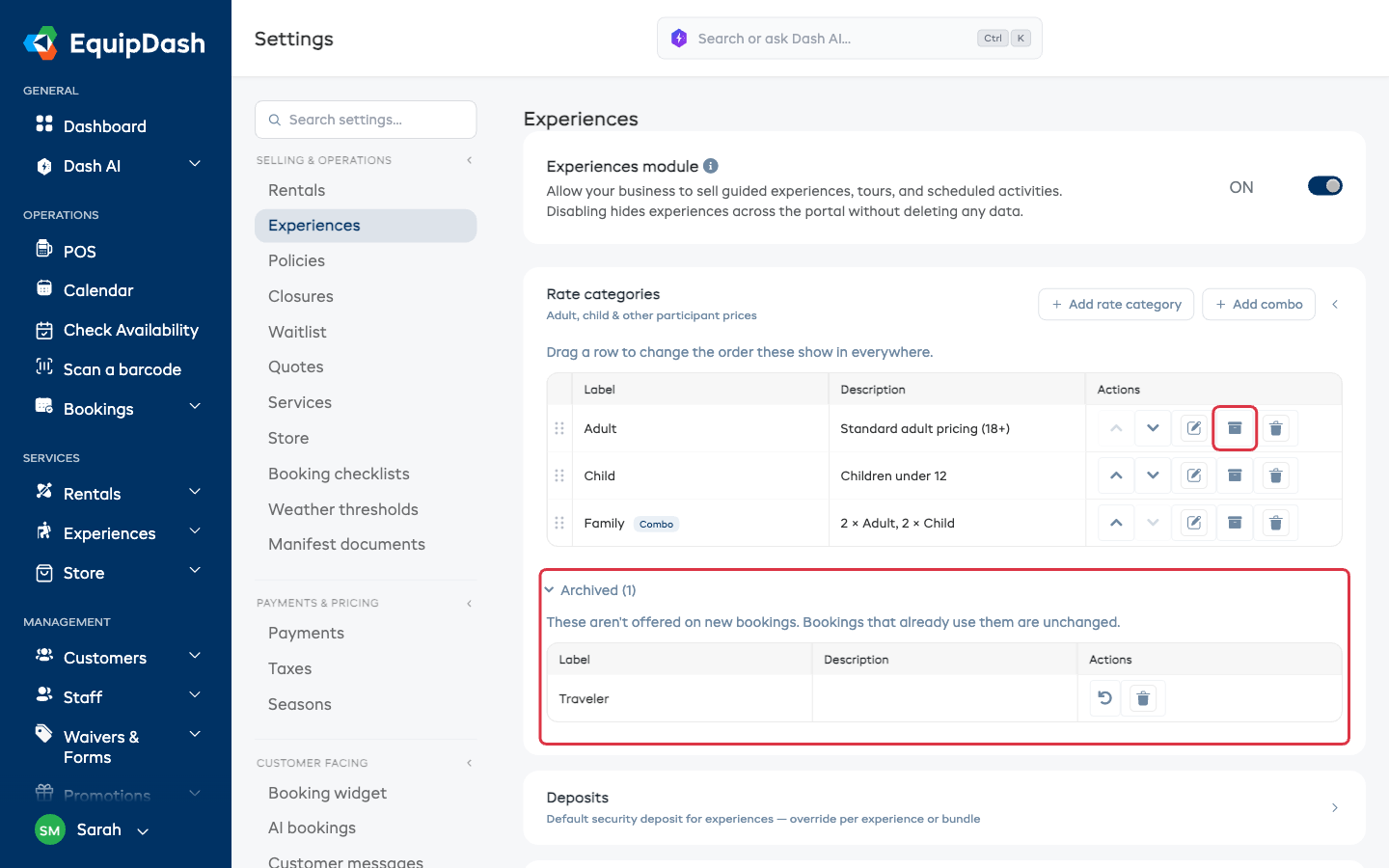
- Click the archive icon on its row (hover over it and you will see Stop offering for new bookings).
- It moves into the Archived list below the table.
If you click delete on a rate that is used to price your experiences, EquipDash tells you it cannot be deleted and offers Archive it right there -- that one click does the same thing.
Seeing and restoring archived rates
The Archived list sits under the Rate categories table and is closed by default, so it stays out of your way.
- Click Archived to open it. The number in brackets tells you how many are in there.
- To offer a rate again, click the restore icon on its row.
- It moves back into your main list, in its previous position, and can be used on new bookings again.
If a rate is part of a combo (for example Adult inside a Family combo), archive the combo first -- otherwise the combo would be priced from a rate you no longer offer. The same applies in reverse when restoring: bring the individual rates back before the combo.
Other settings on this page
The Experiences settings page also holds three collapsible sections beneath Rate categories:
- Deposits -- set a Default security deposit for experience bookings. This is only a default, so you can override it (or turn it off) on any individual experience or bundle. Choose whether the hold is a Fixed amount or a Percentage of cost, then enter the value. The hold is released automatically when the trip returns with no damage.
- Booking rules -- turn on Ask for each participant's details to collect every participant's name and details at checkout, not just the person booking. It applies to all experiences; any experience can override it from its own page (Require participant details → Shop default / On / Off).
- Advanced -- turn on Let customers check themselves in so customers can tap "I'm here" on their ticket or scan a meeting-point poster. You can set how long before the start time check-in opens, and print a QR poster for your meeting point.
You'll also find the Experiences module on/off toggle at the top of the page. See Enabling and disabling the Experiences module for what that controls.
Every change on this page saves automatically -- you'll see a Saved confirmation appear in the corner. There is no separate Save button.
How Rate Categories Work with Experiences
Once you have rate categories set up:
- Go to any experience and open the Pricing tab.
- You will see each rate category listed with a price field.
- Enter the price for each category (e.g., Adult: $65, Child: $35).
- Customers choosing this experience in the booking widget will select from these categories.
Common Examples
| Rate Category | Description |
|---|---|
| Adult | Ages 13 and over |
| Child | Ages 5 to 12 |
| Infant | Ages 0 to 4 (often free) |
| Senior | Ages 65 and over |
| Student | With valid student ID |
| Family | 2 adults + 2 children |