Connecting Paystack (South Africa)
Paystack on EquipDash is only available to businesses with their country set to South Africa. If your business operates elsewhere, please use Stripe instead.
Paystack is the payment processor for businesses based in South Africa. If your business is registered in South Africa, you can connect your own Paystack account so the booking widget accepts ZAR card payments directly into your Paystack balance.
This is an alternative to Stripe -- you do not need both. Pick whichever provider fits your business.
Before You Start
- Your EquipDash business must have its country set to South Africa under Settings -> Business Details.
- You will need a Paystack account for your business. You can create one at paystack.com -- it is free.
- You will need to find your secret key and public key in the Paystack dashboard (we will show you where).
- Paystack supports ZAR only for South African accounts. International currencies are not available on this rail.
Step 1 -- Find Your Paystack Keys
- Sign in to your Paystack dashboard.
- In the left sidebar, click Settings.
- Select the API Keys & Webhooks tab.
- You will see four keys: a Test Secret Key and Test Public Key (for testing), and a Live Secret Key and Live Public Key (for real customer payments).
- Decide whether you want to test first (recommended) or go live straight away.
- Copy the Secret Key (it begins with
sk_test_for test mode orsk_live_for live mode) and the Public Key (it begins withpk_test_orpk_live_).
Important: keep your secret key private. Treat it like a password -- never share it or post it anywhere public.
Step 2 -- Connect Paystack in EquipDash
- In EquipDash, click Settings in the sidebar.
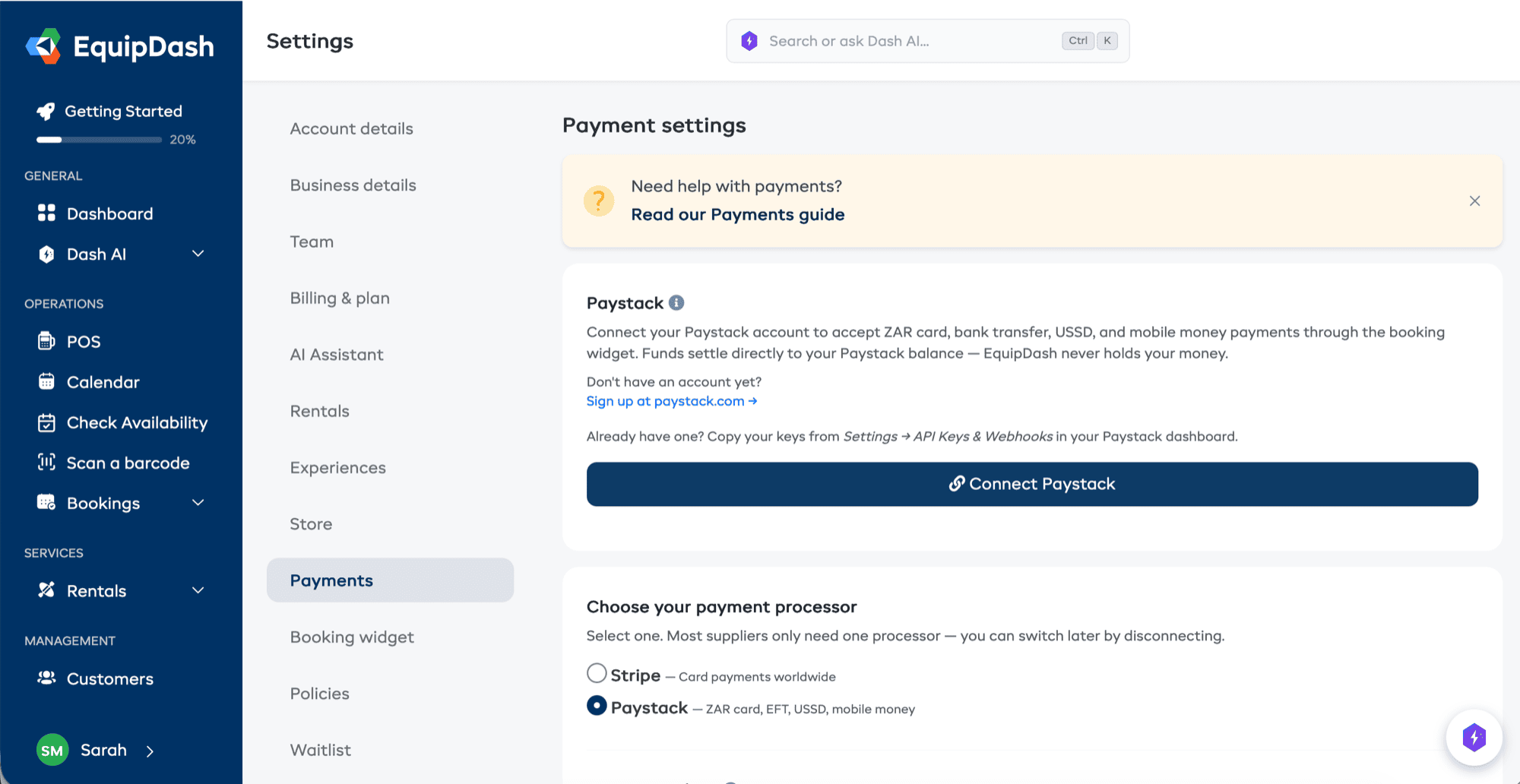
- Select Payments from the settings menu.
- In the Stripe connection section at the top, you will see a card titled Paystack with a Connect Paystack button. Click it.
- Paste your Secret Key and Public Key into the fields that appear.
- Click Save & Connect.
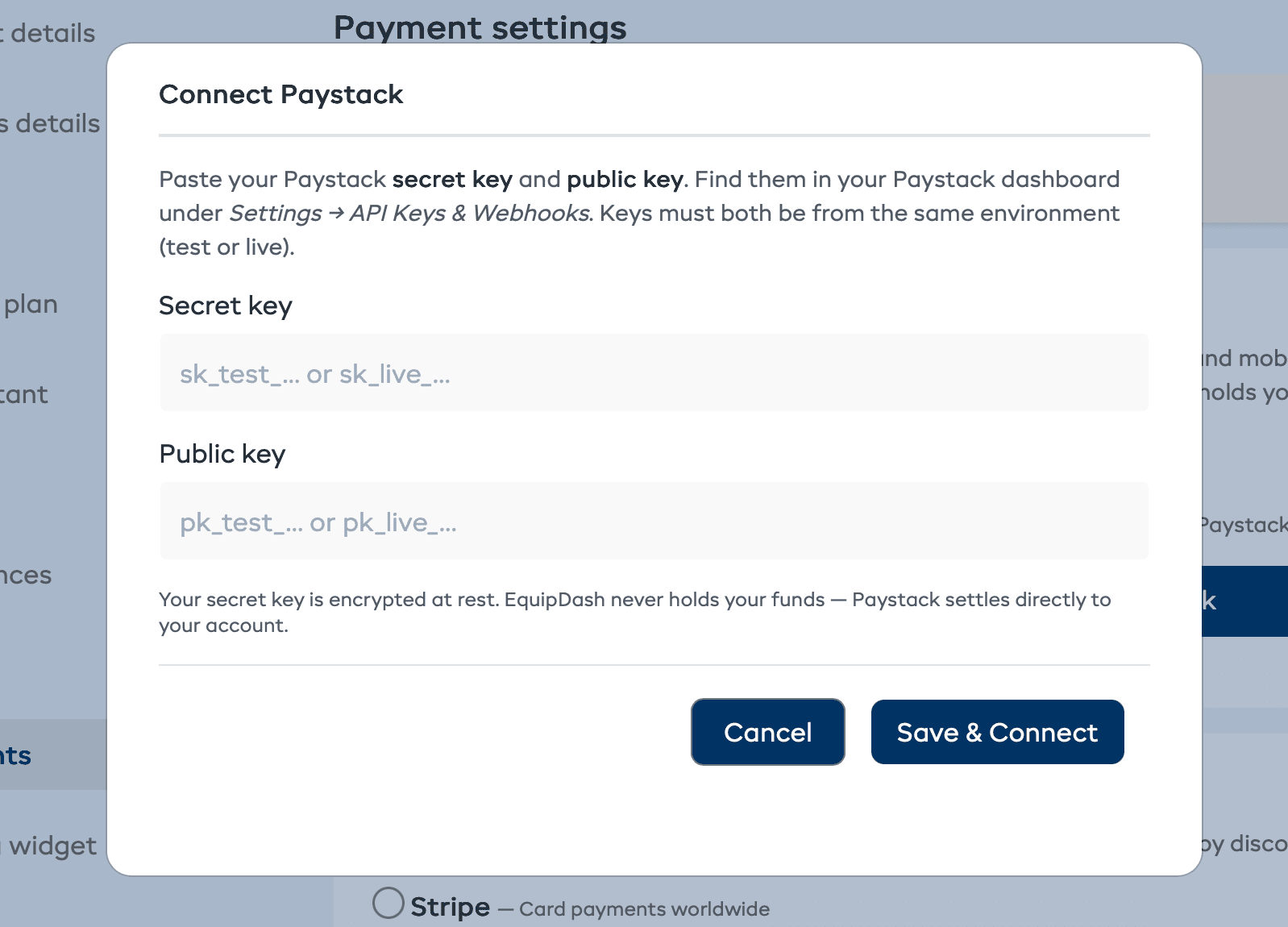
EquipDash will run a quick connectivity check against Paystack to make sure the keys are valid. If they are, you will see a success message and the Paystack card will switch to "Connected".
If the keys are wrong or expired, EquipDash will show the error message Paystack returned -- copy a fresh pair of keys from the dashboard and try again.
Step 3 -- Configure the Webhook (Recommended)
Webhooks let Paystack tell EquipDash when a refund has settled. Without them, payments still work, but refunds will sit in "pending" until you mark them manually.
After your first Paystack payment, EquipDash will show a yellow Action required: configure your webhook URL banner if Paystack hasn't yet sent us a webhook -- that's your prompt to finish this step.
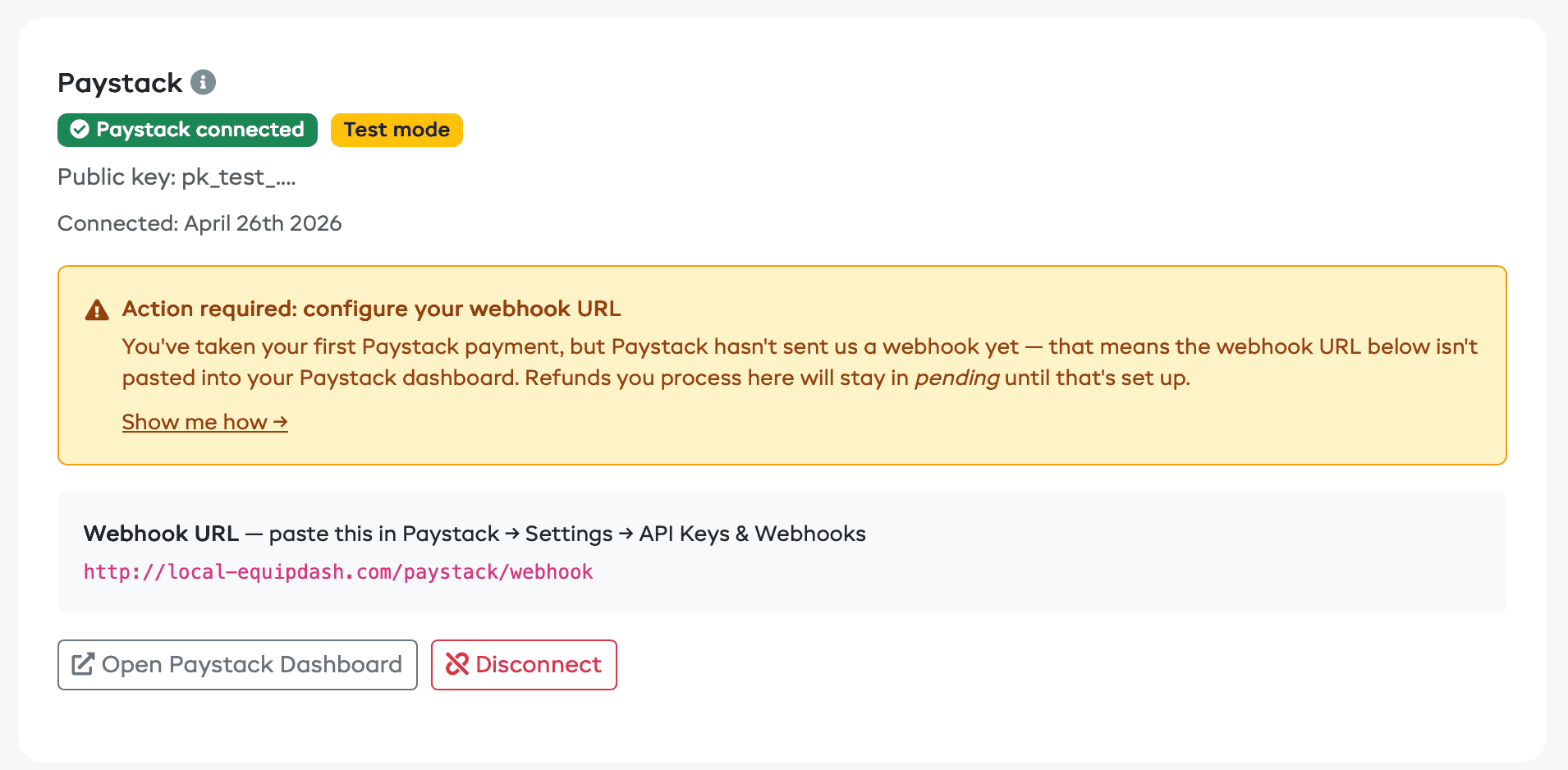
- Copy the Webhook URL shown on the Paystack card in EquipDash.
- In your Paystack dashboard, go to Settings -> API Keys & Webhooks.
- Scroll to the Webhooks section.
- Paste the URL into the Test Webhook URL field (or Live Webhook URL depending on which keys you connected).
- Click Save Changes.
Paystack now sends EquipDash a notification every time a payment succeeds, fails, or a refund is processed. The yellow banner in EquipDash will disappear automatically once we've received the first valid webhook from your account.
After Connecting
Once Paystack is connected:
- Online payments are enabled for your booking widget. Customers will see the Paystack popup at checkout.
- Refunds can be processed from the booking detail page. They go straight back to the customer's card via Paystack.
- Funds settle directly to your Paystack balance on Paystack's normal payout schedule -- EquipDash does not hold any of your money.
Switching Between Stripe and Paystack
If your business is in South Africa and you have access to both Stripe and Paystack, the Choose your payment processor options in the Processing fees section let you pick which one runs your widget checkout. Only one is active at a time. (This choice only appears while no processor is connected yet -- once one is connected, you switch by disconnecting it first.)
To pick a processor, change the radio button and click Update.
Disconnecting Paystack
- Go to Settings -> Payments.
- Find the Paystack card and click Disconnect.
- Confirm the action.
Your saved keys are deleted. Existing bookings paid via Paystack are unaffected -- the historical payment records stay. To accept new online payments after disconnecting, connect a different provider.
Troubleshooting
| Issue | Solution |
|---|---|
| "Paystack rejected the connectivity probe" when saving keys | Double-check that you copied the full key, including the sk_test_ / sk_live_ prefix. Make sure both keys are from the same mode (both test, or both live). |
| Customer payment succeeded but booking did not appear | Check the webhook URL in your Paystack dashboard is set to https://app.equipdash.com/paystack/webhook. If the customer closed the popup before it confirmed, contact support and quote the Paystack reference. |
| Refunds stay "pending" | The refund settles when Paystack delivers the refund.processed webhook. Check the webhook URL is configured (Step 3) and that recent webhook deliveries are succeeding in the Paystack dashboard. |
| I want to use a different Paystack account | Click Disconnect, then connect again with the new keys. |
Frequently Asked Questions
Does EquipDash take a commission on Paystack payments?
No. Paystack-processed bookings settle entirely to your Paystack balance. Your EquipDash subscription continues to bill separately via Stripe.
Can I use Paystack outside South Africa?
Currently, EquipDash only supports the South Africa Paystack rail. If Paystack expands their merchant program in your country, contact us and we can look at adding support.
Can I run Stripe and Paystack at the same time?
You can connect both, but only one is active for the widget at a time. The Choose your payment processor selector in the Processing fees section decides which one new customers see at checkout.
Will my customers see "Paystack" or "EquipDash" on their statement?
Your business name (as it appears on your Paystack account) is what customers see on their card statement -- not EquipDash.