Processing Fees
Card processing fees depend on your payment provider. Your EquipDash plan may also include commission. You can choose whether your business absorbs these fees or passes them on to the customer as an additional charge at checkout.
Configuring Processing Fees
- Click Settings in the sidebar.
- Select Payments from the settings menu.
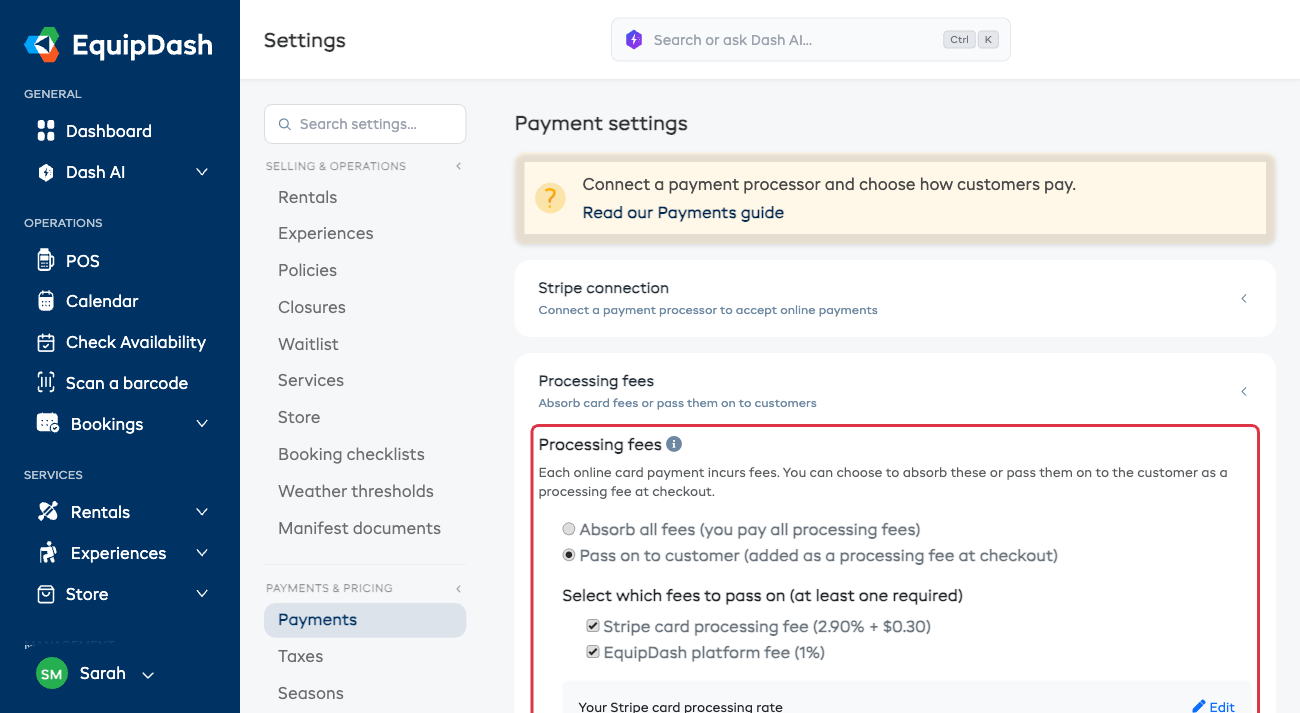
- In the Processing fees section, choose one of:
- Absorb all fees (you pay all processing fees) -- your business covers the fees. Customers pay the listed price only.
- Pass on to customer (added as a processing fee at checkout) -- the processing fee is added to the customer's total at checkout. Customers will see a separate line item for the fee.
- Click Update.
How Fees Work
| Option | What happens | Customer sees |
|---|---|---|
| Absorb all fees | Your business pays both the Stripe processing fee and the EquipDash platform fee | The listed price only |
| Pass on to customer | Fees are added as a line item at checkout | The listed price + a processing fee |
If You Use Authorize.net
On Authorize.net you are on your own merchant account, so there is no EquipDash platform fee taken from your payments to pass on. You will see one choice here, the card processing fee, and the rate comes from the agreement you have with your own provider. Type your real rate in so the surcharge matches what a card actually costs you.
Your plan commission is still charged. It is added to your monthly EquipDash invoice instead of coming out of each payment, so you receive the full amount of every booking.
If You Use Rapyd
With Rapyd, payments go to your own account. Your plan commission is billed monthly, so there is no deducted EquipDash fee to pass on at checkout. Security deposits and test purchases carry no commission, and completed refunds credit the commission on the refunded amount.
The Processing fees choices apply to Rapyd's card fees. Check your Rapyd agreement for the rate you pay.
If You Connected Your Own Stripe Account
Shops that connect a Stripe account they already own can be on their own negotiated card rate, and Stripe does not tell us what it is. We need that number to work out the fee shown to customers.
In Settings > Payments, under your connection, you can:
- Type your rate as a percentage and a per-payment amount, then click Save.
- Click Read from my payments once a few payments have gone through, and we will work it out from what Stripe actually charged you.
Until one of those is done, passing fees to customers stays switched off and the card fee stays on you. That is deliberate. Adding a fee based on a rate we guessed would either short-change you on every booking or overcharge your customer.
Things to Keep in Mind
- Processing fees only apply to online card payments (via the booking widget or payment links). Cash and manual payments do not incur processing fees.
- If you sell memberships, the monthly charge includes the fee too, worked out the same way as at checkout. A member keeps the amount they signed up at, so changing this setting only affects new members.
- Changing this setting does not affect existing bookings. Only new payments use the updated setting.
- If you pass fees on to customers, the fee amount is shown transparently during checkout so there are no surprises.