Customer Messages
Most shops can't say off the top of their head what a customer receives after booking. There's a confirmation, a receipt, something about a waiver, a reminder — set up once, a while ago, on four different screens.
This page puts the whole sequence in one place, in the order it actually happens, and lets you change any of it from there.
Where it lives
Settings → Customer messages.
Wording still lives on Settings → Email templates — that page is what a message says, this one is when it goes out, who gets it, and the whole sequence. Cards with editable wording link across to it, and every template over there links back to its card.
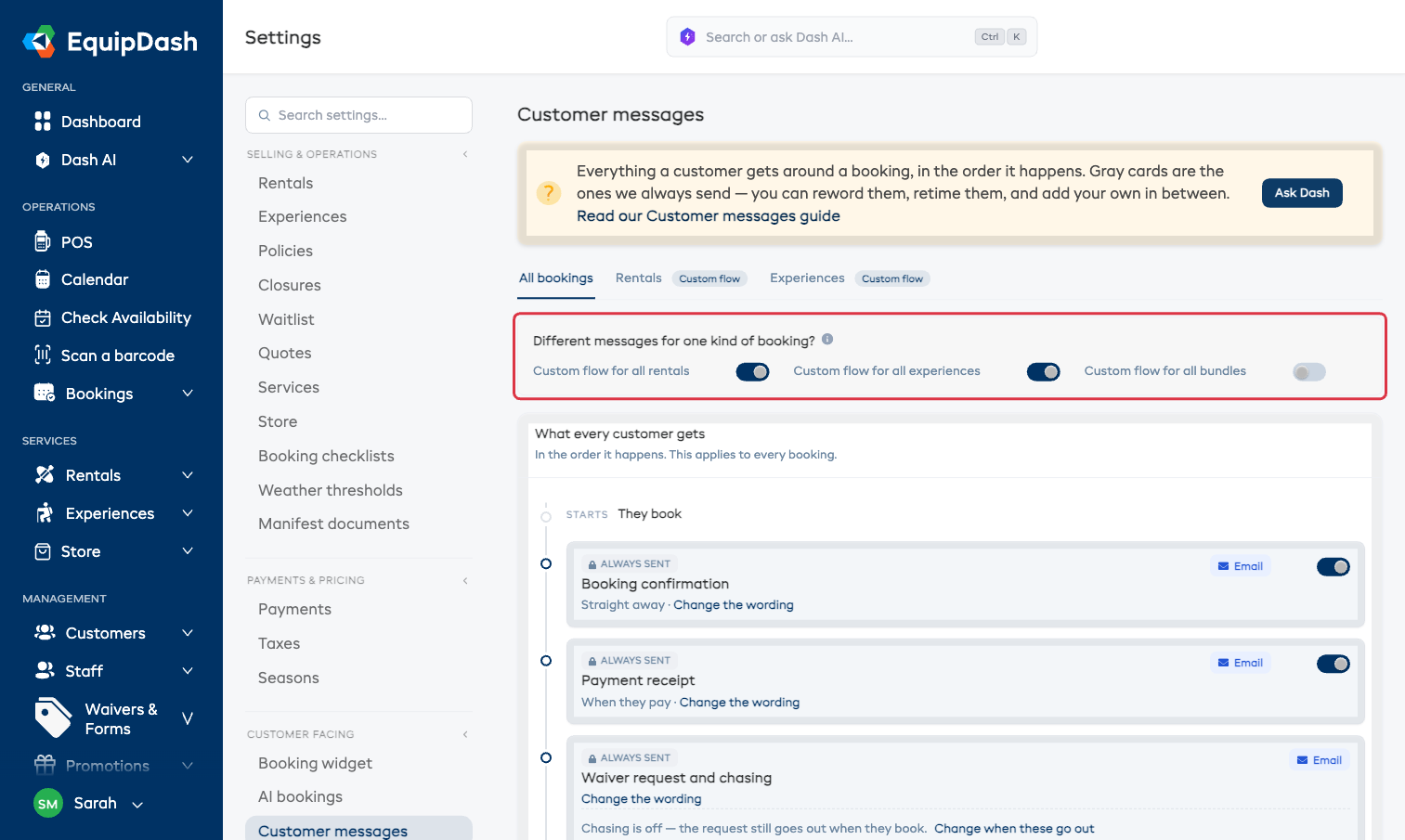
Reading the timeline
It reads top to bottom, the way a booking actually goes, with a marker at each turn: Starts — they book, Then — they come in, Ends — the booking finishes.
At the bottom sits Only if — something changes: the booking-changed, booking-cancelled and refund emails. They're not part of a normal booking, so they don't clutter the sequence that is.
Cards marked ALWAYS SENT are the ones EquipDash sends for you. Reword them, retime them, switch them off — but you can't delete them; they're part of how a booking works. Your own messages sit anywhere in between.
You only see cards that apply to your shop. A cooking school doesn't see "Late return"; a bike shop with no experiences doesn't see "They did not turn up".
Switching emails off
Every card EquipDash sends for you has a switch, except the waiver card, whose switch is on Settings → Consent reminders. Turn one off and that email stops for every booking; nothing else changes. Turn every switch off and no automatic email reaches your customers.
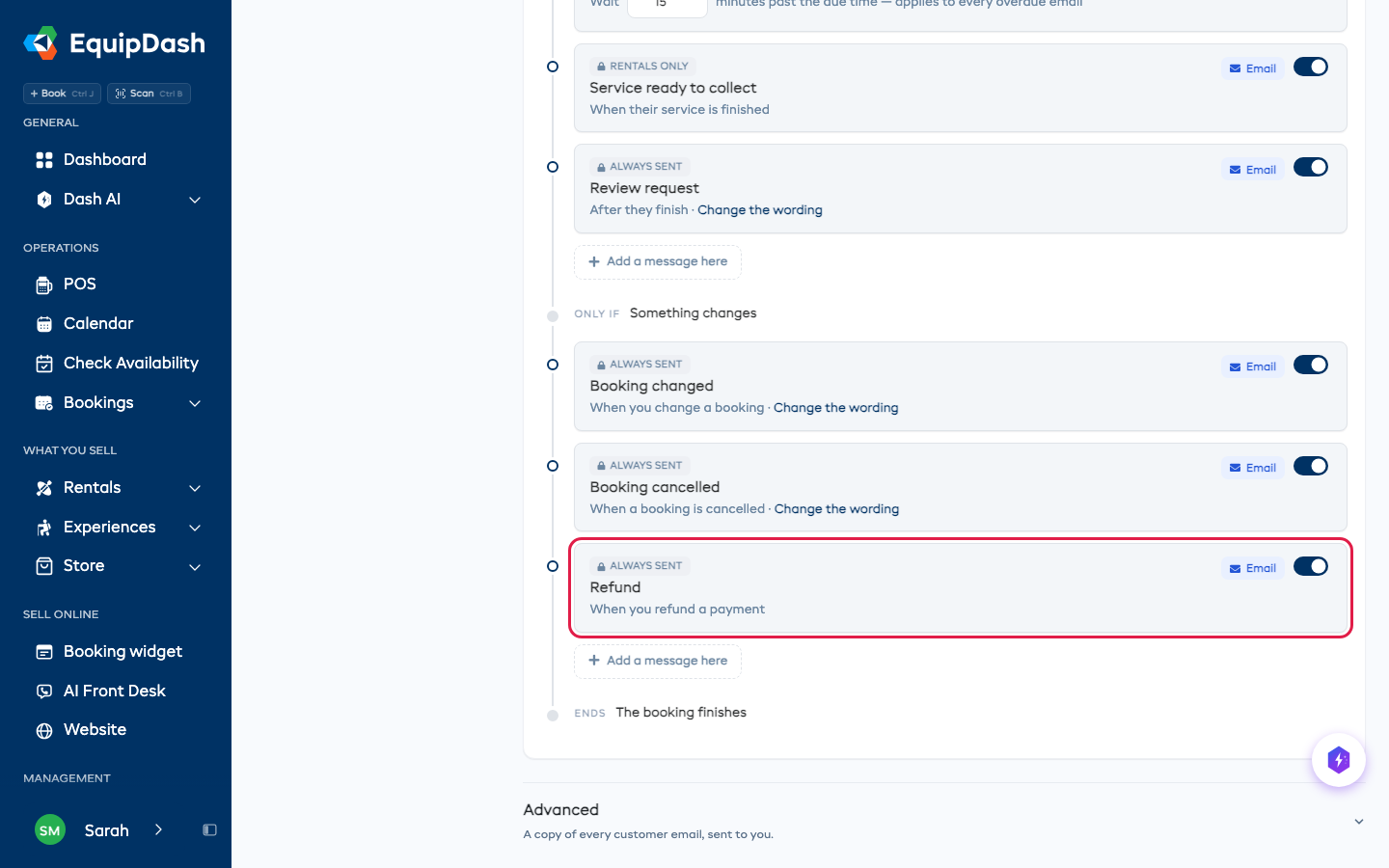
A few cards have no Change the wording link because their wording is fixed:
- Refund - when you refund a payment. The refund still goes through with the switch off.
- Security deposit - when a deposit is held, charged or released.
- Balance due reminder - before the balance is due, if you collect it by payment link. A text still goes out if your SMS settings send one.
- Their own condition photos - asks the customer for photos after pickup, and confirms when they send them.
- Service ready to collect - when a service you are doing for them is finished.
Emails you send yourself from a booking, like a payment link, a quote or Send confirmation, still go out whatever the switch says. Pass codes and membership payment emails always go out, because they carry what the customer paid for.
Changing when something goes out
The timing is on the card itself. No hunting.
- Arrival details - how many hours before they come in, plus your directions and parking notes.
- Reminder - how far ahead of the booking it goes. A booking on several days gets one before each day, naming that day's time.
- Overdue emails - how long to wait past the due time before chasing. That one setting covers all the overdue emails, because it's one rule, not three.
- Waiver chasing - the cadence lives on Settings → Consent reminders, and the card tells you what it's currently doing with a link straight there.
The waiver and review cards only appear where they're real: a waiver card shows on an item that has a waiver attached (and names it), and the review request shows only when a survey is attached.
Adding your own message
Add a message here sits between every pair of cards. Press the one where you want it.
Pick Email or Text, name it (only you see the name), and set three things on the card: when it goes out, who gets it, and which it is. Then write it — an email opens in the same editor as your other emails, with your logo and colors; a text is a plain box with a phone preview and a live credit count.
Send yourself a test before you finish. It goes to the email address on your login with the details filled in, so what lands in your inbox is what your customers get.
Move a message's timing and the card moves with it. The timeline always shows the real order, not the order you added things in.
Sending your own message before the booking confirmation
Some shops want the customer to hear from them first: what to bring, how to pay a deposit, a choice to make before the booking is confirmed.
Add the message under They book, then press the up arrow on it. It moves above Booking confirmation and the card reads Send straight away, before the booking confirmation. When someone books, it goes out first and the confirmation follows.
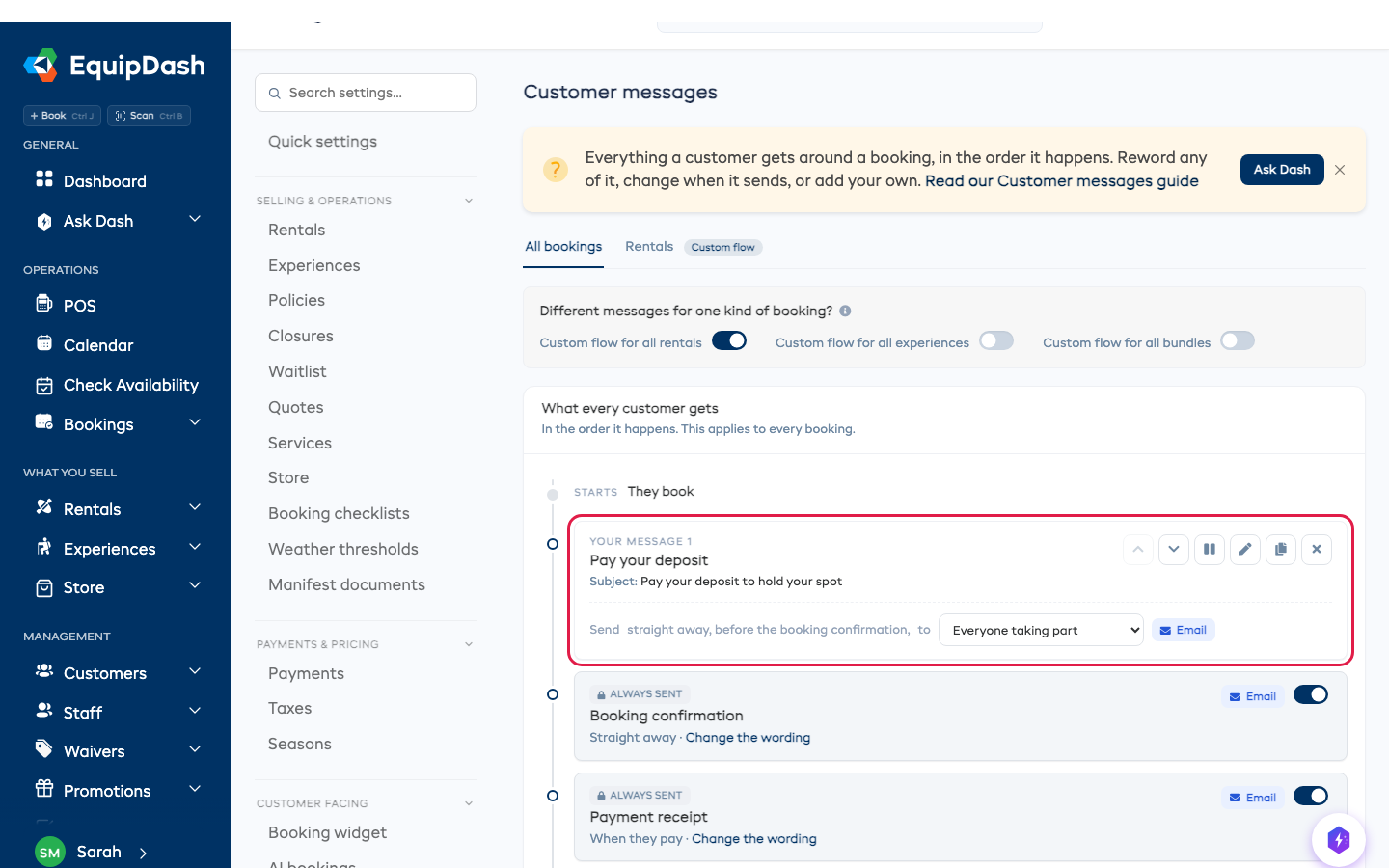
Press the down arrow to put it back below. A message above the confirmation always goes out straight away. To time it any other way, move it back down first.
Sending the booking confirmation yourself
If you'd rather confirm bookings on your own timeline, switch Booking confirmation off. The card then reads Only when you send it from the booking, and nothing goes out automatically.
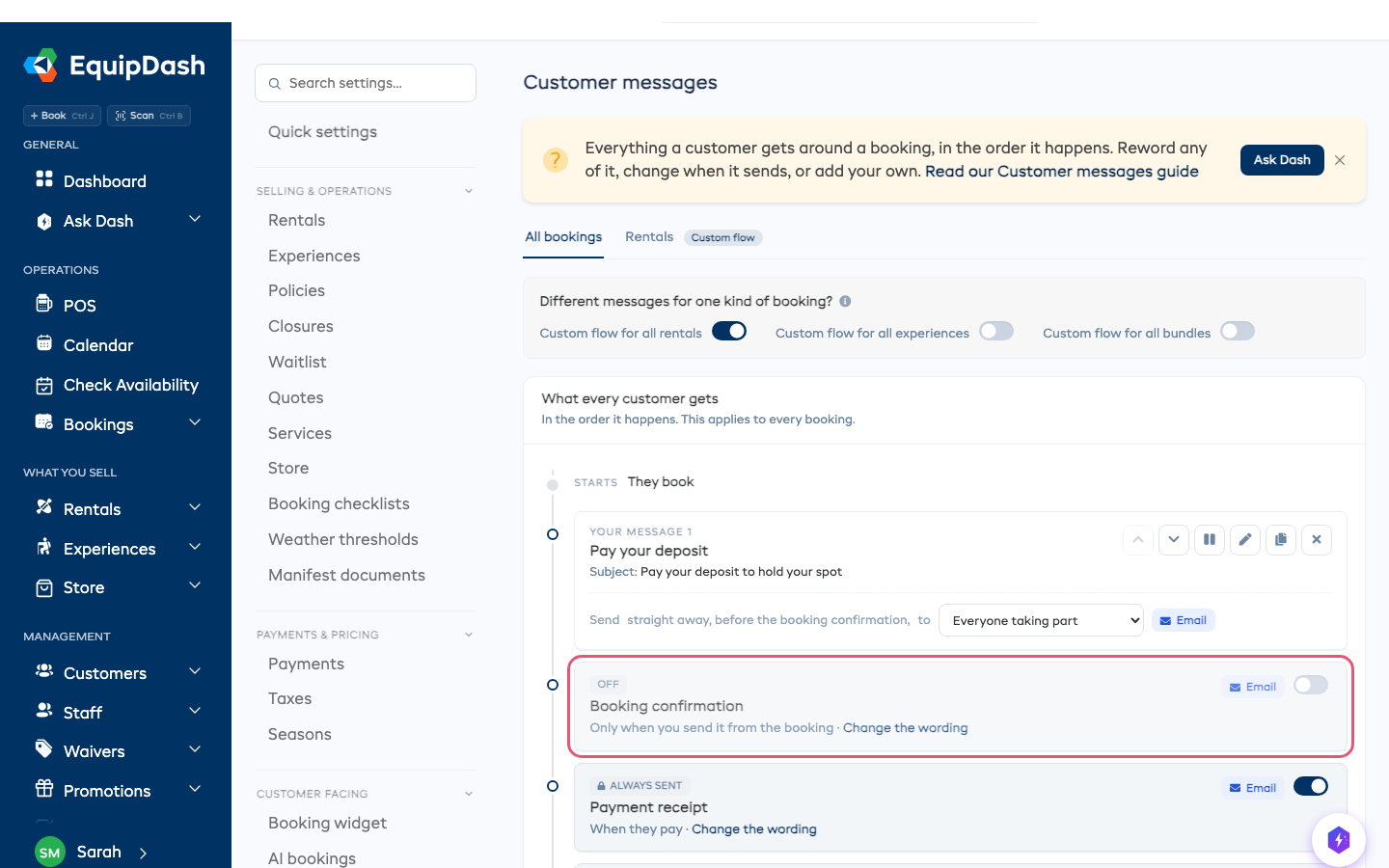
When you're ready, open the booking and press Send confirmation. It goes out even with the switch off. Any message you moved above the confirmation still goes out when they book.
The switch covers every booking, including rentals, experiences or bundles with their own flow.
A different flow for rentals, experiences or bundles
A rental is "collect it, bring it back". An experience is "turn up at a time and place". They often want different messages.
At the top of All bookings there's one switch per kind of thing your shop sells:
Different messages for one kind of booking? Custom flow for all rentals · Custom flow for all experiences · Custom flow for all bundles
Turn one on and you get a copy of your all-bookings messages to edit from — never a blank page — and a tab appears for it along the top. Turn it back off and it goes back to using your all-bookings messages (you're warned first), and its tab goes with it.
You only see a switch for what you actually sell. A shop with no experiences doesn't see one for experiences.
One item on its own
Any single product, experience or bundle can do the same thing from its own Communications tab.
It opens on Default flow and prints the chain so you can see exactly which set is in force:
All bookings in use → Rentals (not set) → This item (not set)
The Default | Custom switch there gives that one item its own messages.
Which one wins
The most specific one, always:
Program → this item → its line of business → all bookings.
A booking with more than one thing on it resolves each line separately — and if two of them would send the same message, the customer still only gets it once.
What actually went out
Open any booking and go to Messages. Every email and text it sent, when, and who it reached — including anyone it couldn't, and why.
That's the screen to open when a customer says they never got something.
The addresses shown are the ones each message actually went to, saved at the moment it was sent. If a customer changes their email later, the record of where their message landed stays as it was.
Things worth knowing
Texts use your SMS credits. The editor shows the cost before you commit. A text with an emoji or an accent costs more per message than plain text — the counter accounts for that.
Messages go out when you said, including overnight. If you time something for 24 hours before a 10pm booking, it goes at 10pm the night before — holding it until morning would send it after the thing it was warning about.
Turning a message off stops it for everything on that flow. Anything already sent stays in the customer's history.
Getting a copy of what your customers receive
Advanced at the bottom of the page has one switch: Send us a copy of customer emails. Turn it on and every email we send your customers is blind copied to the address beside it, which starts as your business email.
Customers never see the address. It covers everything - confirmations, reminders, waiver requests, payment links and receipts - so a busy shop will get a lot of mail. If you only want the occasional one, send it from the booking instead: the payment screen has its own Send me a copy.
Related
- Email templates — the wording
- Payment links — copying yourself on one link
- Consent reminders — the waiver chasing cadence
- Which messages a booking gets
- Program Messages — the same idea for a program