Online Payment Options
When a customer pays you online — through your booking widget, at the POS, or via a payment link — Stripe decides which payment buttons to show them: card, Apple Pay, Google Pay, Klarna, and so on. What customers can pay with online is where you decide which of those to offer.
It's a simple list of switches. Turn off anything you don't want customers to see at checkout. Cards are always on.
These are Stripe payment options, so the section only appears once you've connected Stripe. If you use Paystack instead, you won't see this section.
Opening Online Payment Options
- Click Settings in the sidebar.
- Select Payments from the settings menu.
- Open the Payment methods section and scroll to What customers can pay with online at the bottom of it.
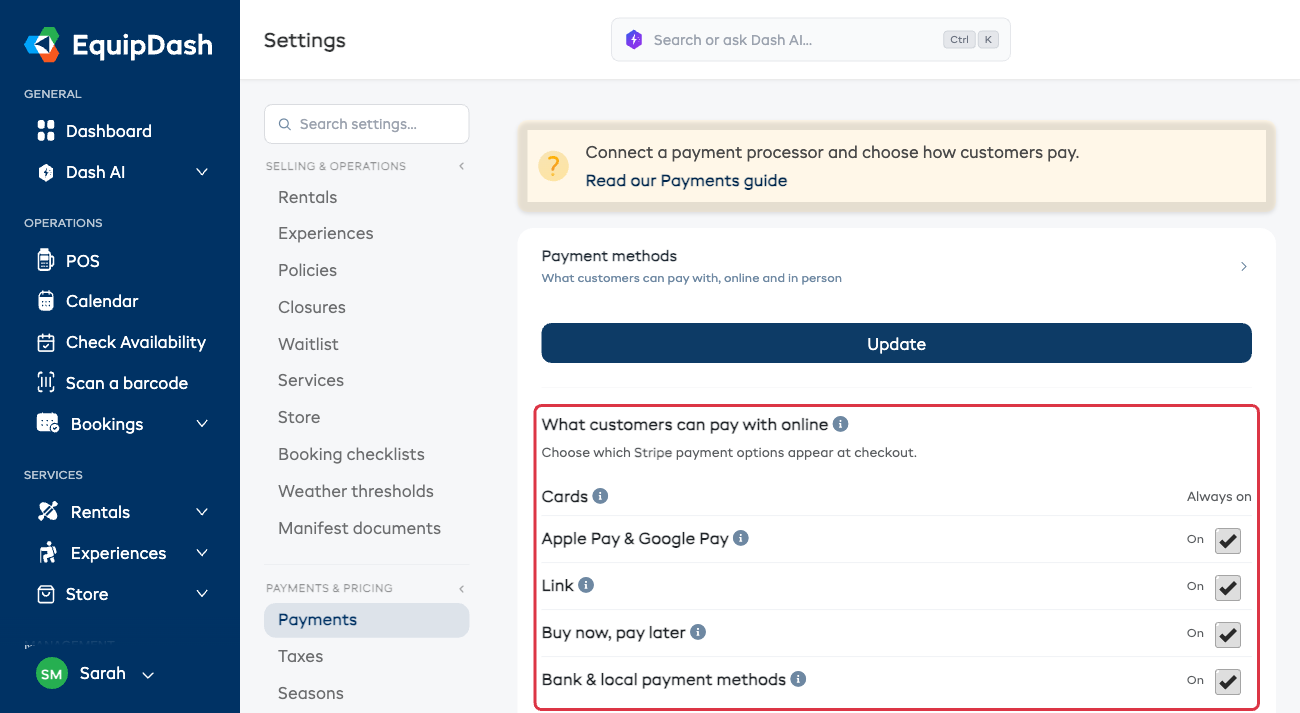
What each option means
| Option | What it is |
|---|---|
| Cards | Credit & debit cards. Always on — this is the core of online checkout, so it can't be switched off. |
| Apple Pay & Google Pay | The one-tap wallet buttons customers see on their phone or laptop. |
| Link | Stripe's faster checkout that securely remembers a customer's card and details for next time. |
| Buy now, pay later | Pay-in-instalments options such as Klarna, Afterpay, and Affirm. |
| Bank & local payment methods | Region-specific options like Bancontact, iDEAL, and Pix, shown automatically to customers in the countries that use them. |
Turning an option on or off
- Flip the switch next to any option. The label reads On when it's showing at checkout.
- Click Save.
That's it — your choice applies everywhere customers pay you: the booking widget, the POS, and payment links.
Everything starts switched on, so you only need to come here if you want to stop offering something. A common example: switching Buy now, pay later off if you'd rather not offer instalment plans on a deposit or hire.
About Apple Pay
For Apple Pay (and Google Pay) to appear, your checkout address has to be approved with Apple. EquipDash now does that for you automatically once your Stripe account is ready — there's nothing for you to set up.
If you previously saw "Apple Pay not available" at checkout even though it was switched on in Stripe, that approval step was the missing piece. It's now handled for you, and the button will appear for customers on a supported Apple device and browser.
Do I need to reconnect Stripe?
No. If you've already connected Stripe, nothing changes and you don't need to reconnect. Until you turn something off here, your checkout keeps showing exactly what it shows today.
Things to Keep in Mind
- Cards can't be turned off — they're the backbone of online payment.
- Switching an option off hides it from new checkouts straight away. It doesn't affect any payment you've already taken.
- Some options (the bank & local methods especially) only ever appear for customers in the countries that use them — turning them on won't show them to everyone, and turning a method on that your account doesn't support simply has no effect.
- This is separate from the Payment Methods table, which controls how you take payment in person (cash, tap to pay, bank transfer) and the in-person discount.