Agent Approval Modes Growth+This feature requires the Growth+ plan or higher
Approvals give you control over what a Dash Agent does on its own and what it checks with you first. You set this per switch when you build the agent, so it can look things up freely while still asking before it emails a customer.
The Two Settings
On its own
The agent gets on with it and does not wait. This is the default for anything that only reads data — looking up bookings, checking inventory, viewing customer records.
Use it where you trust the agent to act and the action is low-risk or easy to undo.
Ask me first
The agent pauses that one action and waits for someone to approve or skip it. The run shows as Awaiting approval until somebody responds.
Use it for anything you want to see before it happens — emails and texts to customers, cancellations, changes to a booking, or anything sent out to a connected app.
What Asks First by Default
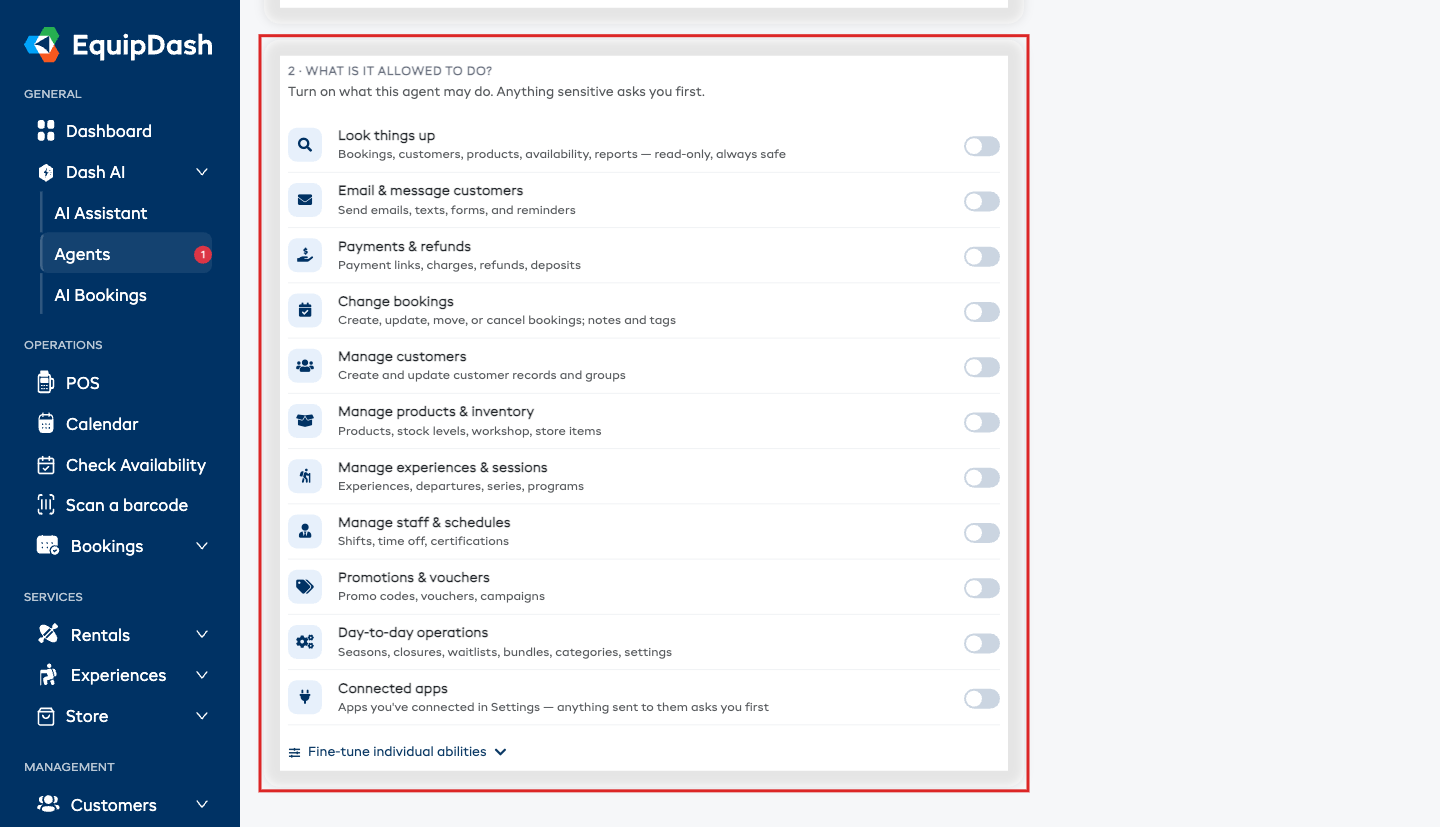
When you turn on a switch in step 2 · What is it allowed to do?, EquipDash picks a sensible default:
| Switch | Default |
|---|---|
| Look things up | Runs on its own — nothing is changed |
| Email & message customers | Asks you first |
| Payments & refunds | Always asks you first — locked |
| Connected apps | Always asks you first — locked |
| Everything else | Asks you first for the risky actions inside it, otherwise runs on its own |
You can change the Ask me first toggle on any switch that is not locked. If you are comfortable with an agent emailing customers unattended after a few good runs, turn it off. If you want extra caution somewhere quiet, turn it on.
What Can Never Be Switched Off
Some actions always wait for a person, no matter how the agent is set up:
- Refunds
- Charges, including damage charges and extra charges
- Recording a payment
- Sending a payment link
- Releasing a security deposit
- Cancelling a booking or a series
- Anything sent out to a connected app
These are locked in the builder, and they are enforced when the agent actually runs — so there is no combination of settings, instructions, or templates that lets an agent move money or cancel on a customer without you.
Setting It Up
- Open the builder — either creating a new agent or editing an existing one.
- Go to step 2 · What is it allowed to do?
- Turn on the switches this agent needs.
- For each one, set the Ask me first toggle. Locked switches show Always asks first with a padlock instead.
- For finer control, open Fine-tune individual abilities and set Auto or Requires approval on each ability separately.
- Save the agent.
The plain-English summary on the right of the builder always spells out what will ask you first. Read it before you activate the agent.
Waiting for Your OK
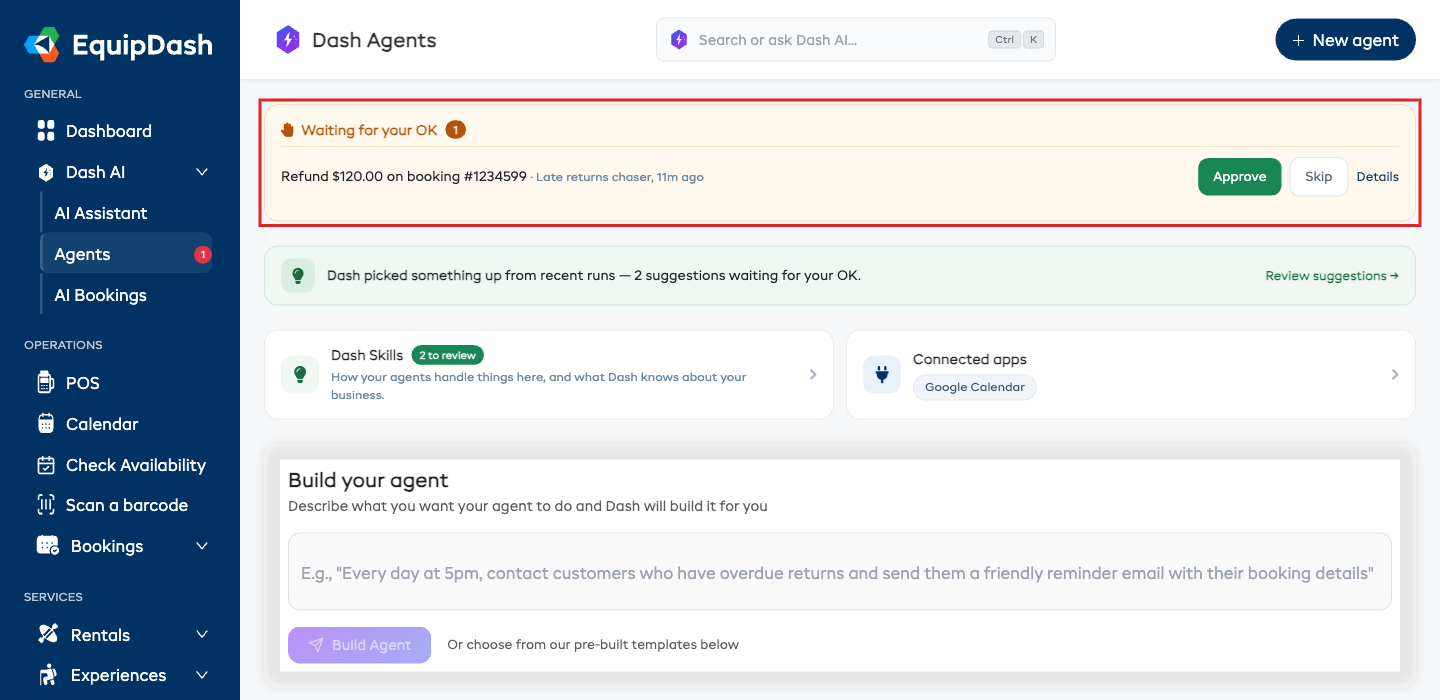
Everything waiting for a decision — across every agent — is collected in one Waiting for your OK box at the top of the Agents page. Each row is a plain sentence describing what the agent wants to do, which agent asked, and when.
For each row you can:
- Click Approve to let it go ahead.
- Click Skip to pass on that one action.
- Click Details to open the full run first.
You never have to go hunting through individual agents to clear approvals.
Skipping does not cancel the run
Skipping one action skips only that action. The agent carries on with the rest of its work — if it was sending five reminders and you skip one, the other four still go out.
Approving or Skipping Inside a Run
You can also respond from the run itself:
- Open the Agents page and click the agent, or go straight to its run history.
- Open the run showing Awaiting approval.
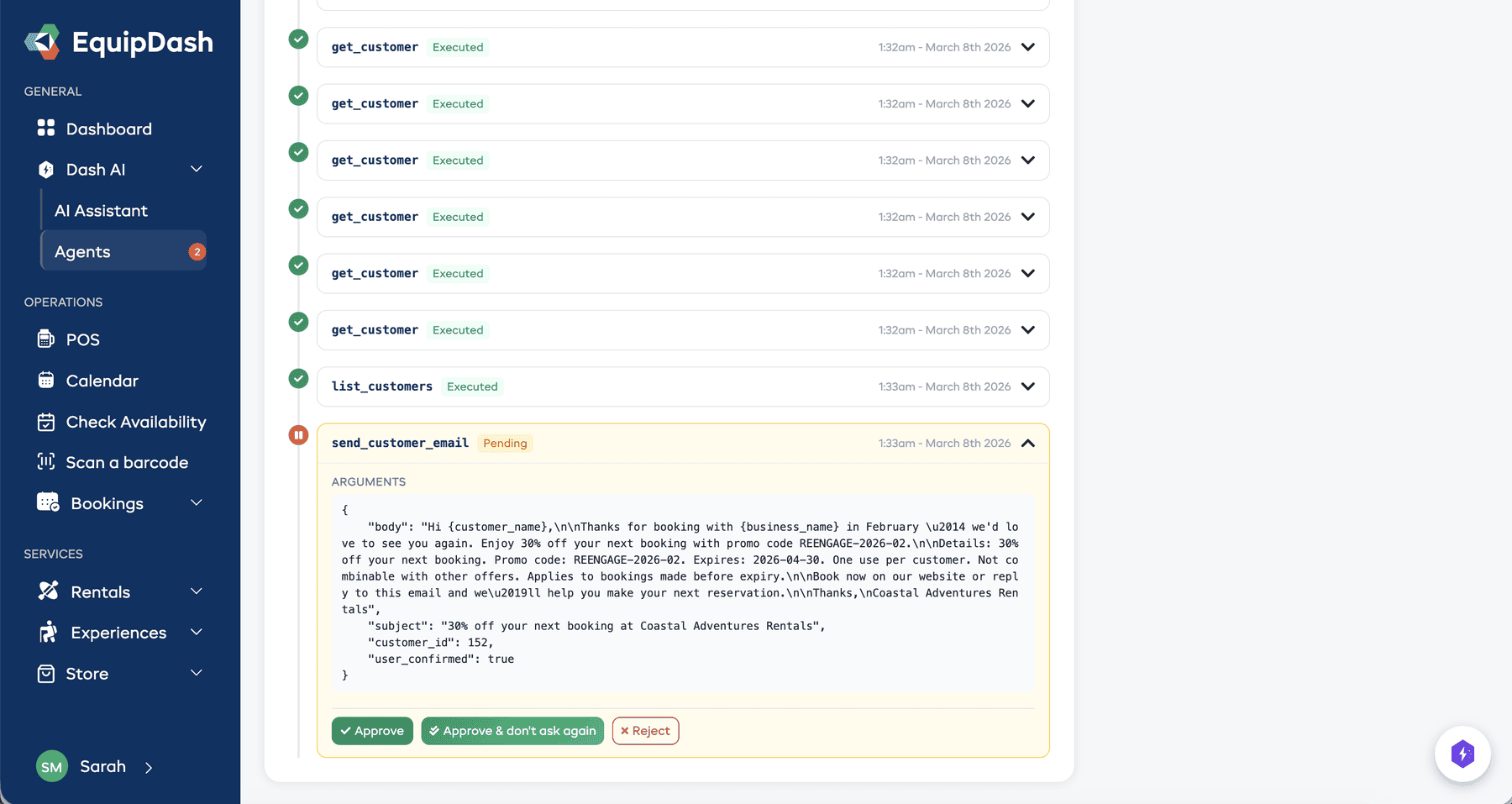
- Find the pending step. It reads as a plain sentence — expand it if you want to see the exact details behind it.
- Choose one of:
- Approve — let this one action go ahead.
- Approve & don't ask again — let it go ahead and stop asking for that same kind of action for the rest of this run.
- Skip — pass on this action. The run continues without it.
If more than one action is waiting in the same run, an Approve all button appears at the top so you can clear them in one click.
What Happens Afterward
After approving
- The agent picks back up and does the action.
- It continues to the next step.
- If it reaches another action that asks first, it pauses again.
After skipping
- That action is marked as skipped and is not carried out.
- The rest of the run continues.
- The skip is recorded in the run history, along with who skipped it and when.
Tips
- Start cautious, relax later. When an agent is new, let it ask about anything that makes a change. After a few good runs, switch the ones you trust to run on their own.
- Reading is always safe. Looking things up changes nothing, so there is no reason to make it ask.
- Always ask before the first customer email. Seeing the first couple of messages an agent wants to send is the fastest way to know whether the instructions are right.
- Use "Approve & don't ask again" for a long run. If an agent is sending twenty of the same reminder and the first one looks right, you do not need to approve the other nineteen individually.
- Check the run history now and then. Even actions that ran on their own are all recorded.