Agent Triggers Growth+This feature requires the Growth+ plan or higher
A trigger determines when a Dash Agent runs. Every agent has exactly one trigger type. You choose the trigger when you create the agent in the Agent Builder, and you can change it at any time by editing the agent.
Manual Trigger
A manual trigger means the agent only runs when you click Run Now. It will never run on its own.
When to Use Manual Triggers
- You want full control over when the agent runs.
- The task is something you do on demand rather than on a recurring basis (e.g., generating a one-off report or auditing your inventory before a busy weekend).
- You are testing a new agent and want to run it yourself before enabling automatic execution.
How to Set Up
- In the Agent Builder, go to the Trigger section.
- Select Manual.
- No additional configuration is needed.
Running a Manual Agent
- Go to the Agents page.
- Find the agent and click Run Now.
- The agent starts immediately and you can track its progress in the run history.
Scheduled Trigger
A scheduled trigger runs the agent automatically at a set time or interval. This is the most common trigger type.
Available Frequencies
| Frequency | Description | Example |
|---|---|---|
| Every 15 minutes | Runs four times per hour, every hour | Checking for new form submissions |
| Every 30 minutes | Runs twice per hour, every hour | Monitoring stock levels |
| Hourly | Runs once every hour | Checking for late pickups |
| Every 4 hours | Runs six times per day | Chasing incomplete waivers |
| Daily | Runs once per day at a specific time | Morning briefing at 7:00 AM |
| Weekly | Runs once per week on a specific day and time | Performance report every Monday at 8:00 AM |
| Monthly | Runs once per month on a specific date and time | Month-end inventory review on the 1st at 9:00 AM |
How to Set Up
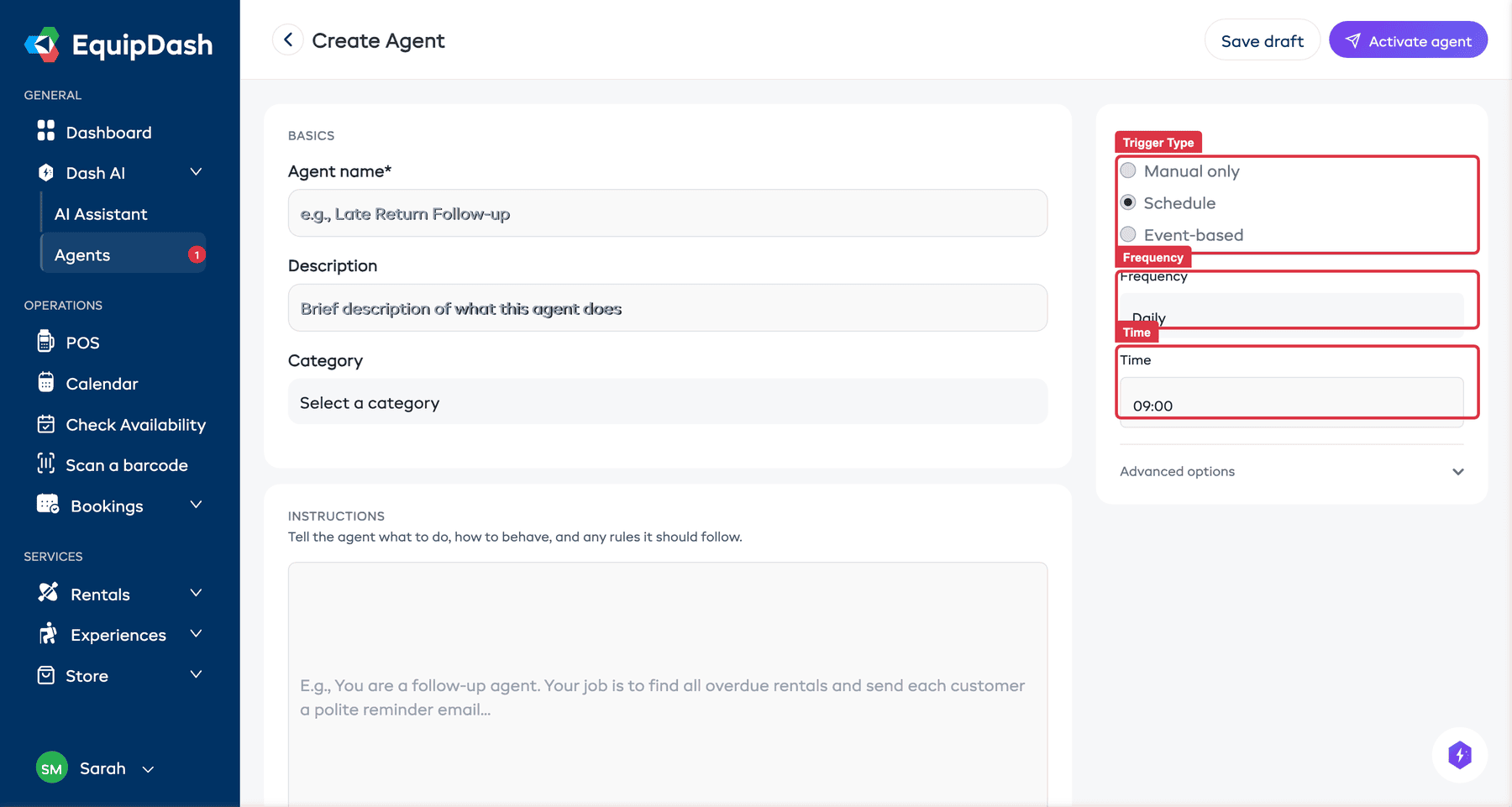
- In the Agent Builder, go to the Trigger section.
- Select Schedule.
- Choose a Frequency from the dropdown.
- For Daily, Weekly, and Monthly frequencies, additional fields appear:
- Time — The time of day the agent should run (in your business timezone).
- Day (weekly only) — The day of the week (Monday through Sunday).
- Date (monthly only) — The day of the month (1 through 28).
Important Notes
- All schedule times use your business timezone as configured in Settings > Business Settings > Localisation.
- The agent must be enabled for scheduled runs to happen. If you disable an agent, its schedule is paused.
- If an agent is already running when its next scheduled time arrives, the system skips that run to avoid overlap.
Event Trigger
An event trigger runs the agent automatically when something specific happens in your EquipDash account. For example, you can run an agent every time a new booking is created.
Available Events
Events are grouped by category:
Bookings
| Event | Fires When |
|---|---|
| Booking created | A new rental or experience booking is created |
| Booking updated | An existing booking is modified (dates, items, status) |
| Items picked up | A customer collects their rental items |
| Customer checked in | A customer checks in to an experience |
| Items returned | A customer returns their rental items |
| Booking completed | A booking is marked as completed |
| Booking cancelled | A booking is cancelled |
| Experience booked | A customer books a spot on an experience |
Payments
| Event | Fires When |
|---|---|
| Payment received | A payment is recorded against a booking |
| Payment refunded | A refund is processed for a booking |
Customers
| Event | Fires When |
|---|---|
| Customer created | A new customer is added to the system |
Waivers & Forms
| Event | Fires When |
|---|---|
| Waiver/form completed | A customer submits a waiver or form |
Surveys
| Event | Fires When |
|---|---|
| Survey response received | A customer completes a survey |
Workshop
| Event | Fires When |
|---|---|
| Item sent to workshop | An item is sent for repair |
| Workshop repair completed | A workshop item is marked as repaired |
Staff
| Event | Fires When |
|---|---|
| Staff shift created | A new staff shift is created |
How to Set Up
- In the Agent Builder, go to the Trigger section.
- Select Event.
- Choose the event from the Event dropdown. Events are grouped by category for easy browsing.
Use Cases for Event Triggers
- Booking created — Send a personalised preparation email to the customer with what to expect and what to bring.
- Items picked up — Log the pickup time and check if any waivers are still incomplete.
- Items returned — Check the returned items and flag any damage or missing items to the team.
- Payment received — Log the payment and check if the booking is now fully paid.
- Survey response received — Thank promoters and follow up with detractors automatically.
- Workshop repair completed — Check if the repaired item has upcoming bookings and notify staff.
Important Notes
- The agent receives context about the event that triggered it (e.g., which booking was created), so its instructions can reference "the booking that was just created."
- Event-triggered agents must be enabled to respond to events. Disabling the agent stops it from reacting to events.
- If the same event fires multiple times in quick succession (e.g., several bookings created at once), each event triggers a separate agent run.
Weather Trigger
A weather trigger runs the agent when one of your weather rules is breached by the forecast — wind above your limit, too much rain, temperature outside your range, and so on.
How to Set Up
- Set up at least one rule in Settings > Weather thresholds.
- In the builder, go to step 3 · When should it run?
- Select Weather.
- Choose whether the agent fires when any of your rules is breached, or pick the specific rules it should watch.
Use Cases for Weather Triggers
- Draft a message to everyone booked on an affected day so you can review and send it in one go.
- Flag which bookings are affected so somebody can call them.
- Put a note on the affected bookings before the shift starts.
Learn more about weather thresholds
Choosing the Right Trigger
| Scenario | Recommended Trigger |
|---|---|
| "I want a morning briefing every day" | Schedule — Daily at 7:00 AM |
| "Remind customers about overdue returns" | Schedule — Daily at 9:00 AM |
| "Send a welcome email when someone books" | Event — Booking created |
| "Generate a report when I ask for one" | Manual |
| "Check for late pickups throughout the day" | Schedule — Hourly |
| "Follow up on bad survey scores" | Event — Survey response received |
| "Review next week's staffing every Sunday" | Schedule — Weekly on Sunday |
| "Tell me who's affected when the wind picks up" | Weather — any rule |
A scheduled agent that runs and finds nothing to act on records a Nothing needed doing this time run and uses no AI at all. You do not need to worry about scheduling an agent hourly just in case.