Creating an Agent Growth+This feature requires the Growth+ plan or higher
There are four ways to create a Dash Agent: use a ready-made template, build one from scratch in the three-step builder, describe what you want and let Dash build it, or simply ask for it in the Dash AI chat. This guide covers all four.
Before You Start
Make sure you have:
- The Agents: Manage permission (Admins have this by default).
- At least a basic idea of what you want the agent to do — for example, "send a reminder to customers with overdue returns every morning."
Opening the Agents Page
- Click Agents in the sidebar navigation.
- The Dash Agents page opens, showing your existing agents (if any) and the template library.
Method 1: Start from a Template
Templates are the quickest way to get started. Each template comes pre-configured with instructions, what it is allowed to do, when it runs, and which actions ask you first.
- On the Dash Agents page, click the Agent templates tab.
- Browse the available templates. You can narrow the list by Use case (e.g., Operations, Reports, Customers, Inventory), by Industry, or by typing in the search box.
- Click Use Template on the template you want.
- The builder opens with all fields pre-filled from the template.
- Review and adjust anything you want to change — the name, instructions, what it is allowed to do, when it runs, and which actions ask you first.
- Click Activate agent to turn it on right away, or Save draft to keep it switched off for now.
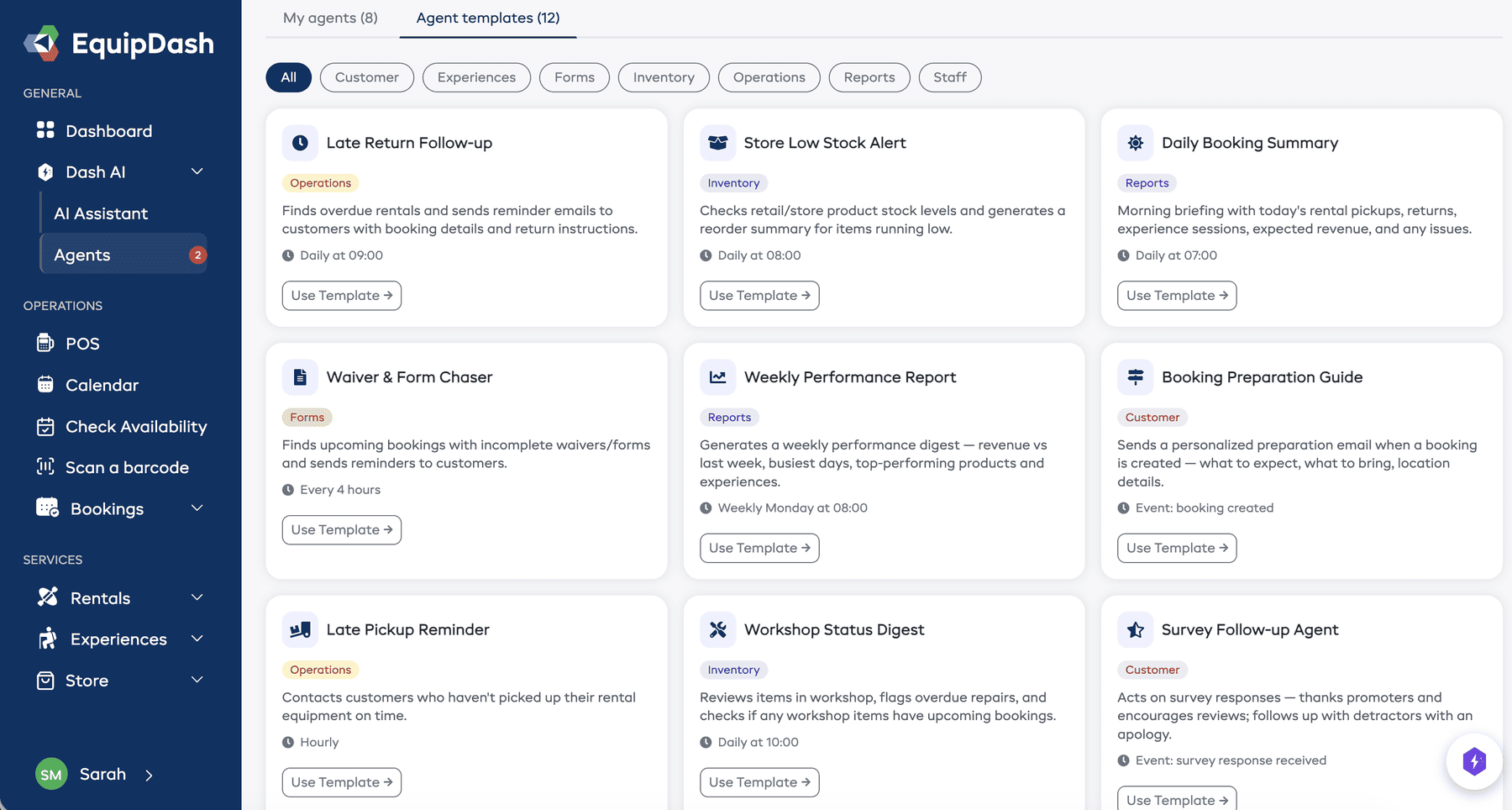
Available Templates
| Template | What It Does | Trigger |
|---|---|---|
| Late Return Follow-up | Finds overdue rentals and sends reminder emails | Daily at 9:00 AM |
| Store Low Stock Alert | Checks store stock levels and generates a reorder summary | Daily at 8:00 AM |
| Daily Booking Summary | Morning briefing with pickups, returns, sessions, and revenue | Daily at 7:00 AM |
| Waiver & Form Chaser | Reminds customers to complete waivers before their booking | Every 4 hours |
| Weekly Performance Report | Revenue, bookings, and top products compared to last week | Weekly on Monday at 8:00 AM |
| Booking Preparation Guide | Sends a "what to expect" email when a booking is created | When a booking is created |
| Late Pickup Reminder | Contacts customers who have not picked up on time | Every hour |
| Workshop Status Digest | Reviews workshop items and flags overdue repairs | Daily at 10:00 AM |
| Survey Follow-up Agent | Thanks promoters and follows up with detractors | When a survey response is received |
| Experience Availability Monitor | Flags under-booked and fully-booked sessions for tomorrow | Daily at 6:00 PM |
| Staff Roster Builder | Reviews next week's bookings and creates staff shifts | Weekly on Sunday at 6:00 PM |
| Customer Re-engagement | Finds customers who have not booked in 30+ days | Weekly on Friday at 10:00 AM |
Method 2: Build from Scratch
If none of the templates fit, build an agent yourself. The builder is three steps.
- On the Dash Agents page, click New agent.
- The builder opens with empty fields.
As you fill it in, a plain-English summary on the right tells you exactly what you have built — when it runs, what it can do, and what it will check with you first. Read that sentence before you activate the agent; if it does not describe what you meant, change something.
Step 1: What should it do?
- Enter an Agent name (e.g., "Morning briefing" or "Late return chaser").
- Optionally add a Description — a short summary that appears on the agent card.
- Optionally pick a Category so it is easy to find later.
Then write the Instructions. Write it the way you would brief a new staff member — what to do, how to behave, and any rules to follow.
Be as specific as you can. Good instructions cover:
- What to look up
- What to do about it
- Any rules or limits (e.g., "do not contact the same customer twice in a day")
- How you want the result written up
Example instructions:
You are a daily briefing agent. Write a morning summary of today's operations. Include today's rental pickups and returns with customer names, sessions scheduled with participant counts, expected revenue, anything overdue, and any bookings with incomplete waivers.
Step 2: What is it allowed to do?
This is a short list of plain switches rather than a long list of technical abilities. Turn on what this agent may do:
| Switch | What it covers |
|---|---|
| Look things up | Bookings, customers, products, availability, reports. Read-only, always safe. |
| Email & message customers | Emails, texts, forms, and reminders. |
| Payments & refunds | Payment links, charges, refunds, deposits. |
| Change bookings | Create, update, move, or cancel bookings; notes and tags. |
| Manage customers | Create and update customer records and groups. |
| Manage products & inventory | Products, stock levels, workshop, store items. |
| Manage experiences & sessions | Experiences, departures, series, programs. |
| Manage staff & schedules | Shifts, time off, certifications. |
| Promotions & vouchers | Promo codes, vouchers, campaigns. |
| Day-to-day operations | Seasons, closures, waitlists, bundles, categories, settings. |
| Connected apps | The outside apps you connected in Settings > Connected apps. |
Each switch you turn on also shows an Ask me first toggle, so you can let the agent get on with something or make it check with you.
Payments & refunds is locked to Always asks first, and so is anything that cancels a booking or sends money out. You cannot switch that off — no matter how the agent is set up, it will pause and wait for a person.
Connected apps are locked the same way: anything an agent sends out to a connected app asks you first.
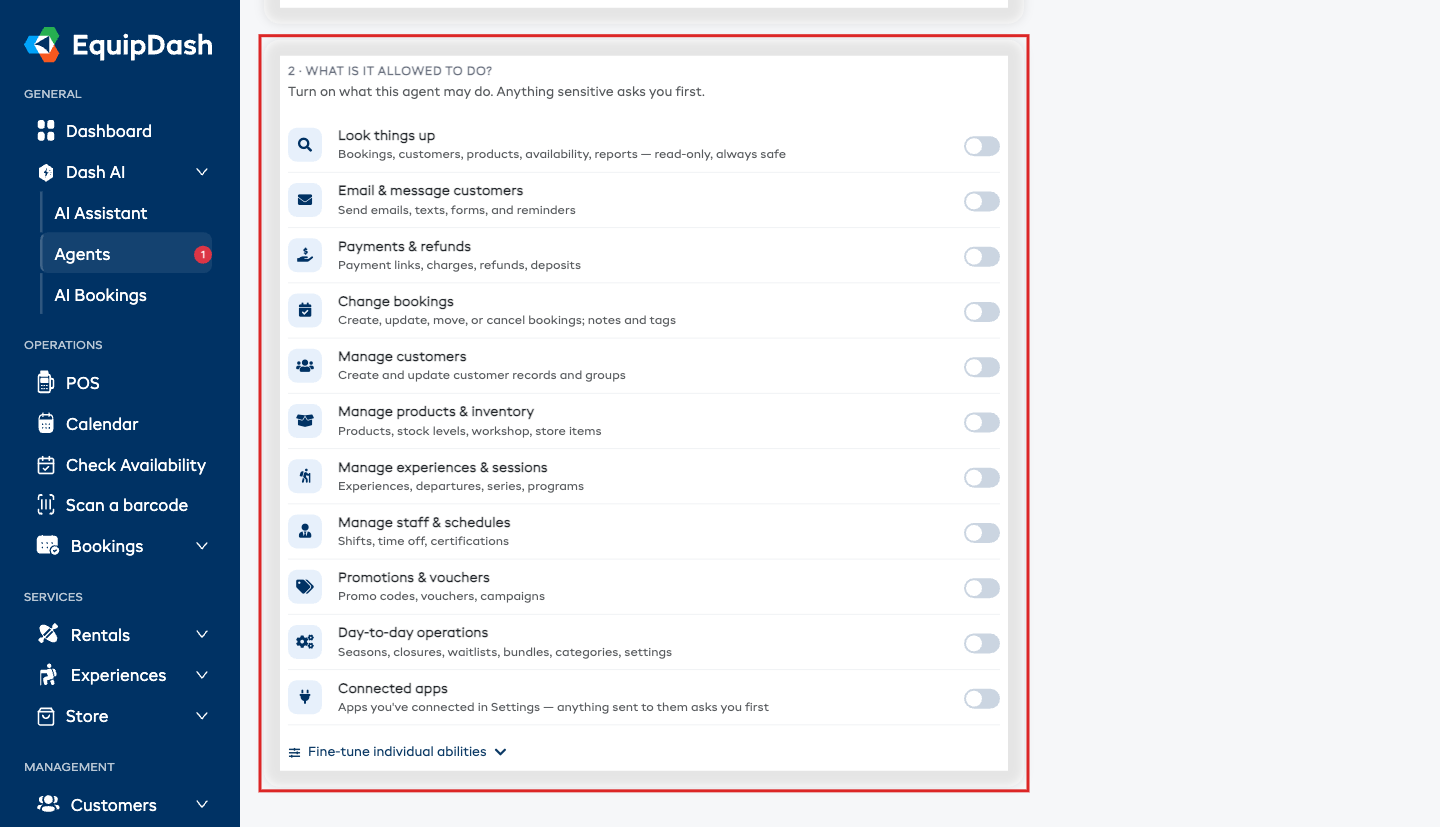
Fine-tuning individual abilities
If a switch is broader than you want, click Fine-tune individual abilities underneath. That opens the complete list, where you can tick or untick each ability one at a time and set whether it runs on its own or asks you first.
You can also click Select for me — Dash reads your instructions and picks the abilities that match.
Not sure what something does? See the Tools Reference for a plain-English explanation of each one.
Step 3: When should it run?
- Choose when the agent runs:
- Manual — only when you click Run now.
- Schedule — choose a frequency (every 15 minutes, every 30 minutes, hourly, every 4 hours, daily, weekly, or monthly) and set a time, day, or date.
- Event — choose what should set it off (e.g., a booking is created, a payment is received).
- Weather — run it when one of your weather rules is breached.
Advanced settings
- AI model — which model the agent uses. The default (GPT-5.4 Mini) suits most jobs and uses fewer credits; the larger models are there for more complex reasoning.
- Max steps — how many actions the agent may take in a single run (1 to 50, default 10). More steps let it do more work but use more credits. If a run stops early because it ran out of steps, this is the setting to raise.
Save
- Click Activate agent to turn it on right away.
- Or click Save draft to save it switched off. You can turn it on later from the agents list.
Method 3: Describe It and Let Dash Build It
If you are not sure how to set an agent up, just describe the job.
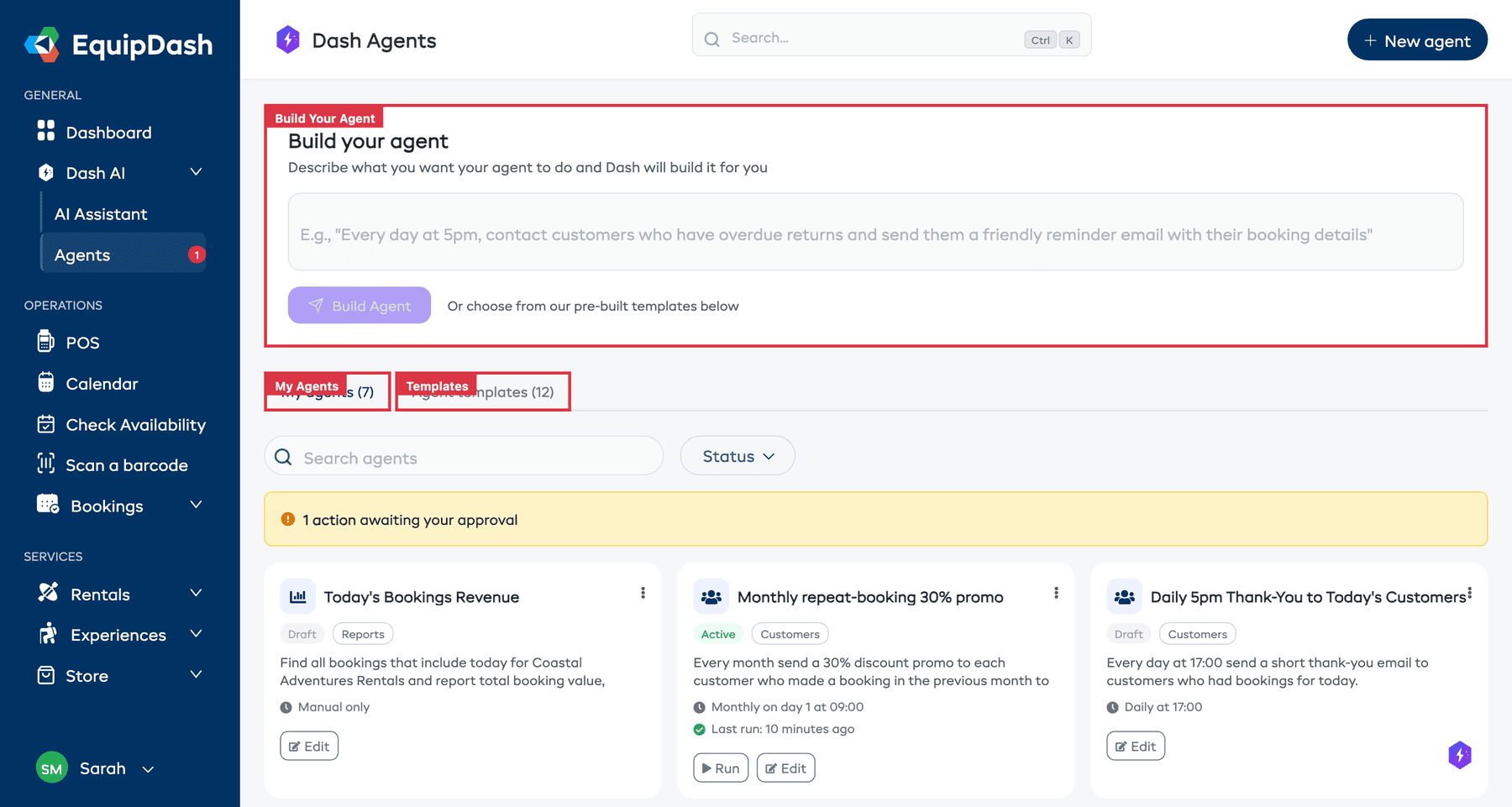
- On the Dash Agents page, find the Build your agent box.
- Type what you want the agent to do. For example: "Every morning, check for bookings starting today that have incomplete waivers and send a reminder email to those customers."
- Click Build Agent.
- The builder opens with everything filled in — instructions, what it is allowed to do, and when it runs.
- Read it over, change anything you want, then click Activate agent or Save draft.
Method 4: Ask for It in the Chat
You can also ask for an agent without leaving the Dash AI chat.
- Open Dash AI.
- Say what you want — for example, "create an agent that texts customers the day before their session."
- Dash builds it and tells you it is ready.
- The agent is saved as a draft, switched off. Open it from the Agents page, review it, and turn it on when you are happy.
Agents created this way are never switched on automatically — you always get to look first.
Editing an Agent
- Go to the Agents page.
- Click the agent you want to edit, or click the Edit button on the agent card.
- The builder opens with the agent's current settings.
- Make your changes and click Update agent (for an active agent) or Activate agent / Save draft.
Enabling and Disabling an Agent
You can toggle an agent on or off without deleting it.
- On the Agents page, find the agent you want to toggle.
- Click the Enable/Disable toggle on the agent card.
- A disabled agent will not run automatically (scheduled or event triggers are paused), but you can still run it manually.
Deleting an Agent
- On the Agents page, click the Delete button on the agent card.
- Confirm the deletion in the window that appears.
- Deleting an agent is permanent and removes all its run history.
How Many Agents Can I Have?
| Growth | Pro | |
|---|---|---|
| Agents | 3 | 10 |
| Runs per month | 200 | 1,000 |
If you hit the limit, either turn off an agent you no longer need or upgrade your plan.