Archiving and Deleting Customers
Your customer list grows with every booking. Archive the people you no longer need to see, and delete test or duplicate records that never booked.
Archive or Delete?
| Archive | Delete | |
|---|---|---|
| Hidden from the Customers list | Yes | Yes |
| Hidden from POS, Quick Book and other customer pickers | Yes | Yes |
| Booking history kept | Yes | Not allowed if they have bookings |
| Can be undone | Yes, restore any time | No |
An archived customer comes back on their own if they book again with the same email or phone number.
Archive One Customer
- Click Customers in the sidebar.
- In the Actions column, click the archive icon on the customer's row.
- Click Confirm.
Act on Several Customers at Once
- Tick the checkbox at the start of each row you want. The box in the header ticks every row on the page.
- A dark bar appears above the list showing how many you ticked.
- Click an action on the bar:
- Archive hides every ticked customer.
- Export downloads just the ticked customers as a CSV file. See Exporting Customers for the columns.
- Delete asks you to confirm first.
- Click Clear on the bar to untick everything.
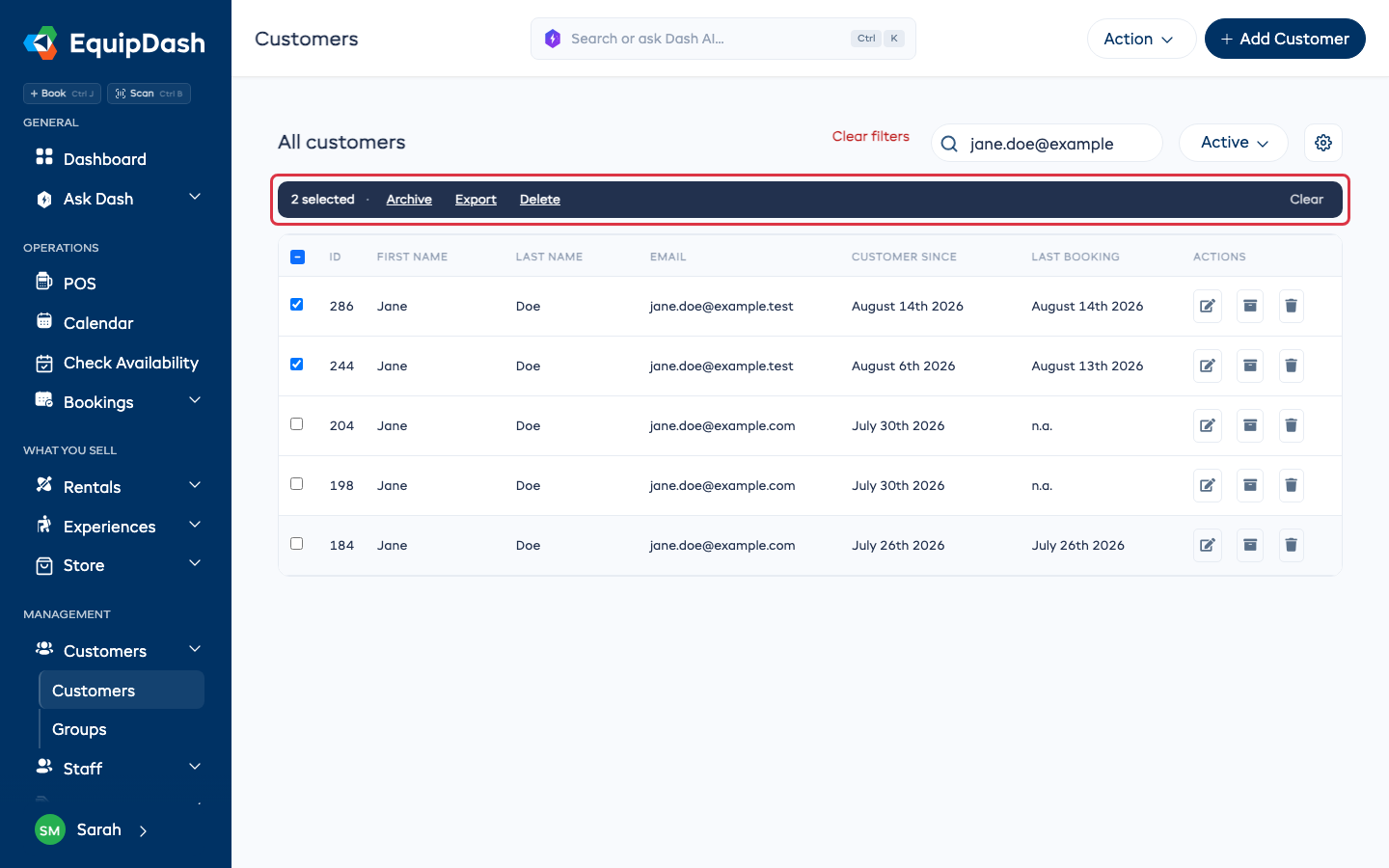
Searching the list unticks everything, so an action only reaches the customers you can see.
Deleting Customers
Customers who have bookings can't be deleted, because their bookings need them. The confirm box tells you how many of your ticked customers have bookings. Those are kept and the rest are deleted for good. If every ticked customer has bookings, the box says so and offers Close only. Archive them instead.
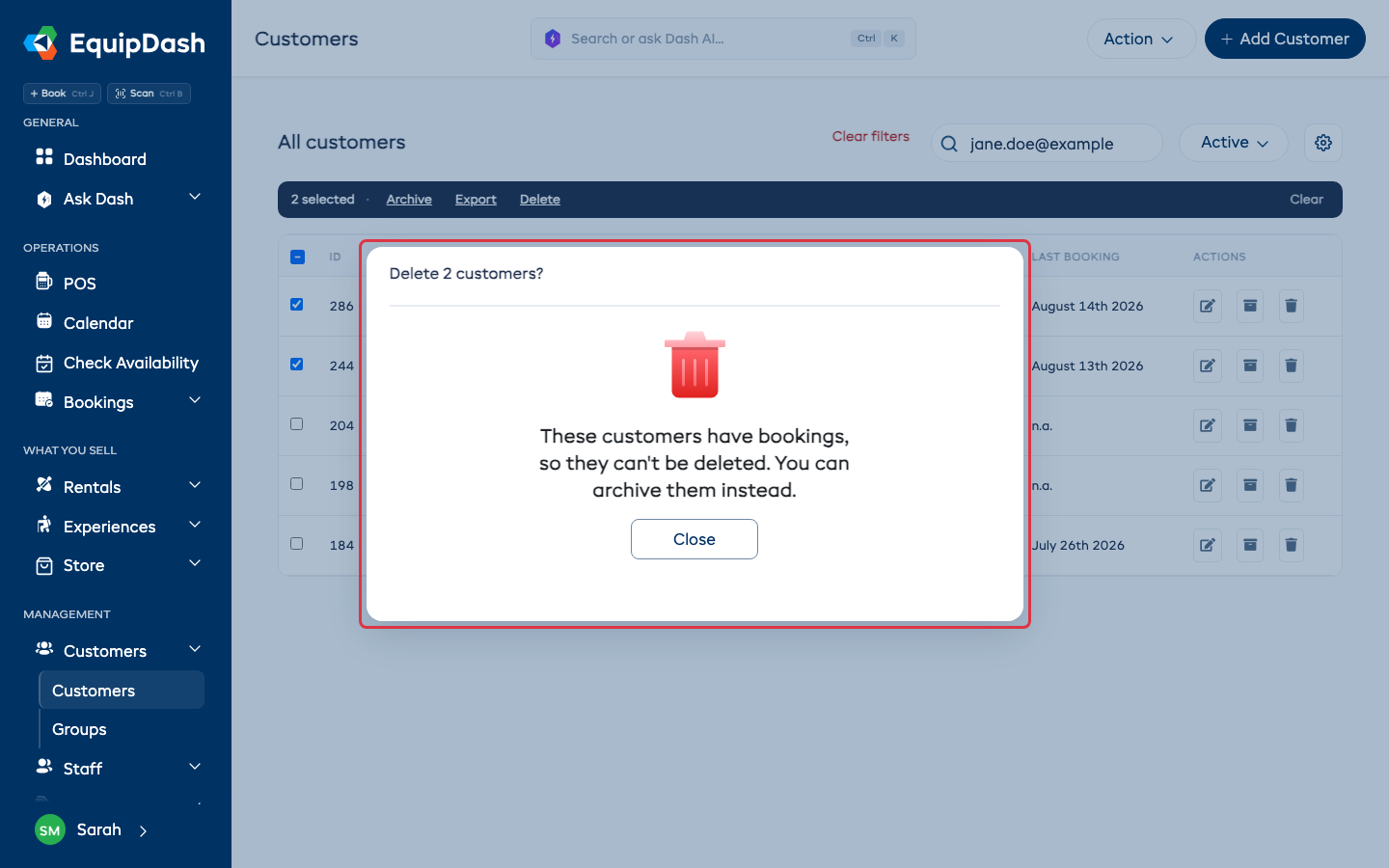
To delete one customer, click the trash icon on their row.
See and Restore Archived Customers
- Open the Active dropdown next to the search box and choose Archived.
- To restore one customer, click the restore icon on their row, then Confirm.
- To restore several, tick them and click Restore on the bar.
Who Can Do This?
- Archive and restore need permission to edit customers.
- Delete needs permission to delete customers.
- Export needs permission to export customers.
Staff without any of these don't see the checkboxes. See Roles & Permissions.
Related
- Customer Overview
- Exporting Customers
- GDPR & Customer Privacy for erasing a customer's personal data on request